
Managed Account was a concept introduced in SharePoint 2010 to circumvent the issues pertaining to Service Account management that existed in SharePoint 2007. Till dateUntil now, even in SharePoint 2016, the concept and creation remains the same.
While installing the SharePoint 2016 Preview, in the end, we get a Window which provides us with a wizard to create Service Applications as part of the installation.
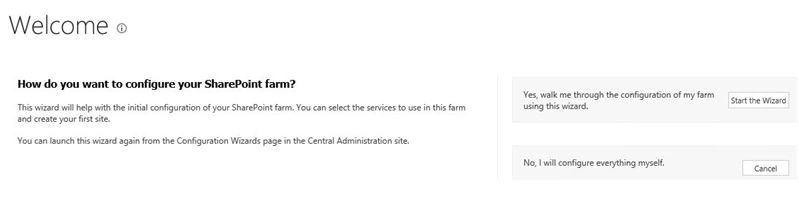
Starting the Wizard creates Service Applications for Search, Secure Store, etc.
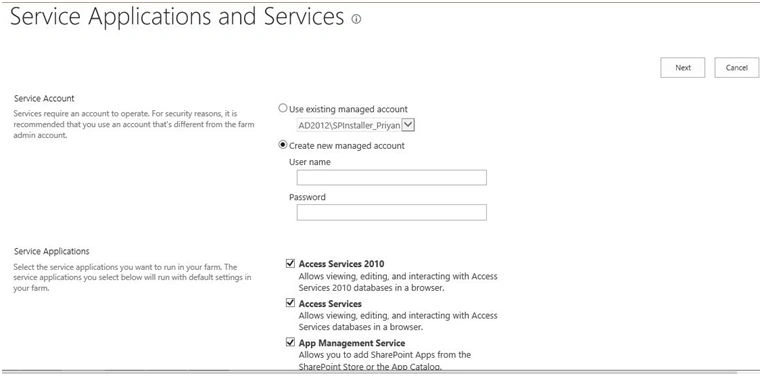
But I did not want that to happen, as all of the Service Applications will have the same Managed Account as the operating account. So I did not go with the wizard, instead I created Service Applications individually and associated specific Managed Accounts to each.
What is a Managed Account
Managed Account is nothing but an AD Domain Account that is added to SharePoint to manage Service Applications and Web Application Pools, but with the added advantage that the passwords can now be managed from within SharePoint.
Why do we need a Managed Account
Pre SharePoint 2010 versions ran into problems while using AD accounts to configure web applications, because if the AD account passwords expired there was no way that SharePoint would know about it. Ultimately, wherever the corresponding user has been configured it would basically lock down the Service/Web application.
The solution was Managed Accounts. While adding the Managed Accounts we can set a policy that would automatically renew passwords on a regular basis and the update will be pushed to the AD as well. Thus, all the passwordsare kept in sync.
How to create a Managed Account via Central Administration
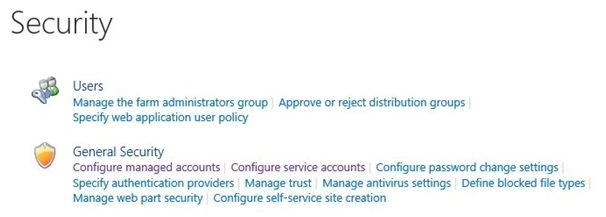
Go to Security, then click Configure managed accounts.
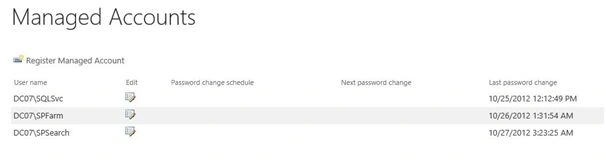
The page will list all existing Managed Accounts within the farm. Click on Register Managed Account to create a new Managed Account.
Specify the AD user credentials under Service account credentials.

Check Automatic password change option to manage the password update from within SharePoint. You have the option to change the passwords weekly or monthly.
On clicking Finish you can see the new Managed Account listed in the Farm Managed Accounts section.
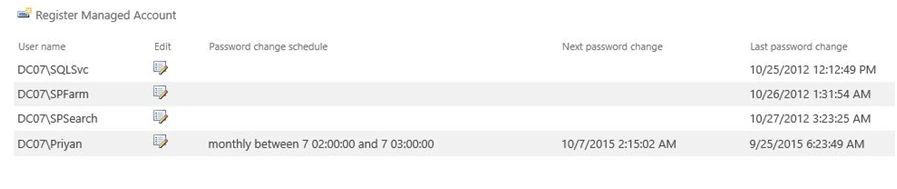
Note: If the Automatic password option is set , it will update the password in the AD as well .
How to create a Managed Account Via PowerShell
Open the SharePoint Powershell Management Console.
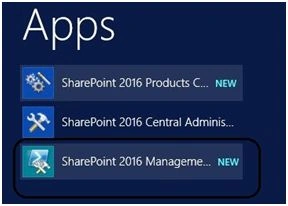
In order to see the existing Managed Accounts use the script:
Get-SPManagedAccount

Create New Managed Account
SPAdmin is an already existing AD account.
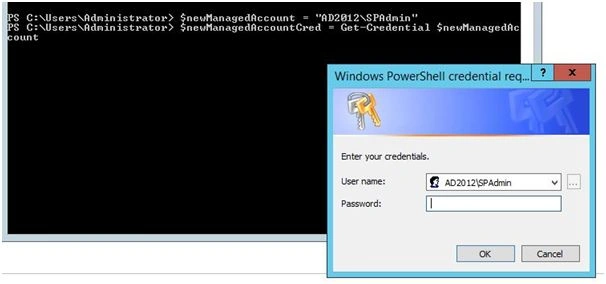
$newManagedAccount = "AD2012\SPAdmin"
$newManagedAccountCred = Get-Credential $newManagedAccount
New-SPManagedAccount -Credential $newManagedAccountCred
Once this script is added to the PowerShell window it will prompt for the password for “SPAdmin." Upon entering the password you can see the newly Managed Account listed out .

Going back to the Central Admin,
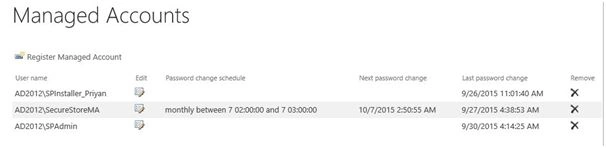
Thus we have explored what are managed accounts and how they can be created using UI as well as PowerShell.

SharePoint 2016 And Managed Accounts
Join the conversation! Your thoughts help the community grow.
Sign in to leave a comment
It is the same account you read, post and publish with — and you will come straight back to this page.
Santhakumar MunuswamyPosted Jan 13, 2016, 10:46 AM
Thanks for nice share
Raja SekarPosted Jan 12, 2016, 7:43 AM
Nice
Humayun Kabir MamunPosted Jan 11, 2016, 11:06 PM
Nice...
Vinodh NarayananPosted Jan 11, 2016, 11:48 AM
good one
Nanddeep NachanPosted Jan 11, 2016, 10:26 AM
Has any concept changed from previous versions of SharePoint?
Ankit SaxenaPosted Jan 11, 2016, 8:36 AM
Good informative post
Arul RPosted Jan 11, 2016, 8:18 AM
Nice share
Prasham SabadraPosted Jan 11, 2016, 8:08 AM
Thanks for sharing :-)
Rupali ShindePosted Jan 11, 2016, 6:44 AM
thanks for sharing new concepts
Joe WilsonPosted Jan 11, 2016, 4:40 AM
thank you very much.
Mohammed IbrahimPosted Jan 11, 2016, 2:55 AM
nice