This article will explain the PowerShell script that searches for files within document libraries in SharePoint (farm level, site collection level, web level etc.) based on the search parameters you provide. It can also be used for searching in SharePoint for any files with specified extension. The results are returned in .CSV format.
Examples of scenarios
- Search the entire farm for files that have names like “Training Copy”.
- Search the site collection http://sharepoint.mydreambox.com/sites/site1 for all PDF files, RDL files, etc.
- Search the web http://sharepoint.mydreambox.com/sites/site1/web1 for the file named “AXL8rt.docx”, etc.
Usage of the Script
- Replace the $webApp, $sites, etc. with appropriate values
- Replace the $searchKey with the desired search queries or file extension that is to be searched for
- Make sure the account that is running these scripts have necessary privileges in SharePoint
Script use cases
The code is presented for four different cases,
- Searching for an entire farm
- Searching within a web application
- Searching within a site collection
- Searching within a web
Output
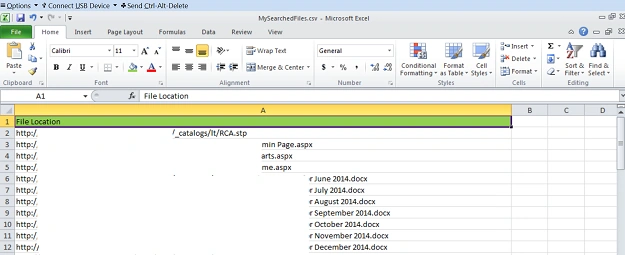
The output will be in the form of a CSV file, as displayed below. It will contain all the file location URLs.
Case I - For searching within the entire farm
- if ((Get-PSSnapin "Microsoft.SharePoint.PowerShell" -ErrorAction SilentlyContinue) -eq $null)
- {
- Add-PSSnapin "Microsoft.SharePoint.PowerShell"
- }
-
- $sites = Get-SPSite -Limit All
- $searchKey = ".rdl"
- $results = @()
-
- foreach ($site in $sites)
- {
- foreach ($web in $site.AllWebs)
- {
- Write-Host Searching within $web.Url
- foreach ($list in $web.Lists)
- {
- if($list.BaseType -eq "DocumentLibrary")
- {
- foreach($item in $list.Items)
- {
- if($item.Name.Contains($searchKey))
- {
- $RowDetails = @{
- “File Location” = $web.Url + "/" + $item.Url
- }
- $results += New-Object PSObject –Property $RowDetails
- }
- }
- }
- }
- }
- }
- $results | Export-CSV –Path C:\MySearchedFiles.csv -NoTypeInformation
Case II - For searching within a Web Application
- if ((Get-PSSnapin "Microsoft.SharePoint.PowerShell" -ErrorAction SilentlyContinue) -eq $null)
- {
- Add-PSSnapin "Microsoft.SharePoint.PowerShell"
- }
-
- $webApp = "http://sharepoint.dreambox.com"
- $sites = Get-SPSite -WebApplication $webApp -Limit All
- $searchKey = "Self Improvement"
- $results = @()
-
- foreach ($site in $sites)
- {
- foreach ($web in $site.AllWebs)
- {
- Write-Host Searching within $web.Url
- foreach ($list in $web.Lists)
- {
- if($list.BaseType -eq "DocumentLibrary")
- {
- foreach($item in $list.Items)
- {
- if($item.Name.Contains($searchKey))
- {
- $RowDetails = @{
- “File Location” = $web.Url + "/" + $item.Url
- }
- $results += New-Object PSObject –Property $RowDetails
-
- }
- }
- }
- }
- }
- }
- $results | Export-CSV –Path C:\MySearchedFiles.csv -NoTypeInformation
Case III - For searching within a Site Collection
- if ((Get-PSSnapin "Microsoft.SharePoint.PowerShell" -ErrorAction SilentlyContinue) -eq $null)
- {
- Add-PSSnapin "Microsoft.SharePoint.PowerShell"
- }
-
- $site = Get-SPSite “http:
- $searchKey = ".docx"
- $results = @()
-
-
- foreach ($web in $site.AllWebs)
- {
- Write-Host Searching within $web.Url
- foreach ($list in $web.Lists)
- {
- if($list.BaseType -eq "DocumentLibrary")
- {
- foreach($item in $list.Items)
- {
- if($item.Name.Contains($searchKey))
- {
- $RowDetails = @{
- “File Location” = $web.Url + "/" + $item.Url
- }
- $results += New-Object PSObject –Property $RowDetails
-
- }
- }
- }
- }
- }
- $results | Export-CSV –Path C:\MySearchedFiles.csv -NoTypeInformation
Case IV - For searching within a Web
- if ((Get-PSSnapin "Microsoft.SharePoint.PowerShell" -ErrorAction SilentlyContinue) -eq $null)
- {
- Add-PSSnapin "Microsoft.SharePoint.PowerShell"
- }
-
- $web = Get-SPWeb “http:
- $searchKey = ".pdf"
- $results = @()
-
- foreach ($list in $web.Lists)
- {
- if($list.BaseType -eq "DocumentLibrary")
- {
- foreach($item in $list.Items)
- {
- if($item.Name.Contains($searchKey))
- {
- $RowDetails = @{
- “File Location” = $web.Url + "/" + $item.Url
- }
- $results += New-Object PSObject –Property $RowDetails
- }
- }
- }
- }
-
- $results | Export-CSV –Path C:\MySearchedFiles.csv -NoTypeInformation


Join the conversation! Your thoughts help the community grow.