

Overview
Microsoft is focusing more on Modern UI in SharePoint online. Microsoft is releasing new and very nice features to Office 365 on a frequent basis. SharePoint in its online version is also experiencing the addition of new useful features.
The recent addition to the new feature of SharePoint online is Column formatting. Microsoft had released SharePoint Framework extensions for Column Customizer on similar lines but needed some custom development. Column formatting, on the other hand, is relatively very simple to configure and use.
As the word says “Column formatting”, needless to say, it helps to customize how fields or columns in SharePoint list and libraries are displayed to the end users.
Formatting using JSON
Although I said Column formatting is relatively easy to configure, one should have a basic knowledge of JSON. We can form a JSON object that will describe elements which will be displayed when the field is displayed in the list view.
Can I change data using Column formatting?
If you have explored JSLink previously, Column formatting is similar to it in Modern UI. That means, you will not be able to change the data in list item or a file, but you will be able to change the look and feel of a field
How it looks like
Let us take an example of tasks list. A tasks list where all project related tasks are tracked. In the out of box look and feel, it looks like below

With the column formatter, each of the columns in Project Tasks list can be formatted to look something like below.
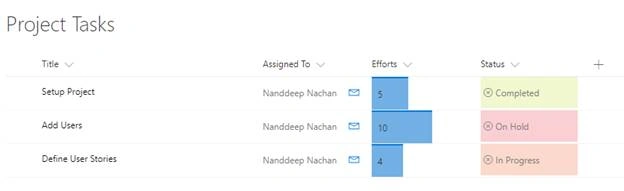
Applying the column formatting
Open the SharePoint list
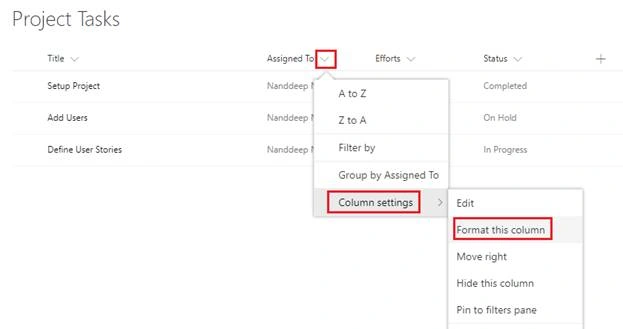
Click the down arrow beside the column name
Select “Column settings” > “Format this column”
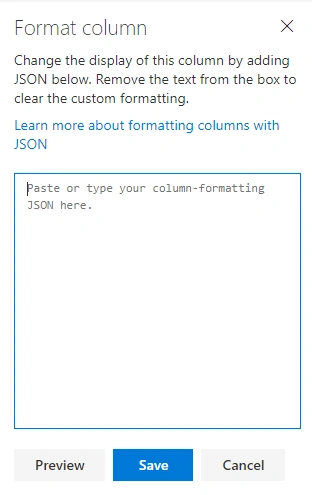
The Pane will appear as below to write and test the JSON.
Text, Number, Date, Choice fields
To display the column value in a div, use the following JSON.
- {
- "elmType": "div",
- "txtContent": "@currentField"
- }
Person field
To display the column value in a div, use the following JSON.
- {
- "elmType": "div",
- "txtContent": "@currentField.title"
- }
Person field
To display the column value in a div, the following JSON.
- {
- "elmType": "div",
- "txtContent": "@currentField. lookupValue"
- }
Useful Column formatting JSON examples can be found here - https://github.com/SharePoint/sp-dev-column-formatting/tree/master/samples
To apply formatting to number column (Efforts in our case), use the following JSON.

Lakshmanan Sethu SankaranarayanPosted Feb 15, 2018, 1:25 PM
Nice read and very informative
Sagar PardeshiPosted Jan 25, 2018, 4:21 AM
Good article......
Vinodh NarayananPosted Jan 25, 2018, 12:33 AM
Interesting and good one