

Sharing data across teams is an important part of building a collaborative data platform. In Microsoft Fabric, you don't always need to give another user access to an entire workspace just because they need to read data from a Lakehouse.
With Lakehouse sharing, you can grant specific users or groups access to a Lakehouse while keeping the rest of your workspace and its items private. This makes it easier to collaborate with other teams while maintaining control over your data.
In this article, we'll explore how to share a Lakehouse, configure permissions, and manage access in Microsoft Fabric.
Step 1: Open Your Fabric Workspace
Sign in to the Microsoft Fabric portal and navigate to the workspace containing the Lakehouse you want to share.
Locate the Lakehouse in your workspace. You can share it by selecting the Share icon next to its name or by selecting the ellipsis (...) and choosing Share from the menu.
Step 2: Share the Lakehouse
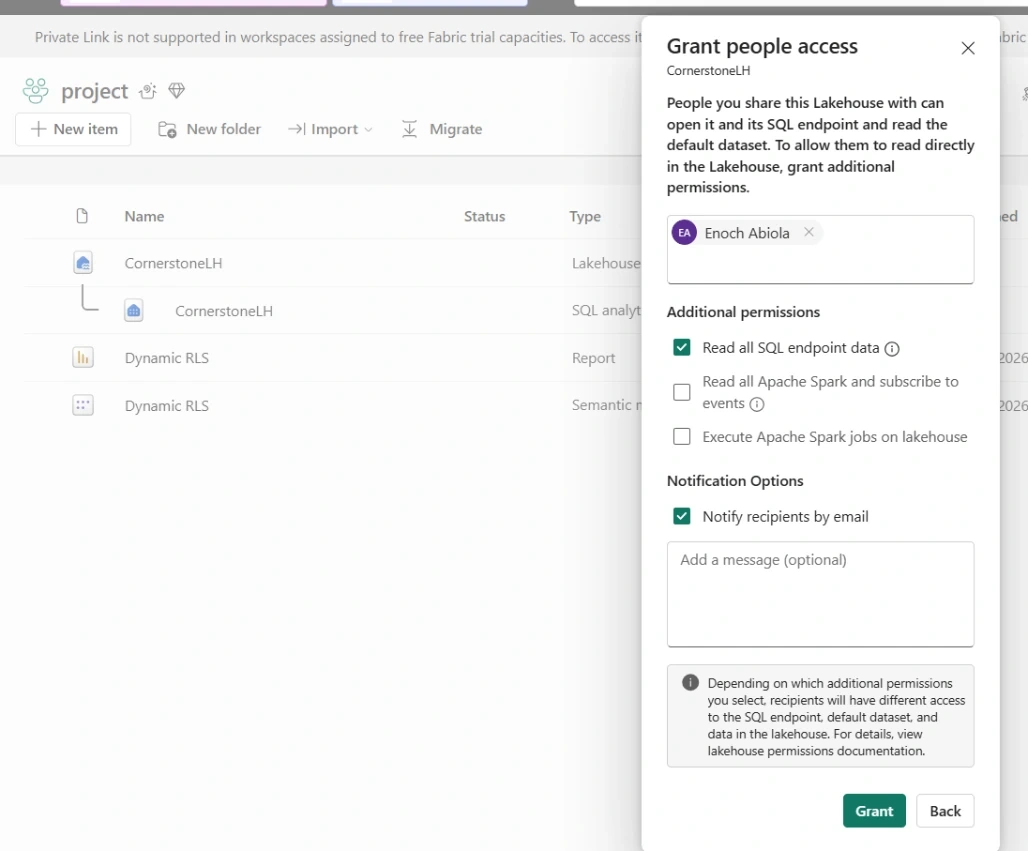
When the sharing dialog opens, complete the required fields in the Grant people access screen.
Enter the names or email addresses of the users or groups you want to share the Lakehouse with, review the available permissions, and select Grant.
Once access is granted, recipients can find the shared Lakehouse under Browse → Shared with me or through the OneLake catalog.
One important point to understand is that sharing a Lakehouse does not automatically make the recipient a member of your workspace. They receive access to the shared item rather than the entire workspace.
Step 3: Understand Lakehouse Permissions
By default, sharing a Lakehouse grants read access to the Lakehouse and its associated SQL analytics endpoint. However, different users may need different ways to access the data.
Microsoft Fabric provides additional permissions to support these scenarios:
- Read: Allows users to open the shared Lakehouse item.
- Read all with SQL analytics endpoint: Allows users to query data through the SQL analytics endpoint using T-SQL.
- Read all with Apache Spark: Allows users to read Lakehouse data through Apache Spark and OneLake APIs.
- SubscribeOneLakeEvents: Allows users to subscribe to OneLake events generated for the Lakehouse.
- Execute Apache Spark: Allows users to execute Spark jobs through the Lakehouse Livy endpoint.
These permissions help you grant access according to how recipients need to work with your data. For example, a user who needs to query tables using SQL may require different permissions from a data engineer who needs to access files through Spark.
Note that the additional Spark permission does not replace the base Read permission. Also, Lakehouse sharing alone does not grant write access to the data.
Step 4: Manage Existing Permissions
Sharing a Lakehouse is only part of the process. You may also need to review who has access as team responsibilities change.
To manage permissions:
- Navigate to the workspace containing your Lakehouse.
- Select the ellipsis (...) next to the Lakehouse name.
- Select Manage permissions.
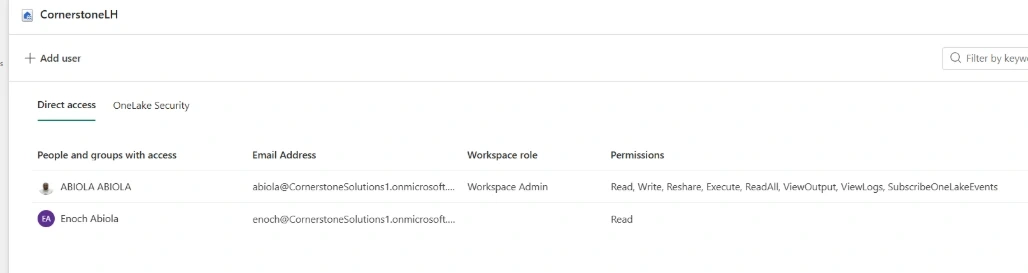
- Open Direct access to review existing access entries.
- Add custom permissions or remove users' access where necessary.
This provides a convenient way to keep permissions up to date without giving everyone broader access than they need.
Step 5: Recipient E mail Notification
After successfully sharing the Lakehouse, the recipient automatically received an email notification in their outlook invox notifying them that Lakehouse as been shared with them. The notification contains the link that directly allows them to access the Lakehouse
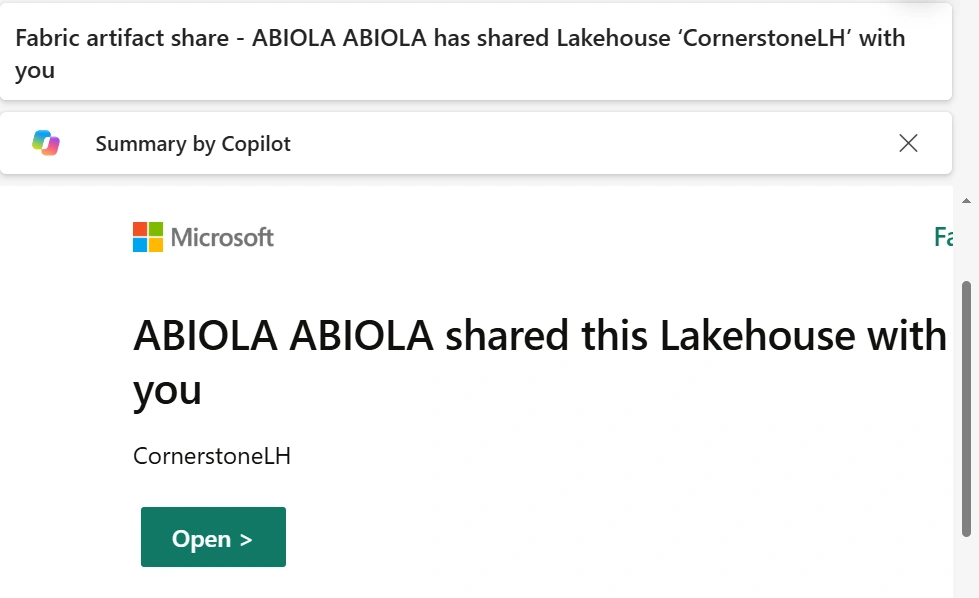
After the recipient clicked the link, the Lakehouse becomes accessible.
In conclusion, Lakehouse sharing in Microsoft Fabric provides a straightforward way to collaborate on data without granting access to an entire workspace. By sharing individual Lakehouse items, configuring the appropriate permissions, and using OneLake security for more granular access control, administrators can make data available to the right people while maintaining better control over access.
Whether you're working with data analysts, data engineers, or other business teams, understanding Lakehouse sharing is an important step towards building a secure and collaborative Microsoft Fabric environment.
Join the conversation! Your thoughts help the community grow.