


Imagine owning an e-commerce platform that lists a wide variety of experts, from fitness coaches and yoga masters to financial advisors.
Suppose a customer needs SEO services but isn’t familiar with the industry jargon. Instead of searching for ‘SEO,’ they type: ‘I need help from someone who can increase my website traffic.’ A conventional database (like SQL) would likely fail to return any results because the specific keywords don’t match.
This is where a Vector Database comes to the rescue. Rather than looking for exact word matches, vector databases represent data as mathematical coordinates. This allows the system to search through vast amounts of information based on conceptual similarity , connecting the user’s intent with the right service provider.

To make this work, we need an AI model to handle the embedding process. Once the data is converted into vectors, we store them in the Vector Database , which then enables our search capabilities.
Rather than sticking to theory, let’s look at a real-life example. Imagine my e-commerce website stores all available services in a traditional SQL Server table named offerings . The data structure would look like this:

As you can notice in our table, Service ID 101 is exactly what the customer needs. But how does a Vector Database actually find this result when the user types: ‘I need help from someone who can increase my website traffic’ ?
To demonstrate this, we first need to set up a Vector Database. For this example, I’ve chosen Qdrant . Qdrant is a powerful, open-source vector database that is free to use when running locally on your machine. You can find the official installation guide at the link below to get started.
Installation - Qdrant
Once you have successfully installed and started Qdrant via Docker, you can verify it’s running by visiting the built-in Web UI. Open your browser and navigate to: http://localhost:6333/dashboard
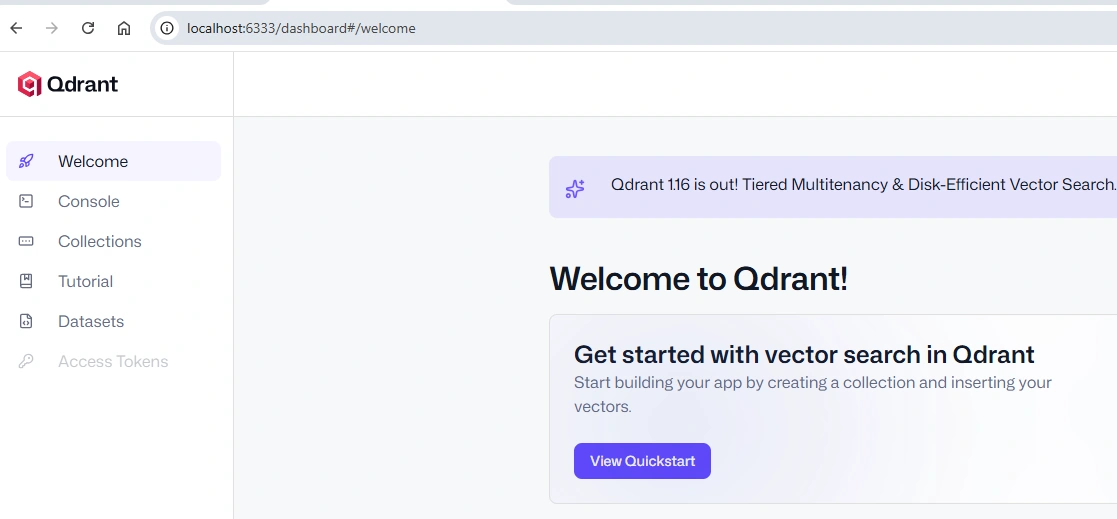
Next, we will begin embedding the data from our offerings table into the vector database.
To do this, we need an AI model. For this demonstration, I am using the ‘BAAI/bge-m3’ model. It is an excellent choice for beginners because it is lightweight enough to run on a standard laptop. A key advantage of this specific model is its native support for hybrid search (combining dense and sparse vectors), which ensures high accuracy even if your descriptions contain multiple languages or technical jargon.
Below is a simplified Python script demonstrating how to load the AI model, retrieve the data from SQL Server, and use a generate_embeddings() function to transform that text into vectors.
    EMBEDDING_MODEL = "BAAI/bge-m3"

  model = SentenceTransformer(EMBEDDING_MODEL) #Load the model

  offerings = fetch_offerings(conn #Get data from offerings table

  items_with_embeddings = generate_embeddings(offerings, model)
Before calling the generate_embeddings() method, I use a helper function called create_text_for_embedding(). This function concatenates the most important columns from our offerings table into a single string.
Instead of embedding just the description, we combine the Service Name, Category, and Description together. For our SEO example, the final text sent to the AI model looks like this:
“Service: Brand Catalyst Marketing | Category: Marketing | Description: Social media management, SEO, and pay-per-click advertising campaigns.”
By including the category and service name, we provide the AI with a richer context, which significantly improves the accuracy of our search results.
def create_text_for_embedding(item: Dict) -> str:

    text_parts = [
        f"Service: {item['name']}",
        f"Category: {item['category']}" if item['category'] else "",
        f"Description: {item['description']}" if item['description'] else ""
    ]
    # Filter out empty parts
    text_parts = [part for part in text_parts if part]
    return " | ".join(text_parts)

def generate_embeddings(items: List[Dict], model: SentenceTransformer) -> List[Dict]:
    """Generate embeddings for all items using BGE-M3 model"""
    texts = [create_text_for_embedding(item) for item in items]
And we continue with the generate_embeddings method.
def generate_embeddings(items: List[Dict], model: SentenceTransformer) -> List[Dict]:
#...
# Generate embeddings in batches for efficiency
    batch_size = 32
    all_embeddings = []

    for i in range(0, len(texts), batch_size):
        batch_texts = texts[i:i + batch_size]
        embeddings = model.encode(batch_texts, batch_size=batch_size, show_progress_bar=True)
        all_embeddings.extend(embeddings)
        print(f"  Processed {min(i + batch_size, len(texts))}/{len(texts)} items...")
Instead of process the table one row per row, I create a batch with size 32. So each batch will embed 32 rows of concatenate info from table offerings. The line model.encode is the embedding function, we just need to pass the batch_text and batch size to it.
And the return results embeddings,is the embedding result for this batch.
If you run the model for first time, it will take some times to download the model, before able to perform the embedding.

After we get all the embedding that return from the AI model, we need to upload the embedding info to the VDB. But before we can upload, we need to setup the Qdrant collection.
   items_with_embeddings = generate_embeddings(offerings, model)

        # Setup Qdrant collection
        setup_qdrant_collection(qdrant_client)

        # Upload to Qdrant
        upload_to_qdrant(qdrant_client, items_with_embeddings)
In VDB, collection is similar to ‘table’ in conventional database, so we need to setup a collection so we have ‘table’ to stored our embedded data.
def setup_qdrant_collection(qdrant_client: QdrantClient):
    COLLECTION_NAME = "offerings"
    # Create collection
    qdrant_client.create_collection(
        collection_name=COLLECTION_NAME,
        vectors_config=VectorParams(size=VECTOR_SIZE, distance=Distance.COSINE)
    )
I named my collection name to ‘offerings’, we can view the collection under the 6333 localhost if it setup correctly.
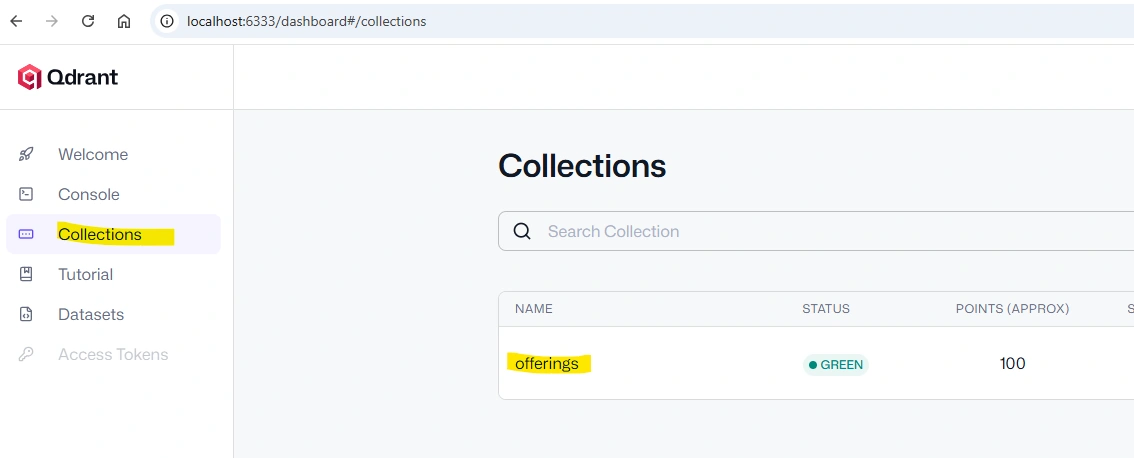
Then, upload the embedding data to this collection.
def upload_to_qdrant(qdrant_client: QdrantClient, items: List[Dict]):

    points = []

    for idx, item in enumerate(items):
        # Create a unique ID for each point
        point_id = str(uuid.uuid4())

        # Prepare payload (all metadata except embedding)
        payload = {
            'service_id': item['id'],
            'name': item['name'],
            'category': item['category'],
            'description': item['description'],
            'text': item['text']
        }

        point = PointStruct(
            id=point_id,
            vector=item['embedding'],
            payload=payload
        )
        points.append(point)

    # Upload in batches
    batch_size = 100
    for i in range(0, len(points), batch_size):
        batch = points[i:i + batch_size]
        qdrant_client.upsert(
            collection_name=COLLECTION_NAME,
            points=batch
        )
        print(f"✓ Uploaded batch {i//batch_size + 1} ({len(batch)} items)")

    print(f"✓ Total items uploaded: {len(points)}")
In a vector database, we use Payloads to store human-readable metadata. Maintaining a detailed payload allows us to perform precise filtering on our searches later — for example, if you only wanted to search for ‘Marketing’ services with a price under $100.
The final data object we upload to the database is called a Point. You can think of a Point as a ‘row’ in a vector database, and it consists of three main components:
ID: A unique identifier, similar to a Primary Key in a SQL database.
Vector: The numerical embedding generated by our AI model (the core of the search).
Payload: The metadata (Service Name, Category, etc.) that we want to retrieve and read.
Once the upload is complete, you can verify the results in the Qdrant dashboard. If successful, you will see your points listed within your collection, ready for searching.
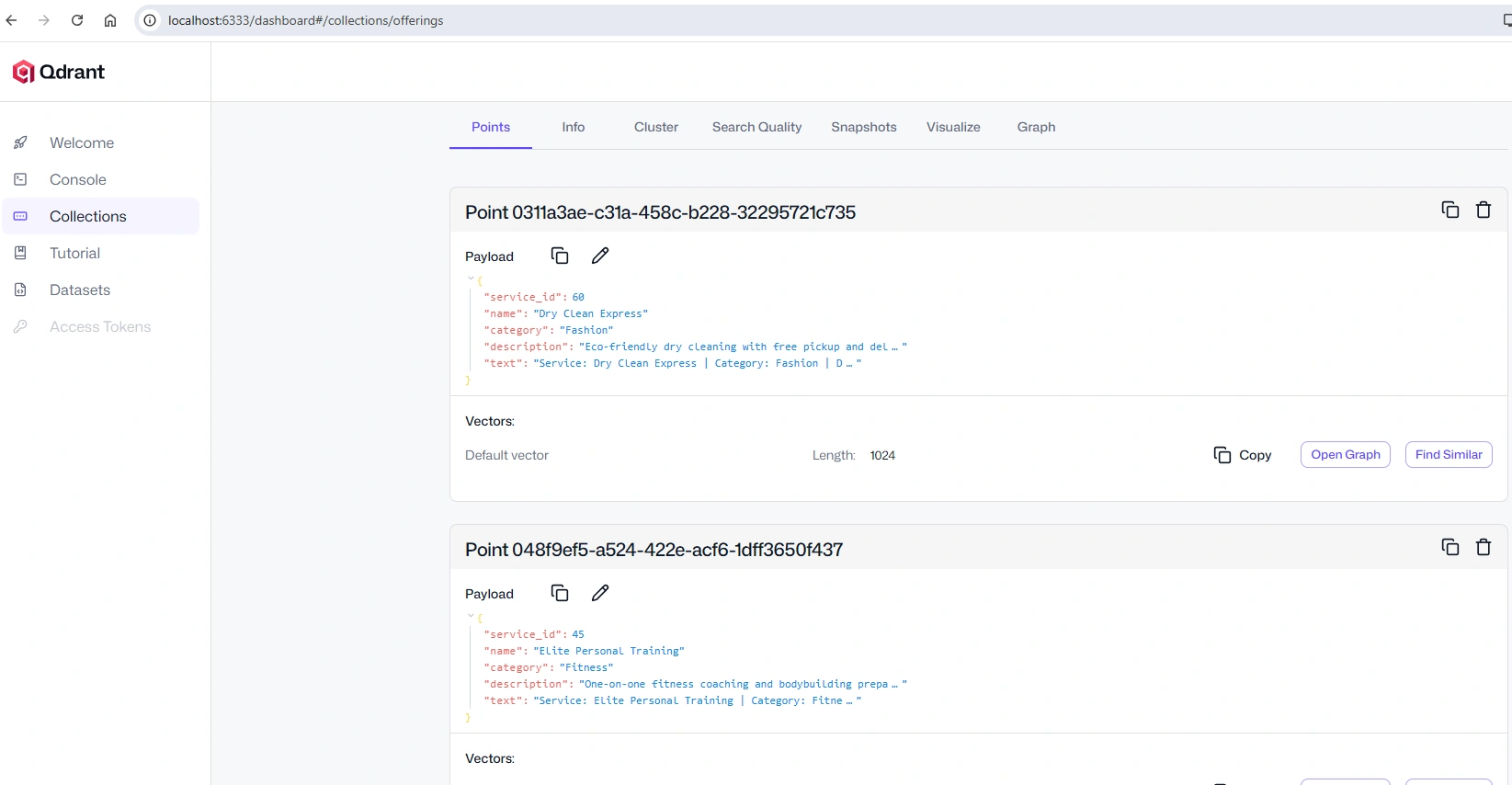
Now we done embed and upload the data from offerings table to the Qdrant VDB, now we create a simple console like query method to search the service.
Well, actually the search query is very straight forward, it can be done with just few line of code.
query_embedding = model.encode([query])[0]
    qdrant_client = QdrantClient(host=QDRANT_HOST, port=QDRANT_PORT)
    print("Searching Qdrant...")
    try:

        results = qdrant_client.search(
            collection_name=COLLECTION_NAME,
            query_vector=query_embedding.tolist(),
            limit=limit
        )
The Query is the specific text the customer types into the search bar.
It is vital to remember that we must use the exact same AI model (BAAI/bge-m3) to embed the user’s query as we did for our database records. If the models don’t match, the mathematical ‘coordinates’ won’t align, and the search will fail.
To perform the search, we use the built-in qdrant_client.search function. We can also set a limit, which functions just like a TOP or LIMIT clause in SQL, determining how many relevant results to return.
When the user searches for ‘I need help from someone able to increase the traffic of my website,’ the output will look like this:
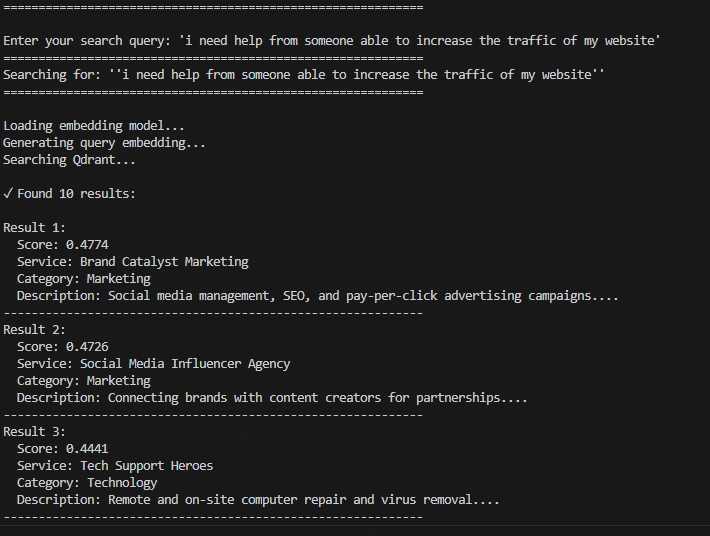
I print out the confidence score from highest to lowest. As you can see, the first result is Brand Catalyst Marketing service, which expertise in SEO.
This demonstrates the true power of a Vector Database: it understands that the intent behind ‘increase traffic to my website’ is directly related to SEO, even though the user never mentioned that specific term.
Furthermore, the second-best result involves social media influencers. This is also a highly relevant match for the customer’s request, as influencers are a proven way to drive traffic. In a traditional keyword-based system, this result would have been completely invisible.
Imagine with the help of VDB, my e-commerce website search can deliver the best match service to the customer, without any keyword matched needed.
Let see for few more examples:
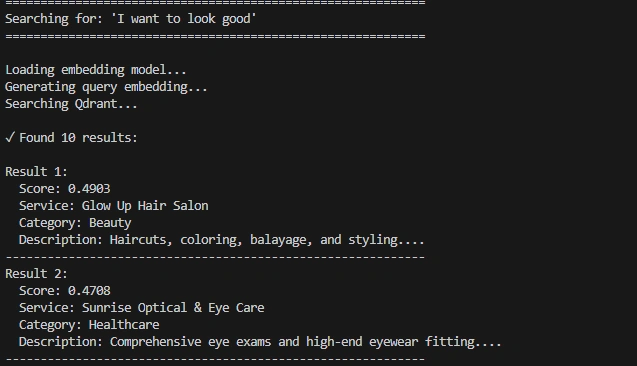
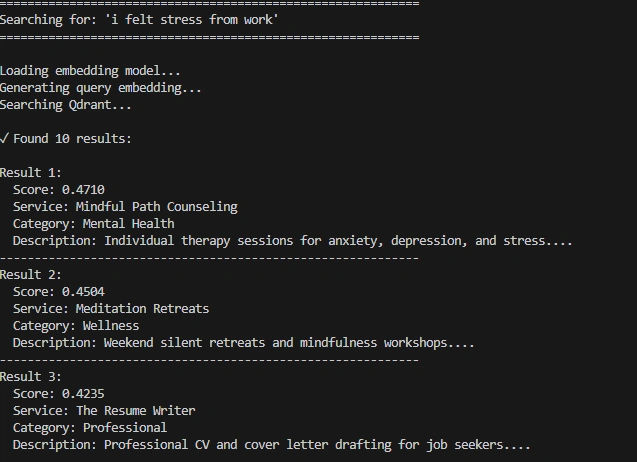
When I first encountered the semantic search capabilities of a Vector Database, it felt like discovering extraterrestrial technology. It is truly remarkable to see how much more powerful a search engine becomes when it moves beyond keywords to actual understanding.
But the potential of Vector Databases doesn’t stop at text. These systems can even perform image-to-image searches, allowing users to find what they need using visuals instead of words. I will dive deep into how image searching works in my next article.
You may download the demo code via my github.
Join the conversation! Your thoughts help the community grow.