
First open Microsoft Visual Studio 2012 with Administrative rights. The go to "File" -> "New" -> "Project".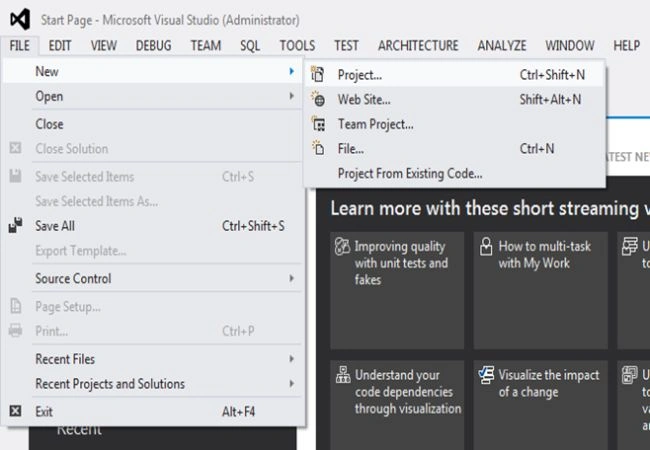
Select the "WCF Template" and then click on "WCF Service Library".
Set the name field to "WcfServiceConfiguration" and framework to ".NET 4.5" and save it your preferred location.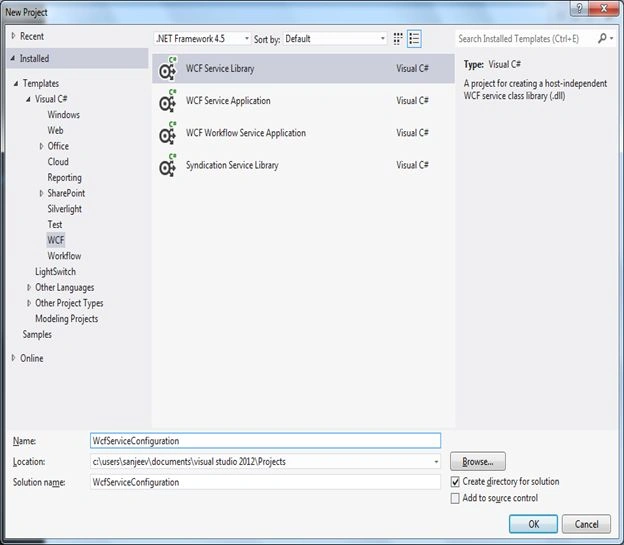
Rename the "IService.cs" to "IA.cs" and "Service.cs" to "A.cs".
Replace the existing code of IA.cs with the code shown in the following image.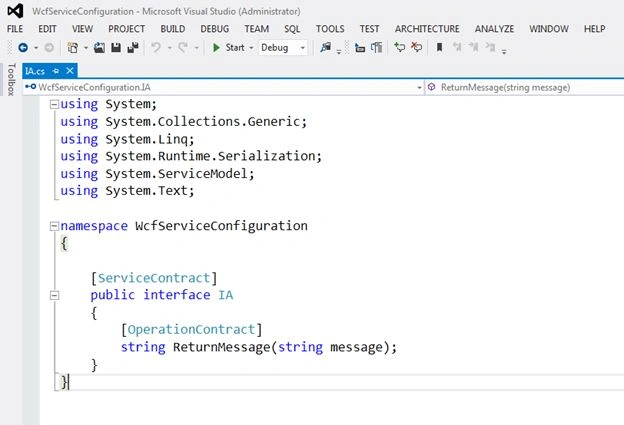
Now replace the existing code of A.cs with the code shown in the image below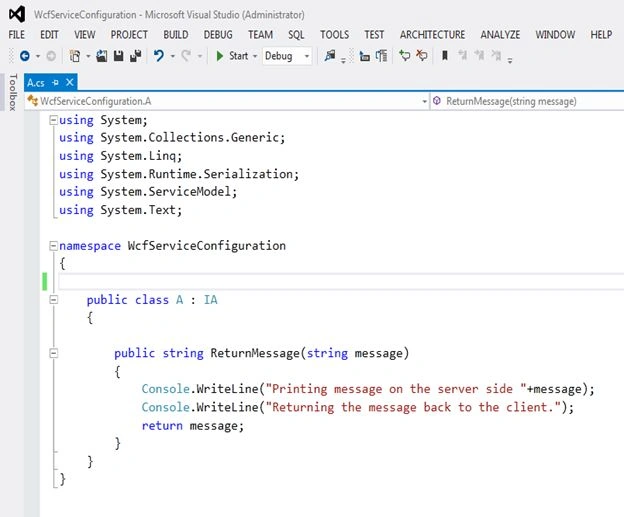
Now build this service to check that it does not contain any errors.
In the example I will declare the baseAddress, endpoints etcetera programmatically so you can delete the tags from the App.Config file.
Now I will create a Host Application to host this service.
Right-click the existing solution and select "Add" -> "New Project" then select Console Application, name this project "Host".
Add a reference to the System.ServiceModel dll and WcfServiceConfiguration dll that we have just built.
Now replace the existing code with the following code shown in the image below: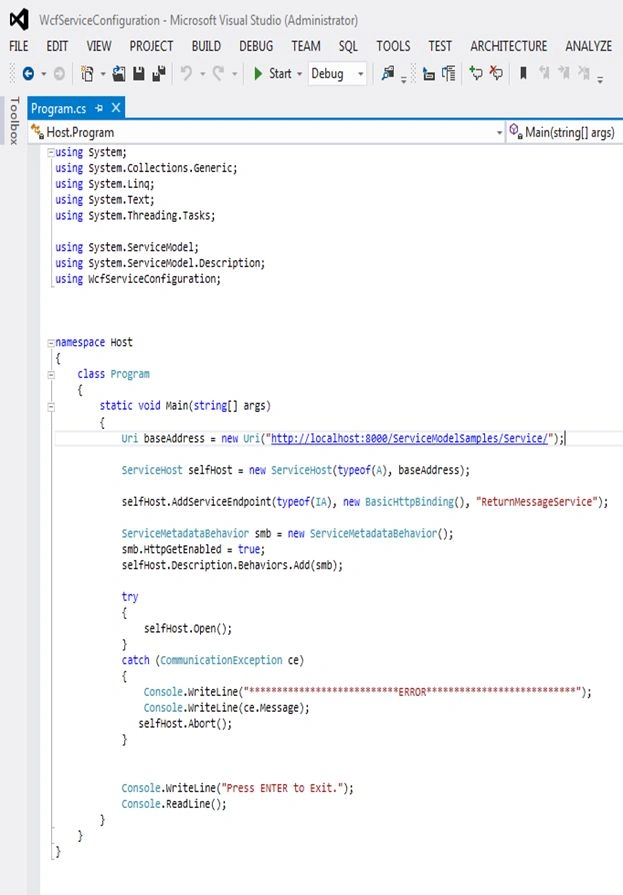
Set this Host Project as your startup project (right-click the host project and set as setup project) and press the F5 Key to run the host. If everything is fine you will see this command prompt: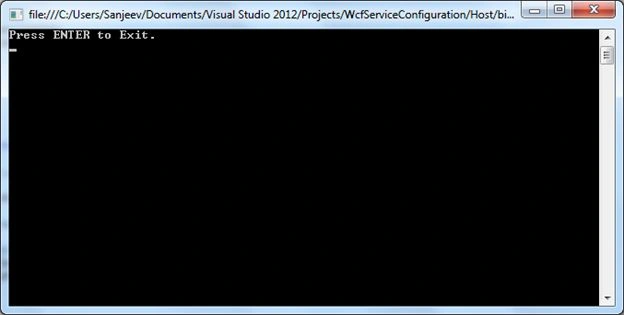
Now we can consume this service in two ways.
First
Using ChannelFactory
Add a new project to this existing solution and name it "ConsumerWithChannelFactory".
Add a reference to the System.ServiceModel dll and WcfServiceConfiguration dll, replace the code of the existing Program.cs class with the following code shown in the image below.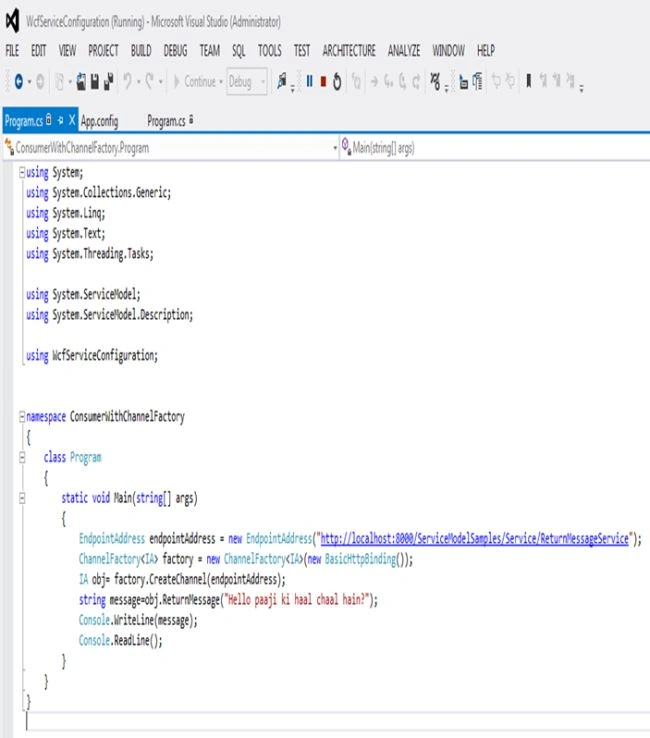
Run the Host Project and then run the ConsumerWithChannelFactory project to see the output like in the following image.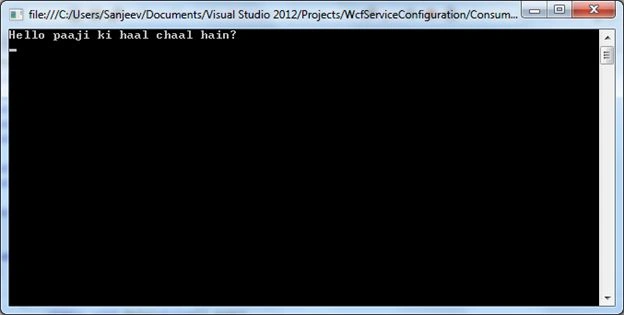
The second way to consume this service is by using the ServiceModel Metadata Utility (svcutil.exe) to generate a proxy and a configuration file.
Add a new project to the WcfServiceConfiguration solution and name it ConsumerWithSvcuUtil.
Run the Visual Studio developer command prompt with administrative rights, run the host process first and then type the following command on the prompt to generate a proxy and a configuration file.
After the generation of the files add them to the ConsumerWithSvcuUtil Project by clicking the project and select "Add" -> "Existing Item".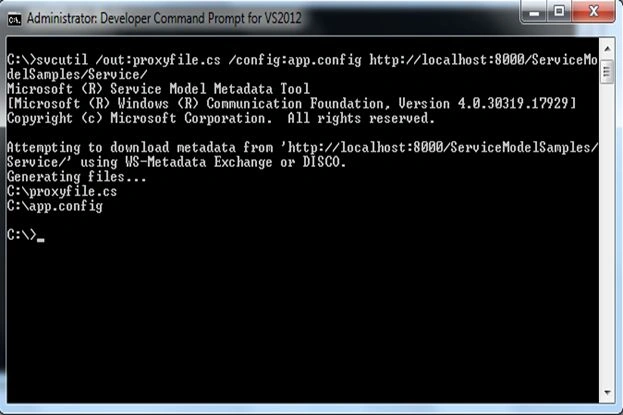
Now type in the following code in the Program.cs file of the ConsumerWithSvcuUtil project as shown in the following image: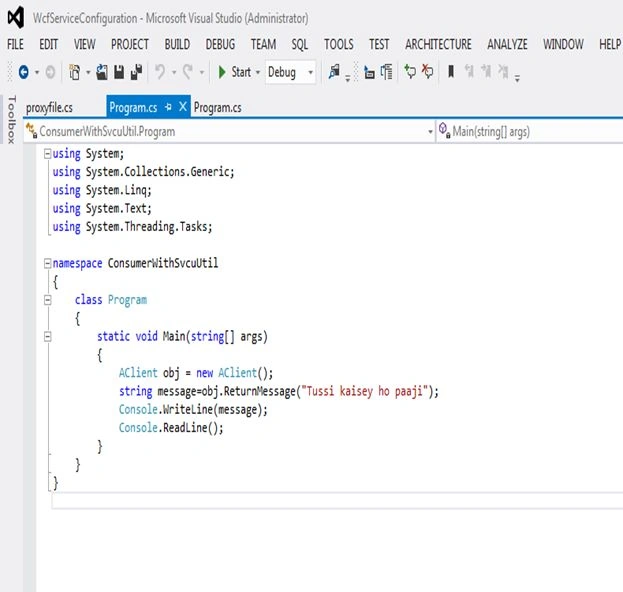
Now run the Host; if its not already running then run the ConsumerWithSvcuUtil, if everything is "Ok" then it will look as in the following: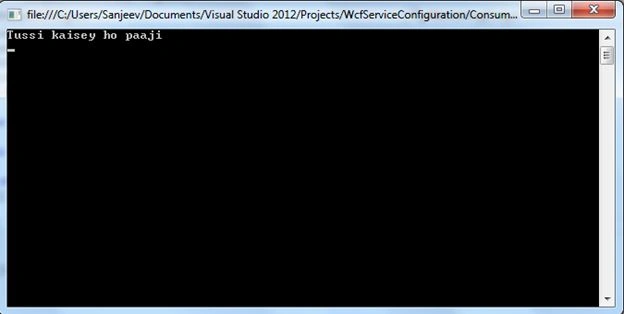
Feel free to tell if I have missed something or many things and I hope this tutorial works fine for you.

Simple WCF Walkthrough
Join the conversation! Your thoughts help the community grow.
Sign in to leave a comment
It is the same account you read, post and publish with — and you will come straight back to this page.
Sandeep PantPosted May 17, 2013, 11:24 AM
Hi James, the service is implemented if you will look properly in the code files. Give it a try, hope that helps. And thanks for reading this article
James KingPosted May 17, 2013, 10:58 AM
Well, I went back and copied the code from the site to the app... and of course it compiles fine*** Now I have to find my typing errors! My fault, good article!
James KingPosted May 17, 2013, 10:37 AM
I hate like everything to rain on someone's parade -- however, the service is not complete. Their is no implementation of the interface. When I tried the initial compile I got: Error 1 'WcfServiceConfiguration.A' does not implement interface member 'WcfServiceConfiguration.IA.ReturnMessage(string)' c:\users\jim\documents\visual studio 11\Projects\WcfServiceConfiguration\WcfServiceLibrary1\A.cs 10 18 WcfServiceLibrary1. I am far to green to go back and create the implementation section at this point.