

Introduction:
The article addresses the construction of a simple utility application useful for selecting an RGB or web color; the application allows the user to key in RGB values or use RGB slider controls to select a color. Whenever the current color is updated, the text boxes at the bottom of the form are dynamically updated to show the current web and RGB color values set for the current color.
The text box values may be copied and pasted into a working project to set color values to match those selected in the utility. Further, if the RGB value is known, keying in a specific RGB value will display the web color equivalent value so to that end, the application will provide a translation from the RGB format to the web color format.
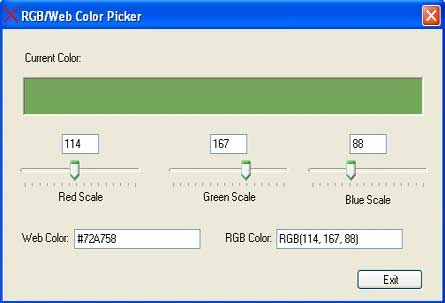
Figure 1: Simple Color Picker Application
Getting Started:
Unzip the attached file; in it you will find solution containing a Windows Forms project with a single form class. The application is entirely contained in the single form (as shown in Figure 1). The application was written in Visual Basic 2005 and requires the 2005 IDE to open it.
Figure 2. RGB/Web Color Picker Application in the Solution Explorer
The Code.
Again, this is a very simple project and all of the code is contained in the single form class. The form class does not contain any import statements. In the first section of the code, a declarations region is defined and a few form variables are declared within that section:
public partial class frmColorPicker
{
#region "Declarations"
private int mRed;
private int mGreen;
private int mBlue;
#endregion
The form level variables are used to keep track of the RGB color values; they were declared to have form level scope since nearly all of the subroutines in this class manipulate or read the current state of each of those variables.
The form load event handler is used to establish the default color shown in a panel control added to the form and used to display the current color. This value is set by updating each of the RGB related variables to contain a value of zero, and then setting the panel's back color to the RGB value of 0, 0, 0 through the use of the System.Drawing.Color.FromArgb function. This function will also handle an alpha value but this value is ignored for the purposes of this utility. After setting the panel color, the subroutine wraps up by setting the text in the Web Color and RGB color text boxes.
private void frmColorPicker_Load(object sender, System.EventArgs e)
{
mRed = 0;
mGreen = 0;
mBlue = 0;
pnlColor.BackColor = System.Drawing.Color.FromArgb(mRed, mGreen, mBlue);
txtWebColor.Text = GetWebColor();
txtRGB.Text = "RGB(" + mRed + ", " + mGreen + ", " + mBlue + ")";
}
Following the form load event handler, each of the three scroll bars used to control the red, green, and blue values are provided with a handler for the scroll event. Each of the handlers is the same so I will only describe the scroll event handler associated with the red value:
private void tbarRed_Scroll(System.Object sender, System.EventArgs e)
{
txtRed.Text = tbarRed.Value.ToString();
mRed = tbarRed.Value;
pnlColor.BackColor = System.Drawing.Color.FromArgb(mRed, mGreen, mBlue);
txtWebColor.Text = GetWebColor();
txtRGB.Text = "RGB(" + mRed + ", " + mGreen + ", " + mBlue + ")";
}
The code is pretty straight forward; all that happens here is that the text box used to display the current red value is updated to match the current scroll bar value (the scrollbars are set to default to 0 and have a maximum value of 255). The local member variable, mRed is set to match the scroll bar value and the panel back color is updated to display the current RGB value after the scroll bar is used to update the red value. Lastly, the web color and the RGB text boxes are updated to show the current RGB and web color values. The web color is set to display the string representation of the current color converted to HTML format within a function called "GetWebColor".
vipin rajPosted Sep 24, 2009, 1:21 AM
haii this is very useful article, Thank you sooooooooo mcuh