

In this article, we will create one single-page application with the default Blazor (ASP. Net Core Hosted) template. We will manage a book entry in this project and save the data to CosmosDB. We will use “Microsoft.Azure.DocumentDB.Core” NuGet package to perform CRUD actions with CosmosDB.
As per Microsoft’s documentation about Blazor, it is an experimental .NET web framework using C#/Razor and HTML that runs in the browser with WebAssembly. Blazor provides all the benefits of a client-side web UI framework using .NET on the client and optionally on the server.
Web Assembly is a low-level assembly language with a binary format that provides a way to run code written in different languages like C# in the browser with native speed.
The major difference between Blazor and Razor is traditional Razor view engines always post back to the server in each request but Blazor never does it. It always works like any other client-side framework or library.
Prerequisites for Blazor application development.
To create a Blazor application you need .NET Core SDK 2.1 or higher. Please download the latest SDK from here.
You must have Visual Studio 2017 (I am using the free Community edition) to leverage the Blazortemplate benefits. You can use Visual Studio Code too (without template features). Please download Visual Studio 2017 from here.
The most important thing - if you are using Visual Studio 2017 you must add Blazor Language Services extension to Visual Studio to get the Blazor language templates.
Let’s start with application development.
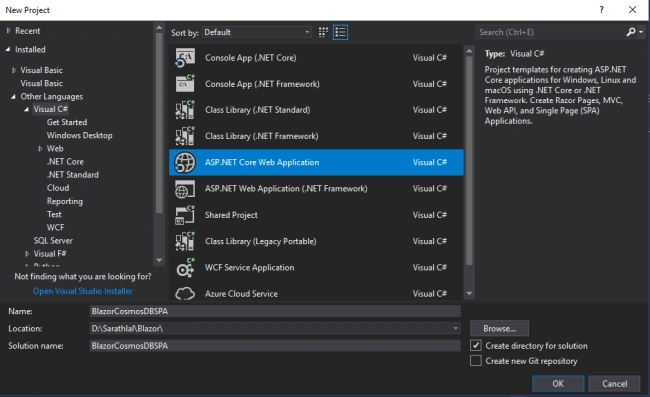
Please open Visual Studio choose “Create New project” and select ASP.NET Core Web Application. Please give a valid name to your project.
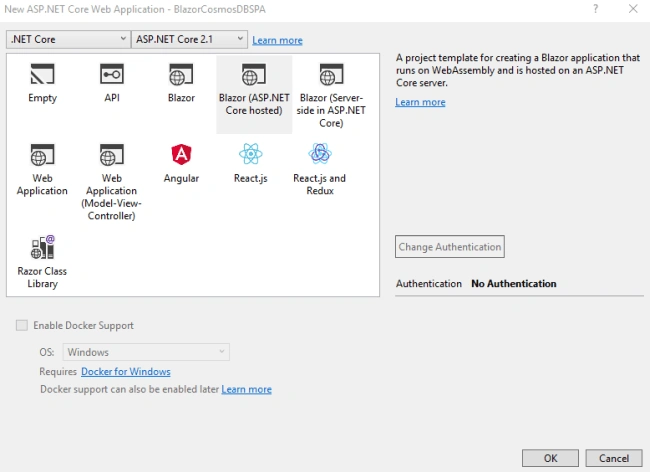
Currently, there are three types of Blazor templates available. We are going with the Blazor (ASP.NET Core hosted) template.
Our project will be created in a moment. If look at the solution structure, we can see there are three projects created under our solution.
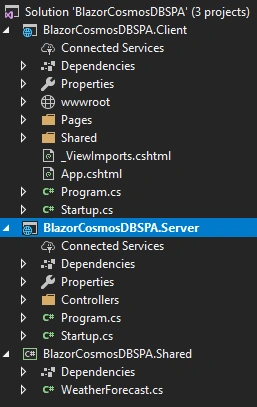
“BlazorCosmosDBSPA.Client” contains all our client pages (Razor files and all other client-side script files.) and the “BlazorCosmosDBSPA.Server” project contains the Web API controllers and other services. “BlazorCosmosDBSPA.Shared” project mainly contains the commonly shared class files for both Client and Server projects.
By default, our application contains one Counter page and another Fetch Data page. These are automatically created from the Blazor template. We can remove these pages from the Client project and remove the “SampleDataController.cs” file from the Server project and the “WeatherForeCast.cs” model class from a Shared project.
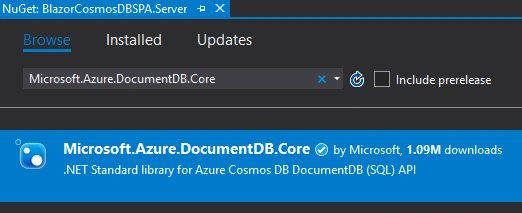
We can add “Microsoft.Azure.DocumentDB.Core” NuGet package to our Server project.
As I stated earlier, we will create a Book management application. We can create a “Book” model in the “Shared” project. (Inside the new “Models” folder).
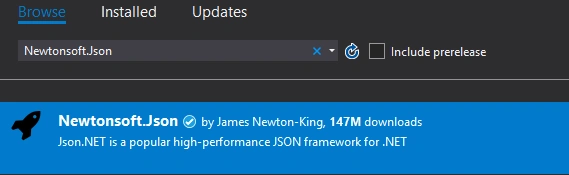
Please add the “Newtonsoft.Json” NuGet package to the Shared project.
Book. cs
using Newtonsoft.Json;

namespace BlazorCosmosDBSPA.Shared.Models
{
    public class Book
    {
        [JsonProperty(PropertyName = "id")]
        public string Id { get; set; }

        [JsonProperty(PropertyName = "name")]
        public string Name { get; set; }

        [JsonProperty(PropertyName = "isbn")]
        public string ISBN { get; set; }

        [JsonProperty(PropertyName = "author")]
        public string Author { get; set; }

        [JsonProperty(PropertyName = "price")]
        public decimal Price { get; set; }
    }
}
We use five properties in this Book model.
We can create our “CosmosDBRepository” inside the “DataAccess” folder. This repository will provide all the CRUD actions for our Web API controller.
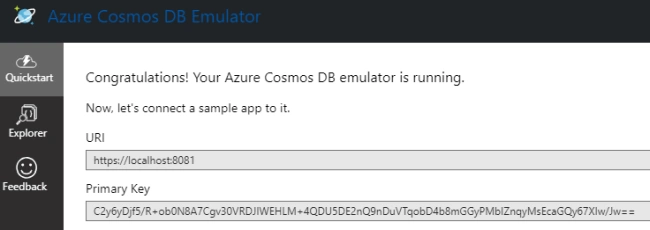
Please note, that in this article, we are not using an actual Azure ComosDB account. Instead, we use the local Azure CosmosDB emulator provided by Microsoft. It will create a local CosmosDB account for us and we can run our application with this database.
Please refer to this article for more about CosmosDB Emulator and download it to your Windows machine.
Run this emulator and copy the “Endpoint” and “Key” from the emulator. We will use these values inside our “CosmosDBRepository” class.
CosmosDBRepository.cs
using Microsoft.Azure.Documents;
using Microsoft.Azure.Documents.Client;
using Microsoft.Azure.Documents.Linq;
using System;
using System.Collections.Generic;
using System.Threading.Tasks;

namespace BlazorCosmosDBSPA.Server.DataAccess
{
    public static class CosmosDBRepository<T> where T : class
    {
        private static readonly string Endpoint = "https://localhost:8081/";
        private static readonly string Key = "C2y6yDjf5/R+ob0N8A7Cgv30VRDJIWEHLM+4QDU5DE2nQ9nDuVTqobD4b8mGGyPMbIZnqyMsEcaGQy67XIw/Jw==";
        private static readonly string DatabaseId = "SarathCosmosDB";
        private static readonly string BookCollectionId = "Books";
        private static DocumentClient client;

        public static void Initialize()
        {
            client = new DocumentClient(new Uri(Endpoint), Key, new ConnectionPolicy
            {
                EnableEndpointDiscovery = false
            });
            CreateDatabaseIfNotExistsAsync().Wait();
            CreateCollectionIfNotExistsAsync(BookCollectionId).Wait();
        }

        private static async Task CreateDatabaseIfNotExistsAsync()
        {
            try
            {
                await client.ReadDatabaseAsync(UriFactory.CreateDatabaseUri(DatabaseId));
            }
            catch (DocumentClientException e)
            {
                if (e.StatusCode == System.Net.HttpStatusCode.NotFound)
                {
                    await client.CreateDatabaseAsync(new Database
                    {
                        Id = DatabaseId
                    });
                }
                else
                {
                    throw;
                }
            }
        }

        private static async Task CreateCollectionIfNotExistsAsync(string collectionId)
        {
            try
            {
                await client.ReadDocumentCollectionAsync(UriFactory.CreateDocumentCollectionUri(DatabaseId, collectionId));
            }
            catch (DocumentClientException e)
            {
                if (e.StatusCode == System.Net.HttpStatusCode.NotFound)
                {
                    await client.CreateDocumentCollectionAsync(UriFactory.CreateDatabaseUri(DatabaseId), new DocumentCollection
                    {
                        Id = collectionId
                    }, new RequestOptions
                    {
                        OfferThroughput = 1000
                    });
                }
                else
                {
                    throw;
                }
            }
        }

        public static async Task<T> GetSingleItemAsync(string id, string collectionId)
        {
            try
            {
                Document document = await client.ReadDocumentAsync(UriFactory.CreateDocumentUri(DatabaseId, collectionId, id));
                return (T)(dynamic) document;
            }
            catch (DocumentClientException e)
            {
                if (e.StatusCode == System.Net.HttpStatusCode.NotFound)
                {
                    return null;
                }
                else
                {
                    throw;
                }
            }
        }

        public static async Task<IEnumerable<T>> GetItemsAsync(string collectionId)
        {
            IDocumentQuery<T> query = client.CreateDocumentQuery<T>(UriFactory.CreateDocumentCollectionUri(DatabaseId, collectionId), new FeedOptions
            {
                MaxItemCount = -1
            }).AsDocumentQuery();
            List<T> results = new List<T>();
            while (query.HasMoreResults)
            {
                results.AddRange(await query.ExecuteNextAsync<T>());
            }
            return results;
        }

        public static async Task<Document> CreateItemAsync(T item, string collectionId)
        {
            return await client.CreateDocumentAsync(UriFactory.CreateDocumentCollectionUri(DatabaseId, collectionId), item);
        }

        public static async Task<Document> UpdateItemAsync(string id, T item, string collectionId)
        {
            return await client.ReplaceDocumentAsync(UriFactory.CreateDocumentUri(DatabaseId, collectionId, id), item);
        }

        public static async Task DeleteItemAsync(string id, string collectionId)
        {
            await client.DeleteDocumentAsync(UriFactory.CreateDocumentUri(DatabaseId, collectionId, id));
        }
    }
}
Inside this “CosmosDBRepository”, we have the below methods available.
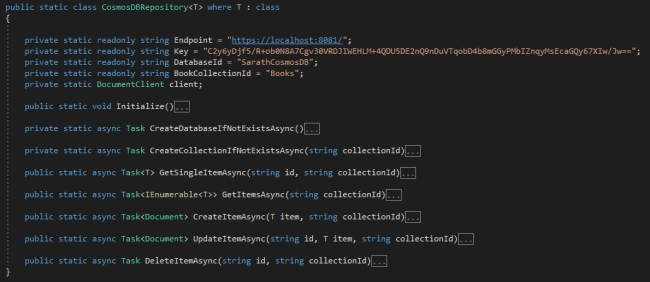
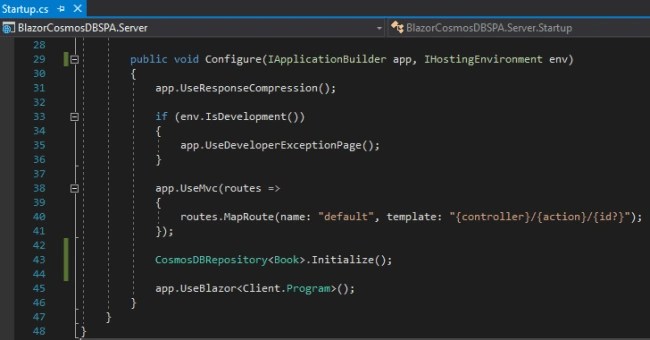
We must call the “Initialize” method from the “Startup” class. This method will create a CosmosDB database and a Collection if it does not exist. We are using other five methods to provide the CRUD actions.
We can create our “BooksController” controller from the “Add New Item” option.
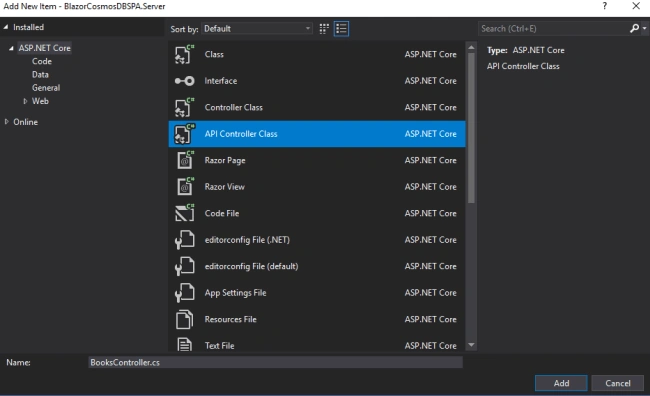
Please add the below code to the BooksController.cs file.
Join the conversation! Your thoughts help the community grow.