

In this example, we will create site columns through SharePoint Hosted Apps. Follow the below steps to create site columns in the existing List (EmpDetails).
- Create List through SharePoint Hosted App, using Visual Studio.
- Add custom Site Columns to the project.
- Add those site columns to Existing List (EmpDetails)
- Add the data to the List.
Step 1 - Create List through SharePoint Hosted App using visual Studio
For the first step, we have already created the list (EmpDetails) through SharePoint Hosted app.
Please refer to the below URL or article to create List in Visual Studio.
Step 2 - Add Custom Site Columns to project
For this example, I am going to add three site columns to the project.
- PartNo
- PartName
- PartType
Find the below steps to create Site columns.
- Create folder SiteColumns to the project.
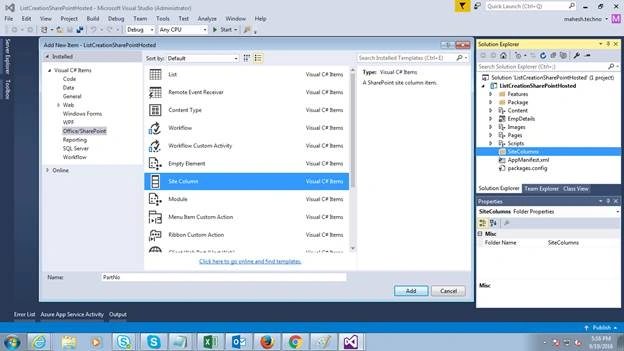
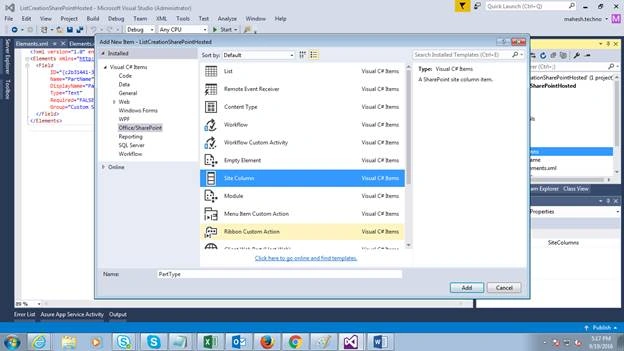
- Right click on the folder and add New Item -> select Sitecolumn template -> give name of SiteColumn(Ex: PartNo) -> OK.
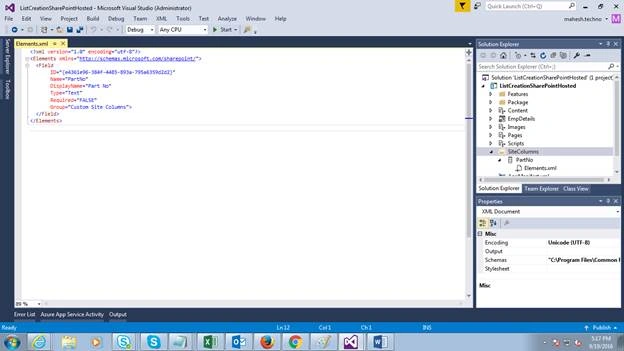
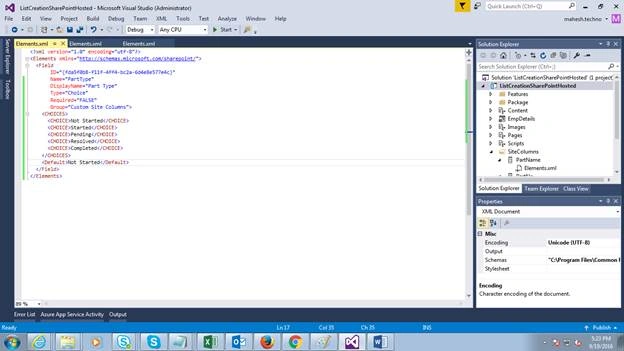
- It opens Element.xml file with some attributes ID, Name, Type, Required, and etc. If you want, you can modify based on the requirement.
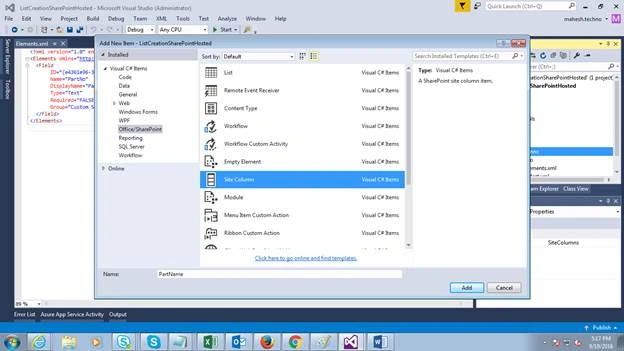
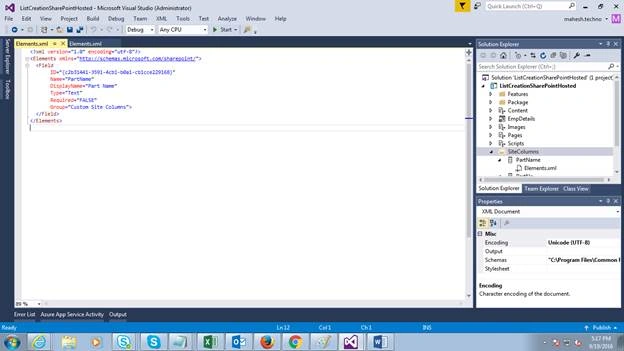
- Follow the same procedure for another two columns (PartName and PartType). For the third column, I have chosen Type=Choice
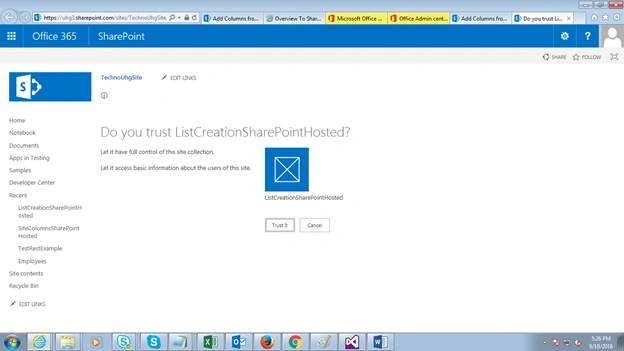
- After deploying, trust the app.
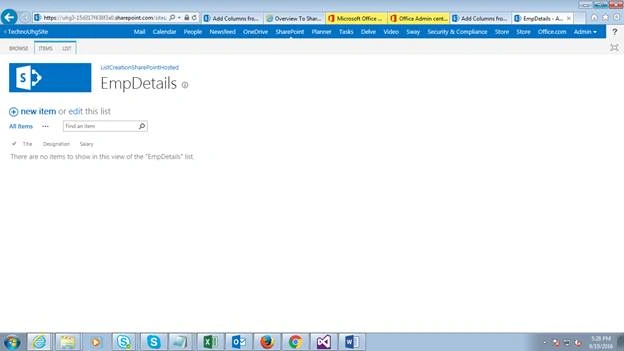
- It will open EmpDetails List with columns Title, Designation and Salary.
- Now, we are going to add our site columns to this list.
- On the ribbon, select List tab and click on Modify View.
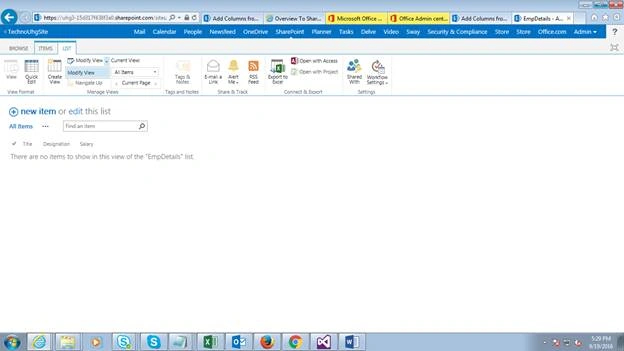
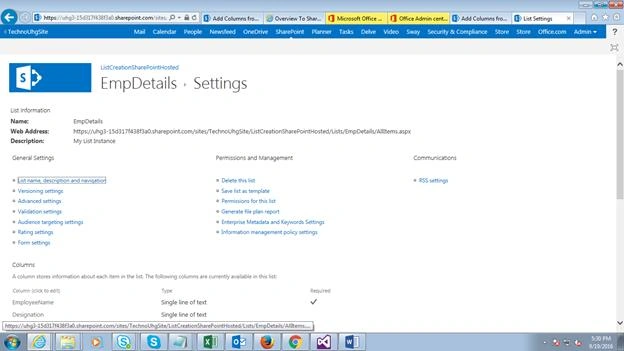
- Click on Settings link on the page.
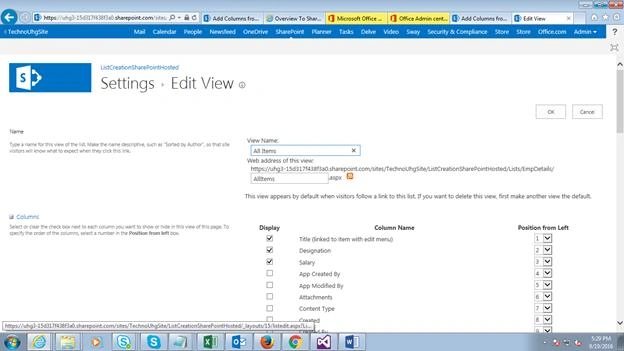
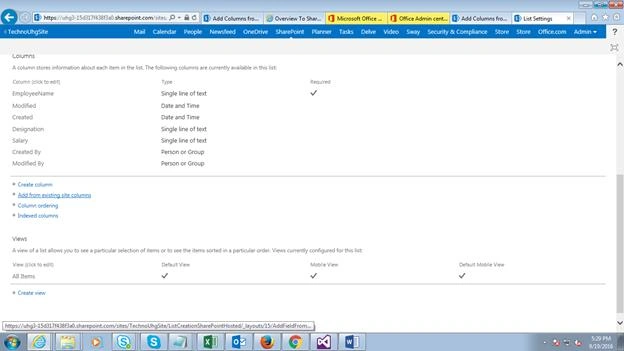
- Under columns section, select Add from existing site columns.
- Select our Custom Site columns option from dropdown.
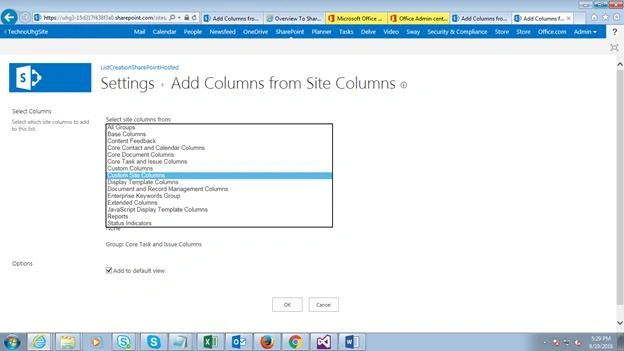
- It will show our newly created Site columns (PartName, PartNo, PartType) in Visual Studio.
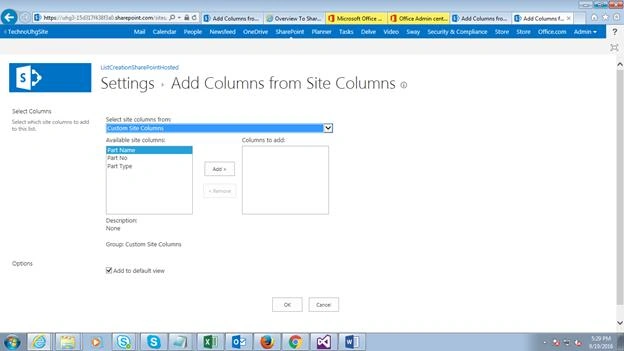
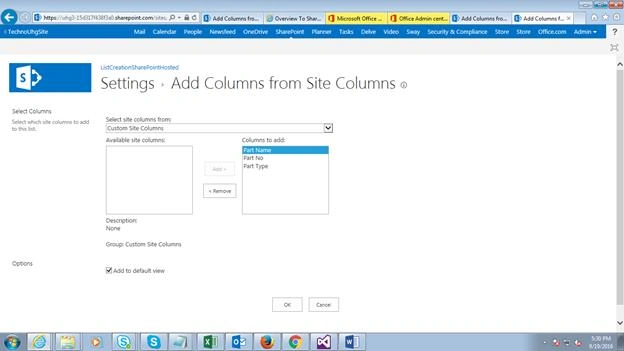
- Add these three columns to the right hand side and click on OK.
- And then, click on EmpDetails link.
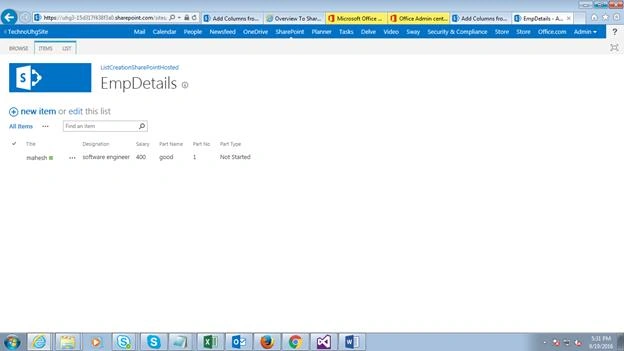
- It will display the EmpDetails list with our newly created site columns.
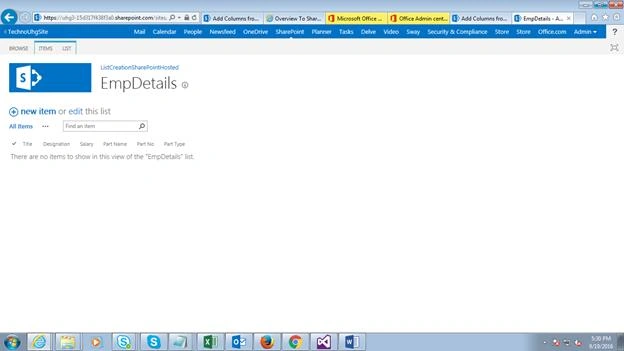
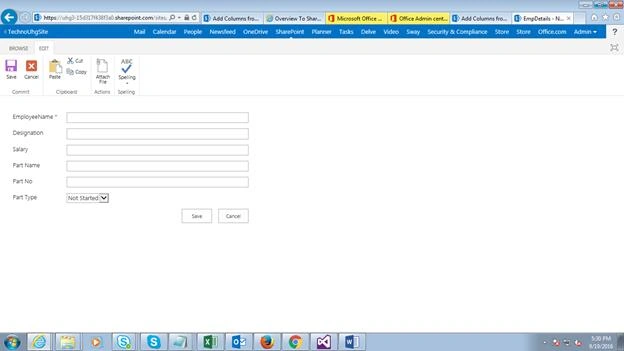
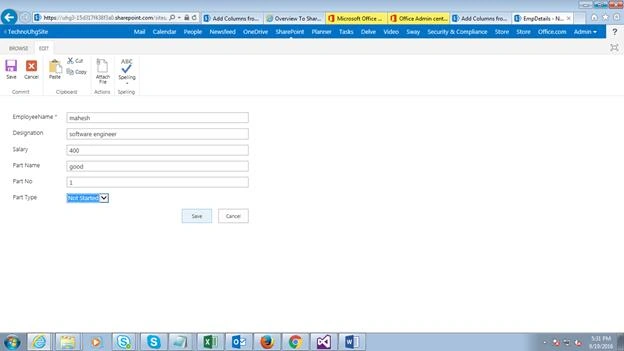
- Click on New Item-> Add the data to list.
In this example, we learned how to add site columns to List through VS. In coming articles, will learn how to create Content Type through Visual Studio, using SharePoint Hosted App. I have attached the source code for your reference. You can download and test it.
Tarun DPosted Sep 26, 2016, 1:20 AM
Nice one.Thanks for sharing..