
Part 3
Welcome to the 4th part of Site Settings. Here we will be discussing the Look & Feel structure of SharePoint 2013 configuration. So let's go for it.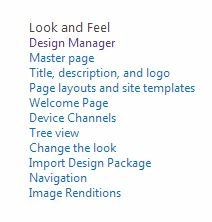
Design Manager
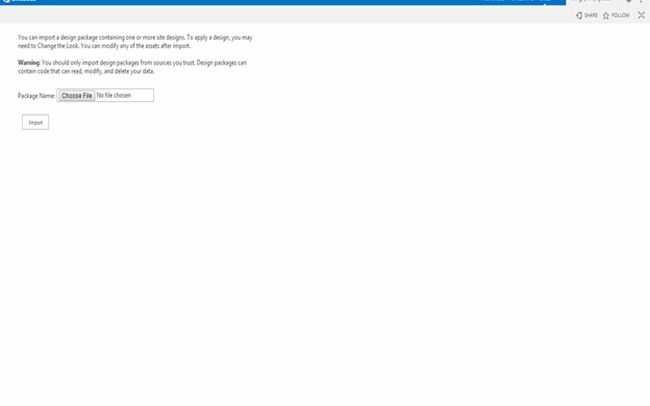
The first new feature is Design Manager in SharePoint 2013. Unlike SharePoint Designer it is something different. Here we can Import a HTML file that will be converted into a SharePoint master page or CSS files, JavaScript files, Images and other supporting files.
Then we can Manage Device Channels, Upload Design Files, Edit Master Pages, Edit Display Templates, Edit Page Layouts, Publish and Apply Design and lastly you can create Design Packages that include a master page or CSS files, JavaScript files, Images and other supporting files.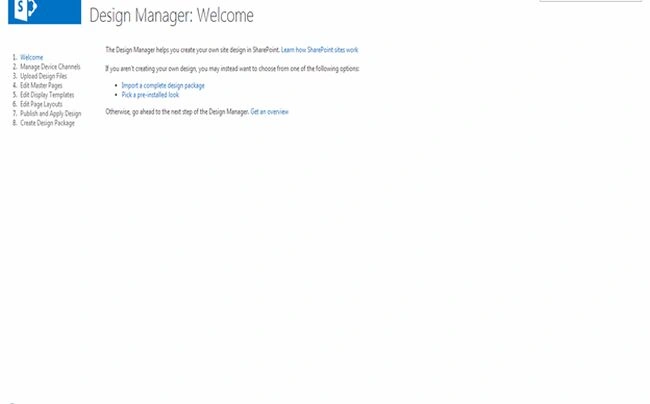
Master Page
As per our screen below we can see Site Master pages that you can inherit, specify one as a default or reset them all back to their default Master page.
Then we have System Master Page that are nothing but pages used for Administrative pages and views of a Document Library that you want to be inherited from the master page you want that you can inherit, specify one as the default or reset them all back to their default Master page.
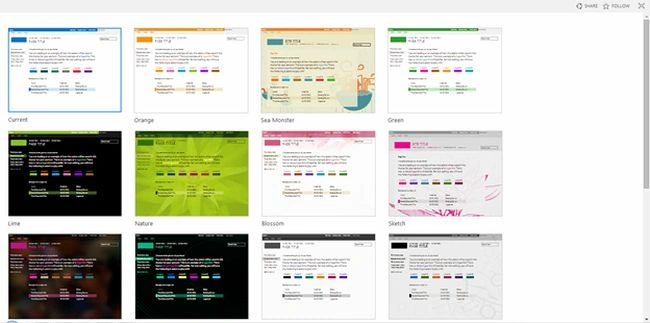
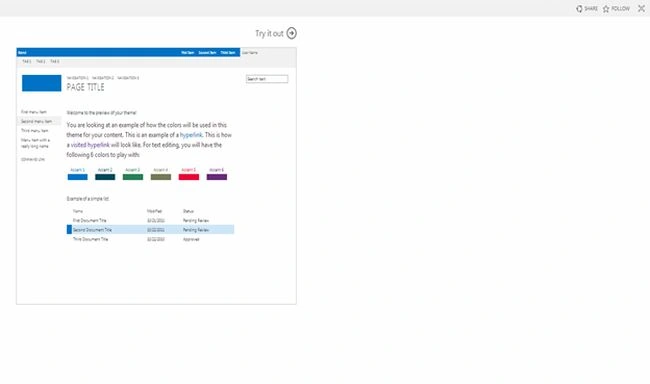
Then we have beautiful Themes of SharePoint 2013 that can be used to Inherit from parent sites or reset them back to the site default definitions.
Lastly we have Alternate CSS URLs where you can either specify your CSS Files, use it as a default one or inherit from the Parent Site.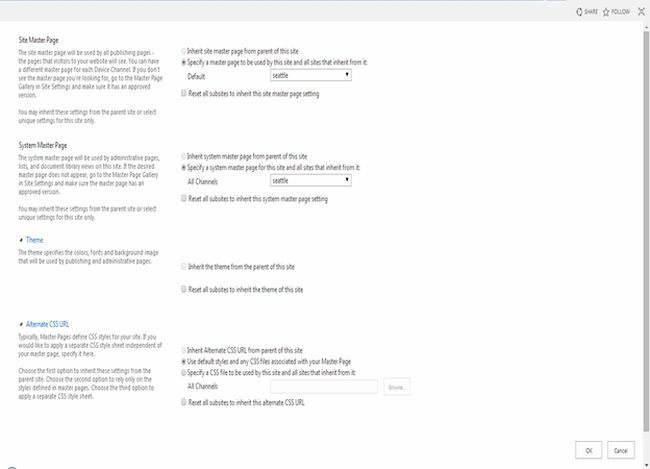
Title, Description and Logo
Then we can see from our screen we have default options for your Site Name, Description and Logo for the site.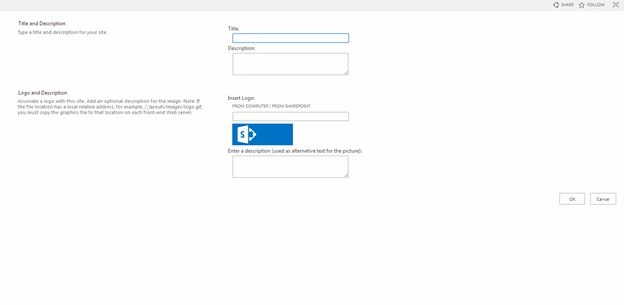
Page Layouts and Site Template
Since we can see sub-site Templates on our screen below, where we have an option to inherit site templates from the parent site or they can choose any of the following site templates in the list.
The same logic goes on for Page Layouts and you can also choose an option from the following New Page Default Settings so when a new page is created that will be a default page layout.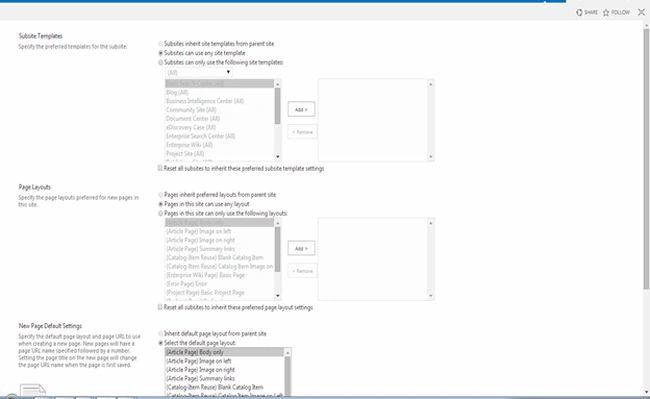
Welcome Page
This part of site settings allows you to provide the URL of the page that you want it to be as a welcome page of the site whereas in other versions we used to go to that page and made them as make page as Home Page.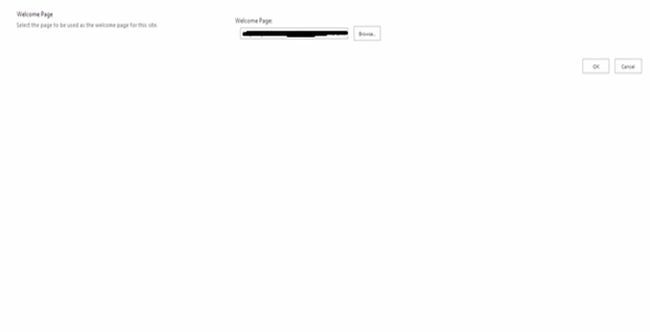
Device Channels
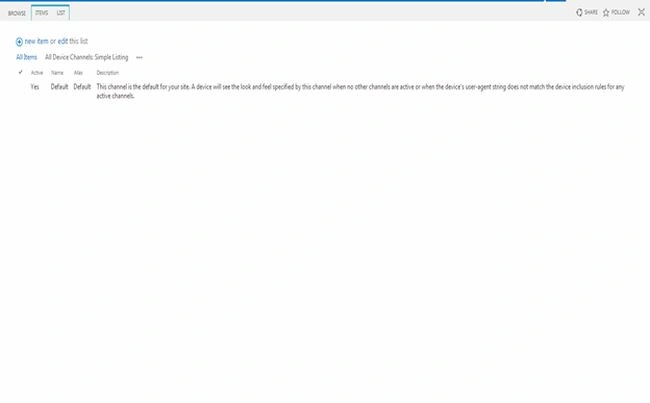
It is another new feature in SP 2013 that enables you to store certain site content, style your content and change the image even while maintaining the same URL across a pool of multiple devices such as iPad, Desktop or in Mobile.
Isn't it an important one? It is.
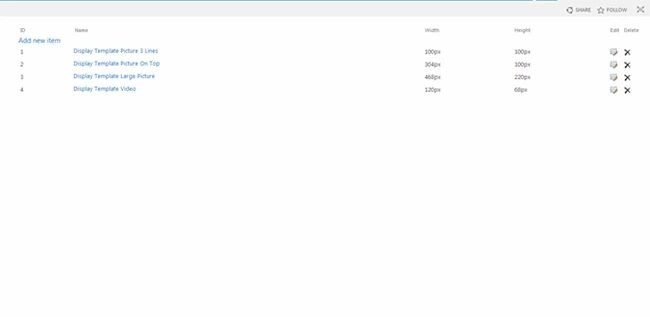
Here you need to, as in the following screenshot, create a new item and I'll quote from the column reference:

Join the conversation! Your thoughts help the community grow.