

Design SOA web services test automation framework to support multiple operating systems and web hosts with single driver script using SOAP UI.
This document outlines the automation plan of automation testing of SOA based web services with a single driver script to support various application hosted platforms, like Windows with JBOSS 5.1 (APP Server) , REDHAT (UNIX Host ) with Web Logic 4.0 (Web Server) , AIX (UNIX Host) with WAS 7.0 (Web Sphere) as my web application supported platforms.
Supporting Platforms
- Windows: JBOSS with SQL Server
- AIX: WAS (Web Sphere) with Oracle
- REDHAT: WEBLOGIC with Oracle
- Windows: WAS (Web Sphere) with SQL Server
Automation tool - SOAPUI
SOAPUI. This tool was developed in Java and provides mechanisms for functional and performance tests. From a valid Web Service Description Language (WSDL), the SOAPUI provides features to build automatically a suite of unit tests for each operation, and a mock service to simulate the web service under testing. Besides, this tool can be used for deploying the mocked service, and then, for making the WSDL interface available like the real service, but only the mocked functionalities are invoked.
Scripting languages: Groovy and VB.NET are built into Power Shell and is the only used part of the automation suite to prepare the test environment and copy the test resources from Windows to UNIX machines only.
- Groovy is a powerful scripting language with syntax very similar to Java. The major deference is that there is not exact declaration of the type of each variable but just a generic "def" declaration or with no declaration at all.
- Beginners look at http://groovy.codehaus.org/Getting+Started+Guide .
- The SOAP UI supports only two script languages, part of the automation "Groovy" and "JavaScript".
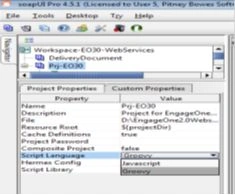
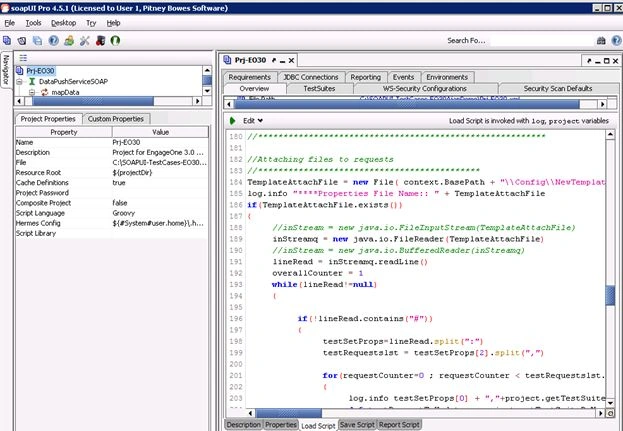
Note: How to change the selected Script Language "Groovy" to" JavaScript", the following setting needs to be done in the Project Properties as shown in the image above in the SOAP UI Functionality description of the Load Script (Groovy) Automation test suite.
Note: I don't want to show the complete code snippets about my driver script that comprises all the functionality as mentioned below because they do not fit in this article, but I will share by driver script that I have written in Groovy as attached with this article.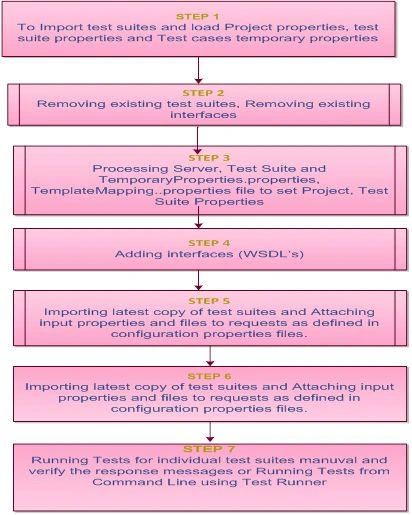
Test Automation Framework overview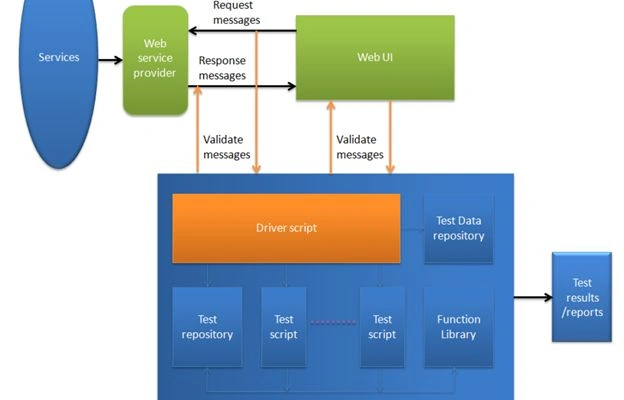
How to set up the web services Automation Suite in a new machine:
A mistake users commonly do is, while designing the web services automation test suite using SOAP UI, to create the projects and test suites with imported WSDL URLs. I have tried, in the specific automation suite, to read the OSType as specified as one of the parameters in my configuration file and dynamically load all the projects and test suites using the driver script written in Groovy. This is the only supported scripting language in the SOAP UI.
The File Structure in the Web Services automation suite:
- Project Folders
- Contingency Plan
- Documents
- TestSuites
- Workspace file
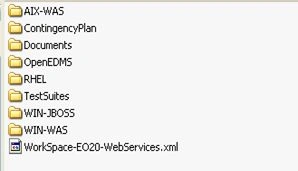
AIX-WAS: contains all projects, test suites, test cases and utilities for AIX with WAS (Web Sphere) with Oracle and similarly RHEL for REDHAT with WEBLOGIC with Oracle, WIN-JBOSS for Windows with JBOSS with SQL Server and WIN-WAS for Windows with WAS (Web Sphere) with SQL Server.
Contingency Plan: Contains a copy of Test Suites, Template Files, workspace files, if anything has crashed or any file is deleted accidentally
Documents: necessary documentation of how to set up and run test cases
Test Suites: Contains all the test suites that are being used by all the projects
Workspace file: that contain the information about all the projects
Note: the SOAP UI stores all the project information files as named as a workspace and project files in XML format.
Set up the web services automation suite and also make it as simple as possible in my suite as mentioned below.
Step 1: Place the SOAPUI-TestFolder.zip or Test Resources folder as available in the Team Foundation Sever (TFS). Need to copy the local machines, either Windows or UNIX machines. Simply unzip and run them.
Step 2: Import thing the configuration file where I will fetch all the configuration parameters as named with server. properties file in ~\{Project}\Config\Server.properties
Step 3: Each time the user only needs the items to be updated in the Server. properties file
hostname_port (application URLs)
LDAP Credentials (Authorization credentials of user)
Machine_OR_FTP_UserLogin (Machine user name or FTP username)
Machine_OR_FTP_Password (Machine Password or FTP password)
(FTP username/password are to get access to non-Windows platforms, whereas Machine Username/Password are for Windows machines. For copying the test resources from Windows to UNIX machines using VB.NET code.)
OSType (Windows, Non-Windows)
Groovy Script Code Snippet to read the configuration files:
// define a array of configuration files used in automation suite
def propFileName =["ServerConfig","TestSuiteConfig"]
//Get the root path of project loction
context.BasePath = project.getPath()
// Change the folder paths to mapped the configuration file location – simply string in build functions
context.BasePath = context.BasePath.substring(0,context.BasePath.lastIndexOf('\\'))
//Processing ServerConfig, TestSuiteConfig
//************************************************************************
log.info "****************Project properties set up script called*********************"
//Below code read all the configuration files in project config folder and creates dictionary //with name and value pairs. Also attach these values to project global properties in SOAP UI
for(filename=0;filename<propFileName.size();filename++)
{
propFile = new File( context.BasePath + "\\Config\\"+ propFileName[filename] + ".properties" )
Gowtham RajamanickamPosted Apr 25, 2015, 5:35 AM
good