

Add a template field and drop a button into it, for a user to delete a record. In the OnClientClick event, call the confirm() function as shown below:
<asp:TemplateField>
<ItemTemplate>
<asp:Button ID="btnDel" runat="server" Text="Delete"
CommandName="Delete" OnClientClick="return confirm('Are you sure you want to delete the record?');" />
</ItemTemplate>
</asp:TemplateField>
2. Paging and sorting in a GridView without using a DataSource control
<asp:GridView ID="gridView" OnPageIndexChanging="gridView_PageIndexChanging"
OnSorting="gridView_Sorting" runat="server" />
private string ConvertSortDirectionToSql(SortDirection sortDireciton)
{
string newSortDirection = String.Empty;
switch (sortDirection)
{
case SortDirection.Ascending:
newSortDirection = "ASC";
break;
case SortDirection.Descending:
newSortDirection = "DESC";
break;
}
return newSortDirection
}
protected void gridView_PageIndexChanging(object sender, GridViewPageEventArgs e)
{
gridView.PageIndex = e.NewPageIndex;
gridView.DataBind();
}
protected void gridView_Sorting(object sender, GridViewSortEventArgs e)
{
DataTable dataTable = gridView.DataSource as DataTable;
if (dataTable != null)
{
DataView dataView = new DataView(dataTable);
dataView.Sort = e.SortExpression + " " + ConvertSortDirectionToSql(e.SortDirection);
gridView.DataSource = dataView;
gridView.DataBind();
}
}
3. Enable and disable controls inside a GridView
Disable controls on some rows, when a certain condition is satisfied. In this snippet, we will see how to disable editing for rows that have the CategoryName as 'Ready'. Use the following code:
protected void GridView1_RowDataBound(object sender, GridViewRowEventArgs e)
{
if (e.Row.RowType == DataControlRowType.DataRow)
{
if (e.Row.DataItem != null)
{
Label lblControl = (Label)e.Row.Cells[2].FindControl("lblCategoryName");
if(lblControl.Text == "Ready")
{
e.Row.Cells[0].Enabled = false;
}
}
}
}
4. How to add a row number to the Gridview
Add the following tags to <columns> section of your GridView
<asp:TemplateField>
<ItemTemplate>
<%# Container.DataItemIndex + 1 %>
</ItemTemplate>
</asp:TemplateField>
5. How to programmatically hide a column in the GridView
GridView1.HeaderRow.Cells[2].Visible = false;
foreach (GridViewRow gvr in GridView1.Rows)
{
gvr.Cells[2].Visible = false;
}
6. Displaying empty data in a GridView
<asp:GridView ID="GridView1" runat="server" AutoGenerateColumns="False" DataKeyNames="CategoryID"
DataSourceID="SqlDataSource1" EmptyDataText="No data available"
ShowFooter="true" AllowPaging="True" AllowSorting="True"
PageSize="5" OnRowDataBound="GridView1_RowDataBound">
7. Change the color of a GridView row based on some condition
protected void GridView1_RowCreated(object sender, GridViewRowEventArgs e)
{
if (e.Row.DataItem != null)
{
DataRowView drv = (DataRowView)e.Row.DataItem;
string catName = Convert.ToString(drv["CategoryName"]);
if (catName.Trim() == "Confections")
e.Row.BackColor = System.Drawing.Color.LightBlue;
}
}
8. Highlight an ASP.NET GridView row on Mouse Hover
<head id="Head1" runat="server">
<title>Highlight Row on Hover</title>
<script src="Scripts/jquery-1.3.min.js" type="text/javascript"></script>
<script type="text/javascript">
$(document).ready(function() {
$("tr").filter(function() {
return $('td', this).length && !$('table', this).length
}).css({ background: "ffffff" }).hover(
function() { $(this).css({ background: "#C1DAD7" }); },
function() { $(this).css({ background: "#ffffff" }); }
);
});
</script>
</head>
Output: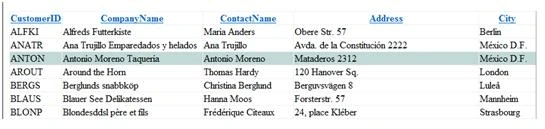
9. How to programmatically enable/disable a control in the GridView when in the Edit Mode
If you want to quickly take a decision whether to enable or disable a control when the user edits the row, then use the Enabled attribute and set it to a method that returns a bool value:
<asp:TemplateField HeaderText="CategoryName" SortExpression="CategoryName">
<EditItemTemplate>
<asp:TextBox ID="txtCategoryName" runat="server" Enabled='<%# EnableDisableTextBox() %>' Text='<%# B
nd("CategoryName") %>'></asp:TextBox>
</EditItemTemplate> <ItemTemplate>
<asp:Label ID="lblCategoryName" runat="server" Text='<%# Bind("CategoryName") %>'></asp:Label>
</ItemTemplate>
</asp:TemplateField>
C#:
protected bool EnableDisableTextBox()
{
if (1 == 1)
return false;
}
Conclusion
I want to share some good things ... Enjoy it.....
Dharmaraju BKPosted Sep 21, 2021, 3:43 AM
Excellnet.
Vijay YadavPosted Apr 12, 2011, 10:06 AM
Good one!!!
Santosh Kumar KotnalaPosted Apr 12, 2011, 7:11 AM
Nice article with good information
Manikavelu VelayuthamPosted Apr 12, 2011, 1:10 AM
All the key functionalties of a GridView is consolidated here. Nice to view all. Nice Article.