

The ListView control displays a list of items with icons. It can be used to create a user interface like the right pane of Windows Explorer. The control has four view modes: LargeIcon, SmallIcon, List, and Details. It can display a graphical icon, as well as the item text and additional information about an item in a subitem. To display subitem information in the ListView control, set View property to View.Details, create ColumnHeader objects and assign them to the Columns property of the ListView control. Once these properties are set, items are displayed in a row and column format similar to a DataGrid control. This ability makes the ListView control a quick and easy solution for displaying data from any type of data source.
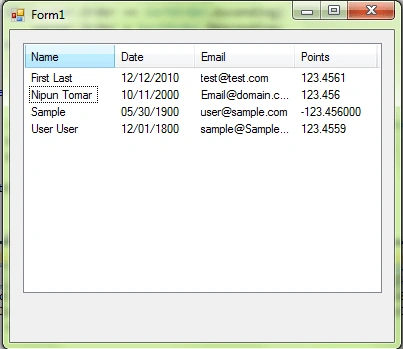
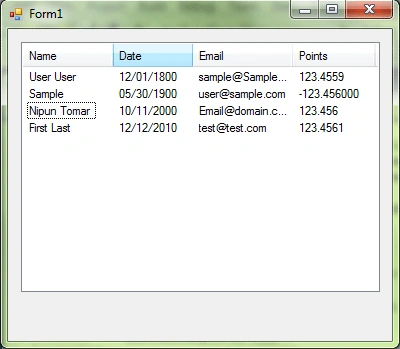
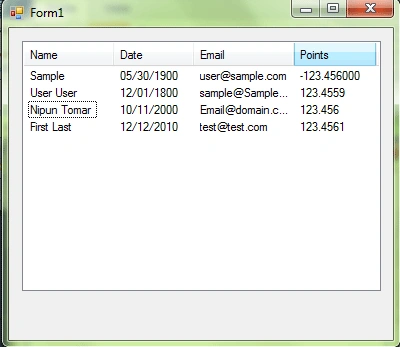
When you are working with the ListView control, you may want to sort its contents based on a specific column. For this create a type that implements the System.Collection.IComparer interface. IComparer type can sort based on any ListViewItem criteria specified. Just set the ListView.ListViewItemSorter property with an instance of IComparer type and call ListView.Sort method.
Below is the ItemComparer:
using System;
using System.Collections.Generic;
using System.Linq;
using System.Text;
using System.Collections;
using System.Windows.Forms;
namespace ListViewSortAnyColumn
{
public class ItemComparer : IComparer
{
//column used for comparison
public int Column { get; set; }
public ItemComparer(int colIndex)
{
Column = colIndex;
}
public int Compare(object a, object b)
{
int result;
ListViewItem itemA = a as ListViewItem;
ListViewItem itemB = b as ListViewItem;
if (itemA == null && itemB == null)
result = 0;
else if (itemA == null)
result = -1;
else if (itemB == null)
result = 1;
if (itemA == itemB)
result = 0;
//alphabetic comparison
result = String.Compare(itemA.SubItems[Column].Text, itemB.SubItems[Column].Text);
return result;
}
}
}
And Windows Form Form1:
using System;
using System.Collections.Generic;
using System.ComponentModel;
using System.Data;
using System.Drawing;
using System.Linq;
using System.Text;
using System.Windows.Forms;
namespace ListViewSortAnyColumn
{
public partial class Form1 : Form
{
public Form1()
{
InitializeComponent();
}
private void Form1_Load(object sender, EventArgs e)
{
//fill the list with data
FillItems();
}
private void listViewSample_ColumnClick(object sender, ColumnClickEventArgs e)
{
ItemComparer sorter = listViewSample.ListViewItemSorter as ItemComparer;
if (sorter == null)
{
sorter = new ItemComparer(e.Column);
listViewSample.ListViewItemSorter = sorter;
}
else
{
// Set the column number that is to be sorted
sorter.Column = e.Column;
}
listViewSample.Sort();
}
private void FillItems()
{
// Add items
ListViewItem item1 = new ListViewItem("Nipun Tomar");
item1.SubItems.Add("10/11/2000");
item1.SubItems.Add("[email protected]");
item1.SubItems.Add("123.456");
ListViewItem item2 = new ListViewItem("First Last");
item2.SubItems.Add("12/12/2010");
item2.SubItems.Add("[email protected]");
item2.SubItems.Add("123.4561");
ListViewItem item3 = new ListViewItem("User User");
item3.SubItems.Add("12/01/1800");
item3.SubItems.Add("[email protected]");
item3.SubItems.Add("123.4559");
ListViewItem item4 = new ListViewItem("Sample");
item4.SubItems.Add("05/30/1900");
item4.SubItems.Add("[email protected]");
item4.SubItems.Add("-123.456000");
// Add the items to the ListView.
listViewSample.Items.AddRange(
new ListViewItem[] {item1,
item2,
item3,
item4}
);
}
}
Sorting in Ascending or Descending Order
To add the ability to sort ListView items in both ascending and descending order, you need to do some changes in the above code to enable the Compare method to identify the items to sort.
So ItemComparer:
public class ItemComparer : IComparer
{
//column used for comparison
public int Column { get; set; }
//Order of sorting
RyeMoes RyeMoesPosted Dec 11, 2018, 10:37 PM
Only thing this doesn't work for is sorting groups. For some reason they stay the same. Thank you for this!
ZoltoneditedPosted Dec 4, 2010, 10:26 PMEdited Dec 4, 2010, 10:29 PM
Hi Nipun, Do you know how to get the SortDirection icons to appear using 100% managed code and using a CLS compliant assembly? Zolton