
This article shows how to sort and group data in a collection using Silverlight
collection views.
Using Silverlight and XAML, you can bind to a collection of data. Once that is
done, you can then sort, filter, or group the data using a collection view. A
collection view is similar to a layer on a binding source collection. It enables
you to navigate and display the source collection based on queries to sort,
filter, and group data, without having to change the underlying source
collection itself. If a source collection implements the
INotifyCollectionChanged interface, the changes raised by the CollectionChanged
event are transmitted to the views. A single source collection can have multiple
views associated with it.
Silverlight supports sorting and grouping functionality through the
PagedCollectionView class.
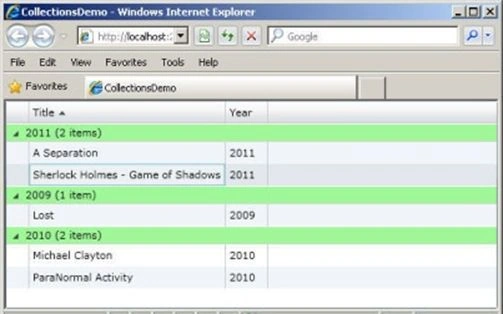
Consider an example that demonstrates how to sort and group bound data in a
collection using an
PagedCollectionView object.
Create a Silverlight application named CollectionsDemo.
Add the following markup to MainPage.xaml.
<UserControl
xmlns:sdk="http://schemas.microsoft.com/winfx/2006/xaml/presentation/sdk"
x:Class="CollectionsDemo.MainPage"
xmlns="http://schemas.microsoft.com/winfx/2006/xaml/presentation"
xmlns:x="http://schemas.microsoft.com/winfx/2006/xaml"
xmlns:d="http://schemas.microsoft.com/expression/blend/2008"
xmlns:mc="http://schemas.openxmlformats.org/markup-compatibility/2006"
xmlns:scm="clr-namespace:System.ComponentModel;assembly=System.Windows"
xmlns:dat="clr-namespace:System.Windows.Data;assembly=System.Windows"
xmlns:local="clr-namespace:CollectionsDemo"
mc:Ignorable="d"
d:DesignHeight="300"
d:DesignWidth="400"
>
<Grid
x:Name="LayoutRoot">
<sdk:DataGrid
Name="dgridMovies"
ItemsSource="{Binding}"
>
<sdk:DataGrid.RowGroupHeaderStyles>
<Style
TargetType="sdk:DataGridRowGroupHeader">
<Setter
Property="PropertyNameVisibility"
Value="Collapsed"
/>
<Setter
Property="Background"
Value="PaleGreen"/>
<Setter
Property="SublevelIndent"
Value="25"
/>
</Style>
</sdk:DataGrid.RowGroupHeaderStyles>
</sdk:DataGrid>
</Grid>
</UserControl>
The above markup creates a DataGrid and sets its ItemsSource property. The
markup also sets style for the DataGrid rows.
Add the following code to MainPage.xaml.cs to create the Movies and Movie
classes:
using
System;
using
System.Collections.Generic;
using
System.Linq;
using System.Net;
using
System.Windows;
using
System.Windows.Controls;
using
System.Windows.Documents;
using
System.Windows.Input;
using
System.Windows.Media;
using
System.Windows.Media.Animation;
using
System.Windows.Shapes;
using
System.Collections.ObjectModel;
using
System.Windows.Data;
using
System.ComponentModel;

Sorting and Grouping Using a CollectionView in Silverlight
Join the conversation! Your thoughts help the community grow.
Sign in to leave a comment
It is the same account you read, post and publish with — and you will come straight back to this page.
Alten ChingumbraPosted Dec 30, 2011, 2:09 AM
Thanks for sharing
Emmy DickensPosted Dec 29, 2011, 11:54 PM
Very well explained
Sonakshi SinghPosted Dec 29, 2011, 11:21 PM
such a useful article
Amit MaheshwariPosted Dec 29, 2011, 5:02 AM
It's a great effort to accomplish such type of task thanks to share.
Abhi KumarPosted Dec 29, 2011, 4:21 AM
Thanks for sharing. Very useful article...
Manoj Singh PanwarPosted Dec 29, 2011, 4:12 AM
Again a wonderful work from you.. Thank you for sharing
Adora KrausePosted Dec 29, 2011, 4:11 AM
Hi Mamta. Very nicely presented.
Andrew FinlanderPosted Dec 29, 2011, 1:57 AM
very useful article MM.... thanks for sharing good efforts