

Background
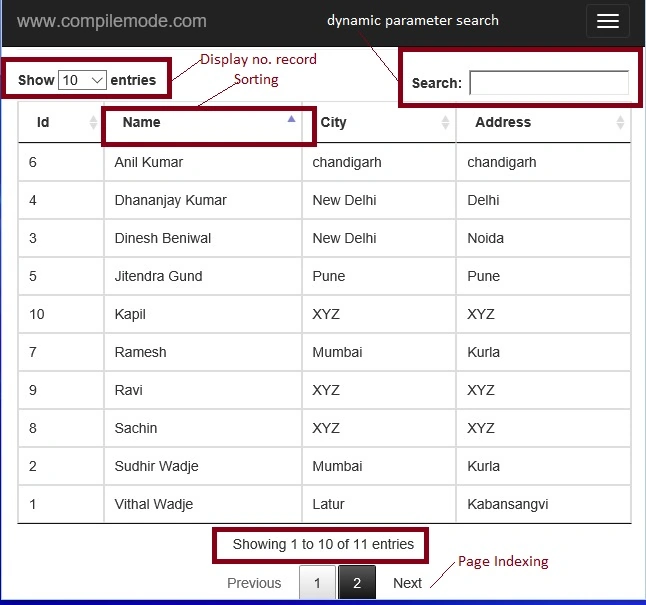
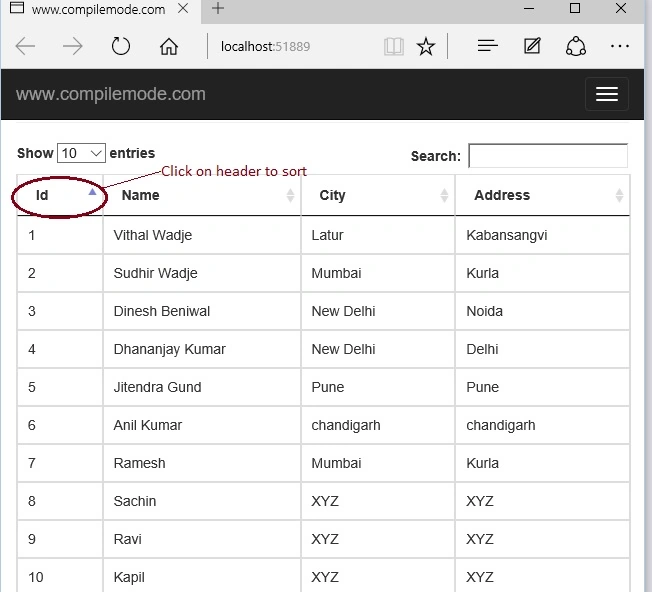
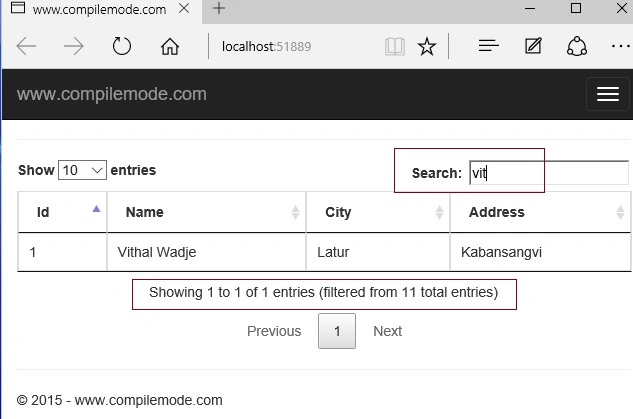
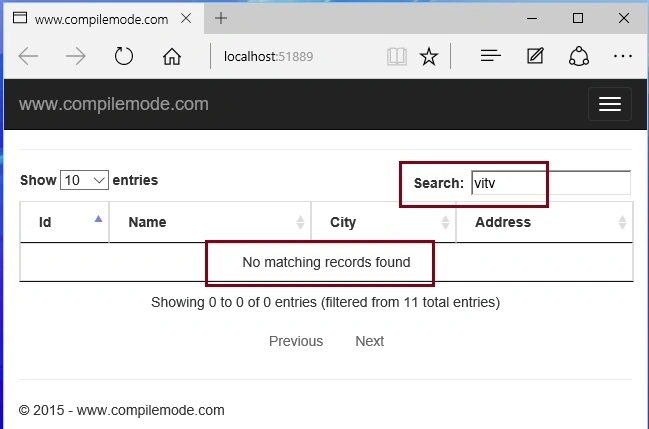
Paging, Sorting, and Searching is very important when you are working with huge records. In this article, we will use the jQuery data table library to make efficient, responsive Paging, Sorting, and Searching on HTML tables in ASP.NET MVC with JSON data. So let's start step by step, so it will be useful to understand from scratch.
Step 1. Create MVC application
- "Start", then "All Programs" and select "Microsoft Visual Studio 2015".
- "File", then "New" and click "Project", then select "ASP.NET Web Application Template" Provide the Project a name as you wish and click on OK.
- Choose the MVC empty application option and click OK
Step 2. Create Model Class
Right-click on the Model folder in the created MVC application, give the class name Employee or as you wish, and click OK.
Employee. cs
public class Employee
{
    public int Id { get; set; }
    public string Name { get; set; }
    public string City { get; set; }
    public string Address { get; set; }
}
Step 3. Add controller class
Right-click on the Controller folder in the created MVC application, give the class name Home or as you wish, and click OK.
HomeController.cs
public class HomeController : Controller
{
    // GET: Home
    [HttpGet]
    public ActionResult Index()
    {
        return View();
    }

    [HttpGet]
    public JsonResult EmpDetails()
    {
        //Creating List
        List<Employee> ObjEmp = new List<Employee>()
        {
            //Adding records to list
            new Employee
            {
                Id = 1, Name = "Vithal Wadje", City = "Latur", Address = "Kabansangvi"
            },
            new Employee
            {
                Id = 2, Name = "Sudhir Wadje", City = "Mumbai", Address = "Kurla"
            },
            new Employee
            {
                Id = 3, Name = "Dinesh Beniwal", City = "New Delhi", Address = "Noida"
            },
            new Employee
            {
                Id = 4, Name = "Dhananjay Kumar", City = "New Delhi", Address = "Delhi"
            },
            new Employee
            {
                Id = 5, Name = "Jitendra Gund", City = "Pune", Address = "Pune"
            },
            new Employee
            {
                Id = 6, Name = "Anil Kumar", City = "chandigarh", Address = "chandigarh"
            },
            new Employee
            {
                Id = 7, Name = "Ramesh", City = "Mumbai", Address = "Kurla"
            },
            new Employee
            {
                Id = 8, Name = "Sachin", City = "XYZ", Address = "XYZ"
            },
            new Employee
            {
                Id = 9, Name = "Ravi", City = "XYZ", Address = "XYZ"
            },
            new Employee
            {
                Id = 10, Name = "Kapil", City = "XYZ", Address = "XYZ"
            },
            new Employee
            {
                Id = 11, Name = "Vivek", City = "XYZ", Address = "XYZ"
            }
        };
        //return Json
        return Json(ObjEmp, JsonRequestBehavior.AllowGet);
    }
}
In the above controller class JsonResult method EmpDetails we have added the records into the Generic list and returned it as JSON to avoid database query for the same result.
To work with JQuery we need the following JQuery library.
<script src="~/Scripts/jquery-1.10.2.min.js"></script>
Step 4. Add Partial view
Right-click on the Home folder inside the View folder in the created MVC application.
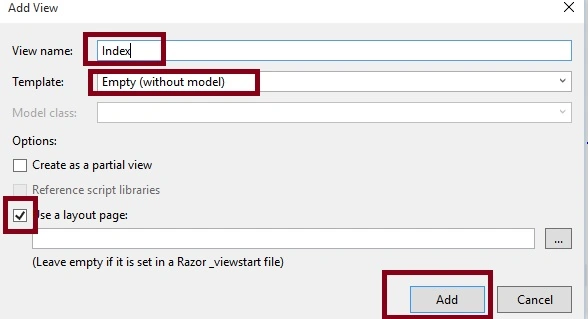
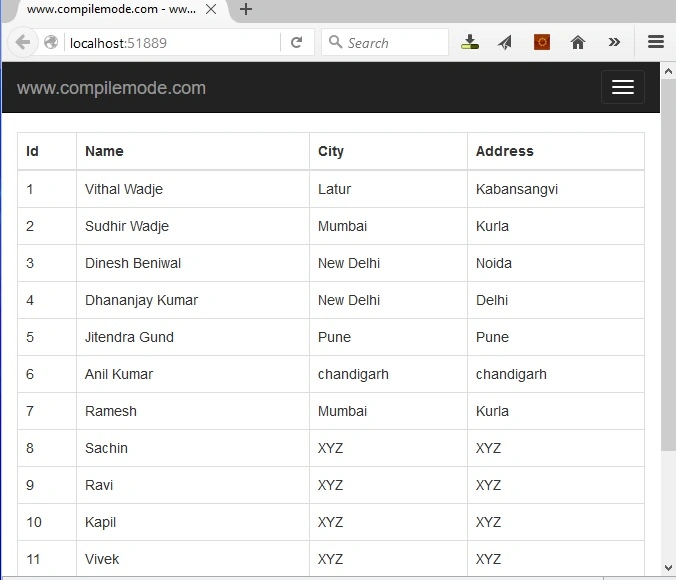
Give the name Index, click on the Add button, and write the following code.
Pratham DavePosted Mar 22, 2019, 9:11 AM
If I want to do with server-side in the same example. can you guide me how can I do that? because I have tried multiple time but I got error with data null something,
Vithal WadjePosted Jul 7, 2016, 11:15 AM
Welcome
Rishi Raj GujadhurPosted Jul 6, 2016, 2:50 PM
Thank you Sir :)
Vithal WadjePosted May 4, 2016, 11:13 AM
thanks
Atul RawatPosted Mar 29, 2016, 11:55 PM
nice article sir
Vithal WadjePosted Dec 28, 2015, 9:48 AM
thanks...
Humayun Kabir MamunPosted Dec 28, 2015, 1:47 AM
Nice...
Vithal WadjePosted Dec 25, 2015, 10:11 PM
Thanks Santhakumar Munuswamy sir
Vithal WadjePosted Dec 25, 2015, 10:11 PM
Thanks Gowtham sir
Vithal WadjePosted Dec 25, 2015, 10:10 PM
Thanks Ankur Mistry sir
Vithal WadjePosted Dec 25, 2015, 10:10 PM
Thanks Sibeesh Venu sir
Santhakumar MunuswamyPosted Dec 25, 2015, 3:21 PM
Thanks for nice article. Keep it up
Gowtham KPosted Dec 25, 2015, 10:18 AM
Good One, Thanks for sharing
Ankur MistryPosted Dec 25, 2015, 10:15 AM
Nice share, helpful and easy steps.
Sibeesh VenuPosted Dec 25, 2015, 10:13 AM
Nice Share
Vithal WadjePosted Dec 25, 2015, 7:37 AM
Thanks
Sridhar SharmaPosted Dec 25, 2015, 7:14 AM
Nice Share