

Abstract: This article is about uploading the bulk of millions of pieces of data in a single go, in a single table.
Introduction
Relational DBMS gives us many features which we generally are not aware of in real life. If you are lucky, you will get to know some features through colleagues, or by watching tutorials; or when you are stuck in day to day escalation from the support team, when the utility, they have given for inserting, is running slowly.
Agenda: Uploading bulk data from CSV file to the database, using SQL Loader utility.
Here, in the article, I will be inserting 2 lakh records in the table, which I was finding as overhead in my day to day development life.
Let’s get started. I have a CSV file with 2,00,999 records. In order to insert the same, follow the below steps:
- Go to the database and search for table ( ex TblEmployee)
- Right click on table and select import data.
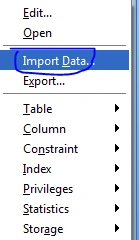
Figure 1.0: Demonstrating Import data feature in SQL developer. - Search for the file that you want to insert. Click OK.
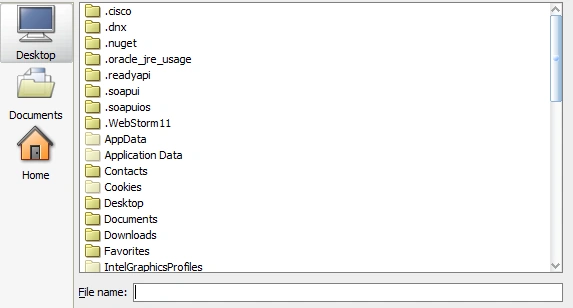
Figure 2.0: Selecting your CSV file. - Now, the following window will open. You can define the delimiter as per your need. A CSV file has ‘,’ as a delimiter, by default.
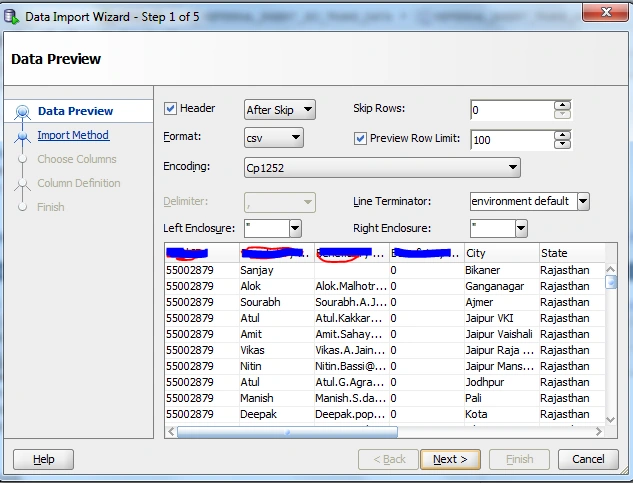
Figure 3.0: Checking the records from CSV file. - Cross verify your records. If you find any redundant data that you don’t want to insert, then please correct the same in the file.
Once checked, click on Next.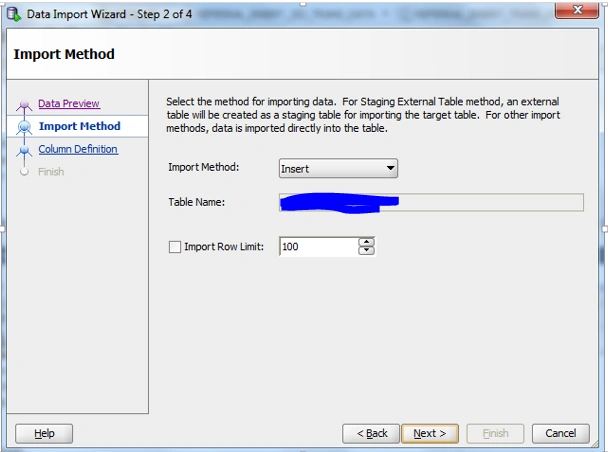
Figure 4.0: Select the import method. - Select import method as SQL Loader Utility, as shown below:
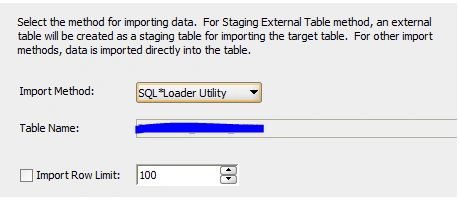
Figure 5.0: SQL Loader Utility - Now, in Column definition, you need to map your CSV headers with the table column.
- Click Next.
- Now, set the path for the log file, bad file, and batch file, as shown below:
- Once you are done with the path configuration, click on Next.
- Click on "Verify" to verify the configuration. If you have mapped two CSV headers with the same column, this window will throw an error.
- Once everything is verified, click on Finish. We can see that the files are created to our configured folder.
To remove the row limit, clear the 100 value from the textbox and click Next.
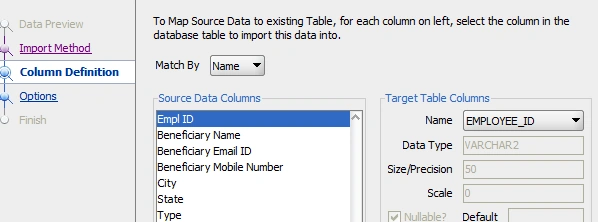
Figure 6.0: Mapping CSV headers with table column.
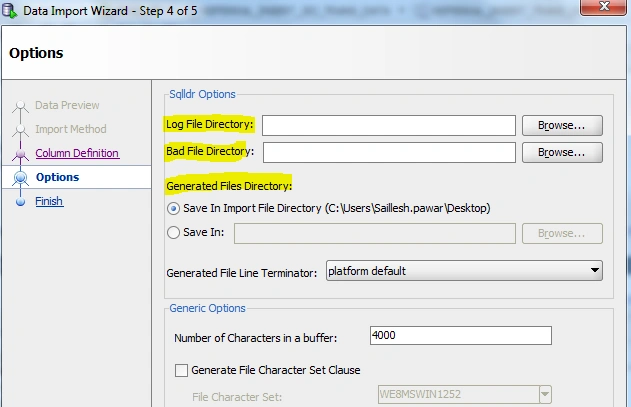
Figure 7.0: Setting up configuration path for the log file and ctl file.
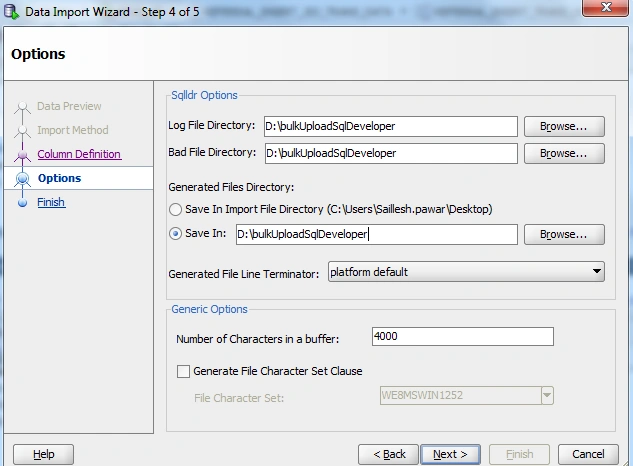
Figure 8.0: Setting up configuration path for the log file and ctl file.
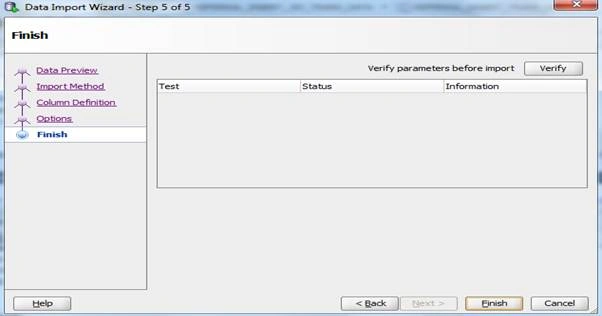
Figure 9.0: Verifying the configuration done in the SQL Loader.
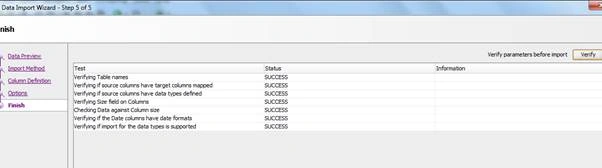
Figure 10.0: Verified successfully.
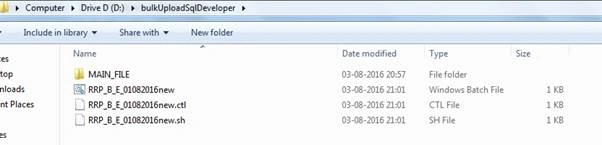
Figure 11.0: Batch file is generated.
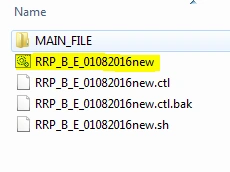
In ctl file generated, we need to add a simple line to achieve the same, as shown below:
- load data infile 'C:\Users\Saillesh.pawar\Desktop\RRP_B_E_01082016new.csv' "str '\r\n'"
- append
- into table tableName
- fields terminated by ','
- OPTIONALLY ENCLOSED BY '"' AND '"'
- trailing nullcols
- ( EMPLOYEE_ID CHAR(4000),
- FIRST_NAME CHAR(4000),
- EMAIL_ID CHAR(4000),
- MOBILE_NO CHAR(4000),
- CITY CHAR(4000),
- STATE CHAR(4000),
- DEVICE_TYPE CHAR(4000),
- FLAG CHAR(4000),
- UD CHAR(4000),
- COUPON_CODE CHAR(4000),
- ADDED_DATE DATE "dd-mm-yy"
- )

RajaPosted Aug 19, 2016, 12:09 AM
Good one...
Vignesh ManiPosted Aug 18, 2016, 8:36 AM
Nice
Ramesh PalaniappanPosted Aug 18, 2016, 5:14 AM
Good One