

Introduction
Expressions are a very powerful feature of SSRS. They enable us to show fields at run time depending on conditions. Generally expressions are written in Visual Basic and there are many built-in functions provided. We can have also custom code for expressions. Expressions begin with an equal sign (=). In this article, I will explain some of the tips and tricks when working with expressions.
Tip 1: Display column dynamically
Using an expression we are also able to show a report column dynamically. Suppose my dataset has fields like EmployeeId, name, code, address, phone and email. I have created a report using this dataset and within the report I want to show employeeId, Code and Name by default and the basic report format looks as shown below.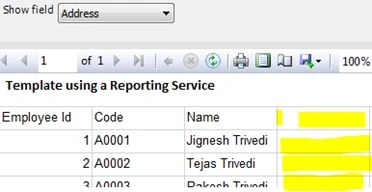
In the last column, the report will show Address, phone or email depending on the parameter (“Show field” in the preceding image).
The Parameter definition is as shown in the following.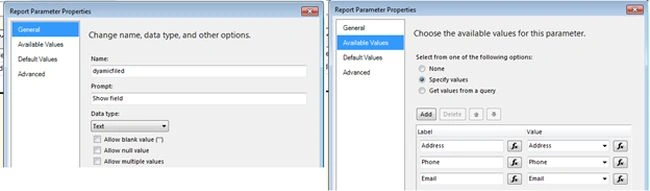
As the solution, add the following expression in the last column header.
=Parameters!dyamicfiled.Value
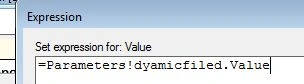
Add the following expression in the "last column value/detail".
=Switch(Parameters!dyamicfiled.Value="Address",
Fields!Address.Value,Parameters!dyamicfiled.Value="Phone",
Fields!Phone.Value,Parameters!dyamicfiled.Value="Email",
Fields!Email.Value)
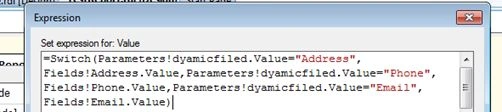
Now, render the report with the parameter set to "Address" and then "Phone" and then "Email". The output with each parameter selection is as shown below.
Here, both the header and details fields of the last column are changed based on the parameter value selection. We can use IIF or any other conditional statement instead of switch.
Tip 2: Adding Comments in Expressions
As we know, comments are useful as self-documentation and make it easy to understand and maintain the code. SSRS allows us to provide comments as part of an expression.
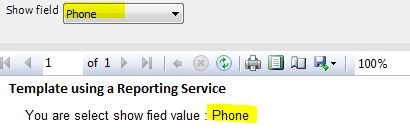
To show this, I have added one text box to the report and used the following expression in it.
= "You are select show fied value : " + Parameters!dyamicfiled.Value



James BabcockPosted Apr 5, 2023, 3:50 PM
Can you do multi step commands in expressions? Like: =Fields!VNDITNUM.Value = lTrim(rTrim(Fiellds!VNDITNUM.Value)) ; iif (Len(Fields!VNDITNUM.Value) < 30, Fields!VNDITNUM.Value, left(Fields!VNDITNUM.Value, 27) + ",,." with out the assignment, the trims have to be repeated 3x becoming a readability/maint issue Thanks! Jimbus