Background
In this article we will learn about creating Wizard through Crystal Report and applying grouping and display records.
Step 1: Create table ‘Department’.
- CREATE TABLE [dbo].[Department](
- [DeptId] [int] IDENTITY(1,1) NOT NULL,
- [DeptName] [nvarchar](50) NULL,
- CONSTRAINT [PK_Department] PRIMARY KEY CLUSTERED
- (
- [DeptId] ASC
- )WITH (PAD_INDEX = OFF, STATISTICS_NORECOMPUTE = OFF, IGNORE_DUP_KEY = OFF, ALLOW_ROW_LOCKS = ON, ALLOW_PAGE_LOCKS = ON) ON [PRIMARY]
- ) ON [PRIMARY]
Create table ‘
Employee’.
- CREATE TABLE [dbo].[Employee](
- [EmpId] [int] IDENTITY(1,1) NOT NULL,
- [EmpFirstName] [nvarchar](50) NULL,
- [EmpLastName] [nvarchar](50) NULL,
- [DeptId] [int] NULL,
- CONSTRAINT [PK_Employee] PRIMARY KEY CLUSTERED
- (
- [EmpId] ASC
- )WITH (PAD_INDEX = OFF, STATISTICS_NORECOMPUTE = OFF, IGNORE_DUP_KEY = OFF, ALLOW_ROW_LOCKS = ON, ALLOW_PAGE_LOCKS = ON) ON [PRIMARY]
- ) ON [PRIMARY]
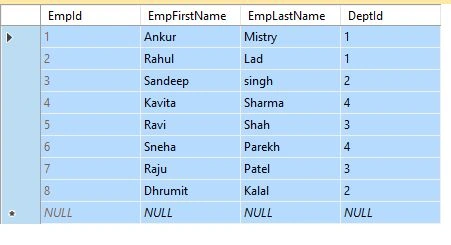
Department Table 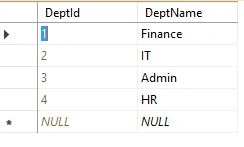 Employee Table
  Step 2:
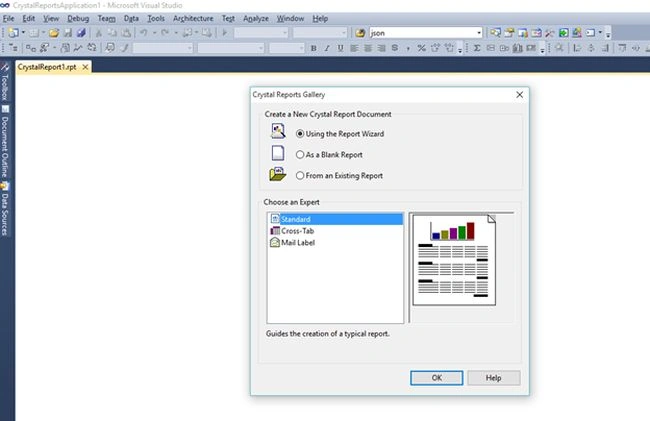
 Open Visual Studio and create Crystal Report.
 Step 3:
 Select Report Wizard and select ‘
Standard’ Report and click Ok button.
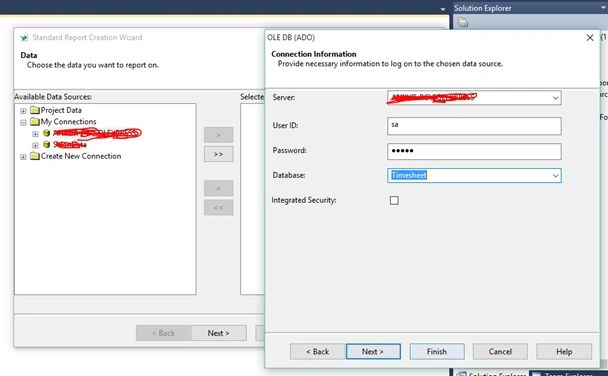
Enter server name, User ID, Password and select database.
 Step 4:
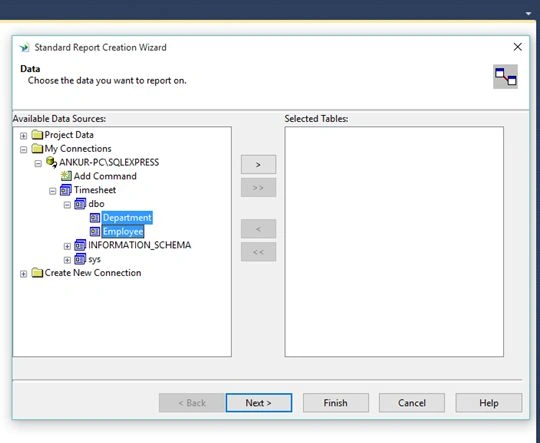
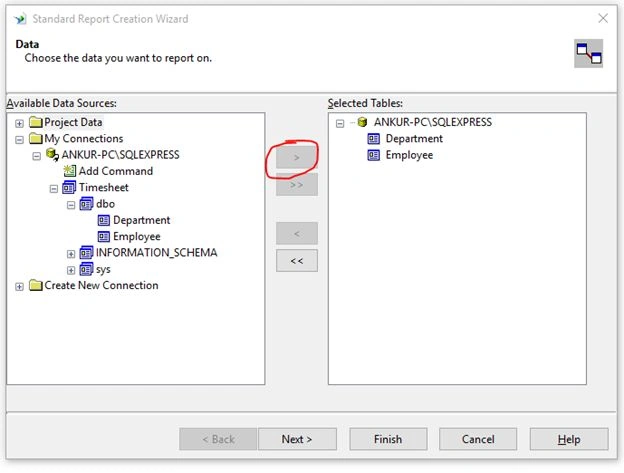
 Click on Next and select tables ‘
Employee’ and ‘
Department’ from Standard Report Creation Wizard.
Select both the tables and click ‘>’ button.
 Step 5:
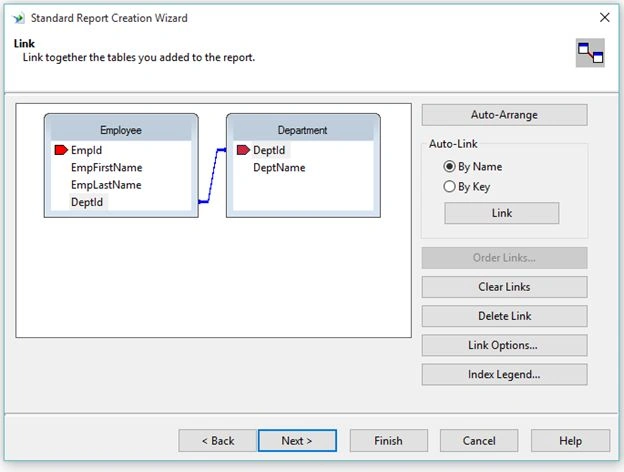
 Now Map ‘
DeptId’ (Foreign key) that is common in both the tables and click next.
 Step 6:
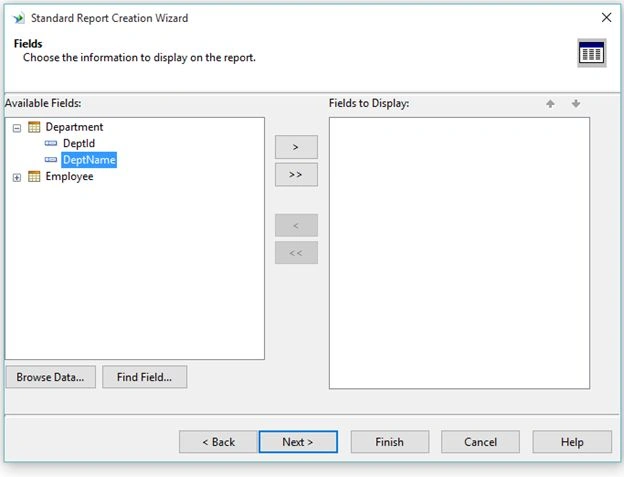
 Select the fields you want to Display in Reports (Here I have Selected DeptName, EmpFirstName and EmpLastName).
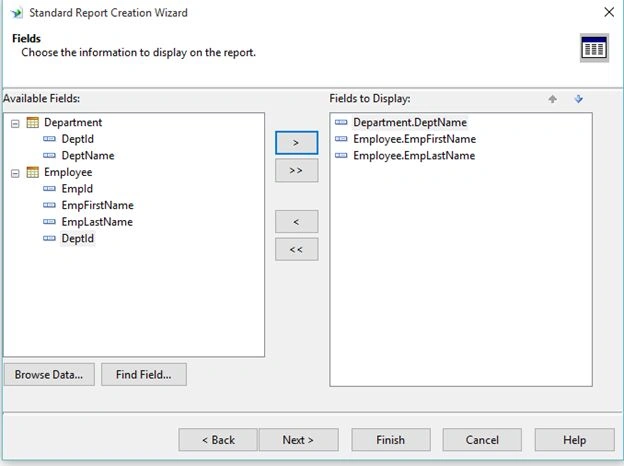
Next I will implement Grouping on Department.
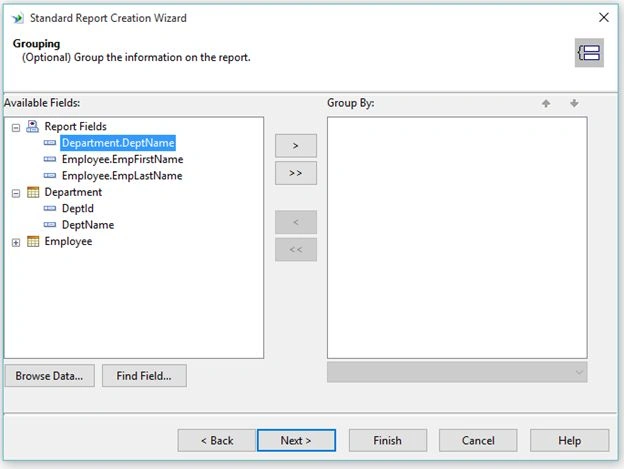
Step 7: Select Department name wise and in ascending order. After that click on ‘
Finish’ button.
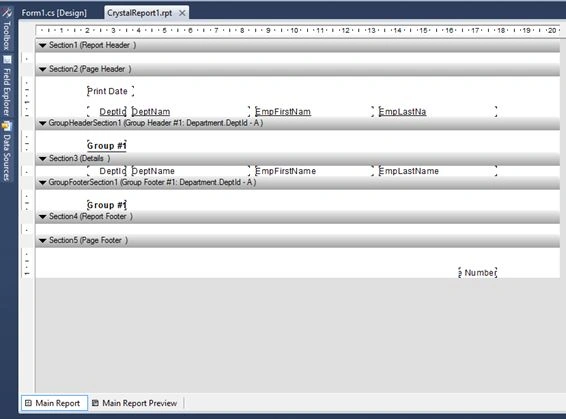
So it will automatically create Crystal Report same as in the following screen.
On clicking on
Main Report Preview it will bind data from the DataTable.
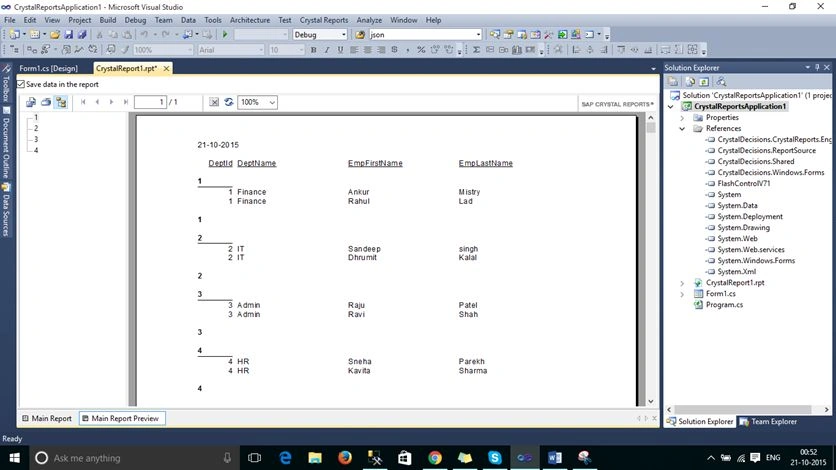
When you bind this report in your project, please remove the check ‘
Save data in the report’.
Otherwise it will not refresh the actual data. It will show saved data in reports.
Step 8: Now I will format the reports and combine EmpFirstName and EmpLastName in 1 field.
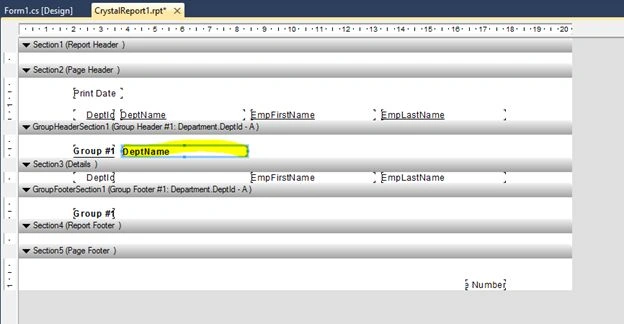
Just drag and drop DeptName and place it on groupHeader section, so it will display Department name only once.
 Step 9:
 Now from the Field Explorer, right click on Formula field and give name ‘
EmpName’.
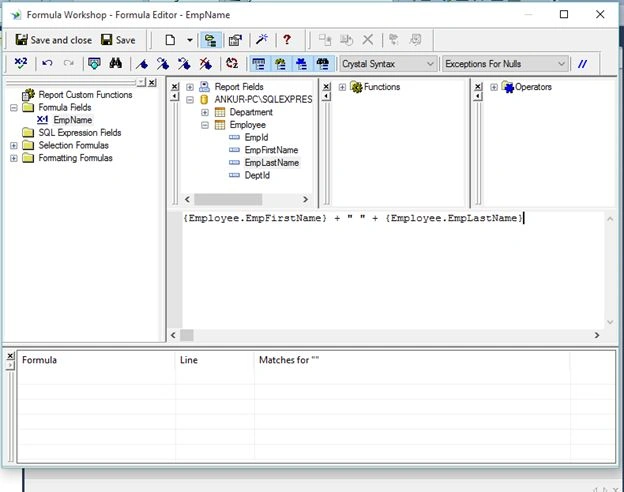
Now from the formula Workshop, select Employee table and select EmpFirstName and EmpLastName field and concat it in a single name ‘
EmpName’.
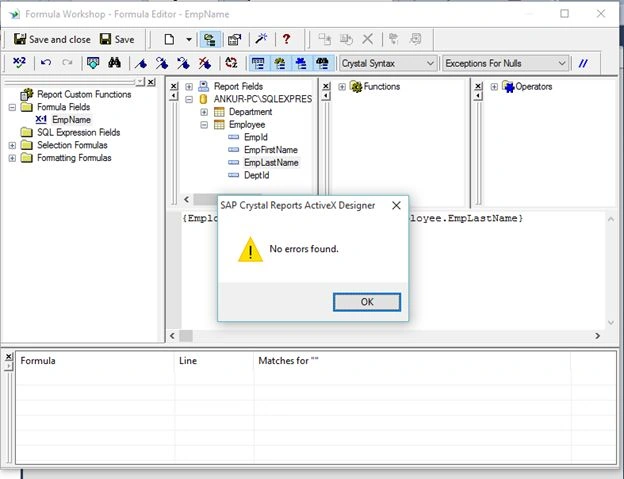
Now click on Alt + C for checking errors like the following screen,
 Step 10:
 Delete EmpFirstName and EmpLastName from the Report and place ‘
@empName’.
Right click and suppress unnecessary section, and place @Empname field in Details section.
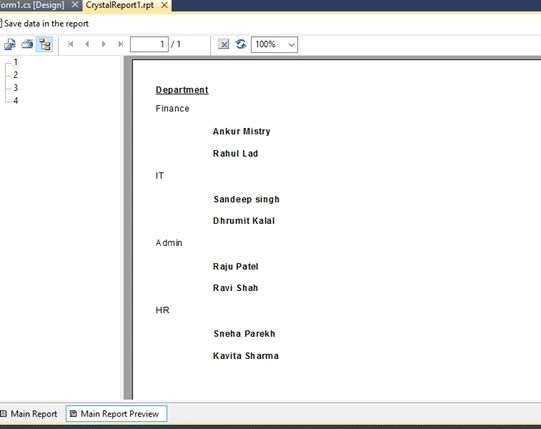
Just little formatting and your
DeptWise employee report is ready.


vamsi krishnaPosted Feb 17, 2021, 11:11 AM
Is very useful in visualstudio 2008 tnq sir
Vimal VishwakarmaPosted Nov 9, 2017, 1:24 AM
It would have even better if u would have mention version of Crystal Reports as some of the above steps are not available in Crystal report vs 13
Sonu ChaudharyPosted Mar 31, 2016, 12:00 PM
good share
Ankur MistryPosted Mar 11, 2016, 7:46 AM
you can go with Visual Studio 2010
JoePosted Mar 11, 2016, 7:40 AM
What version of Crystal Reports and Visual Studio do I need to follow along with this example? Do I need a full version of Crystal Reports (which version)? I'm just wondering what are the pre-requisites to creating reports and what versions I need to get. Thanks very much.
Asfend YarPosted Feb 27, 2016, 4:04 AM
Nice Share
Ankur MistryPosted Nov 30, 2015, 8:46 PM
Thanks
supriya tarsePosted Nov 26, 2015, 1:49 AM
Nice article
Santhakumar MunuswamyPosted Nov 11, 2015, 10:44 AM
Good one
Rushabh ParekhPosted Nov 9, 2015, 2:16 AM
Helpful article .. Thank you for uploading.
Ankur MistryPosted Nov 7, 2015, 5:00 AM
Thank you All
Aditya PaniharPosted Nov 7, 2015, 1:17 AM
Nice article..... good beginning
Dipak PatelPosted Nov 6, 2015, 9:29 PM
Nice artical..Ankur
Ankur MistryPosted Nov 6, 2015, 1:16 PM
Thank you
Former memberPosted Nov 6, 2015, 12:58 AM
Nice Share Sir... we r waiting for more articles from u
KUSHAL KOLEKARPosted Nov 6, 2015, 12:53 AM
Awesome... Very helpful information thanks :)
Mayank SharmaPosted Nov 6, 2015, 12:11 AM
good one. it will help us :)
sagar nathePosted Nov 5, 2015, 11:58 PM
Very Nice Share Sir...
Ankur MistryPosted Nov 5, 2015, 7:43 PM
Thank you all
Sibeesh VenuPosted Nov 4, 2015, 11:20 PM
Nice Share
Humayun Kabir MamunPosted Nov 4, 2015, 11:10 PM
Nice...
Harshad PansuriyaPosted Nov 4, 2015, 11:06 PM
Nice one
Anu VPosted Nov 4, 2015, 11:01 PM
nice..
Mahesh ChandPosted Nov 4, 2015, 2:20 PM
Welcome to C# Corner, Ankur. You may want to put in Intro part something about what tools have you used to create the report. Something like this: In this article we will learn how to create reports using Crystal Reports in Visual Studio and apply grouping and display records.