

Introduction
The Visual Studio Code Editor gives you the ability to format your code with options such as hiding text, displaying URLs, and so forth. The language engine also provides features to auto-format your code as you type through Smart Indenting.
Click the below link to get Visual Studio 2017 keyboard shortcuts.
Indenting
You can choose three different styles of text indenting. You can also specify how many spaces compose a single indentation or tab and whether the editor uses tabs or space characters when indenting.
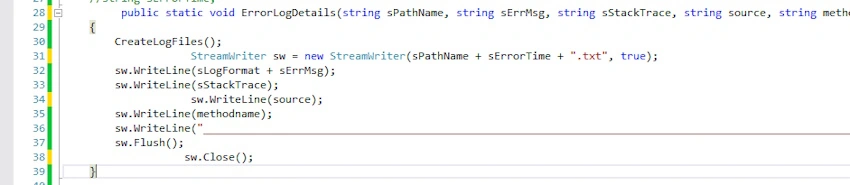
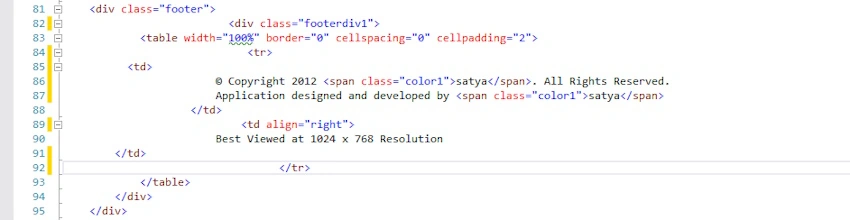
To automatically indent all of your code
- In Tools>> Options, select Text Editor >> All Languages >> Tabs, and then select Smart from the Indenting group box.
- To select this option on a per-language basis, select Smart in the appropriate folder, starting by selecting Options from the Tools menu. For example, to set Smart formatting for Visual Basic, select Smart from the Indenting group box in Text Editor, Basic, and Tabs.
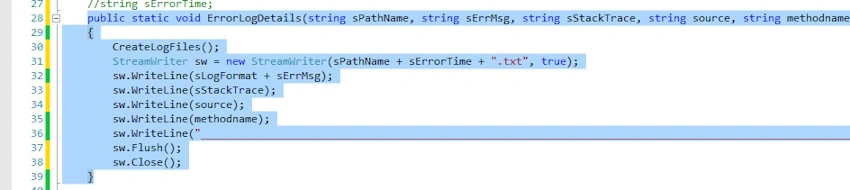
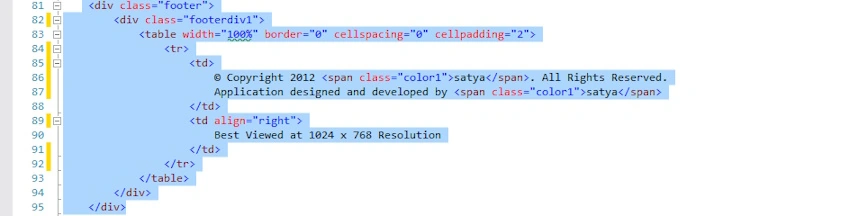
To automatically indent selected code
- Select the text you want to automatically indent.
- Click Format Selection in Edit, Advanced, or press CTRL+K, CTRL+F.
- Format Selection applies the smart indenting rules for the language in which you are programming to the selected text.
Converting Text to Upper and Lower Case
You can use commands to convert text to all upper or all lower case.
To switch text to upper or lower case
- Select the text you want to convert.
- To convert text to upper case, click CTRL+SHIFT+U or click Make Uppercase in Edit >> Advanced.
- To convert text to lowercase, click CTRL+U or click Make Lowercase in Edit >> Advanced.
Displaying and Linking to URLs
You can create and display active URLs (Uniform Resource Locators) in your code. You can then click the link and be taken to the web page in a browser. By default, the URLs:
- Appear underlined.
- Change the mouse pointer to a hand when you move over them.
- Open the URL site when single-clicked to see if the URL is valid.
To display a clickable URL
- On the Tools menu, click Options.
- Click Text Editor.
- To change the option for only one language, click that language and then click General. To change the option for all languages, click All Languages and then click General.
- Under Display, select Enable single-click URL navigation.
Join the conversation! Your thoughts help the community grow.