

Introduction
A SharePoint site content type gets an item and information about the items. Site content types help make it easy to provide consistency across a site collection. By defining site content types for specific kinds of documents or information, you can ensure that each group of content is managed in a consistent way. In this article, I will explain how to create Site Content Types in SharePoint 2013 using Visual Studio.
Pre-Requisites
- Open Visual Studio.
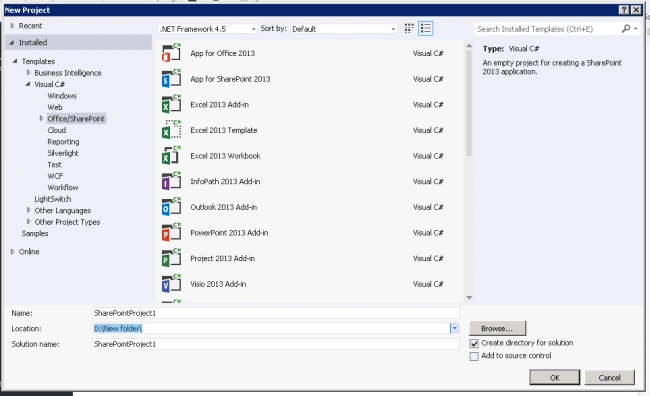
- Open New Project dialog box. Expand Office/SharePoint node and then choose SharePoint Solutions.
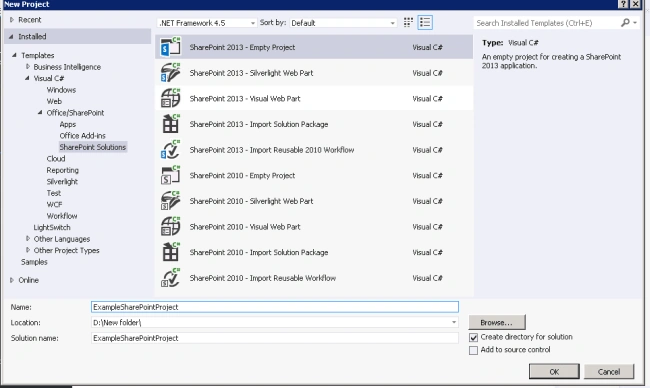
- Choose the "SharePoint 2013 – Empty Project" template. Name the project as ExampleSharePointProject.
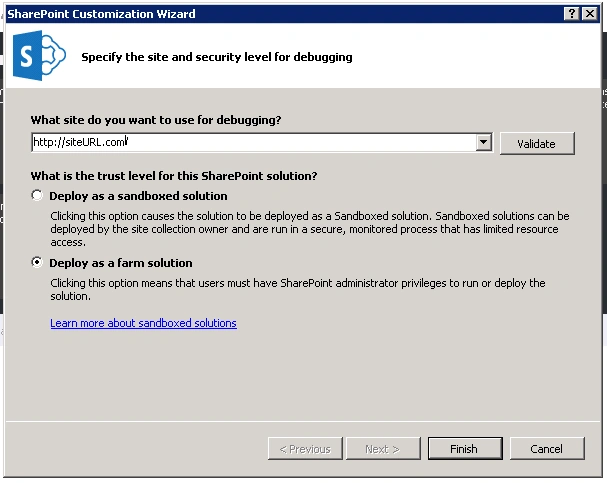
- Choose the "Deploy as a farm solution" option and click Finish.
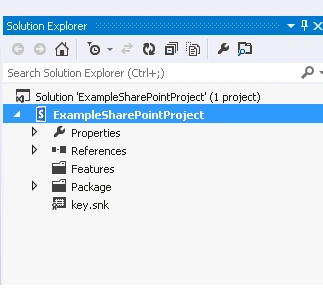
- ExampleSharePointProject SharePoint project has got created.
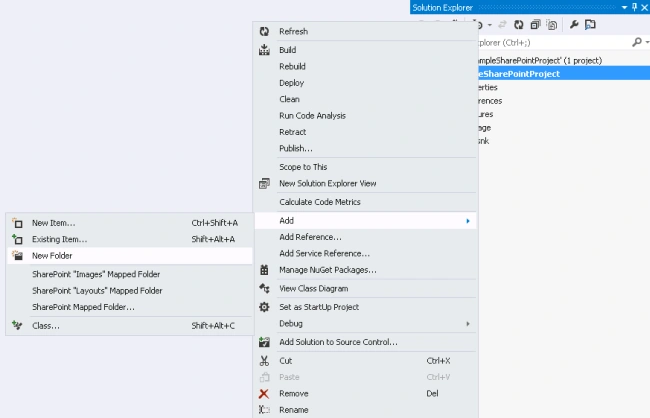
- Right click on ExampleSharePointProject -> Add -> New Folder. And name the folder as Site Columns.
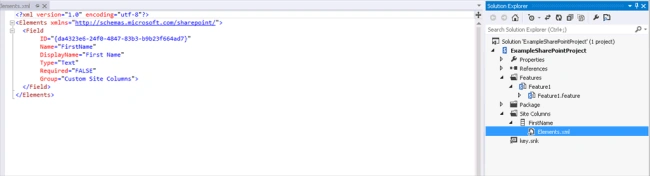
- Create the site columns in the ExampleSharePointProject.
Create Site Content Type
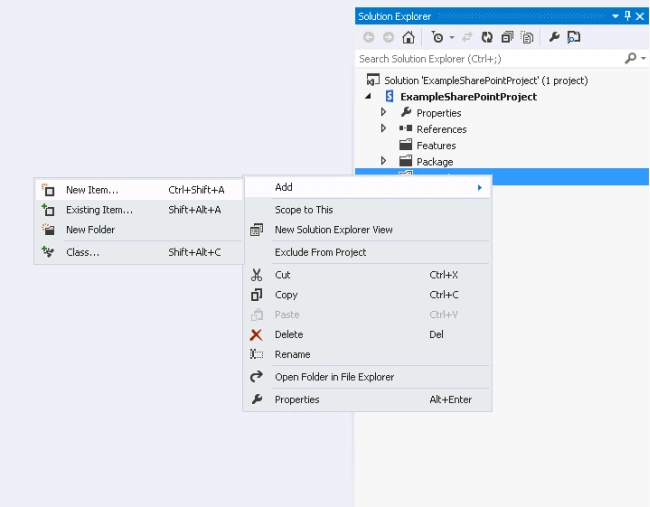
- Right click on ExampleSharePointProject -> Add -> New Folder. And name the folder as “Site Content Types”.
- Right click on Site Content Types folder ->Add -> New Item.
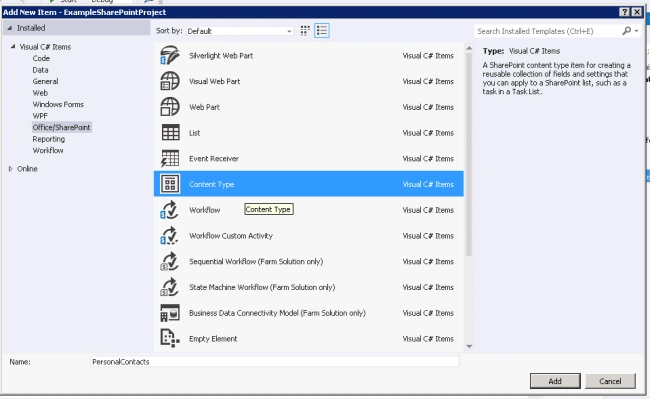
- Add Column Type from the Add New Item window. Name it as “PersonalContacts”.
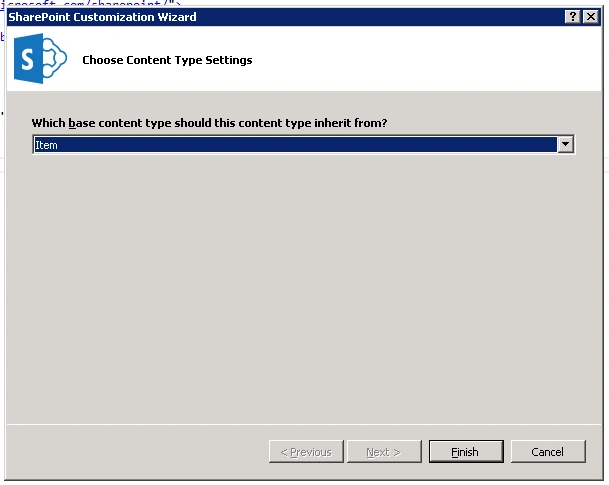
- Select the base content type, should this content type inherit.
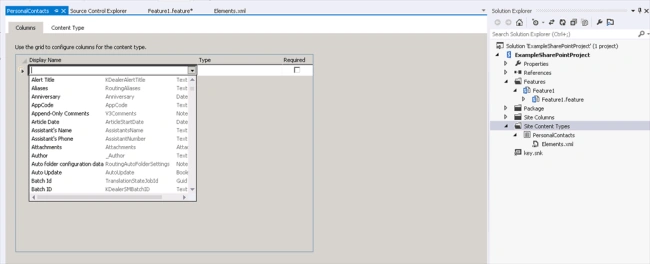
- Select the site columns which we created previously and also select it from already existing default site columns.
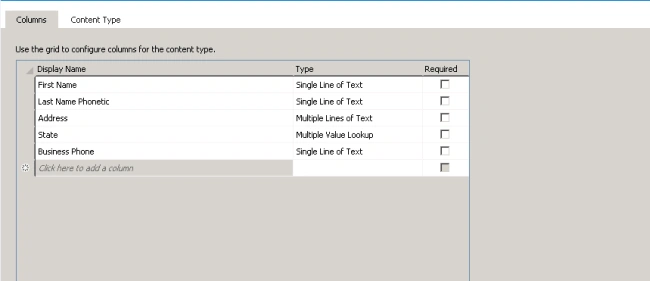
- Complete the selection process of all the site columns added to PresonalContacts site content type.
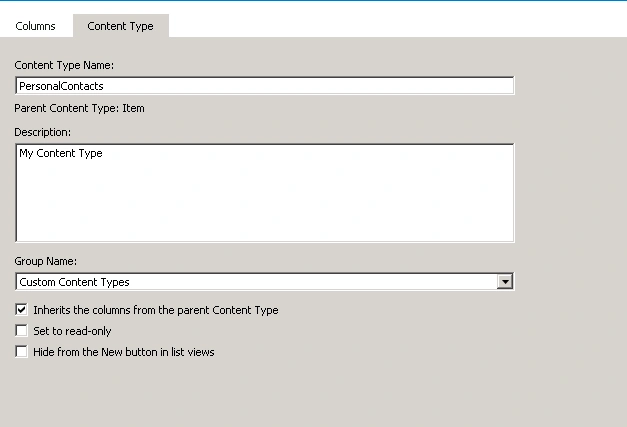
- Give the description and content type group which this content you want to appear in.
- Elements.xml file also displays the same information as we given.
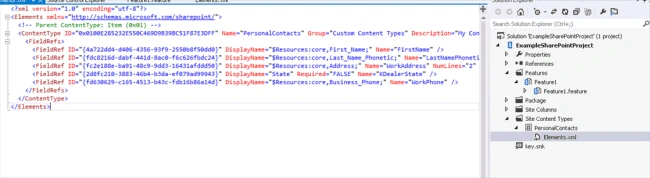
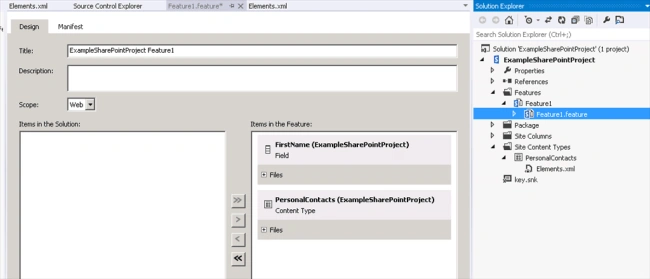
- Once you create a site column and site content type, you will notice that Visual Studio has automatically added a Feature to the project and included the new site column “FirstName” and content type “PersonalContacts” in it.
- Build and deploy the SharePoint solution.
- Open the SharePoint site, go to “Site Settings” -> “Site Content Types” under Web Designer Galleries.
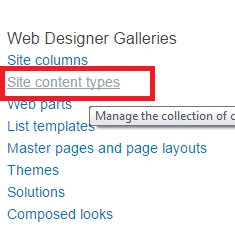
- List of site content types present in the site appears. Select the “Custom Content Type” group. Our “PersonalContacts” site content type appears.

- We can use these content types to our custom lists.
Summary - Thus, you learned how to create Site Content Types in SharePoint 2013 using Visual Studio.
Haresh GangwaniPosted Dec 3, 2019, 8:29 PM
Very well explained, thanks
Ankur VermaPosted Sep 29, 2016, 6:28 AM
Good.....
Anu VPosted Sep 28, 2016, 12:14 AM
Nice..
Humayun Kabir MamunPosted Sep 28, 2016, 12:06 AM
Nice...
Vignesh ManiPosted Sep 27, 2016, 6:20 PM
Good