

Introduction
Debugging has always been one of the most time-consuming and frustrating parts of software development. Traditionally, developers manually reproduce bugs, set breakpoints, inspect variables, and trace execution paths.
But what if debugging could become collaborative, intelligent, and automated?
Microsoft recently introduced the Visual Studio Debugger Agent, a major shift in how debugging works. Instead of just assisting, this AI agent actively participates in debugging—analyzing bug reports, executing code, identifying root causes, and suggesting fixes.
The Debugger Agent represents a shift toward a “debug smarter, not harder” workflow, acting as a real-time partner rather than just a tool.
What is the Visual Studio Debugger Agent?
The Debugger Agent is an AI-powered debugging assistant integrated into Visual Studio, designed to:
Understand bug reports
Analyze code context
Execute debugging workflows
Identify root causes
Suggest fixes interactively
Unlike traditional debugging tools, this is agentic—it doesn’t just respond, it acts.
Traditional Debugging vs Debugger Agent
| Traditional Debugging | Debugger Agent |
|---|---|
| Manual reproduction | Auto-analyzes bug reports |
| Step-by-step debugging | Autonomous investigation |
| Developer-driven | AI-assisted workflow |
| Static tools | Context-aware agent |
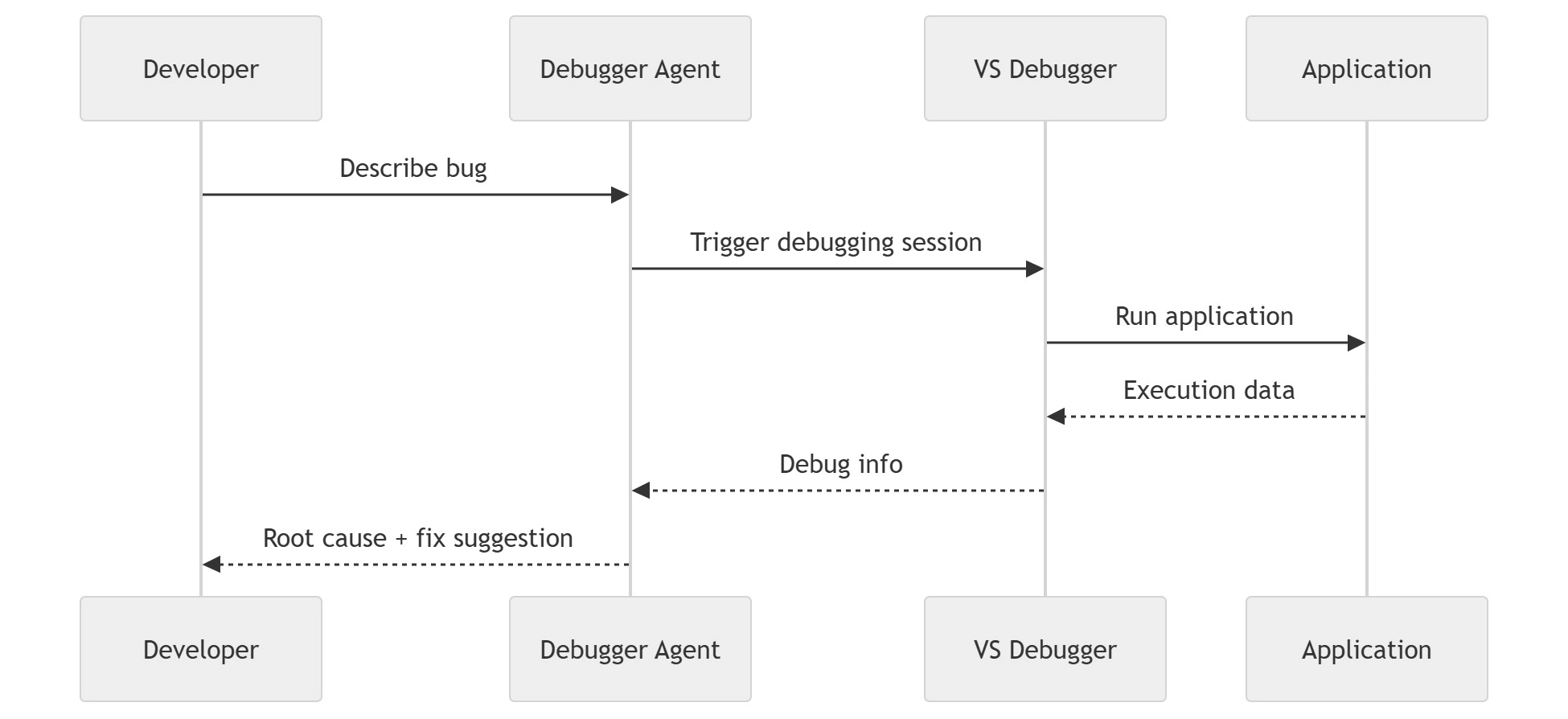
How the Debugger Agent Works
End-to-End Workflow
Bug Report → AI Agent → Code Analysis → Run Application → Root Cause Detection → Suggested FixDetailed Flow

1. Developer provides bug or issue description
2. Debugger Agent analyzes the context
3. Agent runs the application
4. Observes runtime behavior
5. Identifies root cause
6. Suggests fix or validates hypothesis
Why This is a Game Changer
Traditional debugging requires developers to guess, test, and iterate manually.
The Debugger Agent changes this by:
Acting as a reasoning partner
Automating repetitive debugging steps
Providing context-aware insights
Reducing cognitive load
Hands-On: Debugging with the Agent
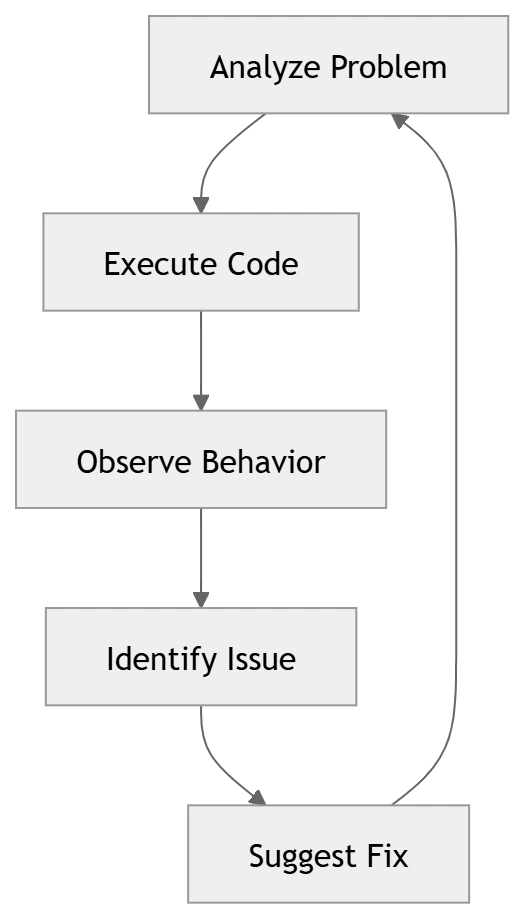
Scenario
Imagine you have a bug:
“Login button is not updating UI after API call”
Step 1: Provide Context
The login button is not updating after successful API response.Step 2: Agent Analysis
The Debugger Agent:
Reads the codebase
Identifies relevant components
Understands API flow
Step 3: Execution
The agent:
Runs the application
Monitors state changes
Observes UI behavior
Step 4: Root Cause Detection
Example findings:
State update is not triggering UI re-render
Possible issue in async state handling
Step 5: Suggested Fix
// Example fix suggestion
await InvokeAsync(StateHasChanged);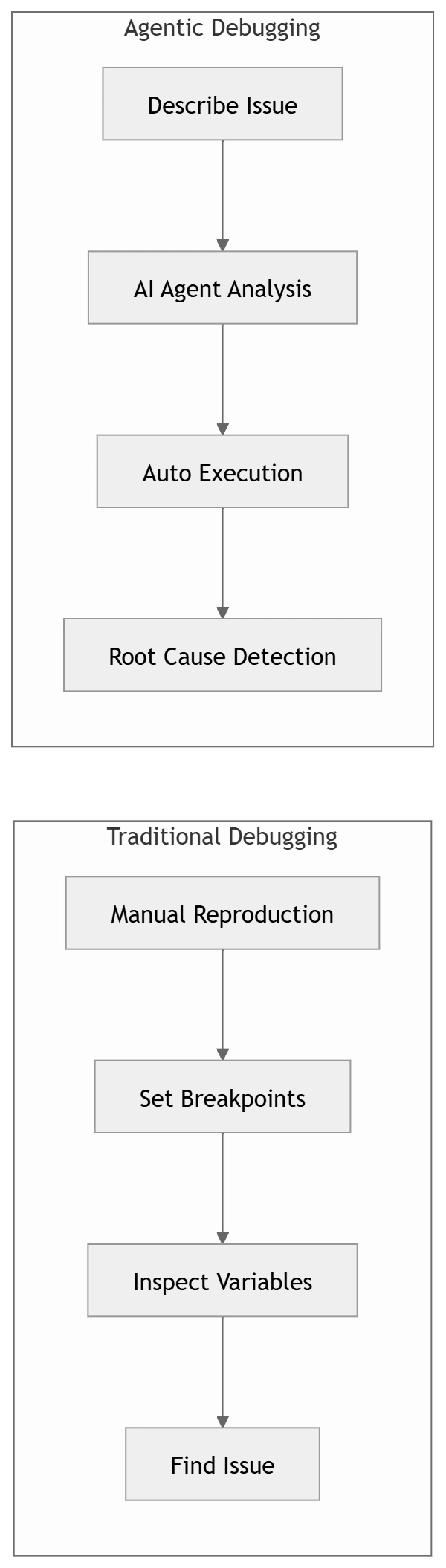

Join the conversation! Your thoughts help the community grow.