

Introduction
Ensuring robust security is a critical aspect of managing any IT infrastructure. In VMware Cloud Foundation, effective certificate management is key to enhancing security measures. This guide aims to streamline the process, offering a comprehensive overview of certificate management within the VMware Cloud Foundation environment. From replacing self-signed certificates with those signed by a Certificate Authority (CA) to managing certificates for various components, this guide provides step-by-step instructions and best practices to help organizations effectively manage and secure their VMware Cloud Foundation deployment.
Certificate Management
In VMware Cloud Foundation, managing certificates is crucial for enhancing security. It's a common practice for IT organizations to replace self-signed certificates with those signed by their Certificate Authority (CA). VMware Cloud Foundation simplifies this process, allowing users to update and manage certificates easily.
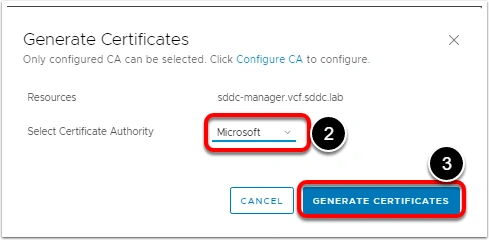
Cloud Foundation enables managing certificates for all external-facing components, including configuring a certificate authority, generating and downloading Certificate Signing Requests (CSRs), and installing certificates. It supports Microsoft certificate authority, Open SSL, and 3rd party certificate authorities.
You can manage certificates for various components, such as vCenter Server, NSX Manager, and SDDC Manager.
Review Certificate Authority
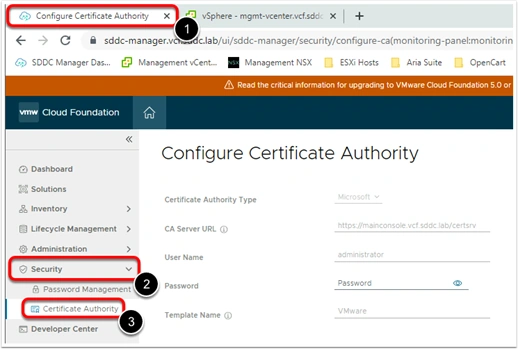
- Navigate to the SDDC Manager interface by selecting the first browser tab.
- In the left navigation window, expand the Security menu.
- Click on the Certificate Authority sub-menu item.
The connection from the SDDC Manager to the backend Certificate Authority is already established.
Generate CSR
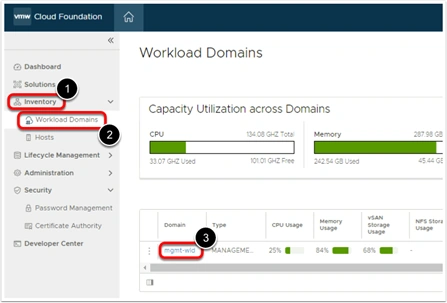
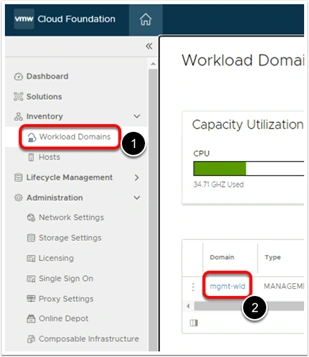
- In the left navigation window, click on the Inventory menu item.
- Select the Workload Domains sub-menu item.
- Click on the "mgmt-wld" Domain link on the resulting screen.
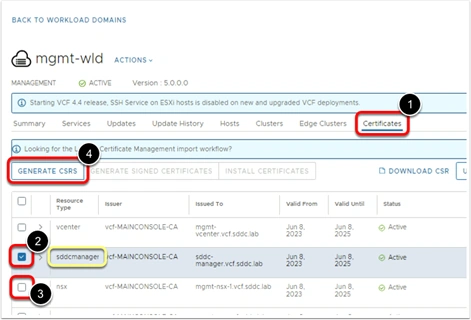
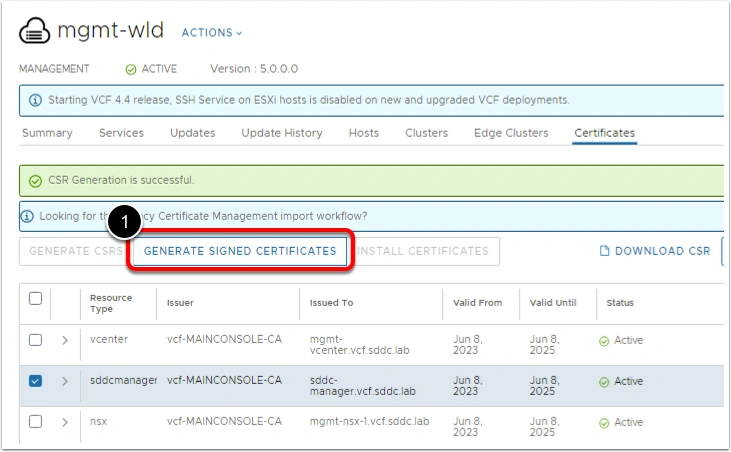
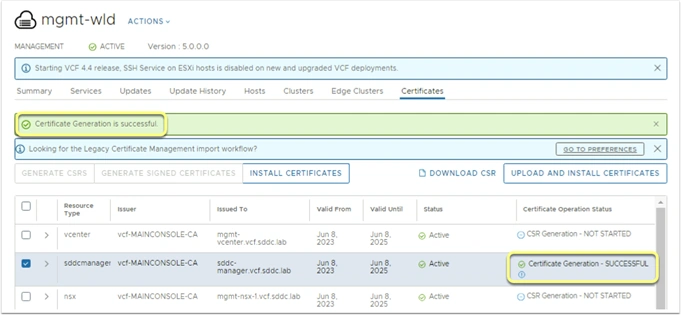
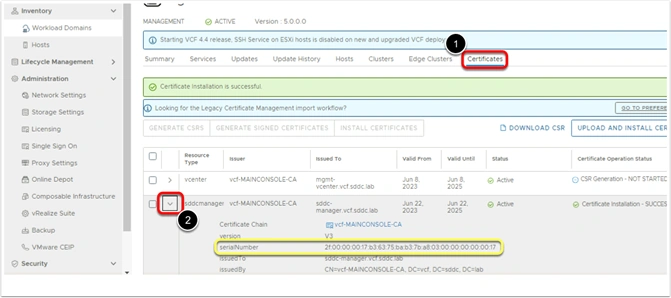
- Select the Certificates Tab.
- Place a check in the box next to the SDDC Manager. Note that we will be replacing the SDDC Manager certificate due to time constraints.
- Uncheck any other boxes.
- Click on the GENERATE CSRS button. Review the current date that the certificate is valid through.
Generate CSR Wizard
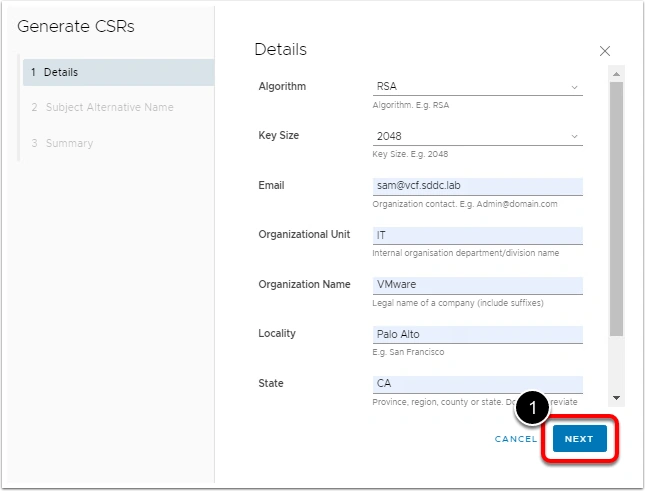
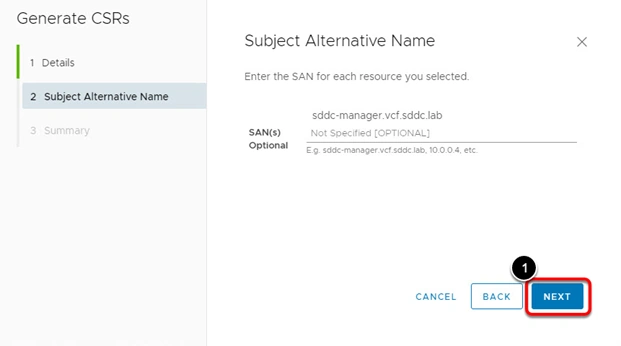
Click NEXT
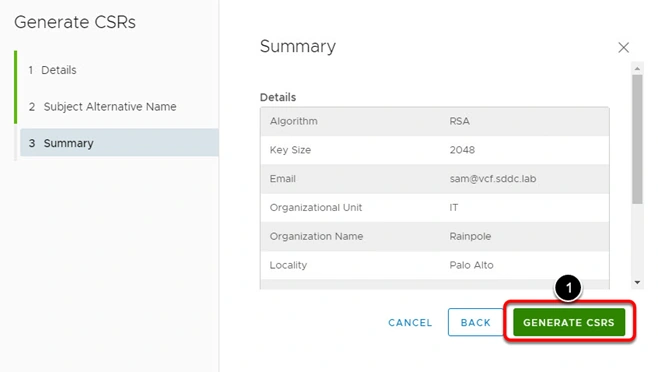
To populate the fields in the CSR (Certificate Signing Request) wizard with the following information, follow these steps.
- Algorithm: RSA
- Key Size: 2048
- Email: [email protected]
- Organizational Unit: IT
- Organization: Rainpole
- Locality: Palo Alto
- State: CA
- Country: US
- Common Name (CN): Enter the fully qualified domain name (FQDN) of the SDDC Manager, e.g., sddcmanager.example.com.
- Organization (O): Enter the name of your organization, e.g., Example Corp.
- Organizational Unit (OU): Enter the department or unit within your organization, e.g., the IT Department.
- Locality (L): Enter the city or locality of your organization, e.g., New York.
- State (ST): Enter the state or region of your organization, e.g., New York.
- Country (C): Enter the two-letter country code of your organization, e.g., US.
- Email Address: Enter the email address associated with the certificate, e.g., [email protected].
Join the conversation! Your thoughts help the community grow.