

To submit your Windows Phone App to your Store Account you need to do some prerequisites. First of all, if you have downloaded the source code of your Universal App of Windows App Studio, just go to this download directory and open the solution file in Visual Studio 2013 with Update 3. If you don't have Update 3, it's fine but you need at least Update 2 to run Universal Apps. In our last chapter we've downloaded our source code from the App Studio. Open it in your Visual Studio.
After loading your project in Visual Studio 2013, use the following simple procedure before submitting your apps to the Windows Phone Store.
Step 1
Right-click on the Windows Phone Project in Solution Explorer and make it the StartUp Project.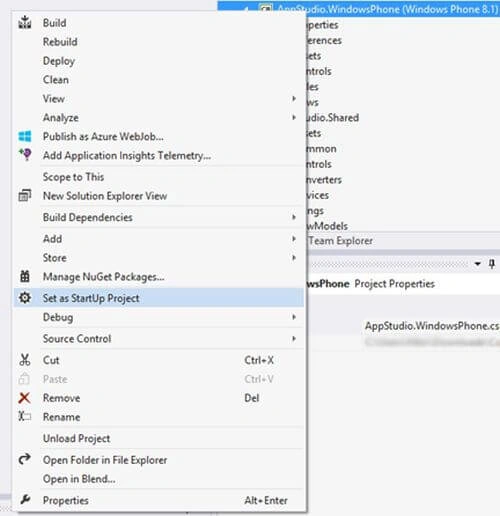
Figure 1
Step 2
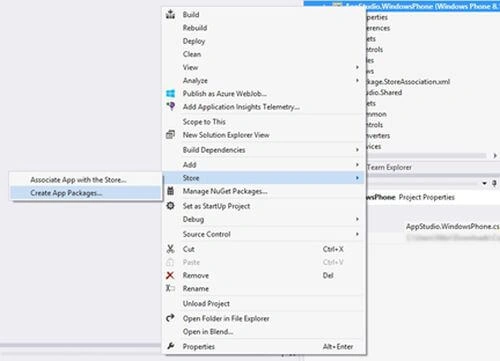
Again right-click on the Windows Phone Project in Solution Explorer, go to the Store and click Associate App with the Store.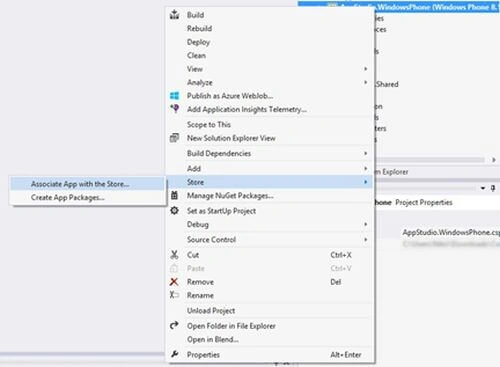
Figure 2
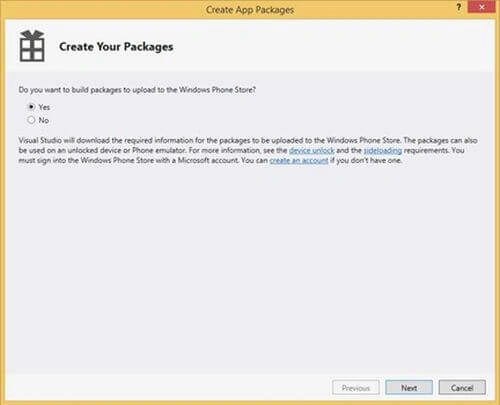
Then you can see the figure below and click Next.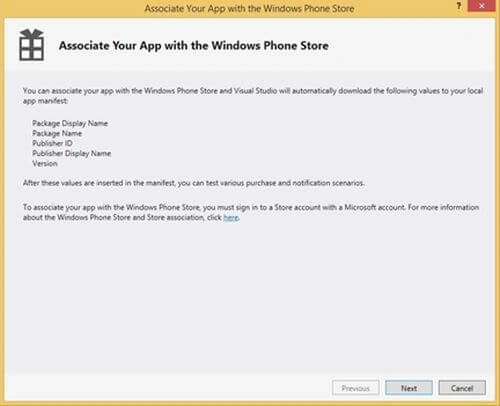
Figure 3
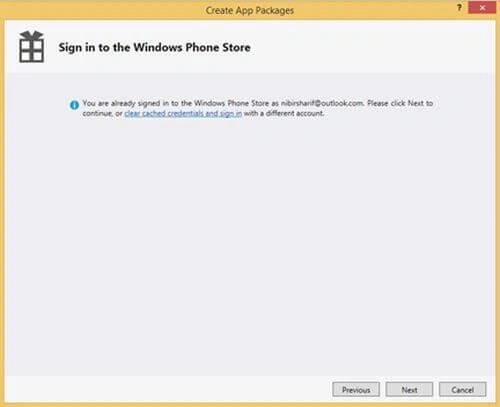
Then you will be asked to sign in with your Store Account, so sign in.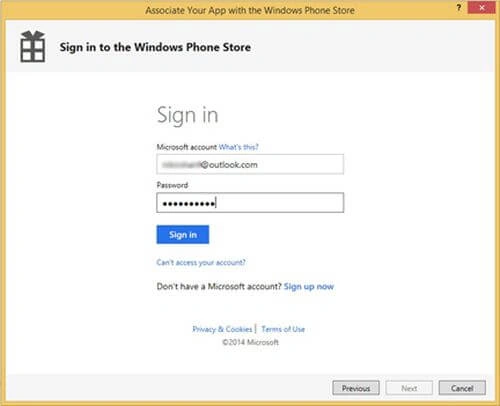
Figure 4
Verify with your phone number.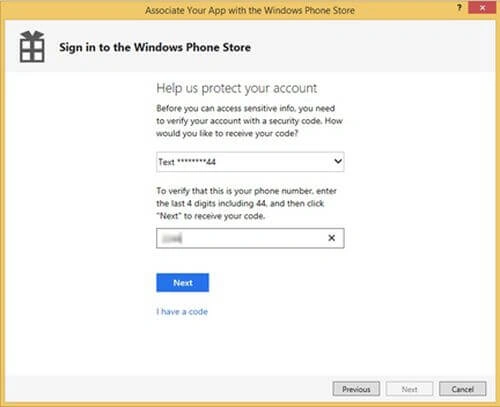
Figure 5
Insert the security code that you have received and click submit.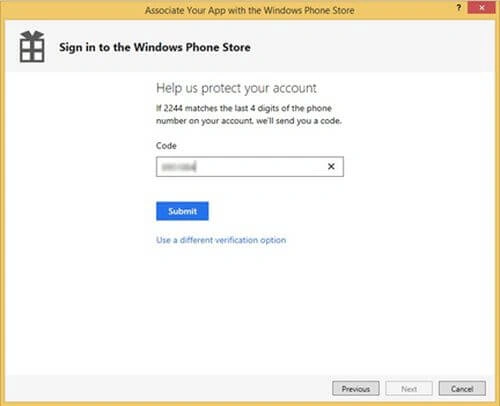
Figure 6
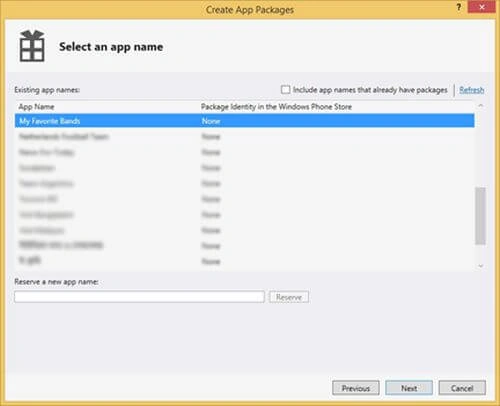
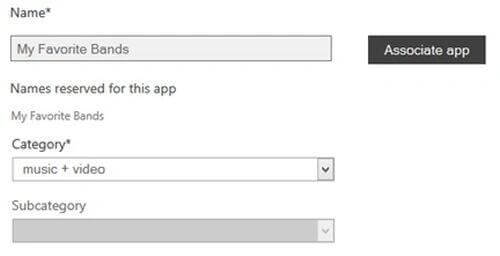
Now, we have reserved an app name in our last blog. Today we will just select the reserved app name and click next.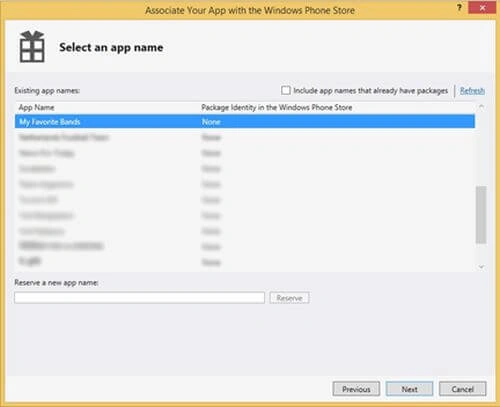
Figure 7
Here, I've used another app as an example to submit in my store. Click Associate.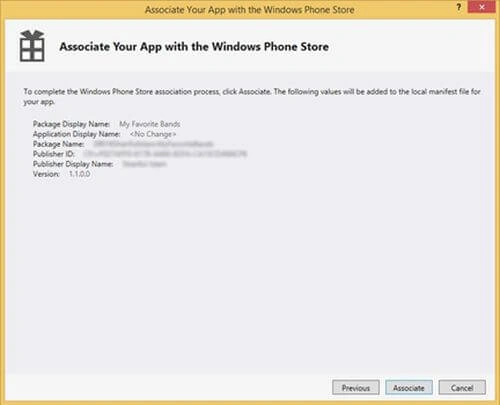
Figure 8
Step 3

Join the conversation! Your thoughts help the community grow.