
Introduction
This article addresses an approach to determining the type of browser used to
display a web page within the context of building an ASP.NET application that
supports both mobile and standard desktop browsers. The approach used is merely
to capture the browser type when the user hits the default.aspx page and then to
redirect the user to a page built specifically for either a standard desktop
browser or for on optimized for a mobile browser.
Of course one could also use the same approach to optimize the display of the
web page based upon the detected browser along with other available information
(allows cookies, JavaScript, frames, etc.).
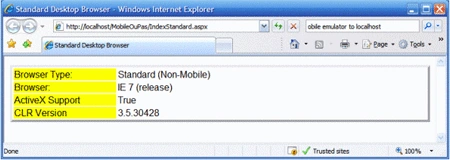
Figure 1: Demo Website in IE7
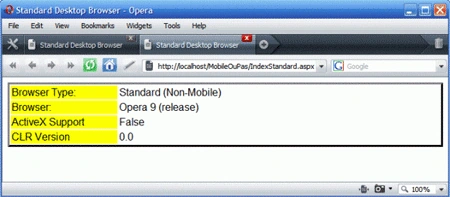
Figure 2: Demo Website in Opera 9
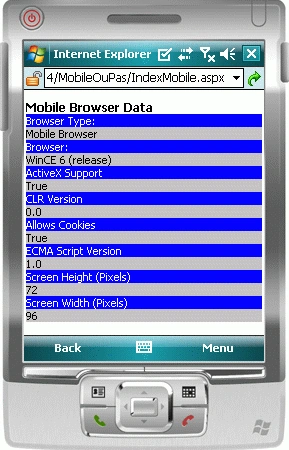
Figure 3: Demo Website on Mobile Emulator (Mobile Browser)
Getting Started:
In order to get started, unzip the included project and save it to your hard
drive. There are two separate projects; the web site itself, and a mobile
application used only to validate the detection mobile browsers as well as the
correct use of redirection based upon the detection.
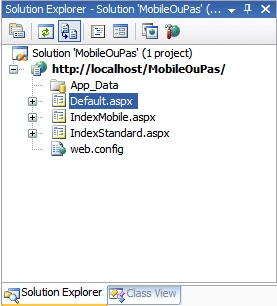
Figure 4: Solution Explorer for the Demo Web Application
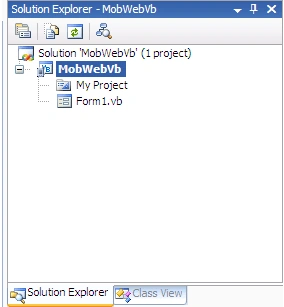
Figure 5: Solution Explorer for the Test Mobile Browser Application
The web application project is called "MobileOuPasVB". This web application
contains three web pages (default, index mobile, and index standard); all code
behind is in Visual Basic. The default web page is used to only to detect the
user's browser type and to perform the redirection based upon the results of
that detection.
The mobile application serves as a test bed for looking at the web page as it is
rendered in a mobile browser; the application's form class contains nothing
other than the defaults.
Configuring the Mobile Emulation
In order to use the mobile emulation to connect to the internet and to allow one
to display web pages from a local instance of IIS, follow this checklist:
-
Install the latest version of the Windows Mobile SDK (http://www.microsoft.com/downloads/details.aspx?FamilyID=06111a3a-a651-4745-88ef-3d48091a390b&displaylang=en)
-
Install Microsoft Active Sync (http://www.microsoft.com/windowsmobile/en-us/help/synchronize/activesync45.mspx)
-
Check for other requirements you may need (http://msdn.microsoft.com/en-us/windowsmobile/bb264337.aspx)
-
From within Visual Studio, create a new Smart Device project.
-
Open Microsoft ActiveSync.
-
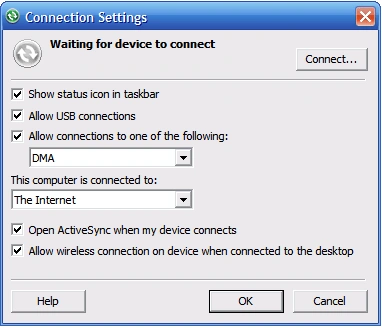
Open File->Connection Settings from ActiveSync
-
Configure the Dialog as per the following figure:
-
Wireless is optional but should be used if you are using a wireless connection.
-
OK the dialog box to close it. Leave the ActiveSync control panel running.
-
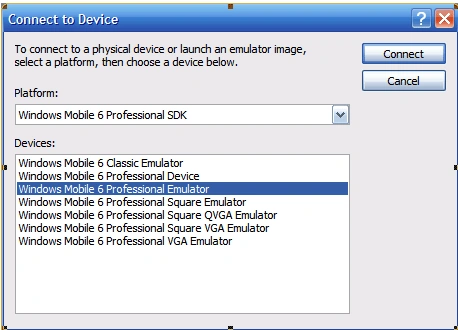
From Visual Studio, open Tools->Connect to Device
-
Select an optional emulator from the dialog (you may select either a 5.0 or a 6.0 emulator):
-
Click Connect.
-
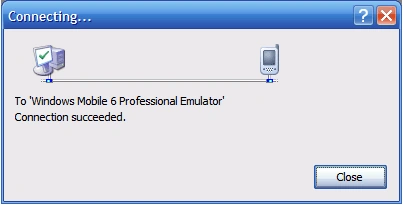
You should see an dialog showing the status:
-
Click Close.
-
From Visual Studio, select Tools->Device Emulator Manager. You should see the device in the list:
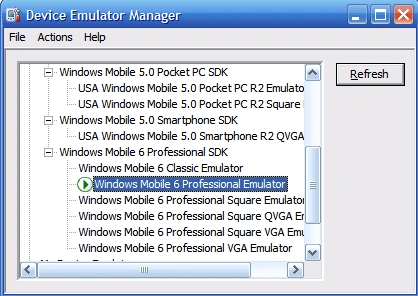
16. If the device does not immediately appear, click Refresh and check again. When you see the device marked with a green arrow icon, right click it and select Cradle.
17. After the virtual device is cradled, you can monitor the status of the connection from the ActiveSync control panel:
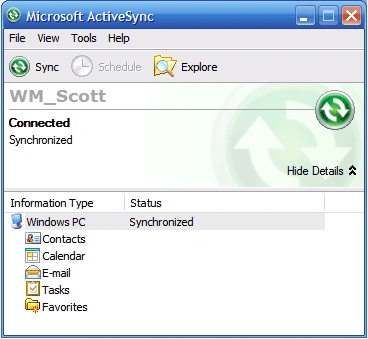
18. Return to Visual Studio and run the application.
19. With the emulation running, navigate to internet explorer (use the window button on the upper right corner of the emulation) and key in the URL for the site you would like to test. Fair warning, the emulation will not accept the use of localhost, use instead the IP address of the machine in lieu of localhost. You should see your mobile web page appear in the browser window:
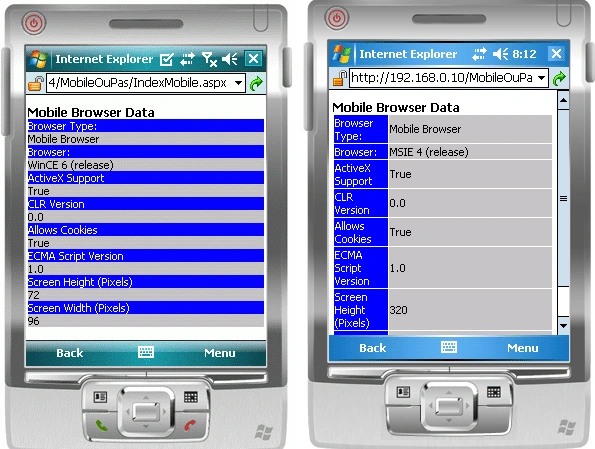
Figures Show the Mobile Browsers for WIN CE 6 and for MSIE 4 (version 5.0 emulation)
Web Application
Now that we have a viable test project, you can create your asp.net application
or open the project included with this document. The test web application is
entitled, "MobileOuPasVB" and it is very simple having only three web pages, a
default page which serves only as an entry point and two alternative web pages,
one entitled, "MobileIndex" and one entitled, "StandardIndex". The default page
is set as the default page; once hit, the page will detect the browser type and
immediately direct the user to either the mobile or standard browser index page.
Code: Default.aspx
The default page is used to detect the user's browser and to redirect only; it
contains no visual elements. Once the page load event fires, the code determines
whether or not the user is viewing the site with a mobile or standard browser.
The markup for the page is basically empty without even a so much as a title
defined:
<%@
Page Language="VB"
AutoEventWireup="false"
CodeFile="Default.aspx.vb"
Inherits="_Default"
%>
<html
xmlns="http://www.w3.org/1999/xhtml">
<head
runat="server">
<title></title>
</head>
<body>
<form
id="form1"
runat="server">
<div>
</div>
</form>
</body>
</html>
Code: Default.aspx.vb
The code behind for the default page contains the code (executed on page load)
to detect the browser type and to redirect the user to either the mobile or
standard browser index page. The entire class is listed out below; the call made
on page load is used to get the value for the IsMobileDevice item contained in
the returned HttpBrowserCapabilities collection. This is really all that is
necessary to support redirection to a mobile device; if IsMobileDevice is set to
true then we know the user has a mobile browser and we can redirect them to the
index page optimized for the mobile browser; otherwise, we can redirect them to
the standard version of the web page.
Partial
Class _Default
Inherits System.Web.UI.Page
Protected
Sub Page_Load(ByVal
sender As Object,
ByVal e As
System.EventArgs) Handles
Me.Load
If
Request.Browser("IsMobileDevice") =
"true" Then
Response.Redirect("IndexMobile.aspx")
Else
Response.Redirect("IndexStandard.aspx")
End If
End Sub
End
Class
Code: IndexMobile.aspx
The index mobile page is a simulation of a page optimized for a mobile browser.
When the page loads, it displays some information about the browser to the user
in a format suited to the small screen available to the mobile device. In this
case, the simulation displays some information about the browser generated on in
the web form's page load event.
<%@
Page Language="VB"
AutoEventWireup="false"
CodeFile="IndexMobile.aspx.vb"
Inherits="IndexMobile"
%>
<html
xmlns="http://www.w3.org/1999/xhtml">
<head
id="Head1"
runat="server">
<title>Mobile
Browser</title>
</head>
<body>
<form
id="form1"
runat="server">
<div>
<asp:Label
runat="server"
ID="lblGreets"
Text="Mobile Browser
Data" Font-Bold="True"></asp:Label><br
/>
<table
style="font-family:
Calibri; width:
100%; font-size:
x-small; caption-side:
top;">
<tr>
<td
style="width:
25%; background-color:Blue;
color:White">
Browser Type:
</td>
<td
style="width:
75%; background-color:Silver;
color:Black">
Mobile Browser
</td>
</tr>
<tr>
<td
style="width:
25%; background-color:Blue;
color:White">
Browser:
</td
>
<td
style="width:
75%; background-color:Silver;
color:Black">
<%=browserString
%>
</td>
</tr>
<tr>
<td
style="width:
25%; background-color:Blue;
color:White">
ActiveX Support
</td>
<td
style="width:
75%; background-color:Silver;
color:Black">
<%=activeXControls.ToString()
%>
</td>
</tr>
<tr>
<td
style="width:
25%; background-color:Blue;
color:White">
CLR Version
</td>
<td
style="width:
75%; background-color:Silver;
color:Black">
<%=clrVersion.ToString()
%>
</td>
</tr>
<tr>
<td
style="width:
25%; background-color:Blue;
color:White">
Allows Cookies
</td>
<td
style="width:
75%; background-color:Silver;
color:Black">
<%=takesCookies.ToString()
%>
</td>
</tr>
<tr>
<td
style="width:
25%; background-color:Blue;
color:White">
ECMA Script Version
</td>
<td
style="width:
75%; background-color:Silver;
color:Black">
<%=ecmaScriptVersion.ToString()
%>
</td>
</tr>
<tr>
<td
style="width:
25%; background-color:Blue;
color:White">
Screen Height (Pixels)
</td>
<td
style="width:
75%; background-color:Silver;
color:Black">
<%=ScreenHeight.ToString()
%>
</td>
</tr>
<tr>
<td
style="width:
25%; background-color:Blue;
color:White">
Screen Width (Pixels)
</td>
<td
style="width:
75%; background-color:Silver;
color:Black">
<%=ScreenWidth.ToString()
%>
</td>
</tr>
</table>
</div>
</form>
</body>
</html>
Code: IndexMobile.apsx.vb
The mobile index page load event is used to populate a collection of variable
used to hold some of the information about the user's browser. This information
is displayed in a table in a manner apart from how the page is displayed in a
standard browser. All of the information displayed is extracted from the
HttpBrowserCapabilities and is there just for eyewash; naturally this and other
information obtained from that collection could well be used to optimize the
page for different types of mobile or standard browsers.
Partial
Class IndexMobile
Inherits System.Web.UI.Page
Public
browserCapabilies As HttpBrowserCapabilities
Public browserString
As String
Public activeXControls
As Boolean
Public clrVersion
As Version
Public isBeta As
Boolean
Public takesCookies
As Boolean
Public ecmaScriptVersion
As Version
Public ScreenHeight
As Integer
Public ScreenWidth
As Integer
Protected
Sub Page_Load(ByVal
sender As Object,
ByVal e As
System.EventArgs) Handles
Me.Load
browserCapabilies = Request.Browser
browserString = browserCapabilies.Browser &
" " &
browserCapabilies.MajorVersion.ToString()
isBeta = browserCapabilies.Beta
If
(isBeta = True) Then
browserString += " (beta)"
Else
browserString += " (release)"
End If
activeXControls =
browserCapabilies.ActiveXControls
clrVersion = browserCapabilies.ClrVersion
takesCookies = browserCapabilies.Cookies
ecmaScriptVersion = browserCapabilies.EcmaScriptVersion
ScreenHeight = browserCapabilies.ScreenPixelsHeight
ScreenWidth = browserCapabilies.ScreenPixelsWidth
End Sub
End
Class
Code: IndexStandard.aspx
This page is very similar to the mobile index; some of the styles are changed
and a little more information is added:
<%@
Page Language="VB"
AutoEventWireup="false"
CodeFile="IndexStandard.aspx.vb"
Inherits="IndexStandard"
%>
<html
xmlns="http://www.w3.org/1999/xhtml">
<head
id="Head1"
runat="server">
<title>Standard
Desktop Browser</title>
</head>
<body>
<form
id="form1"
runat="server">
<div>
<table
style="font-family:
Arial; border-style:
outset; width:
100%">
<tr>
<td
style="width:
25%; background-color:
Yellow">
Browser Type:
</td>
<td
style="width:
75%">
Standard (Non-Mobile)
</td>
</tr>
<tr>
<td
style="width:
25%; background-color:
Yellow">
Browser:
</td
>
<td
style="width:
75%">
<%=browserString
%>
</td>
</tr>
<tr>
<td
style="width:
25%; background-color:
Yellow">
ActiveX Support
</td>
<td
style="width:
75%">
<%=activeXControls.ToString()
%>
</td>
</tr>
<tr>
<td
style="width:
25%; background-color:
Yellow">
CLR Version
</td>
<td
style="width:
75%">
<%=clrVersion.ToString()
%>
</td>
</tr>
</table>
</div>
</form>
</body>
</html>
Code: IndexStandard.aspx.vb
The code behind is again very similar to the code behind for the mobile index. I
merely displays similar information is an alternative format intended for use in
a standard browser. Again, this is just eyewash and the alternative format page
is provided to make for a complete example.
Partial
Class IndexStandard
Inherits System.Web.UI.Page
Public
browserCapabilies As HttpBrowserCapabilities
Public browserString
As String
Public activeXControls
As Boolean
Public clrVersion
As Version
Public isBeta As
Boolean
Protected Sub
Page_Load(ByVal sender
As Object,
ByVal e As
System.EventArgs) Handles
Me.Load
browserCapabilies = Request.Browser
browserString = browserCapabilies.Browser &
" " &
browserCapabilies.MajorVersion.ToString()
isBeta = browserCapabilies.Beta
If
(isBeta = True) Then
browserString += " (beta)"
Else
browserString += " (release)"
End If
activeXControls = browserCapabilies.ActiveXControls
clrVersion = browserCapabilies.ClrVersion
End Sub
End
Class
Summary
The article addresses a simple approach for supporting mobile web browsers based
upon browser detection and redirection to pages optimized for either standard or
mobile browsers. Further, the example pages demonstrate how the
HttpBrowserCapability collection may be used to learn more about the user's
browser to permit further optimization as may be deemed necessary as based on
the needs of a specific project.

Join the conversation! Your thoughts help the community grow.