

Introduction
My previous article explained how to set up your development environment to get started with Android development using Xamarin and Visual Studio and also provided a brief introduction about wearables. This shows how to sync data in your Android application.
Creating the Wear App Project
To get started, let's fire up Visual Studio 2013 and select "File" -> "New" -> "Project...". Under Templates select C# > Android, select Wear App (Android) Project. You should be able to see the following: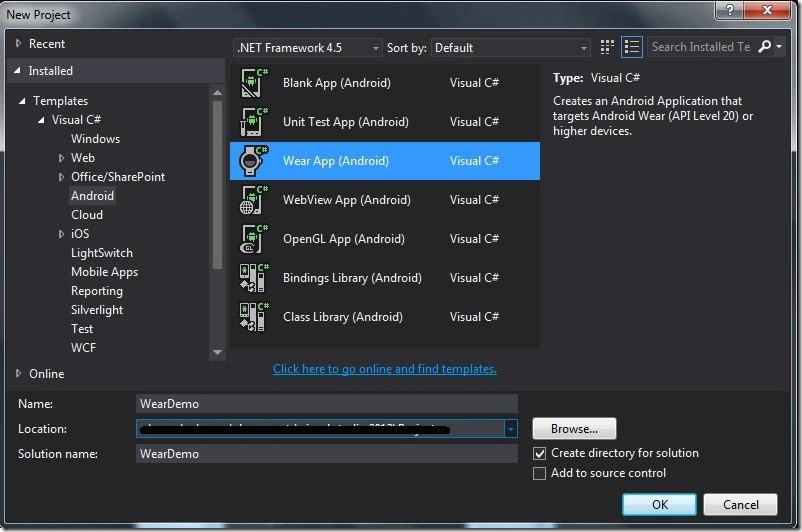
Name your app to whatever you like and then click OK to let Visual Studio generate the necessary files for you. In this example I named it "WearDemo". The image below shows the generated files with default sample codes to help you get started on building wear apps.
Before we start modifying the default code I'd like to point out that there are two ways to communicate between wearable and handheld devices and these are the DataApi and the MessageApi. The following are the short descriptions of each API.
DataApi exposes an API for components to read or write data items and assets. A DataItem provides data storage with automatic syncing between the handheld and wearable. An asset is used for sending BLOBs of data such as images. You attach assets to DataItems and the system automatically takes care of the transfer for you.
MessageApi exposes an API for components to send messages to other nodes. Messages should generally contain small payloads. You should use Assests with DataApi to store larger data.
In this particular demo, I'm going to use the DataApi to send/sync data between devices. Since DataApi is part of Google Play Services, then the first thing we need here is to add the following namespaces below:
- using Android.Gms.Common.Apis;
- using Android.Gms.Wearable;
- IDataApiDataListener.
- IGoogleApiClientConnectionCallbacks IGoogleApiClientOnConnectionFailedListener.
Wrapping everything up, here's the sample code for sending data to the handheld device:
- using System;
- using Android.Runtime;
- using Android.Widget;
- using Android.OS;
- using Android.Support.Wearable.Views;
- using Java.Interop;
- using Android.Gms.Common.Apis;
- using Android.Gms.Wearable;
- using System.Linq;
- namespace WearDemo
- {
- [Activity(Label = "WearDemo", MainLauncher = true, Icon = "@drawable/icon")]
- public class MainActivity : Activity,IDataApiDataListener, IGoogleApiClientConnectionCallbacks, IGoogleApiClientOnConnectionFailedListener
- {
- private IGoogleApiClient _client;
- const string _syncPath = "/WearDemo/Data";
- protected override void OnCreate(Bundle bundle) {
- base.OnCreate(bundle);
- _client = new GoogleApiClientBuilder(this, this, this)
- .AddApi(WearableClass.Api)
- .Build();
- // Set our view from the "main" layout resource
- SetContentView(Resource.Layout.Main);
- var v = FindViewById<WatchViewStub>(Resource.Id.watch_view_stub);
- v.LayoutInflated += delegate {
- // Get our button from the layout resource,
- // and attach an event to it
- Button button = FindViewById<Button>(Resource.Id.myButton);
- button.Click += delegate {
- SendData();
- };
- };
- }
- public void SendData() {
- try {
- var request = PutDataMapRequest.Create(_syncPath);
- var map = request.DataMap;
- map.PutString("Message", "Vinz says Hello from Wearable!");
- map.PutLong("UpdatedAt", DateTime.UtcNow.Ticks);
- WearableClass.DataApi.PutDataItem(_client, request.AsPutDataRequest());
- }
- finally {
- _client.Disconnect();
- }
- }
- protected override void OnStart() {
- base.OnStart();
- _client.Connect();
- }
- public void OnConnected(Bundle p0) {
- WearableClass.DataApi.AddListener(_client, this);
- }
- public void OnConnectionSuspended(int reason) {
- Android.Util.Log.Error("GMSonnection suspended " + reason);
- WearableClass.DataApi.RemoveListener(_client, this);
- }
- public void OnConnectionFailed(Android.Gms.Common.ConnectionResult result) {
- Android.Util.Log.Error("GMSonnection failed " + result.ErrorCode);
- }
- protected override void OnStop() {
- base.OnStop();
- _client.Disconnect();
- }
- public void OnDataChanged(DataEventBuffer dataEvents) {
- var dataEvent = Enumerable.Range(0, dataEvents.Count)
- .Select(i => dataEvents.Get(i).JavaCast<IDataEvent)
- .FirstOrDefault(x => x.Type == DataEvent.TypeChanged && x.DataItem.Uri.Path.Equals(_syncPath));
- if (dataEvent == null)
- return;
- //do stuffs here
- }
- }
- }
The Events
- OnStart connects to the data layer when the activity starts.
- OnConnected triggers when the data layer connection is successful.
- OnStop disconnects from the data layer when the activity stops OnConnectionSuspended and OnConnectionFailed is where you do stuff for the required connection callbacks (for example in this demo we log errors and detach the service).
- OnDataChanged triggers when the data changes.
- The path should always start with a forward-slash (/).
- Timestamps is a must when sending data because the OnDataChanged() event is only called when the data really changes. Adding the Timestamp to the data will ensure that the method is called.
- <meta-data android:name="com.google.android.gms.version" android:value="@integer/google_play_services_version" />
To test the syncing and sending of the data we need to create the main Android app that will receive the data object coming from the wearable. The main app will be installed in the handheld device (for example mobile or tablet).
Now right-click on the solution project and select ADD > NEW PROJECT. In the Add New Project window select Visual C# > Android > Blank App (Android). You should be able to see like this:

I named the project "MainAppDemo" for simplicity. Just click OK to generate the necessary files for you. You should have something like this in your solution now.

Before we start adding the logic to the main app, I'd like to highlight the following.
The Namespace of your Wear app and Main app should be the same. In this example the Wear app uses the namespace "WearDemo". So be sure to rename the namespace of your main app to "WearDemo" to match up. To change the default namespace you can follow these steps.
- Go to PROJECT > PROPERTIES > DEFAULT NAMESPACE.
- To change the rest you can use CTRL + H and replace the default namespace to "WearDemo".
- You can also use the refactor code to change the namespace. To do this just simply right-click on the namespace and select REFACTOR > RENAME.

If you are following this example then make sure that both package names are set to "WearDemo.WearDemo". Be sure to build both projects to see if it builds successfully. Once you've done that then let's go ahead and start modifying the project. First change the value of "Compile using Android version" to "API Level 21 (Xamarin.Android v5.0 Support). See the image below:

Under references check if you have Xamarin.Android.Support.V4. If you don't have that then just right-click on the References and select MANAGE NUGET PACKAGES. Under Online > Nuget.Org search "Xamarin.Android.Support.V4". You should be able to see something like this:

Just click install and wait until it is done. Now do the same procedure and install "Xamarin.Android.Wear -Version 1.0.0".
Adding the WearableListenerService
Extending the WearableListenerService lets you listen for any updates in the data layer. The system manages the lifecycle of the service, binding to the service when it needs to send data items or messages and unbinding the service when no work is needed.
Having that statement we will use the WearableListenerService to listen for an update from the data layer and handle the data. So the next step is to add a class that extends WearableListenerService. To do this right-click on the project root and select ADD > Class and name it "WearService". Here's the entire logic of the class.
- using System.Linq;
- using Android.App;
- using Android.Content;
- using Android.Runtime;
- using Android.Gms.Wearable;
- using Android.Gms.Common.Apis;
- using Android.Support.V4.Content;
- namespace WearDemo
- {
- [Service]
- [IntentFilter(new[] { "com.google.android.gms.wearable.BIND_LISTENER" })]
- public class WearService : WearableListenerService
- {
- const string _syncPath = "/WearDemo/Data";
- IGoogleApiClient _client;
- public override void OnCreate() {
- base.OnCreate();
- _client = new GoogleApiClientBuilder(this.ApplicationContext)
- .AddApi(WearableClass.Api)
- .Build();
- _client.Connect();
- Android.Util.Log.Info("WearIntegrationreated");
- }
- public override void OnDataChanged(DataEventBuffer dataEvents) {
- var dataEvent = Enumerable.Range(0, dataEvents.Count)
- .Select(i => dataEvents.Get(i).JavaCast<IDataEvent)
- .FirstOrDefault(x => x.Type == DataEvent.TypeChanged && x.DataItem.Uri.Path.Equals(_syncPath));
- if (dataEvent == null)
- return;
- //get data from wearable
- var dataMapItem = DataMapItem.FromDataItem(dataEvent.DataItem);
- var map = dataMapItem.DataMap;
- string message = dataMapItem.DataMap.GetString("Message");
- Intent intent = new Intent();
- intent.SetAction(Intent.ActionSend);
- intent.PutExtra("WearMessage", message);
- LocalBroadcastManager.GetInstance(this).SendBroadcast(intent);
- }
- }
- }
The Main Activity
Here's the code block for our main activity class.
- using Android.App;
- using Android.Content;
- using Android.Widget;
- using Android.OS;
- using Android.Support.V4.Content;
- namespace WearDemo
- {
- [Activity(Label = "MainAppDemo", MainLauncher = true, Icon = "@drawable/icon")]
- public class MainActivity : Activity
- {
- TextView _txtMsg;
- protected override void OnCreate(Bundle bundle) {
- base.OnCreate(bundle);
- // Set our view from the "main" layout resource
- SetContentView(Resource.Layout.Main);
- // Get our TextBox from the layout resource,
- _txtMsg = FindViewById<TextView>(Resource.Id.txtMessage);
- IntentFilter filter = new IntentFilter(Intent.ActionSend);
- MessageReciever receiver = new MessageReciever(this);
- LocalBroadcastManager.GetInstance(this).RegisterReceiver(receiver, filter);
- }
- public void ProcessMessage(Intent intent) {
- _txtMsg.Text = intent.GetStringExtra("WearMessage");
- }
- internal class MessageReciever : BroadcastReceiver
- {
- MainActivity _main;
- public MessageReciever(MainActivity owner) { this._main = owner; }
- public override void OnReceive(Context context, Intent intent) {
- _main.ProcessMessage(intent);
- }
- }
- }
- }
The Main layout
Change your Main.xaml to this:
- <?xml version="1.0" encoding="utf-8"?>
- <LinearLayout xmlns:android="http://schemas.android.com/apk/res/android"
- android:orientation="vertical"
- android:layout_width="fill_parent"
- android:layout_height="fill_parent">
- <TextView
- android:id="@+id/txtMessage"
- android:layout_width="fill_parent"
- android:layout_height="wrap_content"
- android:layout_marginTop="50dp"
- android:gravity="center"
- android:textColor="@android:color/white"
- android:textSize="80sp" />
- </LinearLayout>
And finally, add the Meta data in the AndroidManifest.xml under the <application> element:
- <meta-data android:name="com.google.android.gms.version" android:value="@integer/google_play_services_version" />
Vincent Maverick DuranoPosted May 1, 2015, 2:59 PM
Thanks :)
Karthik Muthu KaruppanPosted Apr 29, 2015, 6:10 PM
Good
NitinPosted Apr 29, 2015, 12:03 PM
Good one