

In this article, we are going to learn about how to create Tabs in PowerApps in two different ways and add form as content in Tab.
Approach 1 - Using Buttons
To create multiple tabs first we need to add 3 buttons for Basic Information, Contact Information, and Employee Information.
Step 1
Add a button and set BorderColor as white so that all 3 will be having a separation between them
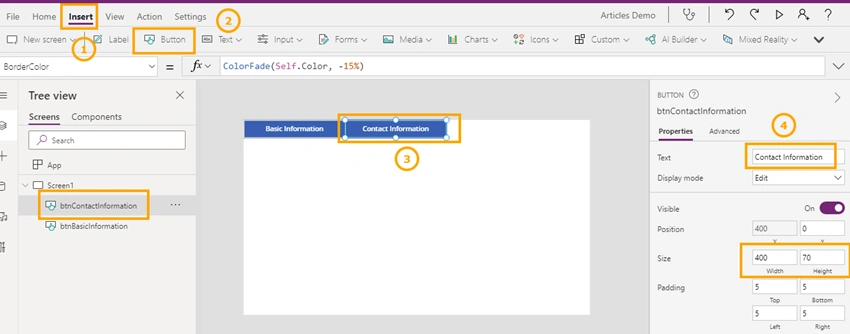
Step 2
Once you've added all the buttons, add a new Form to the screen
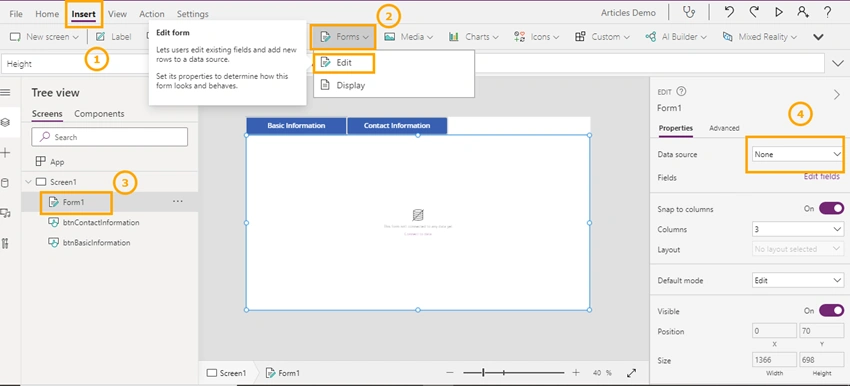
Step 3
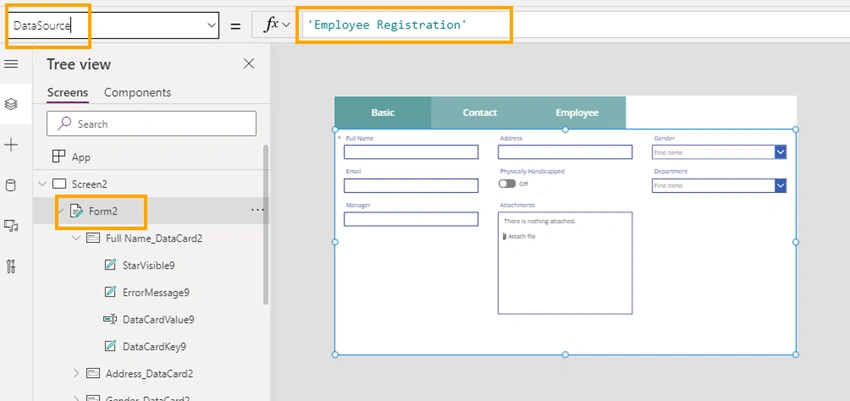
Add Data source for the Form to Employee Registration List.
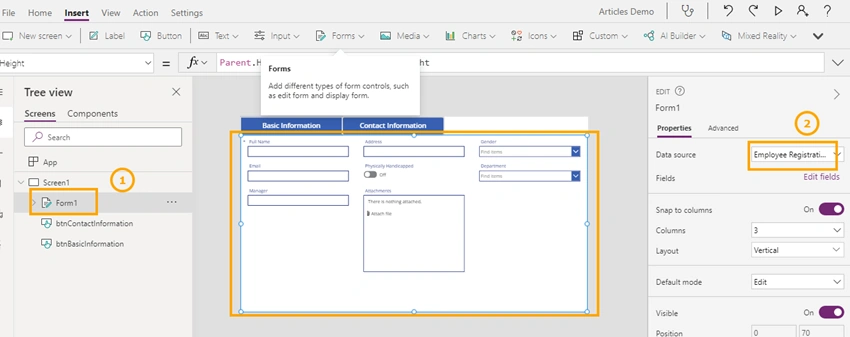
Step 4
Now OnSelect property of the button, set 3 variables that define which tab is currently active at the moment
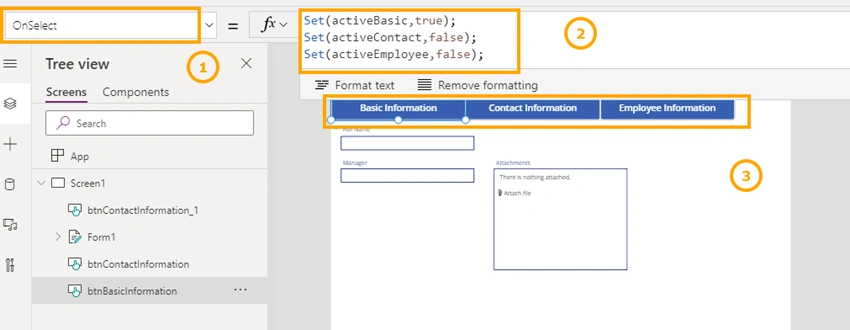
Step 5
Change DefaultMode of Form to New so that field in Running mode

Step 6
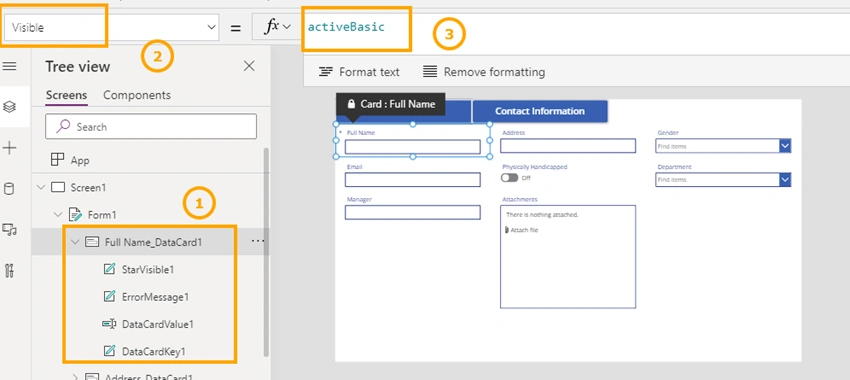
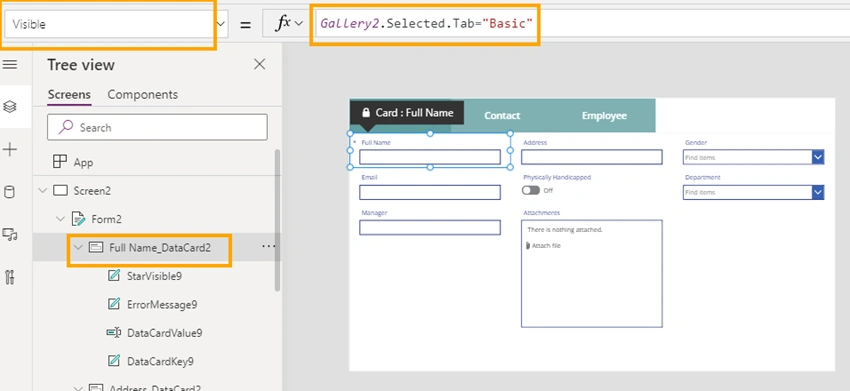
Set variables for that button to each DataCard so that when clicking on that tab only those fields will be displayed. For the basic information tab, the active basic variable is set.
Step 7
For contact information tab, activeContact variable is set
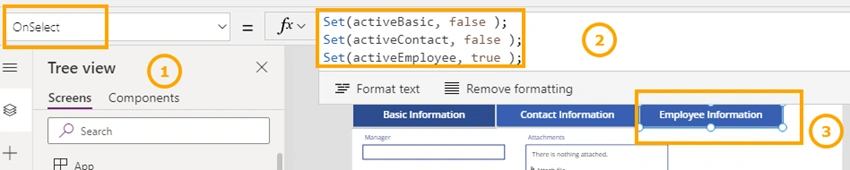
Step 8
Now for Contact related fields set Visible property to activeContact

Step 9
Same for Employee set activeContact true
Step 10

Now run the application and Test whether related fields are getting displayed.
Step 11
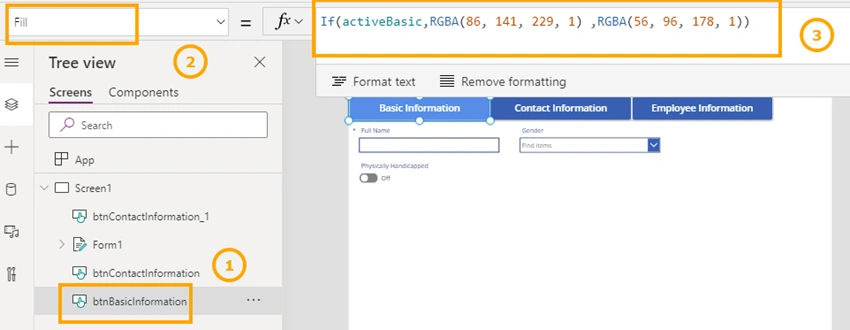
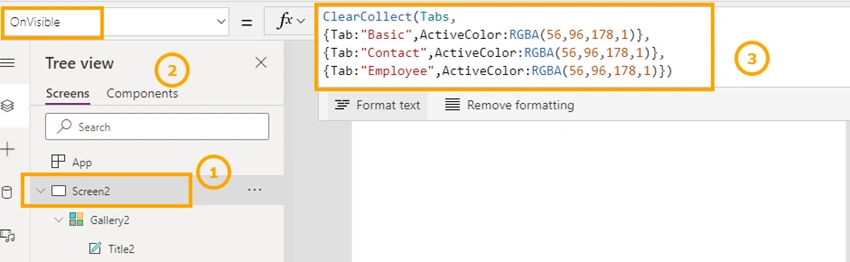
Set OnVisible of Screen to set the default value for a variable so that when the screen is loaded by default active tab is the first one.






Join the conversation! Your thoughts help the community grow.