
This article discusses how to create and use the TabControl available in Silverlight 2.0.
Creating a Silverlight Application
Create a Silverlight application using Visual Studio 2008 by selecting New Project >> Silverlight Application from the Templates list. See Figure 1.
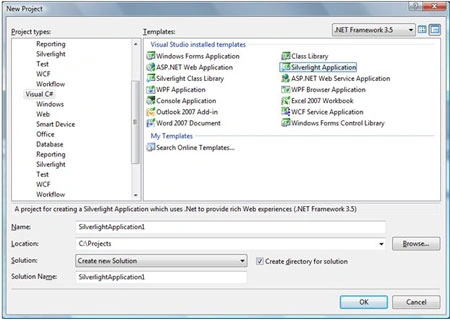
Figure 1. Creating a Silverlight Application.
After the application is created, you land on Page.xaml page in the designer. The XAML of Page.xaml looks like following:
<UserControl
x:Class="MyFirstSilverlightApplication.Page"
xmlns="http://schemas.microsoft.com/winfx/2006/xaml/presentation"
xmlns:x="http://schemas.microsoft.com/winfx/2006/xaml"
Width="800" Height="600">
<Grid x:Name="LayoutRoot" VerticalAlignment="Top" Background="White">
</Grid>
</UserControl>
In the left side bar, you will see a Toolbox that lists Silverlight controls available to you. Now simply drag a TabControl from the Toolbox to your XAML file inside the Grid tag. This action will add System.Controls.Extended namespace reference to your XAML file that looks like this:
xmlns:my="clr-namespace:System.Windows.Controls;assembly=System.Windows.Controls.Extended"
You will also see the following tag is added for the tab control.
<my:TabControl />
Now, similar to any other XAML controls, you can set tab control properties using XAML attributes. For example, the following code sets the height, font, font size, and background color of the tab control.
<my:TabControl Height="150" FontFamily="Verdana" FontSize="12" Background="Orange">
</my:TabControl>
You may also add some properties outside of the tab control. For example, the following code sets the background property of the tab control using TabControl.Background.
<my:TabControl Height="150" FontFamily="Verdana" FontSize="12" >
<my:TabControl.Background>
<SolidColorBrush Color="Green" Opacity="0.30"/>
</my:TabControl.Background>
</my:TabControl>
Adding Tab Items
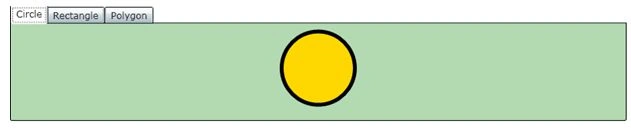
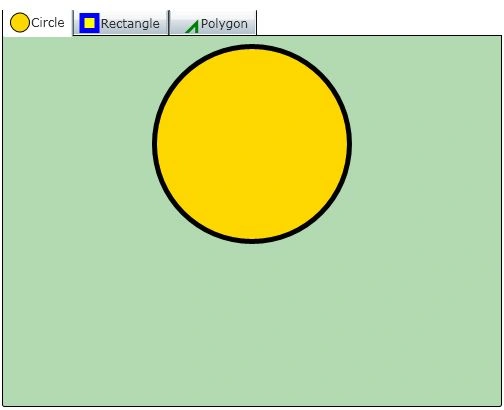
You will hardly recognize a tab control without tab items. The <TabItem \> tag represents a tab item. The Header property of TabItem represents the header text of the header. The following code creates a tab item with header text "Circle".
<my:TabItem Header="Circle">
</my:TabItem>
A tab item can host other XAML controls similar to a panel or grid control. For example, the following code adds a StackPanel to the tab item and on that StackPanel, it creates a circle with height and width 100.
<my:TabItem Header="Circle">
<StackPanel>
<Ellipse Height="100" Width="100" StrokeThickness="5" Stroke="black"
Fill="gold"/>
</StackPanel>
</my:TabItem>

Join the conversation! Your thoughts help the community grow.