


Introduction
In this article, we are going to take a look into different UITableViewCell built-in styles in Xamarin.iOS. Before getting started with this post, you should follow the Part 1 article instructions completely.
Step 1. Let’s modify the UITableViewCell and its properties in GetCell Implementation within the UITableViewSource class. Here are the properties of building styles.
- Subject: Title label string.
- Body: Detailed title label string.
- Image: Set Image
Depending upon your cell selection, you have to fill in different subview values.
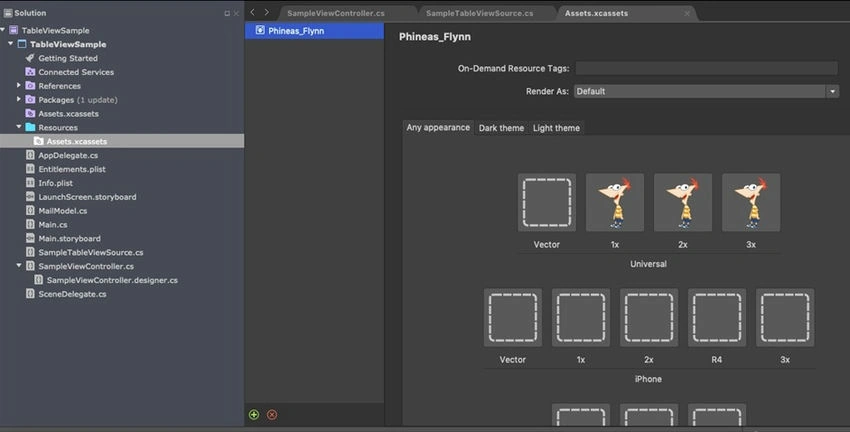
Step 2. Add profile (image) file in Assets. To perform that, open
Solution Explorer >> Resources >> Assets >> Then, right-click to add Image Set >> give the Image Set name, and drag and drop the images.
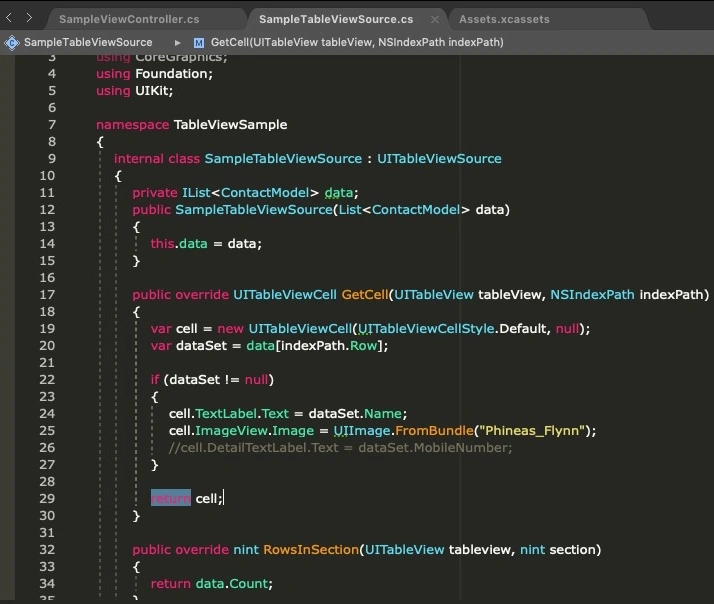
Step 3. Open the TableViewSource class and go to the GetCell method. All the changes will be made only in the GetCell method.
Sample 1. Default Style
Change the constructor of UITableViewCell is UITableViewCellStyle.Default. Both UITableViewCellStyle.Default and string are the parameters. Here, we can set the cell type as Default and the string as null. Let’s bind the data into their properties based on the Index and your will code look as shown below.
using System;
using System.Collections.Generic;
using CoreGraphics;
using Foundation;
using UIKit;

namespace TableViewSample
{
    internal class SampleTableViewSource : UITableViewSource
    {
        private IList<ContactModel> data;
        public SampleTableViewSource(List<ContactModel> data)
        {
            this.data = data;
        }

        public override UITableViewCell GetCell(UITableView tableView, NSIndexPath indexPath)
        {
            var cell = new UITableViewCell(UITableViewCellStyle.Default, null);
            var dataSet = data[indexPath.Row];

            if (dataSet != null)
            {
                cell.TextLabel.Text = dataSet.Name;
                cell.ImageView.Image = UIImage.FromBundle("Phineas_Flynn");
            }

            return cell;
        }

        public override nint RowsInSection(UITableView tableview, nint section)
        {
            return data.Count;
        }
    }
}



Vidyadharran GPosted Dec 16, 2019, 12:47 PM
Neatly explained bro :)