

Introduction
Microsoft Teams is one of the most used collaborative platforms with 270 million monthly active users as of 2022. Microsoft teams have extensibility capabilities that help developers create their own applications. For this application, we have many application capabilities such as Personal apps, Tabs, Bots, Messaging extensions, Meeting extensions, and Webhook and connectors.
In this article, we will leverage the capability of Tabs in Microsoft teams. We will go through step by step process of creating Tabs using Teams Toolkit.
What is Teams Toolkit?
Teams toolkit is an extension in Visual studio code and Visual Studio which helps app development for Microsoft teams simple as it provides templates and samples for all different application capabilities.
To install Teams Toolkit in Visual studio code follow the below steps,
1. Open Visual studio code
2. Navigate to the extension section in Visual studio code as displayed in the image below
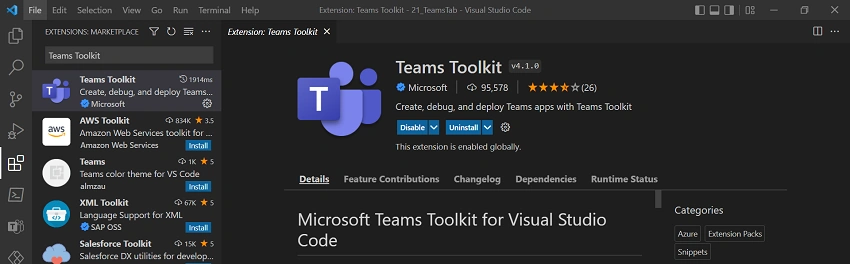
3. Search for Teams Toolkit and Install the extension
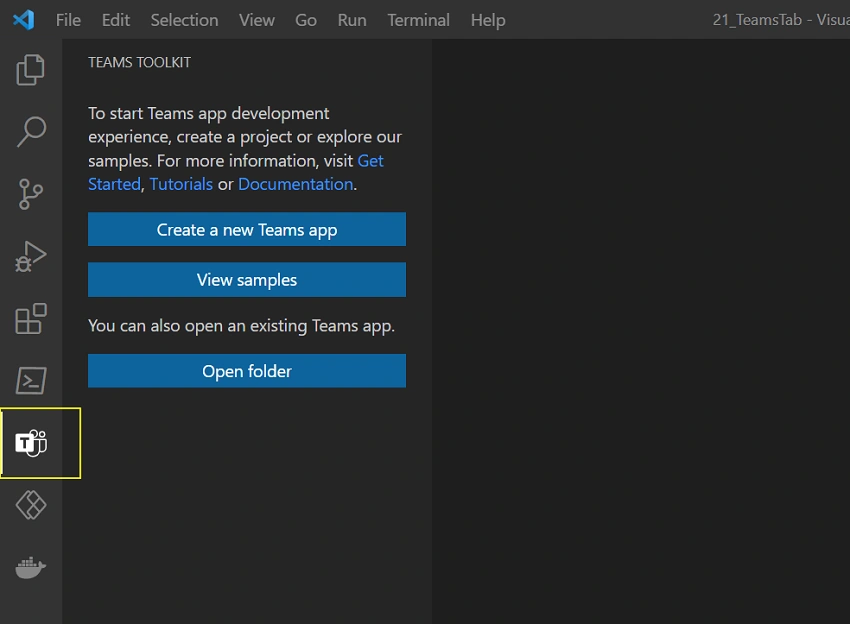
Once the Teams toolkit is installed Teams toolkit icon would be displayed on the primary bar which is present as left navigation in Visual studio code.
Create Teams Tab using Teams Toolkit
To create a teams tab using the Teams toolkit use the below steps which would help us create a template for teams tabs that we can extend as per our requirement
1. Open Visual studio code
2. Click on the Teams Toolkit icon present on the primary bar of Visual studio code.
Note
This icon will be displayed after the teams toolkit is installed as explained in the above section.
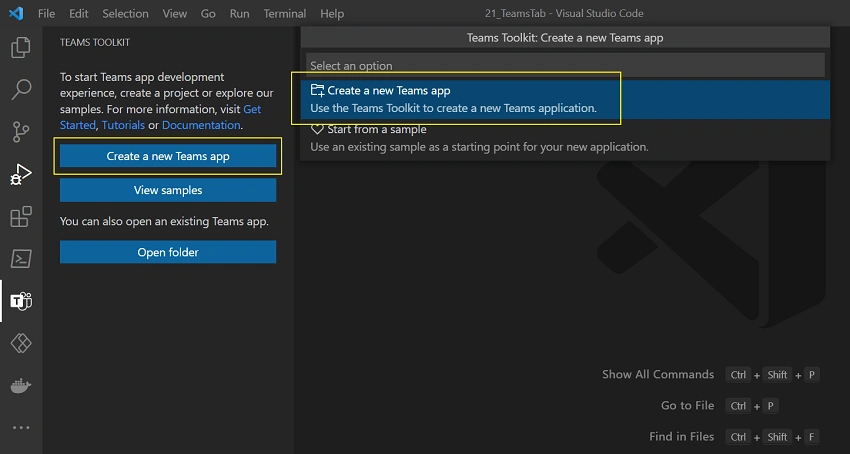
3. Click on Create a new team app button which would provide two options Create a new Teams app and Start from a sample. We would select Create a new Teams app for this article but if you want to start from a sample you can select that option and explore all the samples provided by Microsoft which caters to specific business use case
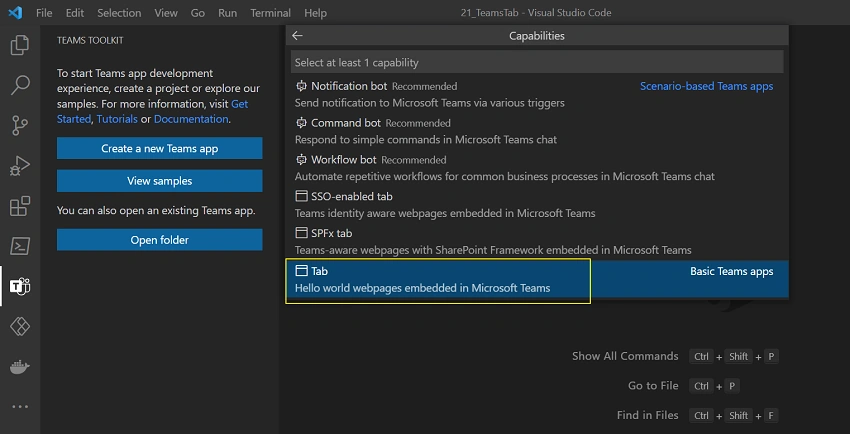
4. We would have options to select one from different capabilities provided for Teams application development but for this article, we would select the Tabs option as displayed in the image below
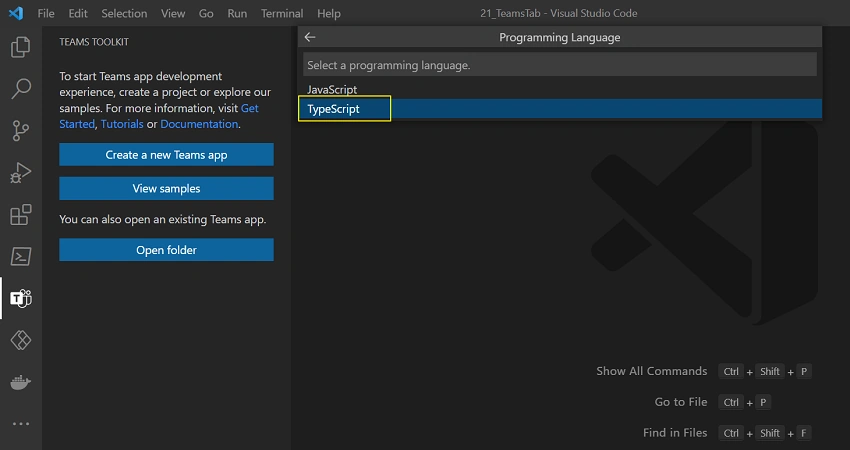
5. We would be provided with two different options for selecting a programming language JavaScript and TypeScript.
For this article let us select TypeScript,
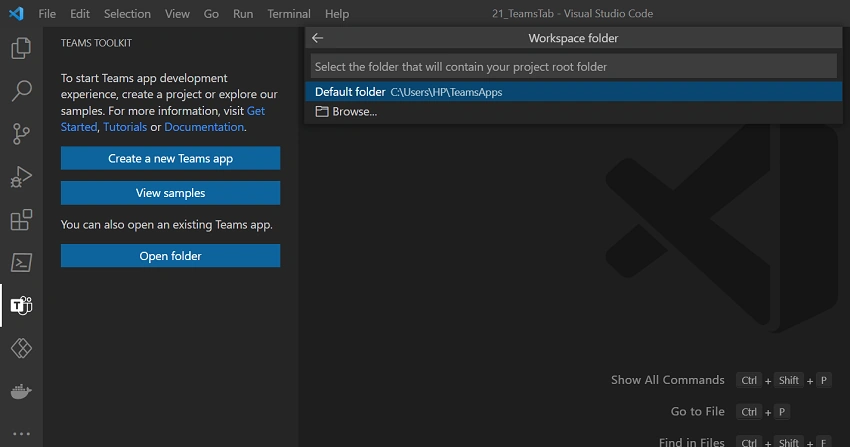
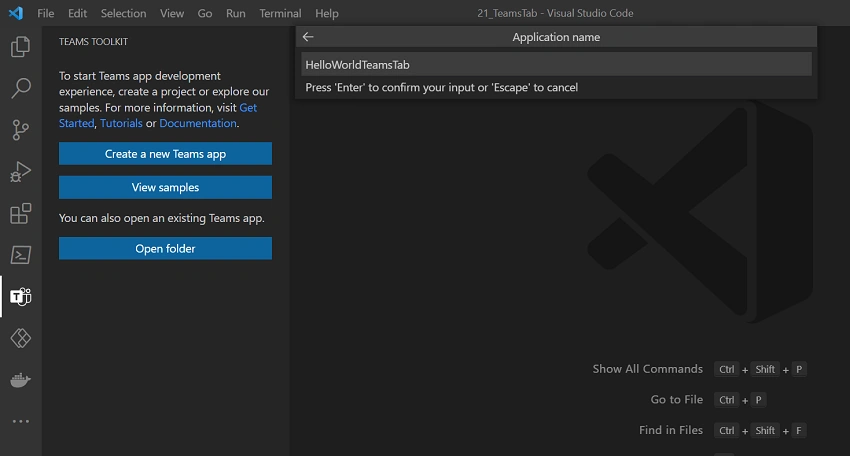
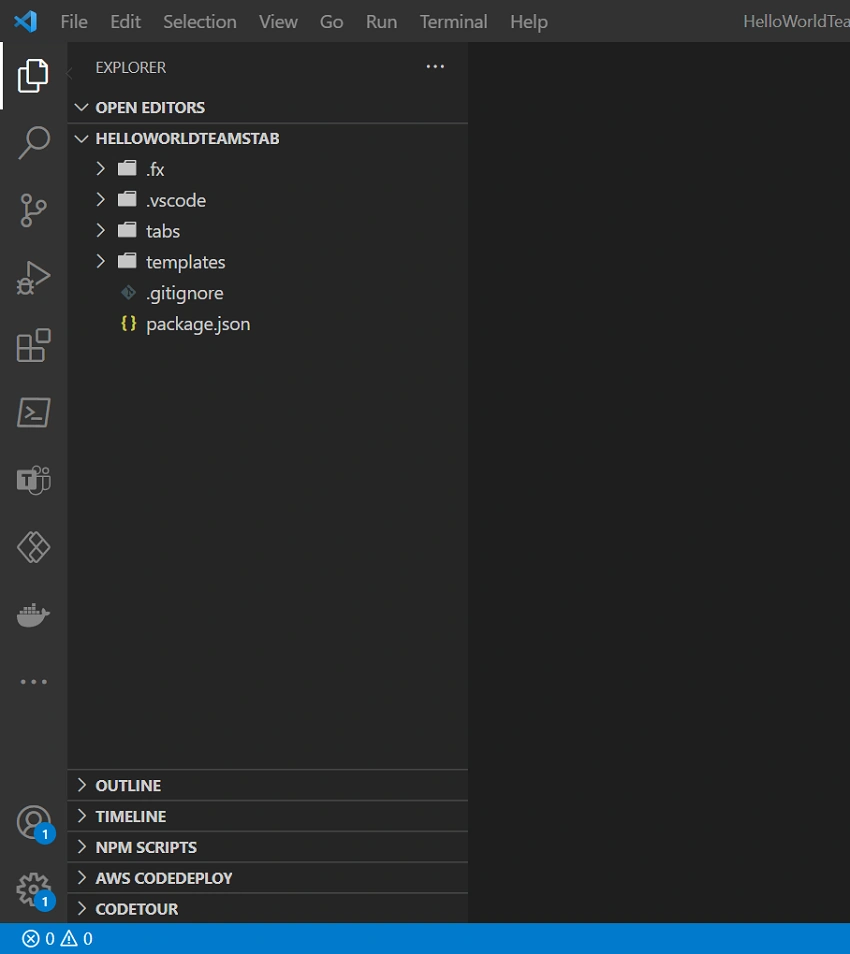
6. Select the workspace folder where we want all our scaffolded files to be present
muraliPosted Jul 12, 2023, 9:54 AM
Hi ,how can i call my website and pass the teams token to it and get the response ,please reply me to [email protected],