

Use Case
This will enable the Infrastructure as Code concept for your team.
Why Terraform?
In my experience, it gives the flexibility to begin with only knowledge of JSON operations, in place of many other tools that demand that you learn a new script/language for their usage. Also, there aren’t any agent or client/server tools to run separately other than a single simple .exe. Terraform is simple and straightforward and supports OS, Cloud, etc. It is huge and still growing very fast.
Why this article?
It begins with the basics. Many people read multiple articles and still struggle to find a starting point. So, I thought to share the tips I used during my own self-learning. Please follow the steps carefully to start from the basics.
Download Terraform
Use the link https://www.terraform.io/downloads.html to download Terraform. You will get terraform.exe from the downloaded zip file; copy that .exe only to a separate folder. I used the folder path as “D:\JAISH\TERRAFORM”. All of my demos are on Windows 10 even though Terraform supports multiple OS.
Verify the first command in Terraform
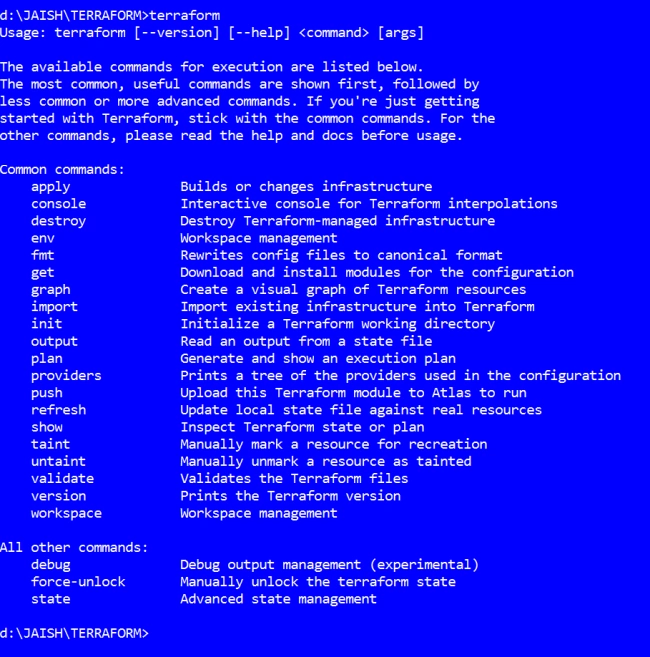
Open Windows Command Prompt as an Administrator and change the directory to “D:\JAISH\TERRAFORM”, where terraform.exe has been copied. Now, just type “terraform” as a command and make sure that your screen appears like below. You are now ready to play with this tool.
Terraform Configuration
You need the configuration files to pass to terraform.exe. These configuration files are plain text files with ".tf" extension and the contents of these configuration files resemble the JSON format. Normally, one .tf file is kept in a single folder.
What to Write Inside Terraform Configurations
You have multiple pre-defined keywords to use inside Terraform Configuration files. See a full list from here, where you will notice the keywords like provider, resource, module etc. In the below section, we will create our first terraform configuration file using “resource” keyword.
Write your first Terraform Configuration File
Create a “myconfig.tf” under “D:\JAISH\TERRAFORM”. The file can have any name. Copy the below lines into it.
Join the conversation! Your thoughts help the community grow.