

Introduction
When working with Microsoft Entra External ID, validating your user journey before integrating it into an application is a critical step. While testing a .NET application verifies end-to-end integration, you sometimes need to isolate and validate the user flow configuration itself.
Fortunately, Microsoft Entra provides a built-in way to test user flows directly from the Entra Admin Center (entra.microsoft.com) — without writing a single line of code.
In this article, I will walk through step-by-step instructions to test Microsoft Entra External ID user flows directly from the portal.
Why Test User Flow from the Portal?
Testing from the Entra portal allows you to:
Isolate policy issues from application issues
Validate configuration before integration
Troubleshoot claim mapping problems
Test new changes safely
Quickly verify MFA, email verification, and password reset
This method is especially useful when debugging issues like:
Missing claims
Email verification not working
Incorrect user attributes
Broken password reset
Custom page UI errors
Step-by-Step: Testing User Flow from Entra Portal
Step 1: Sign in to Entra Admin Center
Go to entra.microsoft.com
Sign in with your administrator account.
Switch to your External ID tenant if needed.
Step 2: Navigate to User Flows
Go to: Entra ID - > External Identities -> User Flows, create a user flow or select an existing user flow
You will now see the configuration screen of the selected user flow.
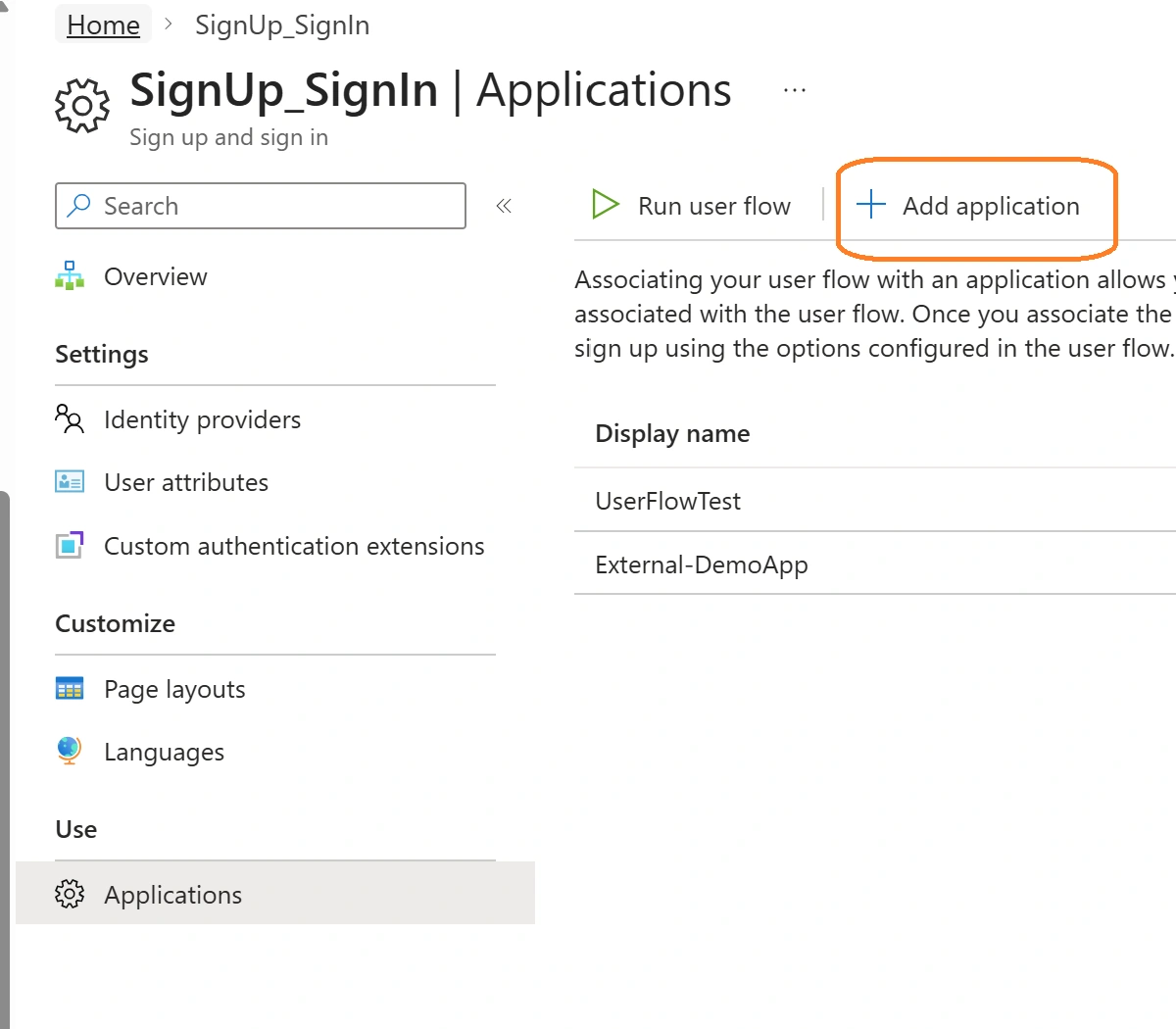
Step 3: Configure the Test Application
From the user flow configuration screen - > select Application and add the application
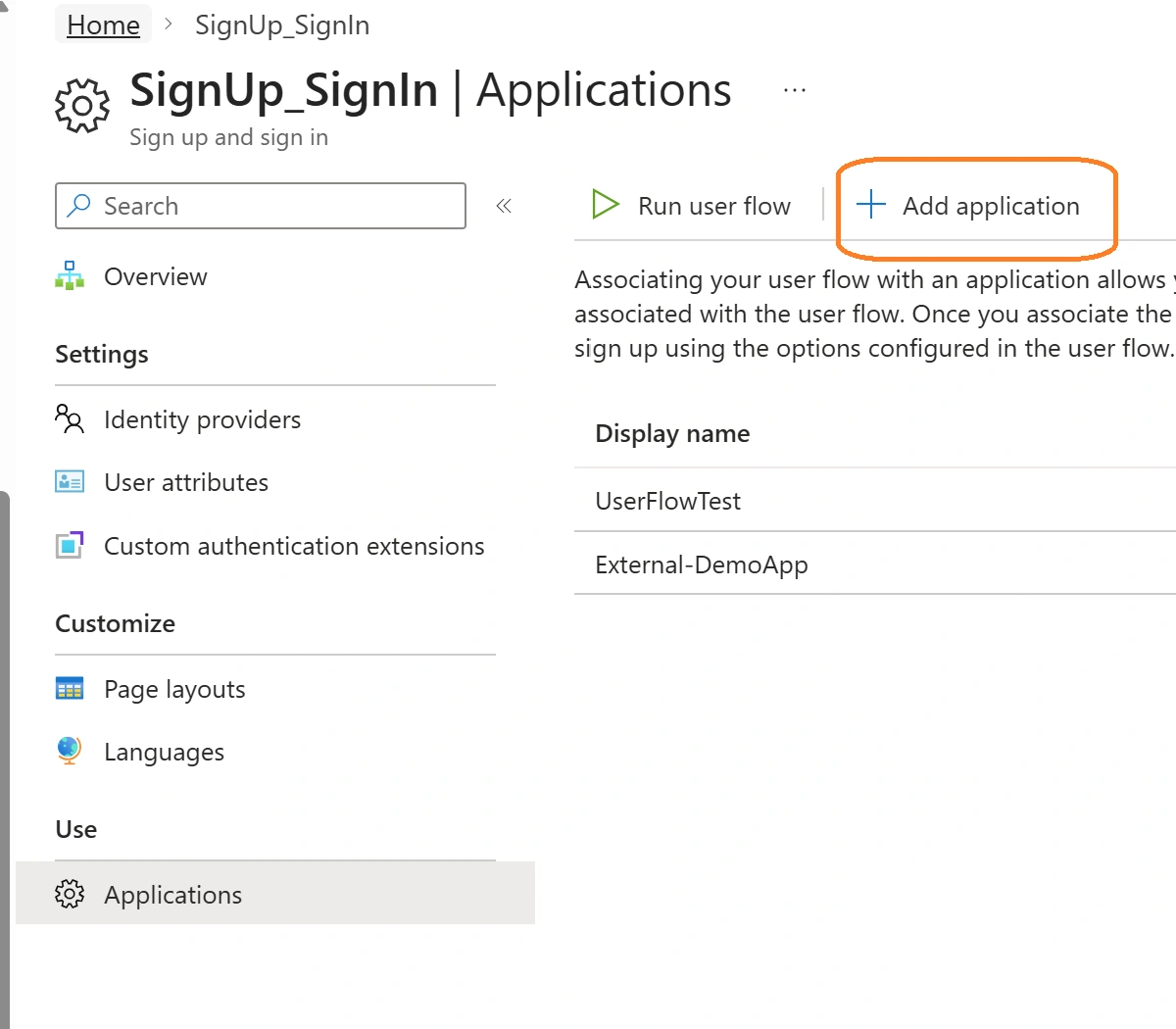
Now it will list all the enterprise applications, select the application that you want to test along with the user flow.

If your application is not listed:
Go to App registrations
Ensure the application is created
Make sure redirect URI is configured
Select the redirect URI (for example): jwt.ms
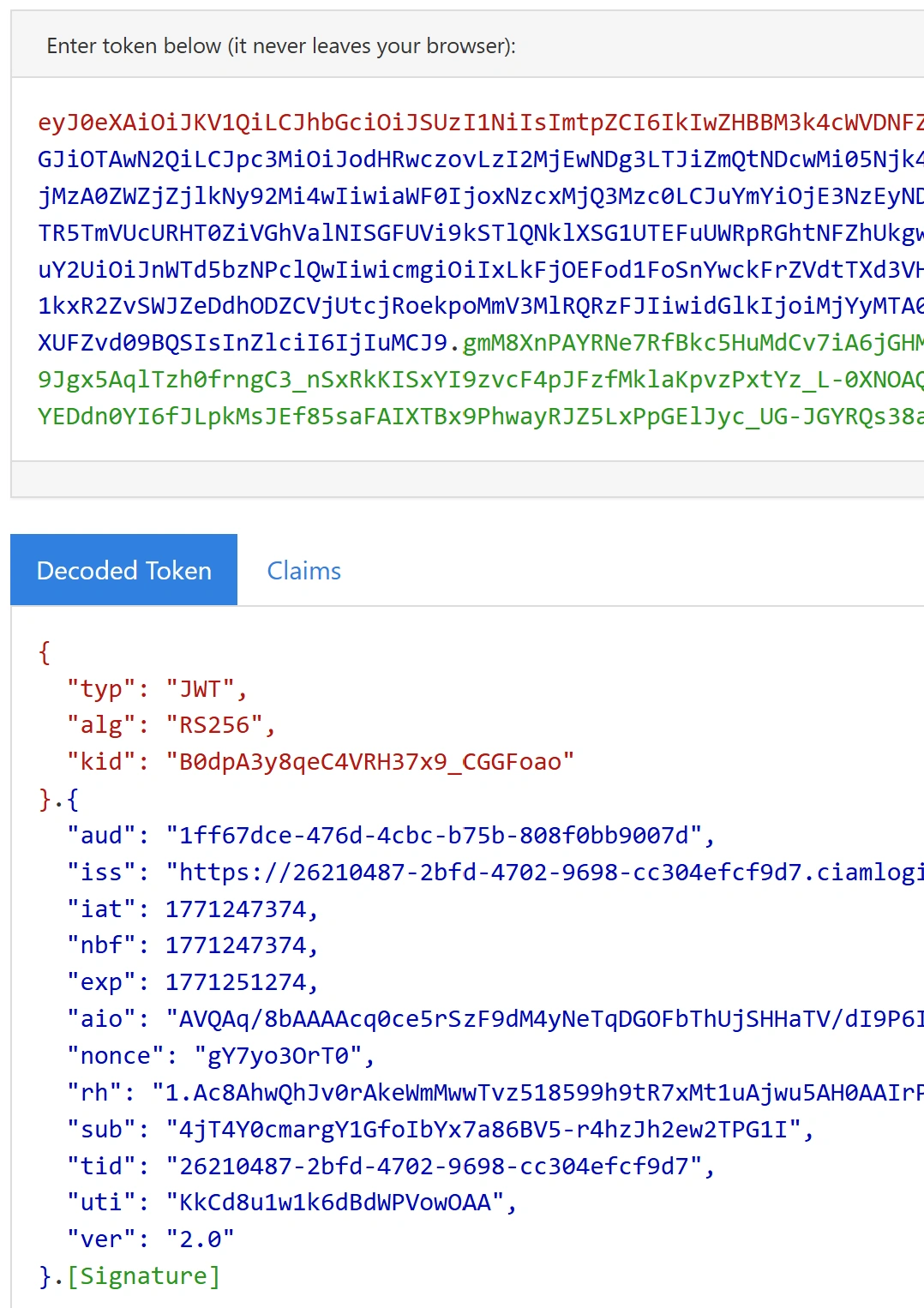
Using this is extremely helpful because it decodes and displays the token automatically after login.
Step 4: Click “Run user flow”
After selecting the application, click on Run user flow
From the wizard, for a quick test, make sure you selected a proper test application, the reply url, and Response type as an id token

Click on Run user flow button, it will take you to the sign-in page, after the successful sign-in, jwt.ms page will display the token and decoded claims.
Summary
Testing Microsoft External ID user flows directly from the Entra Admin Center is the fastest way to validate your identity configuration without deploying or modifying application code.
Before moving to integration testing in your application, always validate your user flow directly in the Entra portal — it saves time, simplifies troubleshooting, and ensures a secure, predictable authentication experience.
Join the conversation! Your thoughts help the community grow.