
Introduction
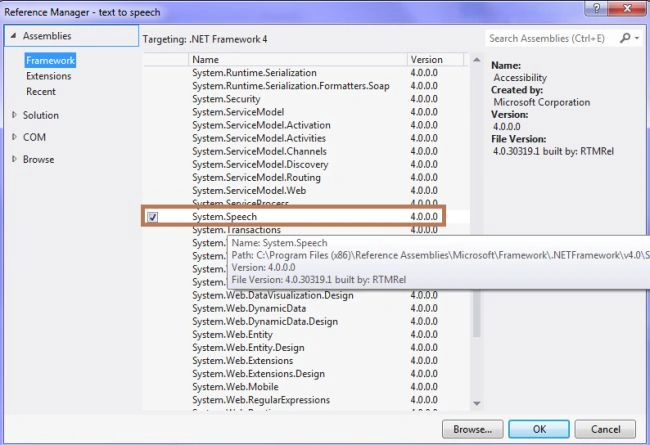
Today I explain how to convert text or a text file into speech. This process is also called voice synthesis. To implement this, first of I must add the "System.Speech" using the add reference dialog box in your project. Then add the following two namespaces:
using System.Speech.Synthesis ;
using System.IO;
"System.Speech.Synthesis" contains the various functions for voice synthesis.
Use the following procedure to create it.
Step 1
First of all you must create a new Windows Store Application.
- Open Visual Studio 2012
- "File" -> "New" -> "Project..."
- Choose "Template" -> "Visual C#" -> "Windows Forms Application"
- Then rename the application
Step 2
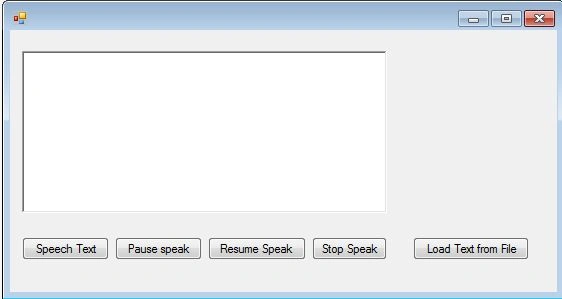
Now design the form as you need to. Here I have designed it like this:
Step 3
Right-click on file name (that is available in Solution Explorer) and add the library "System.Speech".

Step 4
Now write the Form1.cs code in C#.
using System;
using System.Collections.Generic;
using System.ComponentModel;
using System.Data;
using System.Drawing;
using System.Linq;
using System.Text;
using System.Windows.Forms;
using System.Speech.Synthesis ;
using System.IO;
namespace text_to_speech
{
public partial class Form1 : Form
{
public Form1()
{
InitializeComponent();
}
private void Form1_Load(object sender, EventArgs e)
{
speech = new SpeechSynthesizer();
Pausespeak.Enabled = false;
Resumespeak.Enabled = false;
Stopspeak.Enabled = false;
}
SpeechSynthesizer speech;
private void button6_Click(object sender, EventArgs e)
{
if (textbox1.Text.Length >0)
{
speech = new SpeechSynthesizer();
speech.SpeakAsync(textbox1.Text);
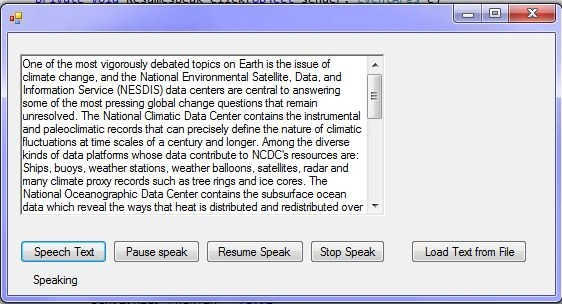
label1.Text = "Speaking";
Pausespeak.Enabled = true;
Stopspeak.Enabled = true;
speech.SpeakCompleted += speech_SpeakCompleted;
}
else
{
Surender KumarPosted Jun 17, 2013, 5:11 AM
Yes plz tell us about the button 6.