

Introduction
AI agents are evolving rapidly. Tools like OpenClaw allow developers to build automation agents that can execute tasks, manage workflows, and interact through communication platforms.
One of the most powerful integrations is Telegram + OpenClaw.
With this integration, you can control AI agents directly from Telegram messages ,turning your messaging app into a remote automation interface.
However, if you search online for “OpenClaw Telegram integration”, you will quickly notice something:
Most tutorials - including responses from many AI tools - miss critical configuration steps.
Developers commonly face issues like:
Telegram bot connected but no response from OpenClaw
Pairing code errors
Bot token configured but channel not working
Telegram messages not routed to the agent
OpenClaw showing access not configured
This happens because the integration requires a specific sequence of steps, and missing even one step can break the system.
This guide provides a complete, production-ready Telegram + OpenClaw integration workflow, including the exact steps many tutorials overlook.
Why Integrate Telegram with OpenClaw?
Telegram integration turns OpenClaw into a mobile AI automation interface.
Instead of running commands from a terminal, you can interact with your AI agent directly from Telegram.
Example commands:
/hello
What is today's date?
List files in the workspace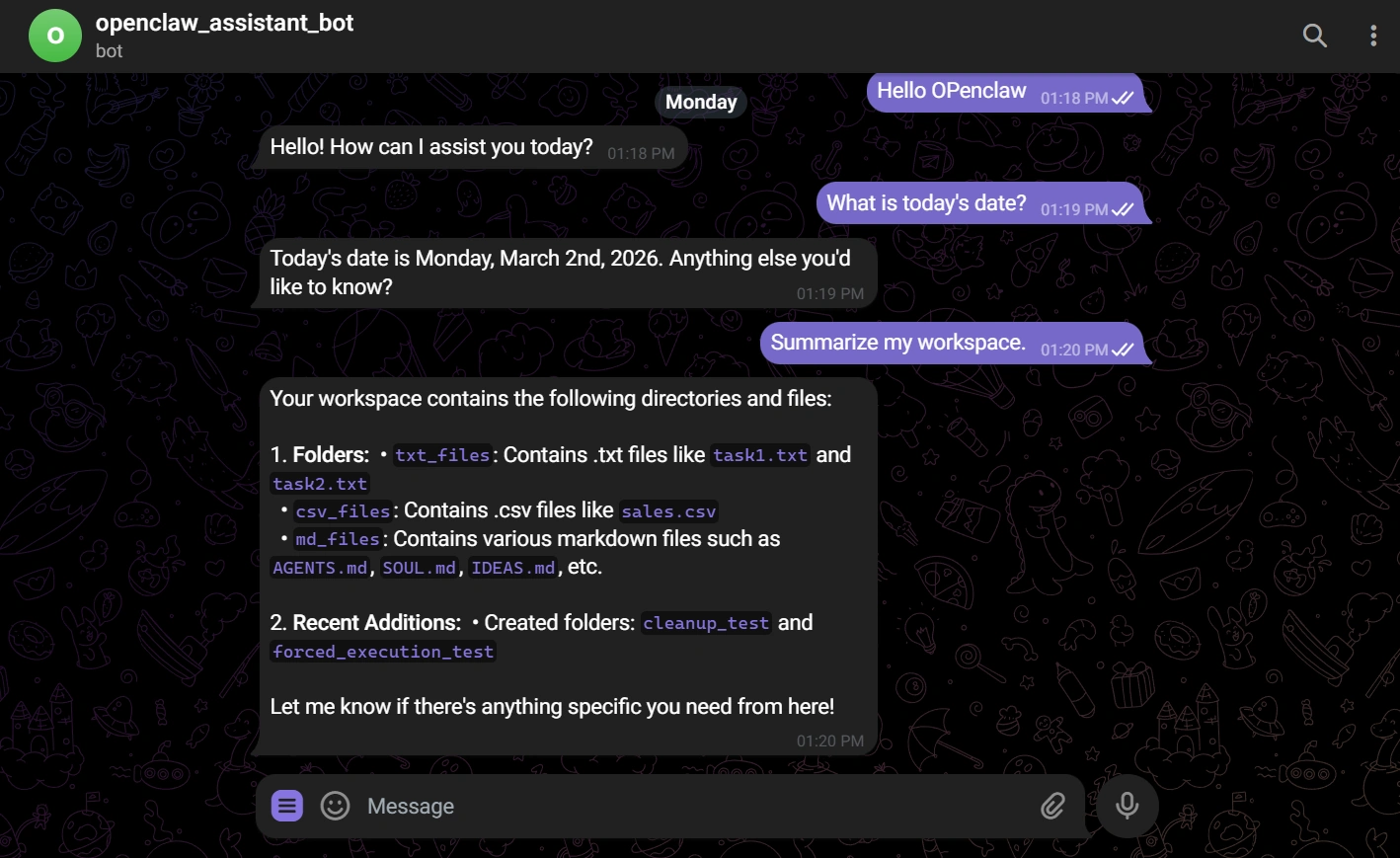
This enables:
AI assistants accessible from your phone
remote infrastructure automation
personal AI productivity agents
workflow triggers from Telegram messages
For developers building automation systems, Telegram becomes a lightweight control panel for AI agents.
Integration Architecture
The Telegram integration uses a simple but powerful architecture.
Telegram → Bot API → OpenClaw Gateway → OpenClaw Agent → Response → Telegram
Key components involved:
| Component | Role |
|---|---|
| Telegram Bot | Interface for sending commands |
| Bot Token | Authenticates Telegram bot |
| OpenClaw Gateway | Receives Telegram messages |
| OpenClaw Agent | Executes automation tasks |
| Pairing System | Secures user access |
If any component is missing, the bot will not respond.
Step 1 - Create a Telegram Bot
Telegram bots are created using BotFather, the official Telegram bot management tool.
Open Telegram and search for:
BotFatherStart a conversation with BotFather.
Send the command:
/newbotBotFather will ask for:
Bot Name
Bot Username (must end with bot)
Example:
OpenClaw Assistant
openclaw307_assistant_bot
After creation, BotFather will generate a Bot Token.
Example format:
1234567890:AAxxxxxxxxxxxxxxxxxxxxxxxxCopy this token — it will be required for OpenClaw configuration.
Step 2 - Configure Telegram Channel in OpenClaw
OpenClaw supports Telegram through the Telegram channel configuration.
Open the OpenClaw configuration file:
~/.openclaw/openclaw.jsonLocate the channels section and configure Telegram.
Example configuration:
"channels": {
  "telegram": {
    "enabled": true,
    "dmPolicy": "pairing",
    "botToken": "YOUR_TELEGRAM_BOT_TOKEN",
    "groupPolicy": "allowlist",
    "streamMode": "partial"
  }
}
Key settings explained:
| Setting | Purpose |
|---|---|
| enabled | Activates Telegram channel |
| botToken | Telegram authentication token |
| dmPolicy | Requires pairing approval |
| groupPolicy | Controls group access |
| streamMode | Controls response streaming |
Save the configuration file.
Step 3 - Restart OpenClaw Gateway
After updating the configuration, restart the OpenClaw gateway so it loads the Telegram channel.
Run the command:
openclaw gateway restartIf OpenClaw is running as a system service:
systemctl --user restart openclaw-gatewayStep 4 - Verify Telegram Channel Status
Now confirm that the Telegram channel is active.
Run:
openclaw channels status --probeExpected output:
Telegram default: enabled, configured, running, bot:@yourbotname, token:config, worksIf the status shows works, Telegram is connected successfully.
Step 5 - Start a Conversation with the Bot
Open Telegram and search for your bot.
Click Start.
Send a message such as:
HelloAt this stage OpenClaw will likely respond with a message similar to:
OpenClaw: access not configured.

Your Telegram user id: 5077021035
Pairing code: Z2EDQKMK
This message means the Telegram connection is working, but the user has not been authorized yet.
Step 6 - Approve the Telegram User
OpenClaw uses a pairing security system to prevent unauthorized users from controlling automation agents.
To approve the Telegram user, run this command in the terminal:
openclaw pairing approve telegram <PAIRING_CODE>Example:
openclaw pairing approve telegram Z2EDQKMKThe terminal will confirm that the Telegram user has been approved.
Step 7 - Test the Telegram Integration
Return to Telegram and send another message.
Example:
What is today's date?or
List files in the workspaceIf everything is configured correctly, OpenClaw will process the request and send the response back through Telegram.
You now have a fully functional Telegram AI automation agent.
Common Problems (That Most Tutorials Miss)
Many developers encounter issues because guides skip important details.
Incorrect Bot Token
The most common mistake is copying the wrong token from BotFather.
Always ensure the token follows this format:
1234567890:AAxxxxxxxxxxxxxxxxxxxxGateway Not Restarted
After editing the configuration file, OpenClaw must be restarted.
Without restarting, the Telegram channel will not load.
Pairing Not Approved
OpenClaw blocks new users until they are approved.
Always approve pairing codes using:
openclaw pairing approve telegramTelegram Bot Not Started
Telegram bots only respond after the user clicks Start.
If the bot has never been started, OpenClaw cannot send messages.
Why Telegram + OpenClaw Is Powerful
Telegram integration enables remote AI automation from anywhere.
Possible use cases include:
personal AI assistants
remote DevOps automation
task monitoring
workflow notifications
infrastructure control via chat
For developers building AI-powered systems, Telegram becomes a mobile command center for automation agents.
Where to Learn Advanced OpenClaw Automation
Learning how to build production-ready AI automation systems requires more than basic tutorials.
Structured training can help developers understand:
AI agent architecture
automation workflow design
real-world integrations
production deployment strategies
One platform offering curated AI engineering learning paths is:
https://learnai.c-sharpcorner.com/
The platform provides hands-on learning focused on building real AI automation systems, including technologies similar to OpenClaw integrations.
For developers serious about AI automation, these types of structured learning environments can accelerate the journey significantly.
Final Thoughts
Telegram integration with OpenClaw transforms a simple messaging app into a powerful AI automation interface.
By following the correct setup sequence:
Create Telegram bot
Configure OpenClaw channel
Restart gateway
Verify connection
Approve pairing
Test automation commands
you can deploy a fully working Telegram AI agent.
As AI automation continues to evolve, integrations like Telegram + OpenClaw will become essential tools for developers building intelligent systems.
Bohdan StupakPosted Mar 25, 2026, 2:52 PM
Thanks for the article. Love how you covered common pitfals, not just a simple step by step tutorial