

When working with Power BI at scale, especially in enterprise or complex data models, Tabular Editor becomes an essential tool rather than a “nice-to-have.” It fills important gaps left by Power BI Desktop and enables modelers to work faster, cleaner, and more professionally with semantic models.
This article explains why Tabular Editor is so useful and how you can launch it directly from within Power BI Desktop.
Why Tabular Editor Is So Useful
Tabular Editor is a lightweight yet powerful tool designed to work with Tabular models, including Power BI semantic models, Analysis Services, and Fabric semantic models. While Power BI Desktop is excellent for visuals and basic modeling, it becomes limiting when models grow in size and complexity.
1. Faster and More Efficient Model Development
In Power BI Desktop, creating or editing measures one at a time can be slow and repetitive. Tabular Editor allows you to:
Create and edit multiple measures at once
Copy, paste, and bulk-edit DAX expressions
Apply changes across many objects in seconds
This is especially valuable in large enterprise models with hundreds of measures.
2. Advanced DAX Editing Experience
Tabular Editor provides a proper code-first experience for DAX:
Syntax highlighting and formatting
IntelliSense-style suggestions
Better readability for complex expressions
This makes it easier to write, review, and maintain advanced DAX logic compared to the basic formula bar in Power BI Desktop.
3. Bulk Changes and Metadata Management
One of Tabular Editor’s biggest strengths is bulk metadata editing. You can:
Rename measures, columns, or tables in bulk
Set formatting, descriptions, display folders, and visibility at scale
Enforce consistent naming conventions
What might take hours in Power BI Desktop can be done in minutes in Tabular Editor.
4. Best Practices and Model Quality Checks
Tabular Editor supports Best Practice Analyzer (BPA) rules, which help you:
Identify poorly written DAX
Detect unused columns or measures
Improve performance and maintainability
This is extremely useful for production-grade models where performance and clarity matter.
5. Source Control and DevOps-Friendly
For teams working with ALM, CI/CD, or source control, Tabular Editor is a game-changer:
Works seamlessly with TMSL and JSON
Supports scripting and automation
Enables version control-friendly workflows
This makes it ideal for professional BI and analytics engineering teams.
How to Launch Tabular Editor from Power BI Desktop
Launching Tabular Editor from within Power BI Desktop is straightforward and requires no complex setup.
Step 1: Install Tabular Editor
Download and install Tabular Editor 2 (free) or Tabular Editor 3 (paid) from the official Tabular Editor website.
Ensure Power BI Desktop is installed on your machine.
Note: Tabular Editor 2 is commonly used and integrates seamlessly with Power BI Desktop at no cost.
Step 2: Open Power BI Desktop
Launch Power BI Desktop
Open an existing
.pbixfile or create a new one with a data model
Step 3: Use the External Tools Ribbon
In Power BI Desktop, go to the External Tools tab on the ribbon
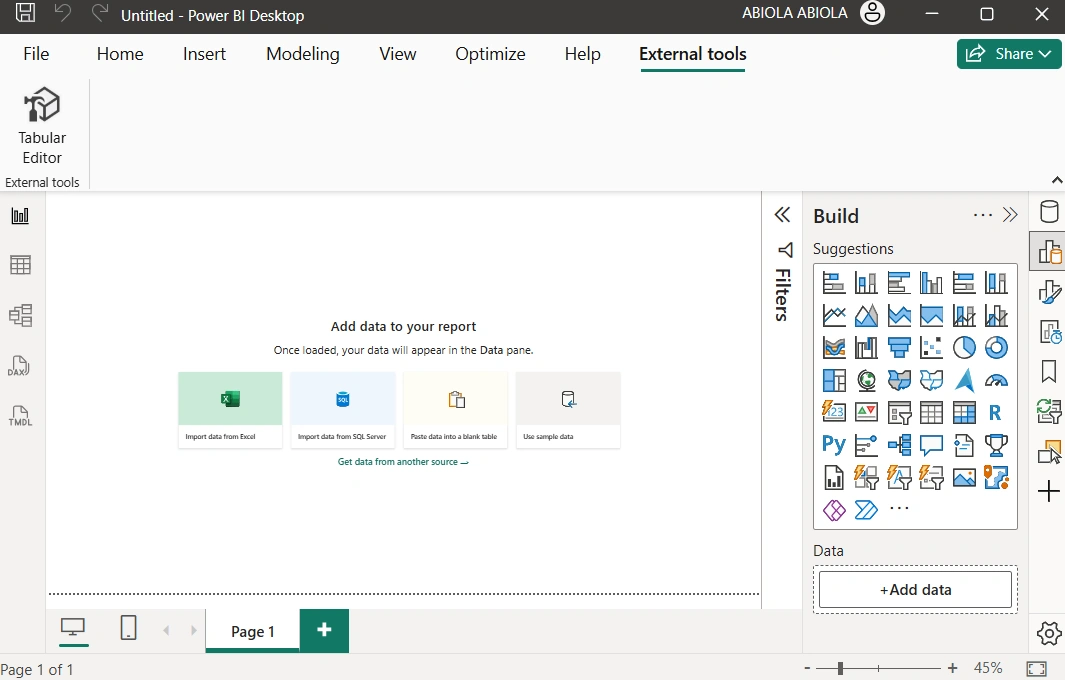
You will see Tabular Editor listed automatically if it is installed correctly
Click Tabular Editor
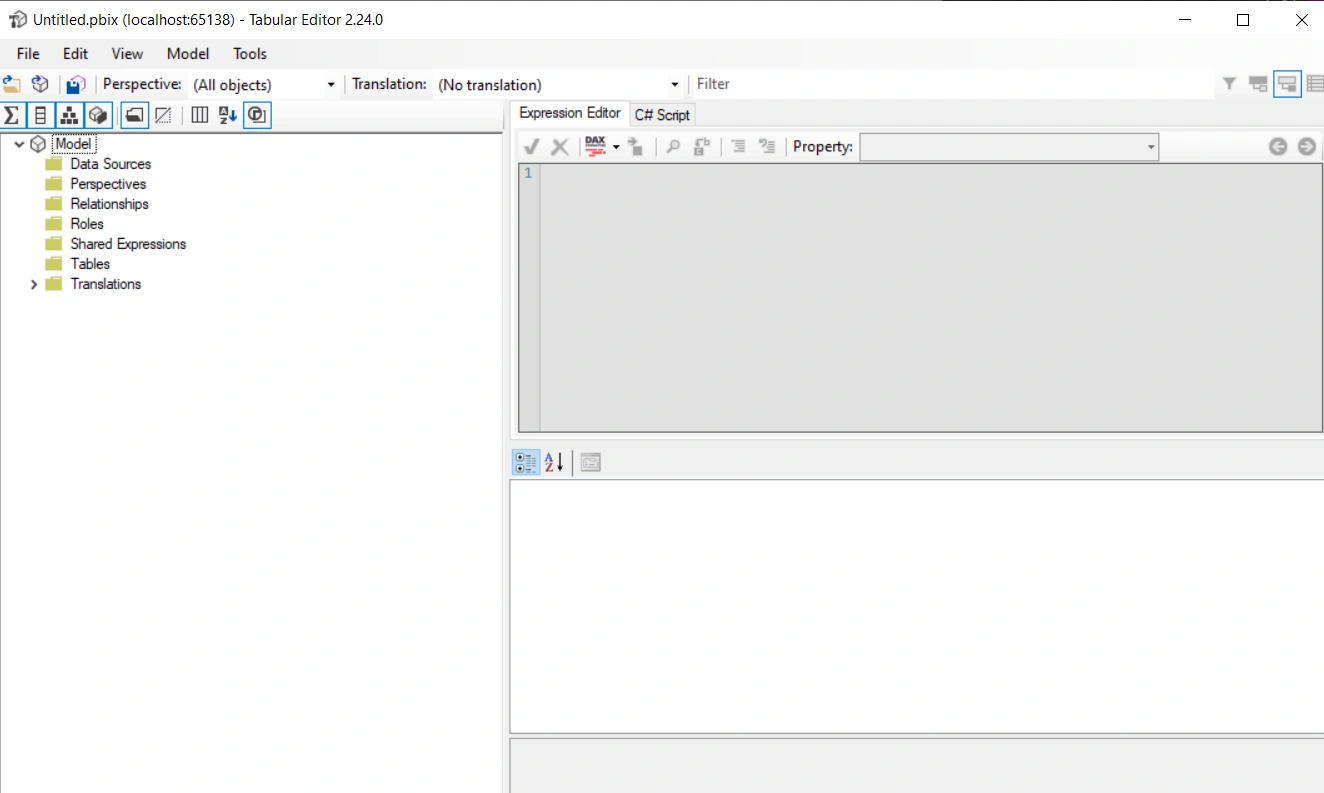
Power BI Desktop will now launch Tabular Editor and connect it directly to the open semantic model.
Summary
Tabular Editor significantly elevates how you work with Power BI semantic models. It brings speed, control, and professionalism to model development, especially when dealing with large datasets, complex DAX, or enterprise-scale solutions.
By launching Tabular Editor directly from Power BI Desktop, you get the best of both worlds:
Power BI for visuals and exploration
Tabular Editor for serious modeling and DAX engineering
If you’re aiming to move from “report builder” to analytics engineer, Tabular Editor is a tool you simply can’t ignore.
Join the conversation! Your thoughts help the community grow.