

Overview
Sometimes, there is a situation in which we have to represent or filter our data based on the following parameters.
- Year
- Quarter
- Month
- Week
- Day
As we all know, Power BI provides some custom visuals in Power BI Gallery. One of the popular visuals for this type of filtering is “TimeLine Slicer.”
In this article, we will learn how we can configure this TimeLine Slicer with our Power BI Report.
Now, let’s get started!
Step 1
First, we need to download that visual from a Power BI Custom Visual Gallery.
Here is a link for download custom Visual - URL
It will open the screen below.
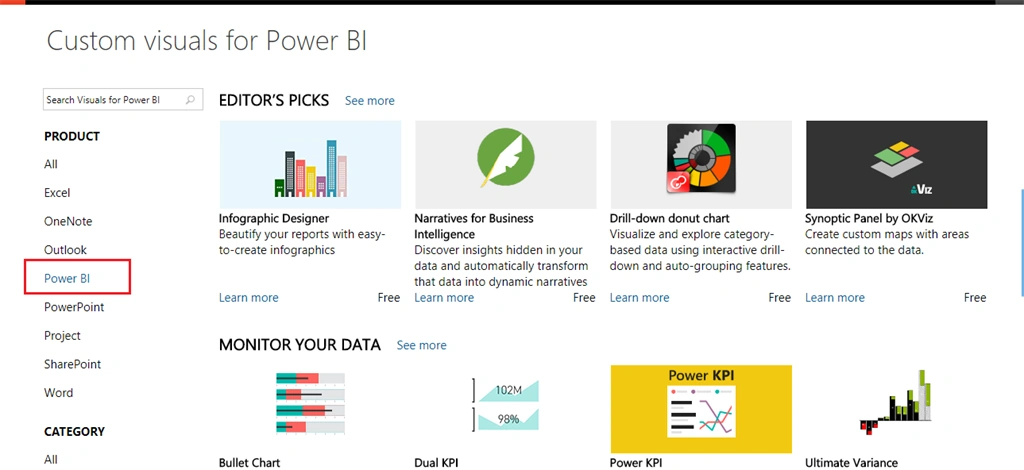
Step 2
Search for TimeLine Slicer.
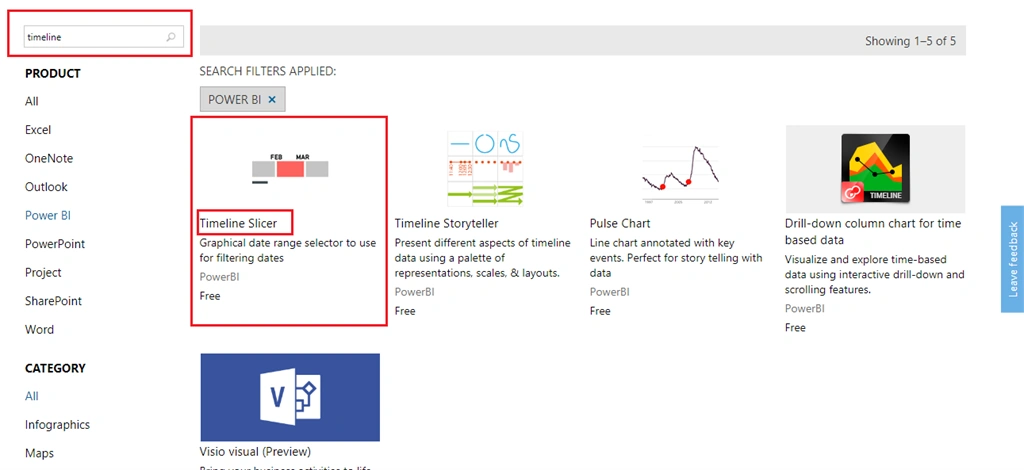
Step 3
It will open a description page of a visual. Click Add.
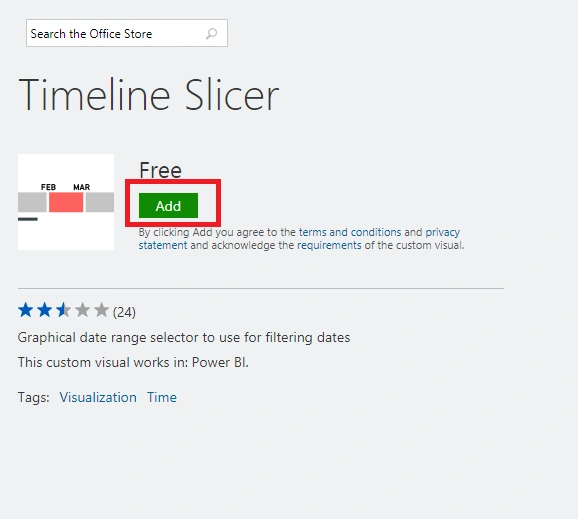
Step 4
Download a Slicer.
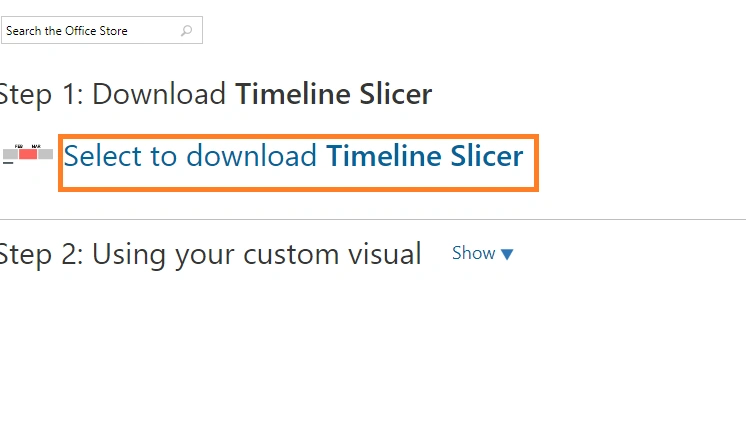
It will download a slicer.
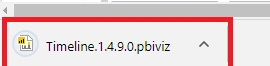
Step 5
We will import this slicer in Power BI Desktop. To import, click on Import a custom visual.
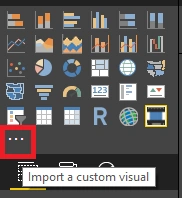
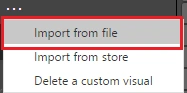
Import from a File.
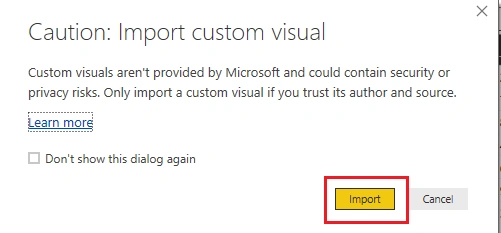
It will open a pop up > click Import.
Choose the downloaded Visual.
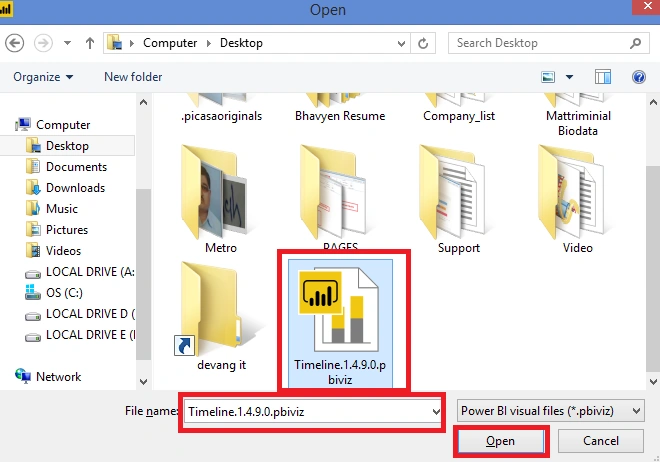
Click Open.
Our Visual is added successfully in the Power BI Desktop.
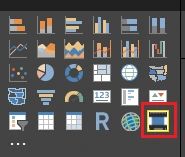
Step 6
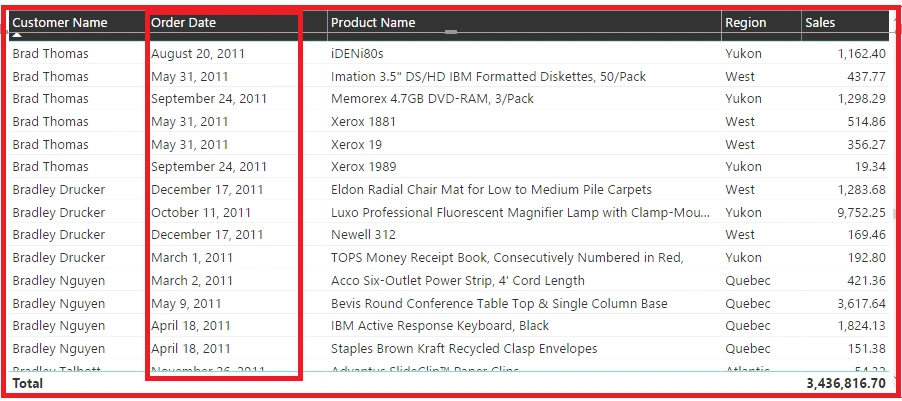
We have the following data for Sales.
- Customer Name
- Order Date
- Product Name
- Region
- Sale
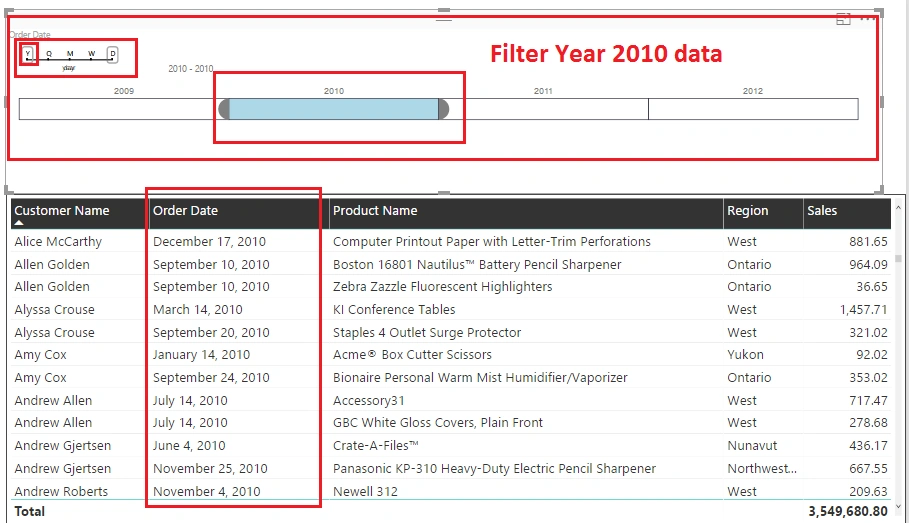
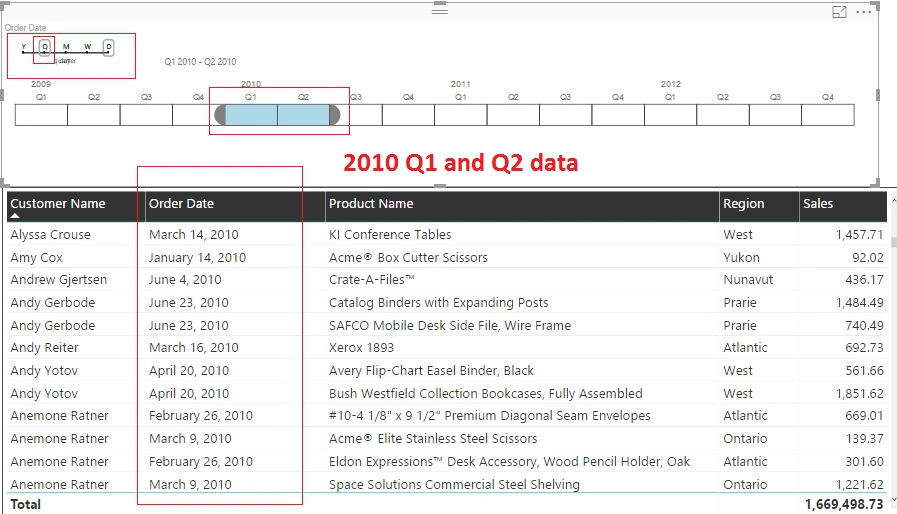
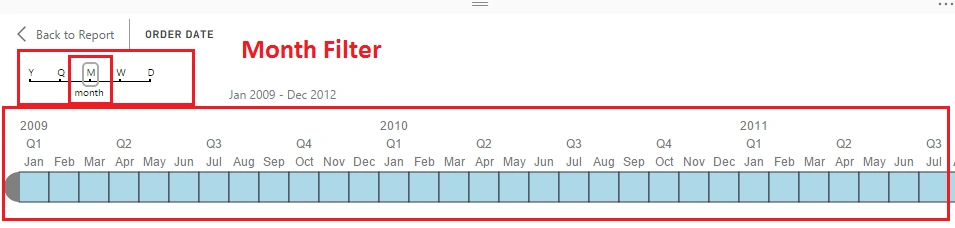
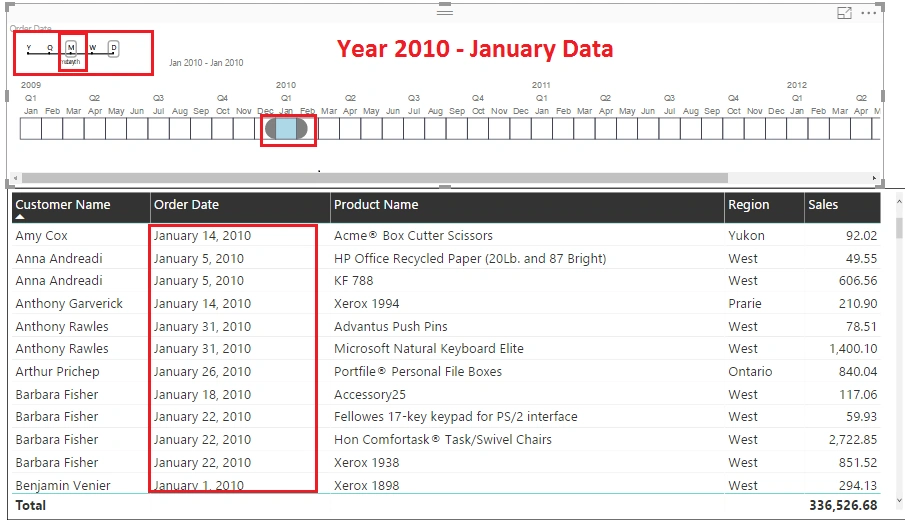
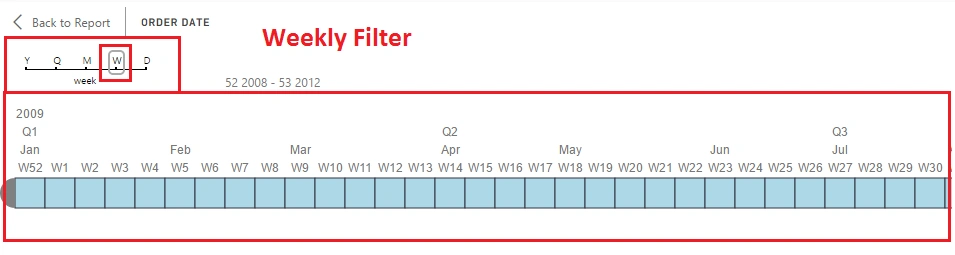
Now, we have ordered data for the years 2009 to 2012
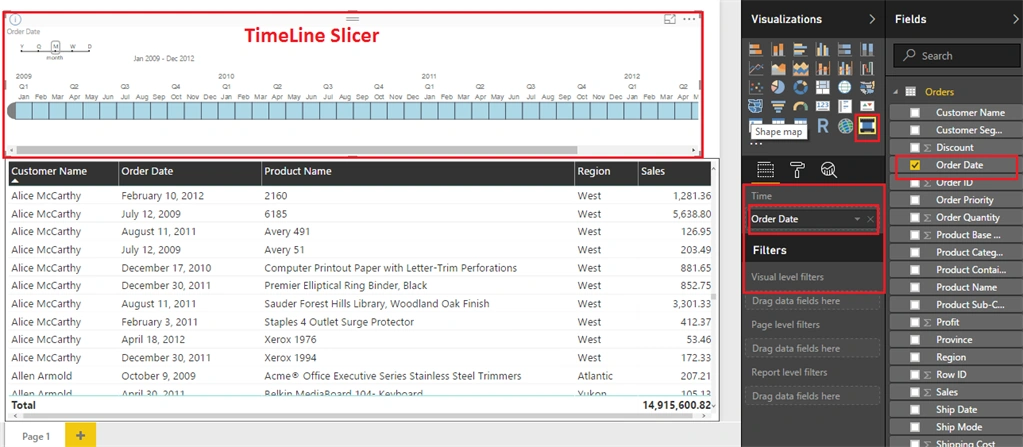
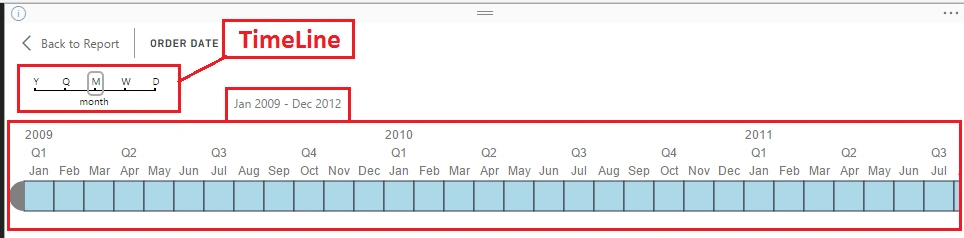
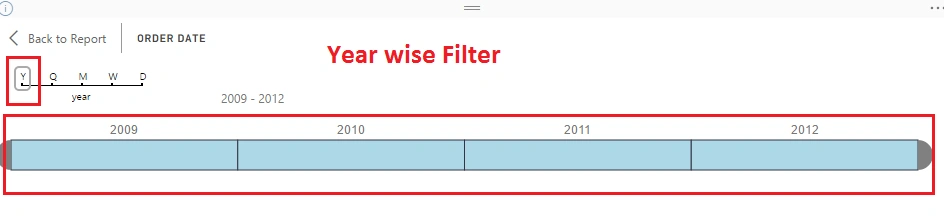
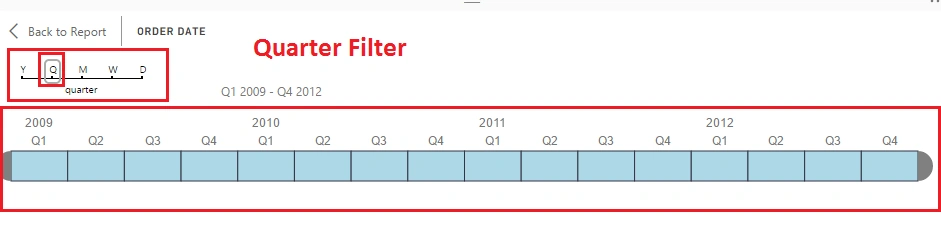
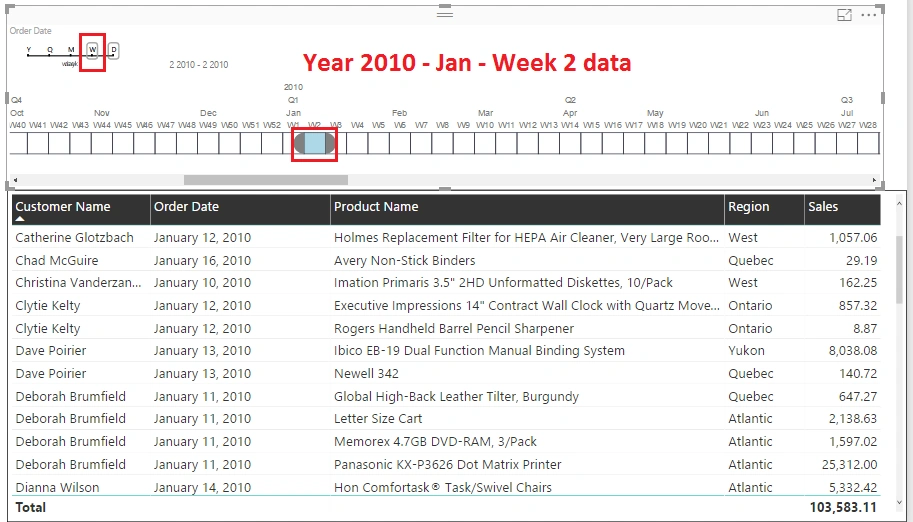
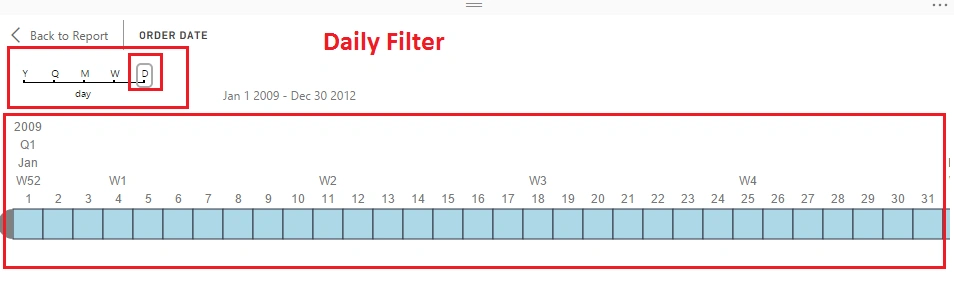
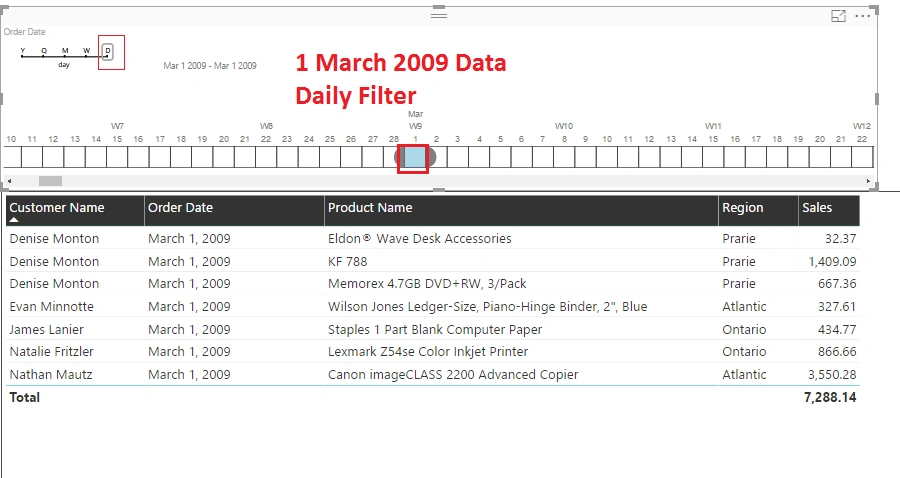
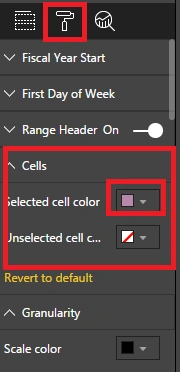
We have to filter our table based on,
sowmiya kalaivaniPosted May 17, 2018, 7:04 AM
Hi I want to show the timeline slicer filter for all pages like sync slicer . Is there any possible way to do that ?
Badri BalasubramanianPosted Feb 26, 2018, 2:39 PM
It would help to have an option to not show the granularity control on the slicer.
Thiruchelvam ThirPosted Oct 24, 2017, 7:30 AM
Hello! do you have timeline sclier with out ;W" and "D"?