
- Launch the Quick Test Professional Click on Record button to generate a QTP Script. Record and Run Settings box display. Select "Record and run test on any open browser/Windows based application" for web and Windows application category.
- There is sample application given by the QTP i.e. FLIGHT APPLICATION. Enter the Flight details,Insert order and close the application.
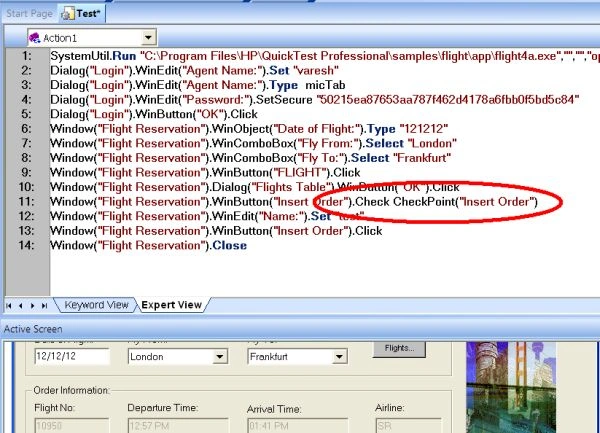
- VB script is generated by the application in Expert View.
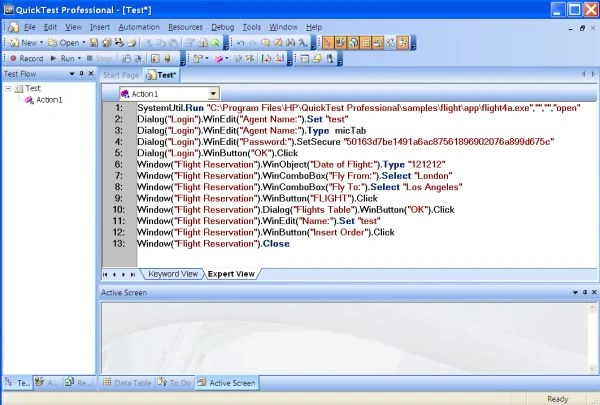
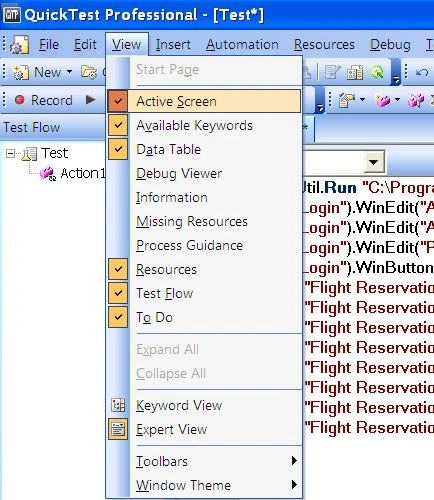
- Now add a text checkpoint while editing this test. Make sure the Active Screen Button is selected. Select it from View < Active Screen
- Click the step where you want to add a check point. The Active Screen displays the page or screen corresponding to the highlighted step.
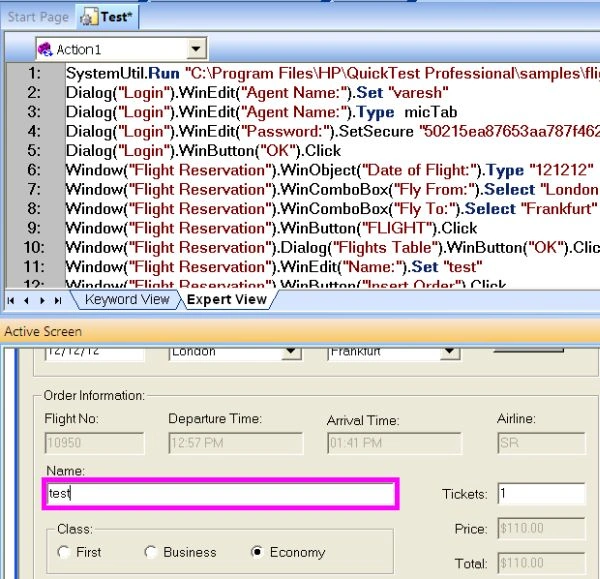
- Highlight a text string on the active Screen.
- Right click the text string and Choose Insert Text Checkpoint.
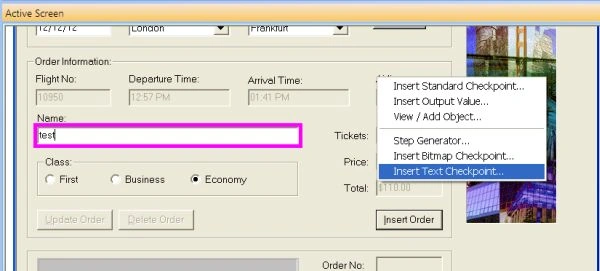
- The Text checkpoint properties dialog box opens
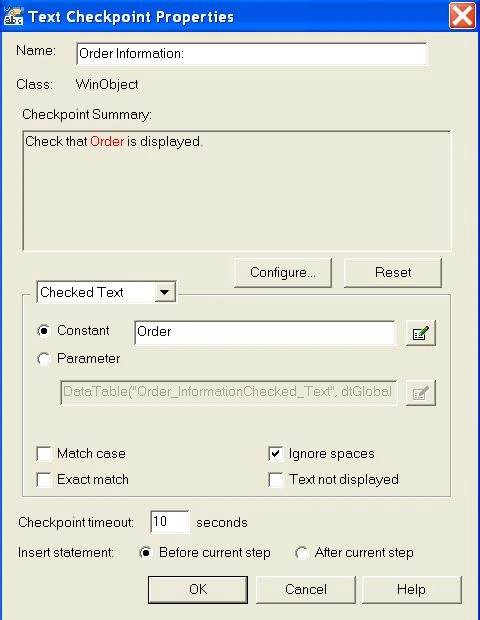
- Specify the settings for the checkpoint
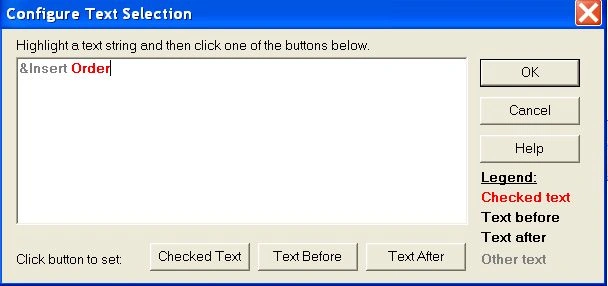
- Click OK to close the dialog box. A checkpoint statement is added the selected object in the Keyword View and Expert View.

Join the conversation! Your thoughts help the community grow.