
Here, in the example, given below, I am going to use Projects Status list and a list view in "TaskStatusByProjects" page. The Project list view is used, which will show the different tasks, based on the project name mentioned in the query string.
Step 1
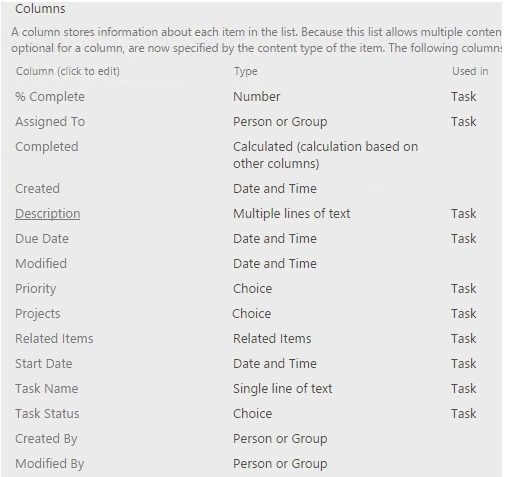
Create a "Project Status" list with the few columns, as shown below.
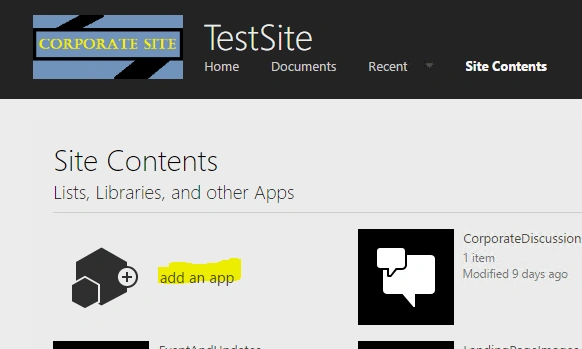
Select the "Custom List"
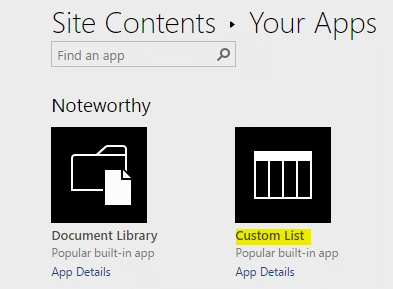
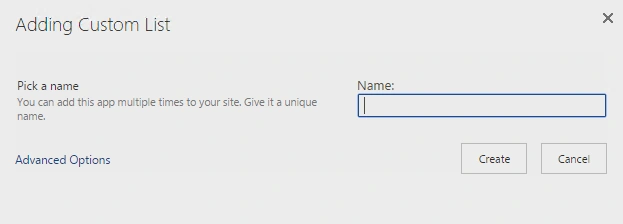
Provide the name of the list as "Project Status".
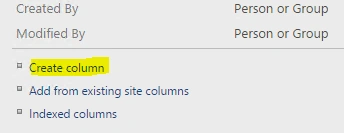
Use the "List Settings" to create the list of columns, given below.

Step 2
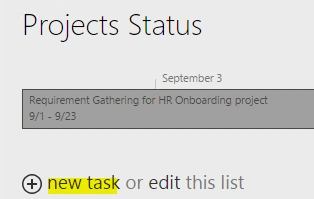
Add some values to the Project Status list by clicking the link "new task".
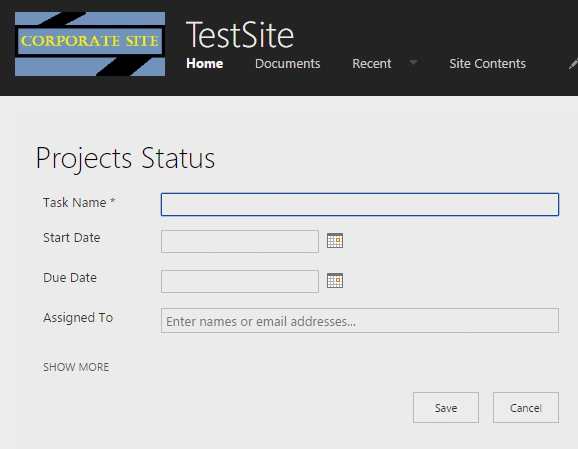
Provide the values in the "New Task" form.
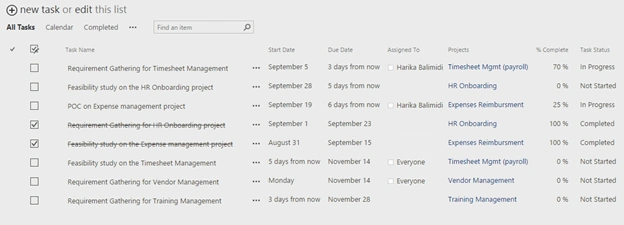
Create sample records, as shown below.
Step 3
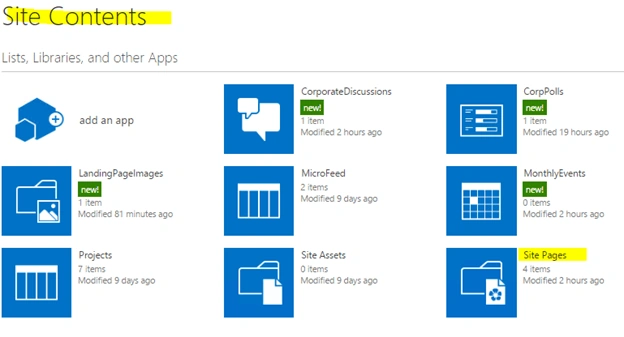
Go to "Site contents" and click on the "Site Pages" link.
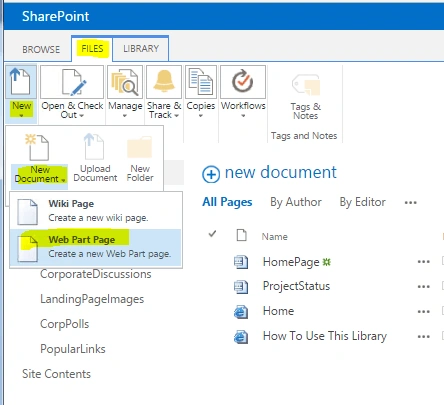
Now, select the "Files" tab from the top ribbon, select the down arrow and then "New Document". Finally, select the "Web Part Page".
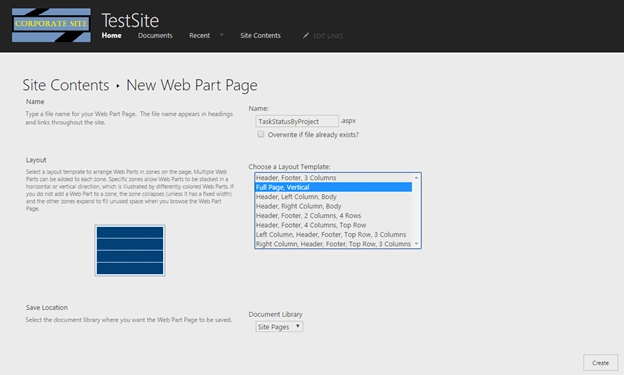
Create a Web Part page in the name "TaskStatusByProjects".
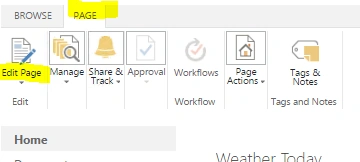
To edit the newly created page, use "Edit Page" in the top ribbon, as shown below.
Now, click on the "Add a WebPart" to a particular section. In the top ribbon, you can see the list of Web Parts available to add in the page.. Select one from the list and click "Add" button in the ribbon.
Step 4
Add "ProjectStatus" list view Web Part to the page.
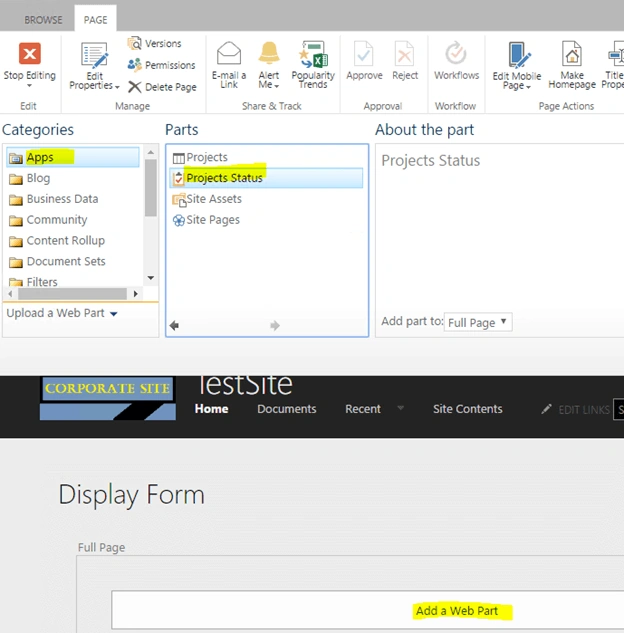
Afterwards, add "Query String Filter" Web Part.
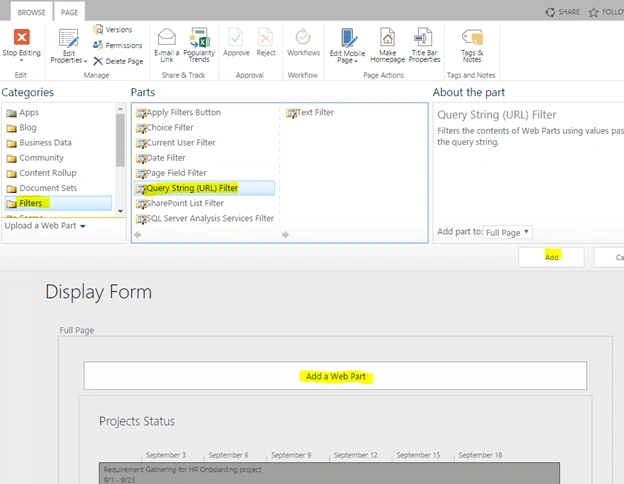
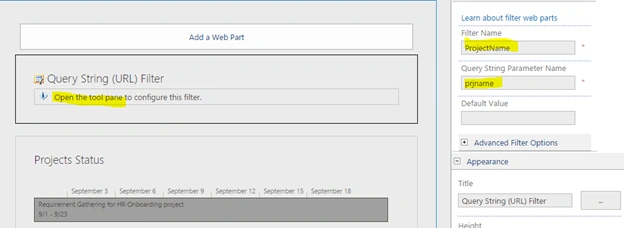
Now, configure the "Query String Filter" Web Part by clicking the "Open the tool pane".
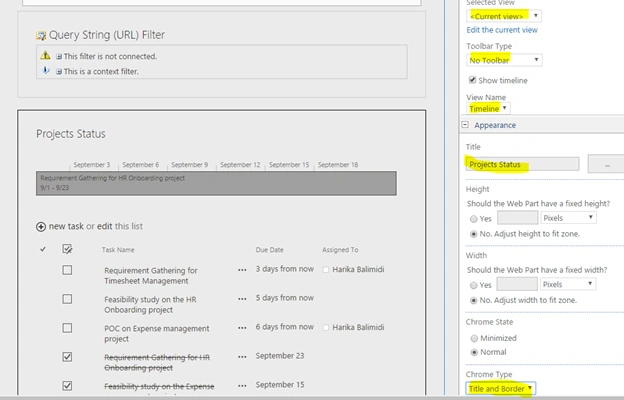
Configure the list view Web Part, as shown below.
Step 5
Here is the final step and the important one, which creates the magic.
Connecting "Query String Filter" Web Part with the list view Web Part.
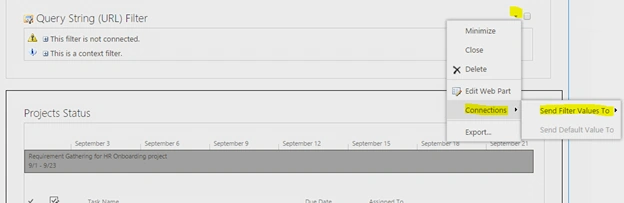
Select the "Send Filter values to" and you will see the pop-up, given below. Choose the options, as shown below.
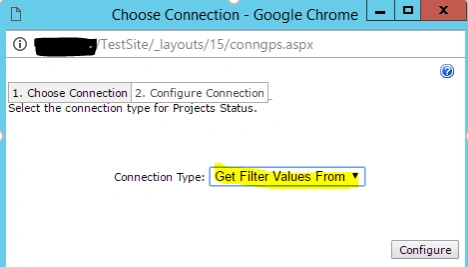
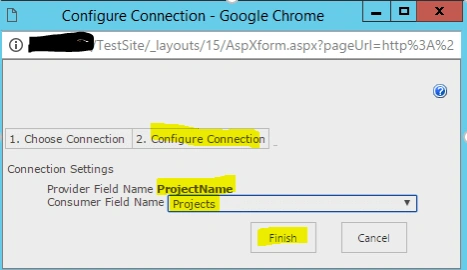
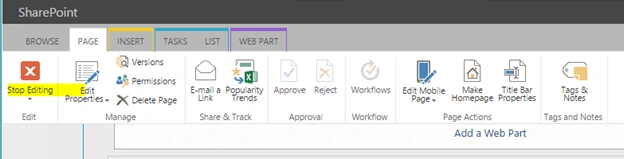
Once you are done with the connection part, you can click "Stop Editing" to save the changes done in the page.
Now, finally we are able to filter the list view Web Part in the page with the "Query String" in the URL.
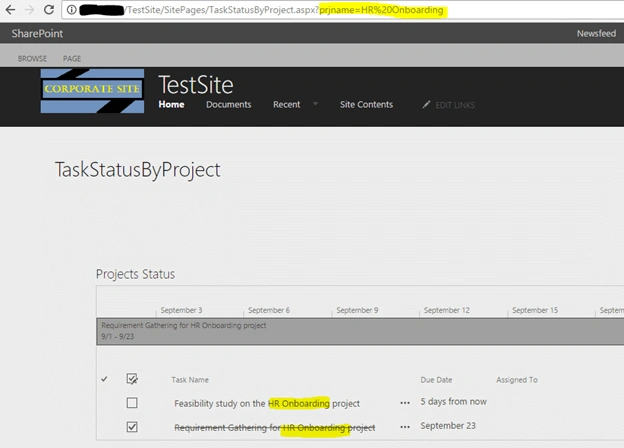
In the home page, I have a few links in the Summary Links sections. Now, I can provide the links with the query string, so that when the user clicks the link, it will directly open the page, shown above with the respective query string to show the Task Status accordingly.
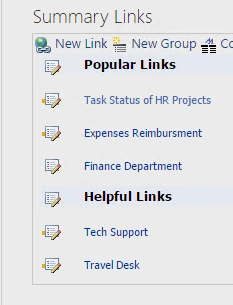
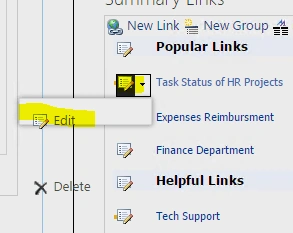
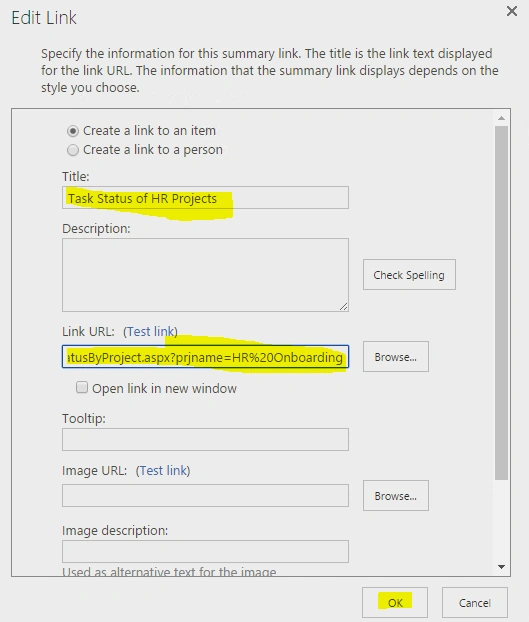
This approach can be used to display the products in the list view with the query string filter having the category value.

To Filter SharePoint List View Using Query String Web Part With No Code
Join the conversation! Your thoughts help the community grow.
Sign in to leave a comment
It is the same account you read, post and publish with — and you will come straight back to this page.
Shobhit JuyalPosted Jul 10, 2025, 10:55 AM
I cannot see the Filter menu option in the tool pane in modern Sharepoint.
Netaji JunghariPosted Nov 20, 2019, 12:15 PM
I've implemented same as https://blogs.msdn.microsoft.com/infopath/2010/06/03/how-to-pass-querystring-data-into-an-infopath-form/Now I'm trying to do if i pass same parameter in url which was already exists in my SP library then it would be display an error. Don't want to allow repeated parameters How i achieve this?
Nagarajan ElumalaiPosted Nov 1, 2018, 6:56 AM
Hi i want to send more than 1 parameter in the url but in advanced edit option send all values is disabled for me. Could you please assist me.
Aleena SaviourPosted Oct 24, 2016, 6:59 AM
Very good
Prasanna MuraliPosted Oct 22, 2016, 11:59 AM
Nice post.