

Introduction
In recent years, web development has increasingly shifted from the server side (back-end) to the client side (front-end). The emergence of frameworks such as React, Angular, and Vue.js has empowered front-end developers to create complex, responsive, and dynamic applications. Client-side web development typically involves requesting JSON data from the server, with the server responding in a structured JSON format.
However, in 2024, Elanat introduced server-based technology; WebForms Core technology represents a modern approach to web development where HTML elements are managed on the server side. Unlike its legacy counterparts, such as the former Microsoft WebForms, WebForms Core transmits only an INI structure to the client. This technology ensures that data transmission remains fully compliant with standard HTML practices.
In the following article, we introduced the WebForms Core technology with an example:
It is suggested that you read the article above before continuing.
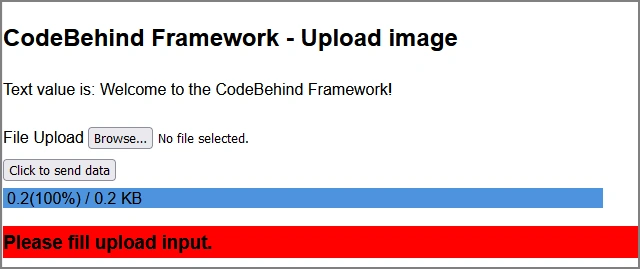
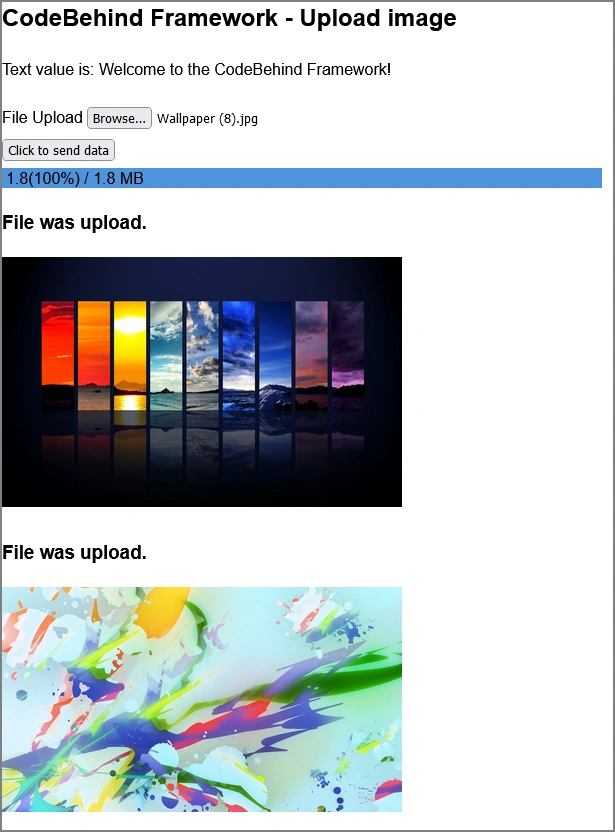
In this article, we teach the example of sending images to the server and displaying the images sent in the client. Also, a warning message is given to the user about not choosing the file and not choosing the right extension.
Note: Please note that this tutorial is explained using the CodeBehind framework.
Create View
The following view is a View file named upload_image.aspx created in the wwwroot folder. According to this file, a Controller class named UploadImageController is assigned in the page properties section, and a layout is specified in this View file. The following script tag has been added in the head layout section.
<script type="text/javascript" src="/script/web-forms.js"></script>
Note. WebForms Core technology includes a JavaScript library called WebFormsJS that communicates with the WebForms class on the server. The WebFormsJS library is automatically created in the CodeBehind framework.
In the continuation of the View file, there is a form tag that sends data using the post method, and because we want to upload a file, we added the enctype attribute with the value of multipart/form-data in the form tag. The action attribute in the form tag also sends data to the /upload_image path.
Note: In the settings of the options file in the CodeBehind framework, you must enable the ability to rewrite views to the directory ("rewrite_aspx_file_to_directory=true"). Otherwise, you must set the value of the action attribute to /upload_image.aspx.
To access this view, after running the project, enter the /upload_image path in the browser.
View file (upload_image.aspx)
@page
@controller UploadImageController
@layout "/layout.aspx"
@{
  ViewData.Add("title","Upload image");
}
<form method="post" action="/upload_image" enctype="multipart/form-data">
    <label for="File">File Upload</label>
    <input name="File" id="File" type="file" />
    <br>
    <input name="Button" type="submit" value="Click to send data" />
</form>
Inside the form tag, an input tag has been added to select an image and a submit tag to send data.
Create Controller
When the View route is requested, an instance of the UploadImageController class is created, and the PageLoad method is executed.
Controller class (UploadImage.cs)
using CodeBehind;

public partial class UploadImageController : CodeBehindController
{
    public void PageLoad(HttpContext context)
    {
        if (context.Request.Form["Button"].Has())
            Button_Click(context);
    }

    private void Button_Click(HttpContext context)
    {
        IFormFile FileUploadValue = context.Request.Form.Files["File"];

        WebForms form = new WebForms();
        form.AddTag("<form>", "h3");

        if ((FileUploadValue != null) && (FileUploadValue.Length > 0))
        {
            var ValidExtensions = new[] { ".jpg", ".jpeg", ".png", ".gif" };
            var FileExtension = Path.GetExtension(FileUploadValue.FileName).ToLowerInvariant();

            if (!ValidExtensions.Contains(FileExtension))
            {
                form.SetBackgroundColor("<h3>-1", "yellow");
                form.AddText("<h3>-1", "Invalid file type. Please upload an image.");
                form.Delete("<h3>-1");
                form.AssignDelay(3);
                Control(form, true);

                return;
            }

            string FilePath = "/image/" + FileUploadValue.FileName;

            using (Stream stream = new FileStream("wwwroot" + FilePath, FileMode.Create, FileAccess.ReadWrite))
            {
                FileUploadValue.CopyTo(stream);
            }

            form.AddText("<h3>-1", "File was upload.");
            form.AddTag("<form>", "img");
            form.SetAttribute("<form>|<img>-1", "src", FilePath);
            form.SetWidth("<form>|<img>-1", 400);
        }
        else
        {
            form.SetBackgroundColor("<h3>-1", "red");
            form.AddText("<h3>-1", "Please fill upload input.");
            form.Delete("<h3>-1");
            form.AssignDelay(3);
        }

        Control(form, true);
    }
}

Join the conversation! Your thoughts help the community grow.