

Introduction
This article shows how to transpose or change row values to a column in Excel. I hope you like it.
Background
Today when I was just analysing my grid data in Office, I just copied some of the conditions in the grid. Since all of the values were in a row, it was not very readable. So I thought of changing the values to columns. And I did. Hereby I am sharing it with you.
How to do it
Before seeing how to do that, please have a look at the data that I have before I transpose.
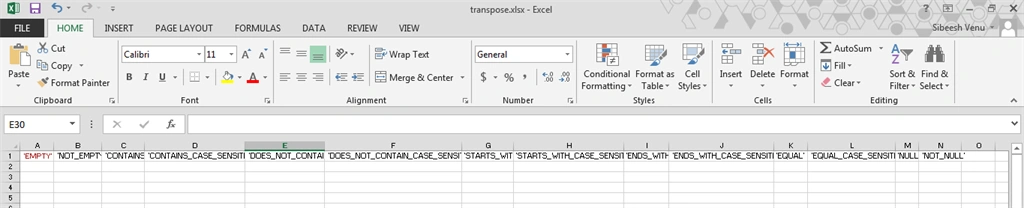
Please download the transpose.xlsx for viewing the data in Excel.
Now what I need to do is to change those values into a column. Right? For that you need to use the following procedure.
Step 1
Copy the entire data (select the row and click Ctrl+C).
Step 2
Now click on a cell where you need the data to be pasted to.
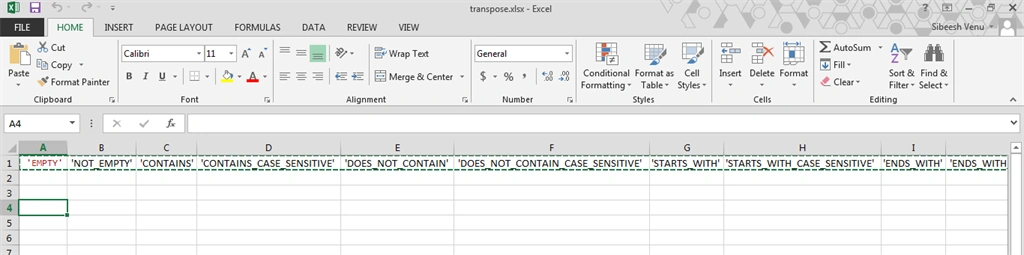
Step 3
Now right-click on the cell and click Paste Special and click Transpose.
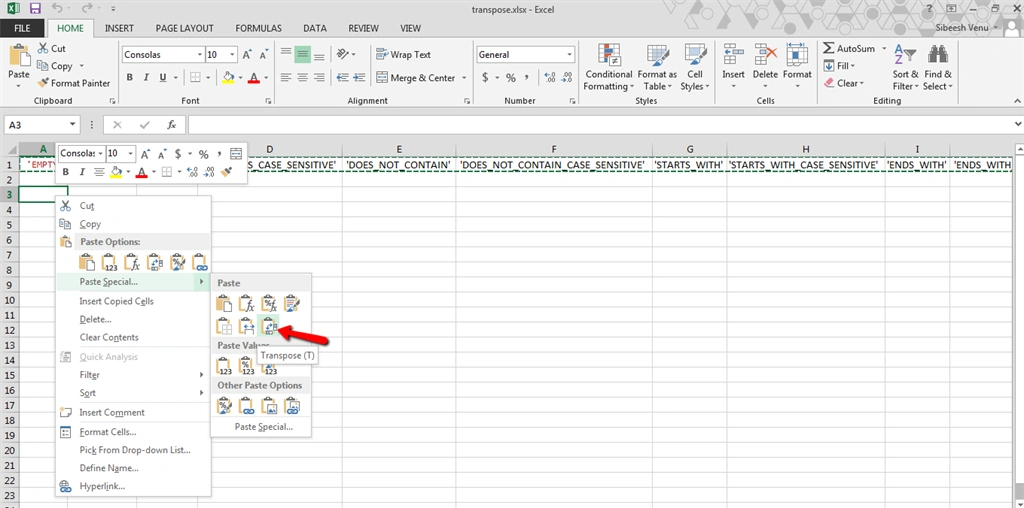
Step 4
Now that is all, we have done it. Now you will see your Excel as in the following.
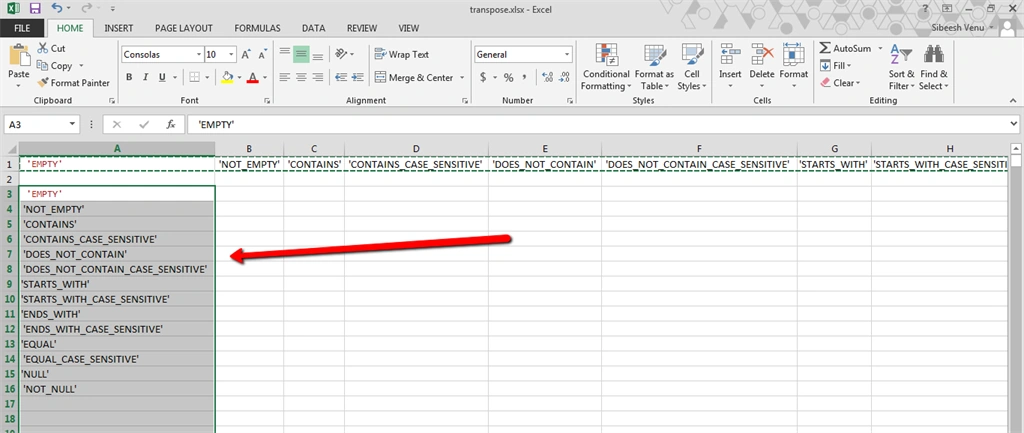
Conclusion
I hope someone found this article useful. Please share with me your valuable thoughts and comments. Your feedback is always welcomed.
Thanks in advance. Happy coding!
Nilesh JadavPosted Jul 8, 2015, 12:26 AM
great work sir
Sibeesh VenuPosted Jul 8, 2015, 12:20 AM
Gopi Chand Thank you :)
Sibeesh VenuPosted Jul 8, 2015, 12:20 AM
Santhakumar Munuswamy Thank you :)
Gopi ChandPosted Jul 7, 2015, 4:02 PM
Great discovery...learn by doing..good sibeesh
Santhakumar MunuswamyPosted Jul 7, 2015, 2:59 PM
Good Article. Thanks for sharing
Sibeesh VenuPosted Jul 7, 2015, 8:41 AM
Rakesh Chavda Thank you :)
Sibeesh VenuPosted Jul 7, 2015, 8:41 AM
Gowtham Rajamanickam Sure :)
Sibeesh VenuPosted Jul 7, 2015, 8:41 AM
Gowtham Rajamanickam Thank you :)
RakeshPosted Jul 7, 2015, 8:37 AM
Good one bro
Gowtham RajamanickamPosted Jul 7, 2015, 6:25 AM
keep it up buddy
Gowtham RajamanickamPosted Jul 7, 2015, 6:25 AM
Good one...