

A user from SharePoint Stack Exchange raised the question of how to make the person columns autocomplete to a dropdown layout in SharePoint Online. It seems interesting to me, so I have done some research and found some things, which I want to share with everyone.
In a modern view, the Person column from SharePoint online has an autocomplete option. This helps us to search and select the user in no time. This autocomplete shows the User’s Picture, Name, and Job Title / Email by default. Sometimes it shows some other values of users.
OOTB didn’t give us a way to modify the person column and its autocomplete feature. Due to that, we can make use of PowerApps to customize the Person column look and feel.
In a New Form or Edit Form of the modern SharePoint List Item, click the Customize with Power Apps button from the top. This will navigate us to PowerApps and will take some time to prepare the form for us to customize.
Once the form is ready, we can do many things with PowerApps. Here I’ll show how to customize the autocomplete feature for the Person column with a few examples.
Remove Picture from Autocomplete
To remove the profile picture from the autocomplete in the Person’s box, the following steps will help you to achieve that.
- Select the Person column’s Dropdown menu. Then click on the Advanced tab in the right side panel.
- Remove, “Picture” from the DisplayFields textbox.
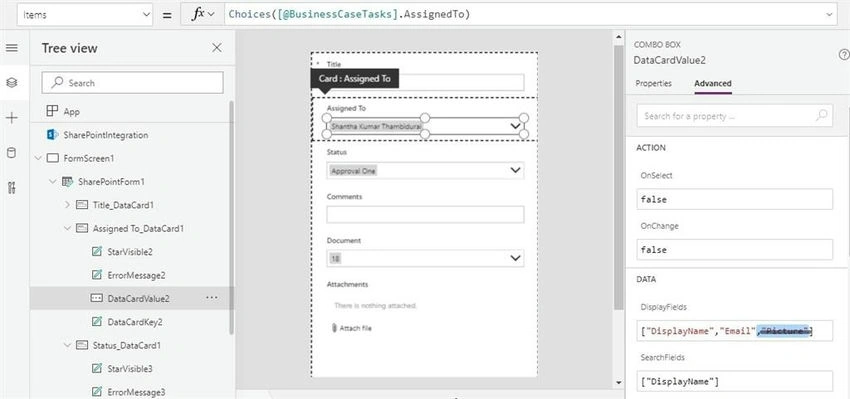
- Then from the menu, Click File and Save to publish the form.
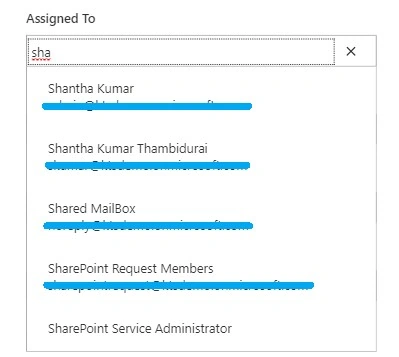
- After the publish, we will get the below output. The autocomplete shows the Display Name and Email of the user.
Show Display Name with Job Title in AutoComplete
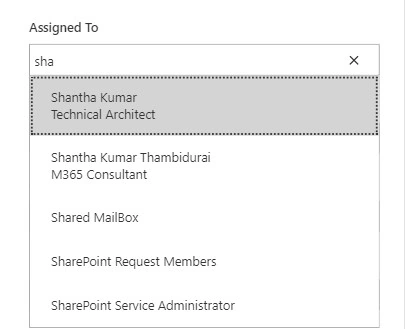
Sometimes, people want to see other values below the user’s display name. I have an example here to show the JobTitle below the DisplayName.
- Select the Person column’s Dropdown menu. Then click on the Advanced tab in the right side panel.
- Add the text ["DisplayName", "JobTitle"] in the DisplayFields textbox.
- Then from the menu, Click File and Save to publish the form.
- After the publish, we will get the below output. The autocomplete shows the Display Name and Job title of the user.
Show Display Name alone in Autocomplete
The Dropdown control in PowerApps has three different types of layouts. Single, Double, and Person. The Person layout will be used for the Person Column. To show a single value in the dropdown choice, we can make use of a Single Layout.
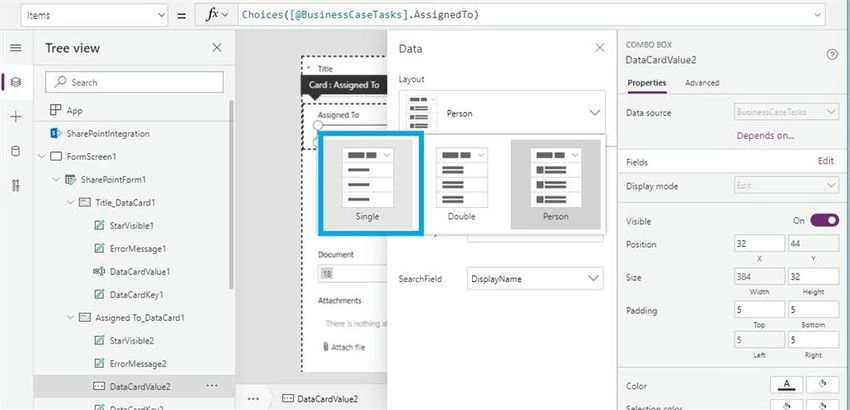
The below example uses this Single Layout choice and displays only a single text for each option for the Person column.
- Select the Person column’s Dropdown menu. Then click on the Edit link in Fields under Properties in the right side panel.
- Then select Single Layout instead of choosing Person Layout.
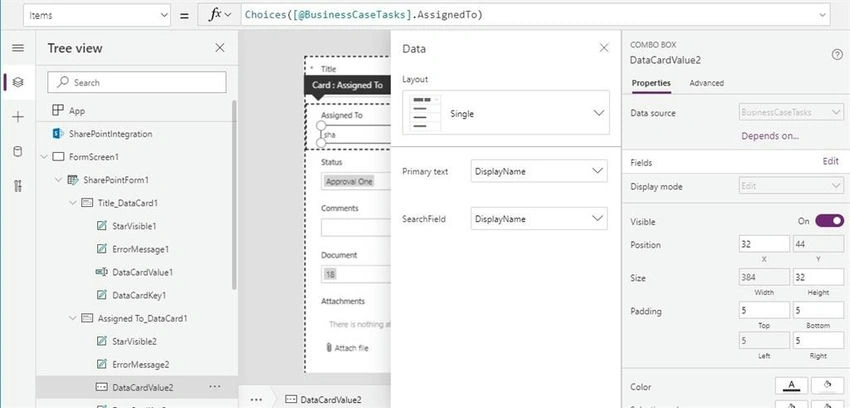
- Ensure Primary Text is DisplayName and SearchField is DisplayName
- Then from the menu, Click File and Save to publish the form.
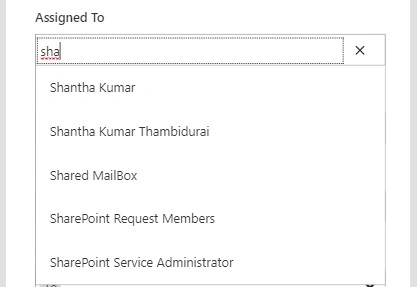
- After the publish, we will get the below output. The autocomplete shows Display Name alone in the autocomplete dropdown.
The PowerApps is a very powerful tool for customizing SharePoint Forms and there are lot of things hidden within. So, exploring the PowerApps can bring lot of its powerful features on the outside. Start exploring this tool from Power Platform and I’ll come up with more interesting hints in upcoming articles.
Logesh PalaniPosted Dec 6, 2019, 1:02 PM
Thanks for sharing