

Introduction
In this article, we explain how to turn off AutoPlay in Windows 8. When we insert a disc or a USB Drive in our system then the autoplay menu shows every time. Power users have been disabling it for a long time. We can still turn it off in Windows 8; here's how in either interface.
Procedure to disable AutoPlay in Windows 8
Step 1
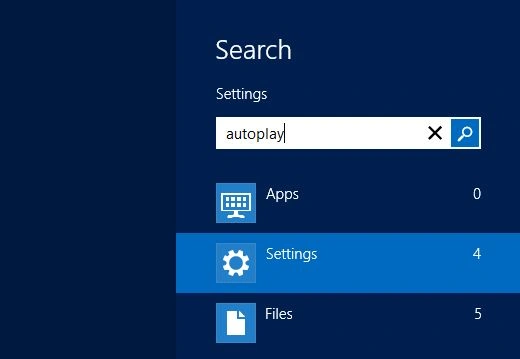
First, we have to move to the Windows 8 Start Screen and then press "Win + W" shortcut keys on our Desktop and bring up the Settings Search field and type "autoplay".
Step 2
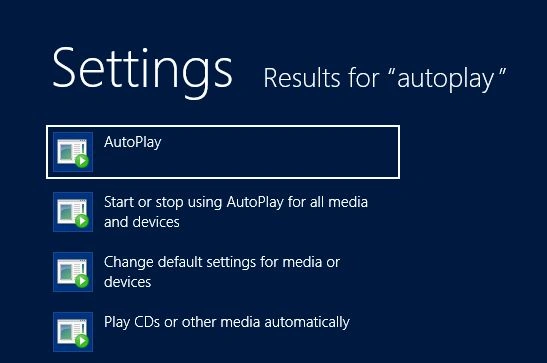
Then click its icon in the search results on the left side of the screen.
Step 3
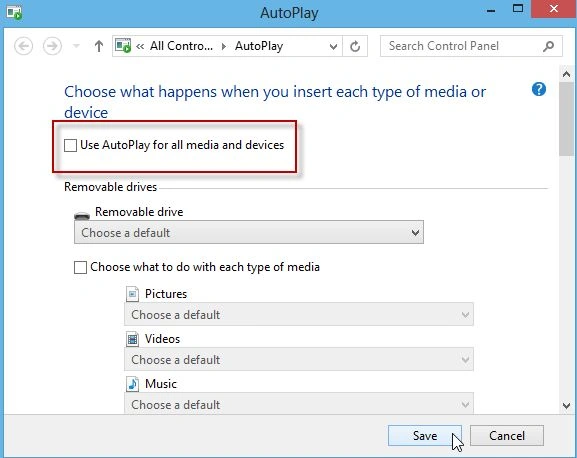
Then uncheck "Use AutoPlay for all media and Devices" and click "Save".
Disable AutoPlay from Windows 8 Desktop
Step 4
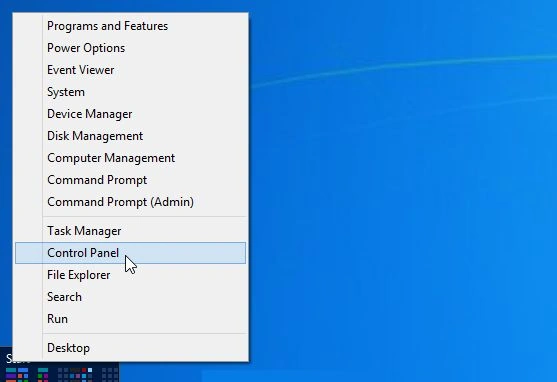
Open the Windows 8 "Control Panel".
Step 5
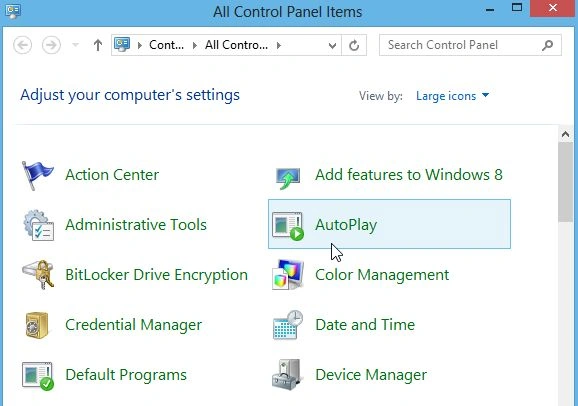
Then click the "AutoPlay" icon in "Control Panel".
Step 6
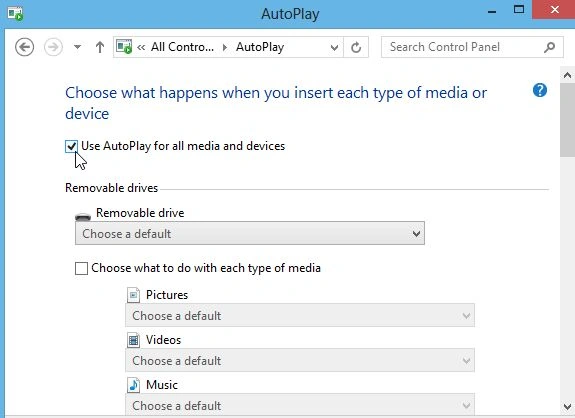
Then we can uncheck "Use AutoPlay for all media and Devices" or enable it again if we want it back on.
Summary
In this article, we learned about Turn Off AutoPlay in Windows 8.
Join the conversation! Your thoughts help the community grow.