

Introduction
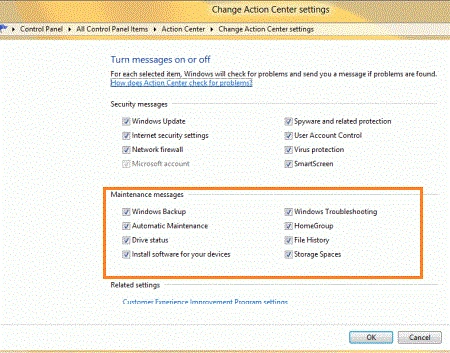
In this article, we are explaining to you how to turn off the Maintenance Messages in Windows 8. Maintenance Messages provide messages for things such as Windows Backup, Automatic Maintenance, Drive Status, Windows Troubleshooting, HomeGroup, File History, Storage Spaces, and others. In the Maintenance Messages, you can enable or disable all the Maintenance Messages listed, you can enable the ones you have disabled and then click OK. Windows 8 provides you Maintenance Messages.
Windows 8 provides you new features for Automatic Maintenance. When an Automatic Maintenance task is run, it will take the task such as security, updating, and scanning. Automatic Maintenance will provide background activity. You turn off the Maintenance Messages, you uncheck to check Messages. Windows will check the problem and send the Messages for you if you fond any issues for selected ones. Windows Maintenance provides you the ability to turn off the Maintenance Messages in Windows 8.
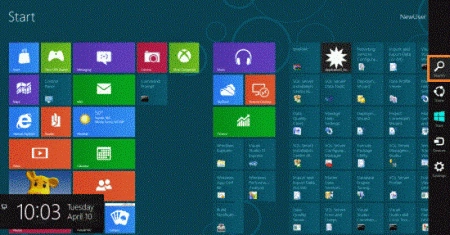
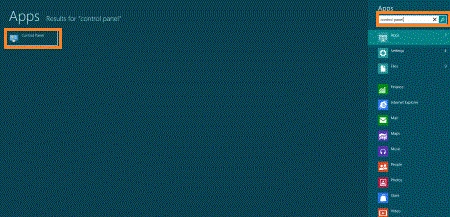
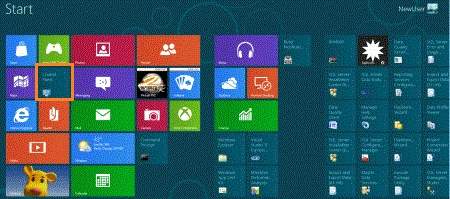
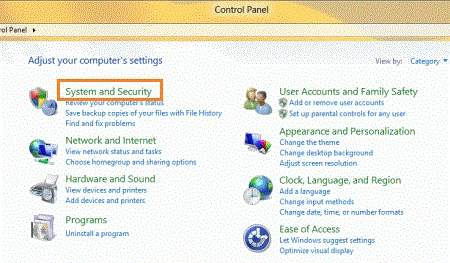
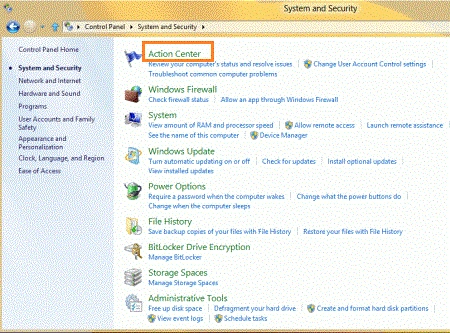
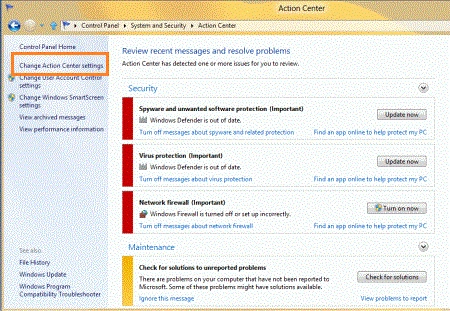
In this, you can turn off a Maintenance Message by unchecking the checkbox for turning off the Maintenance Message. If you want to search the Maintenance Message. You move the cursor to the right-bottom and click on the search box and type the Control Panel. After opening the Control Panel you click on the System and Security. After opening the System and Security, you click on the Action Center and click on the ' Change Action Center Settings '. In this, you will see the Maintenance Message. If you want to enable or disable the Maintenance Messages, you click on the Windows 8 Metro UI screen and select the Control Panel. Basically use Maintenance Message for enabling or disabling purposes. This is a new feature of Windows 8.
Steps To Turn Off the MaintenanceMessages in Windows 8
Step 1
You move the cursor to the right-bottom and click on the search box for searching any application and click on the search box and type any name you want to search.
Step 2
In this, you can type the Control Panel in the Search box and click on it to open the Control Panel. Control Panel shows many computer settings.
Step 3
Join the conversation! Your thoughts help the community grow.