In this article, you will get answers to the following questions
- Prerequisite
- How to create a Blazor Server App project?
- What is the Project Structure of the Blazor Server App?
- What is the use of each default folder
- How do you set the startup razor component or Page to run?
Before proceeding to this article, please refer to my previous article
Overview of Blazor
Prerequisite
- Basic knowledge of HTML, CSS, and Javascript.
- Visual Studio Community 2019 / 2022. In this article VS Community 2022 is used.
How to create a Blazor Server App project?
- Start VS Community 2022
- Click on File -> New -> Project
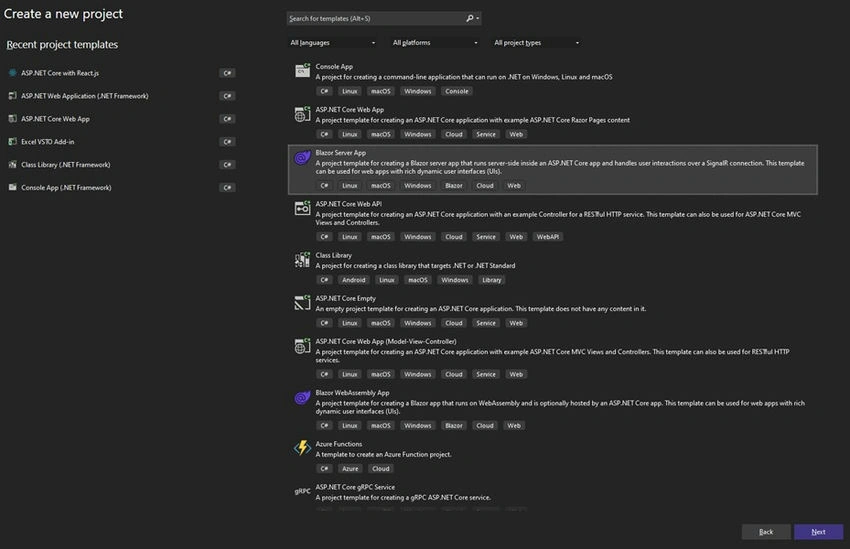
- Select the Blazor Server App and click on the “Next” button on the right bottom side.
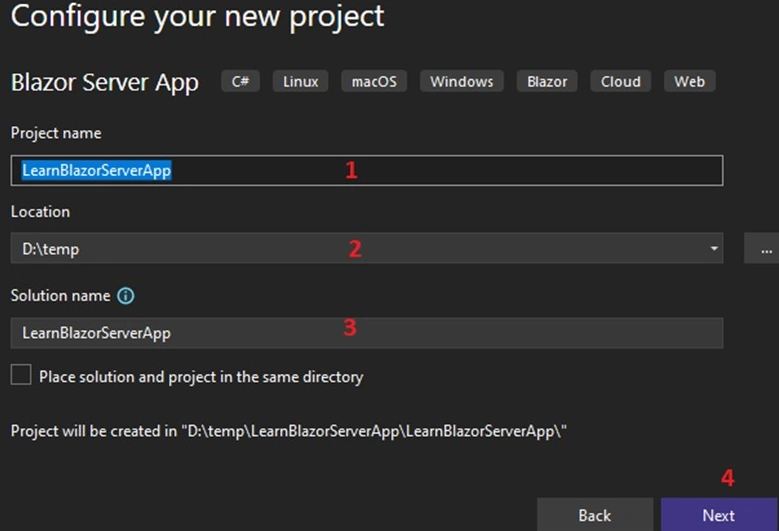
- Give Project Name
- Location where you want to manage your project.
- Solution Name you want
- Click on the “Next” button to proceed to the next screen.
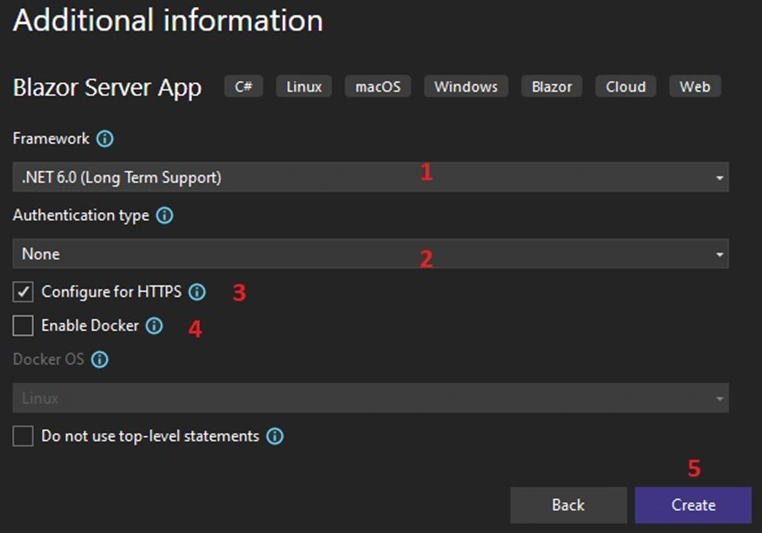
- Select your desired Framework.
- Authentication Type Mode
- Configure for HTTPS
- Enable Docker: It required DOCKER installation to work.
- Click on the “CREATE” button to create a project following screenshot is example.
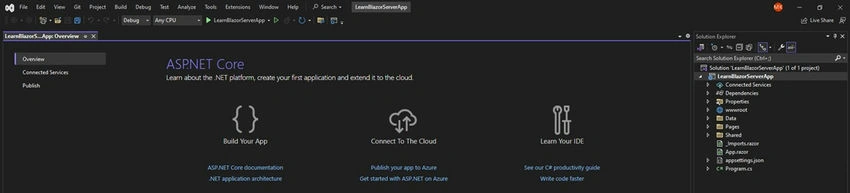
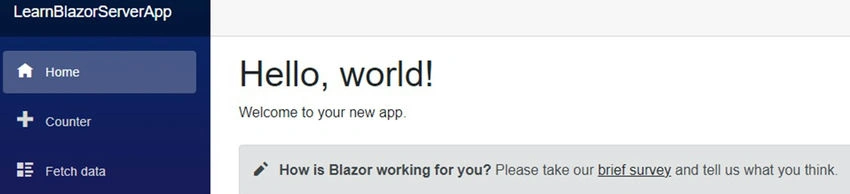
- Run the project by pressing F5 and the following output will appear on your browser.
What is the Project Structure of the Blazor Server App?
Before diving into details of the project structure for your reference overall screen-shot of solution explorer i.e. Project structure basic View.
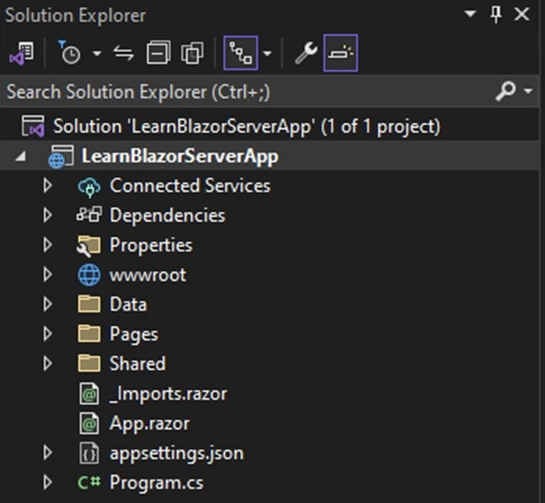
(Solution Explorer – Project Structure basic View)
There are default 7 main nodes and 4 main files.
Main 7 Nodes are the following
- Connected Services
- Dependencies
- Properties
- Wwwroot
- Data
- Pages
- Shared
Connected Services: A point where you can add service(s) as per your project requirements.
Types of Connected Services
There are two types of connected services
- Service Dependencies
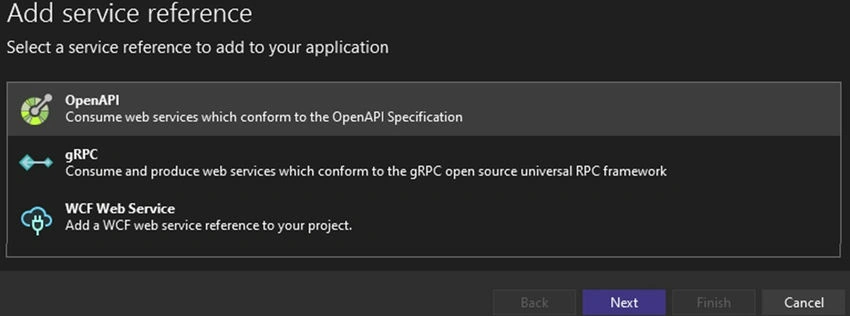
- Service Reference
Right-click on the Connected Services option following the screen you can see.
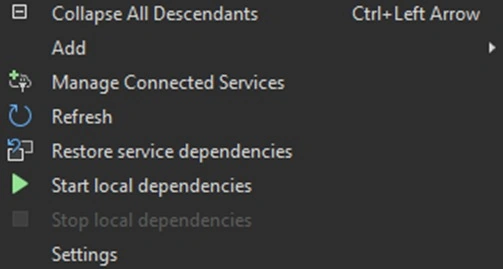
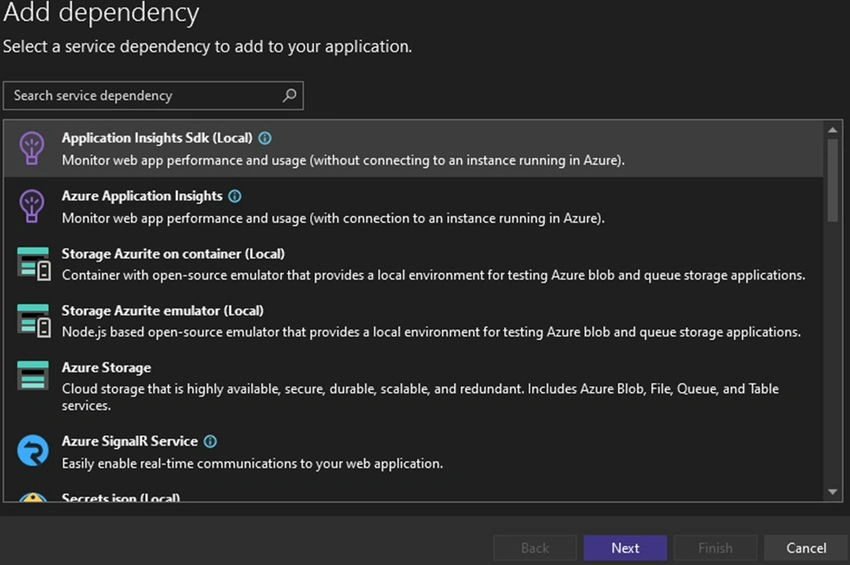
On clicking the Add option
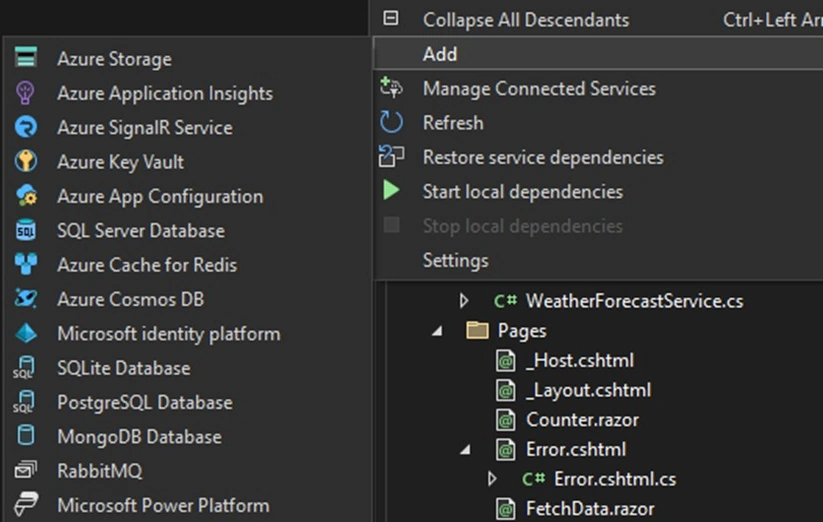
You can see the above screenshot following connected services easily added to the project.
Example
- Azure Storage
- Azure Application
etc
- Click “Manage Connected Services”
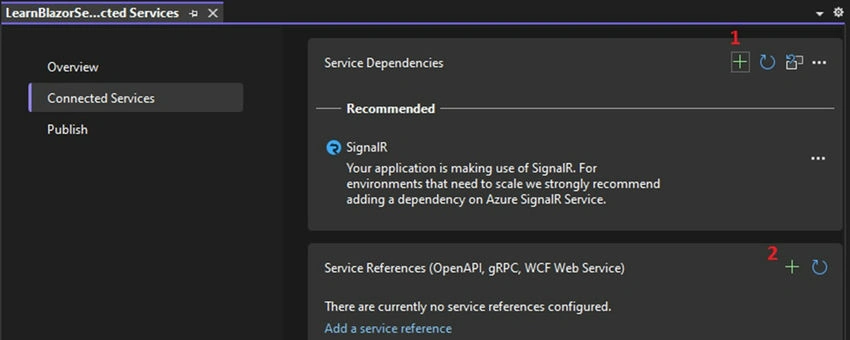
- To add service dependencies.
- To add service references.
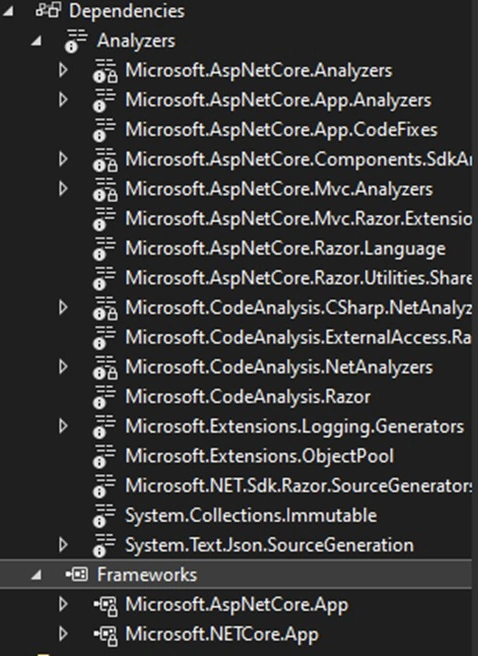
- Dependencies: You add and remove a class library, COM NuGet Packages, etc... references to your project.
- On right-click on the “DEPENDENCIES” node you can see the following options will appear on the screen.
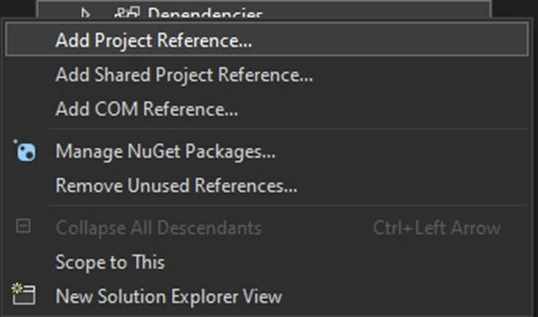
Dependencies have two options
- Analyzers: Analyzers are powerful tools that help improve code quality. You can enable or disable the analyzers.
- Frameworks: Basic library listing of framework you see.
Properties
This folder has one JSON configuration file called launchSettings.json. This file contains all necessary application launch settings. By default, the file has three main JSON groups.
- iisSettings
- profiles
- IIS Express
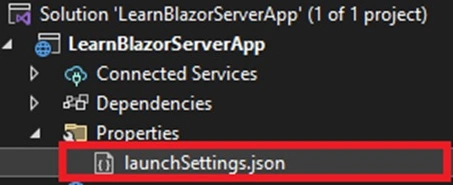
launchSetting.json file JSON
{

  "iisSettings": {
    "windowsAuthentication": false,
    "anonymousAuthentication": true,
    "iisExpress": {
      "applicationUrl": "http://localhost:49428",
      "sslPort": 44303
    }
  },
  "profiles": {
    "LearnBlazorServerApp": {
      "commandName": "Project",
      "dotnetRunMessages": true,
      "launchBrowser": true,
      "applicationUrl": "https://localhost:7137;http://localhost:5137",
      "environmentVariables": {
        "ASPNETCORE_ENVIRONMENT": "Development"
      }
    },
    "IIS Express": {
      "commandName": "IISExpress",
      "launchBrowser": true,
      "environmentVariables": {
        "ASPNETCORE_ENVIRONMENT": "Development"
      }
    }
  }
}
- WWWRoot: Special place to store, and manage your all static files like bootstrap, images, JS file.
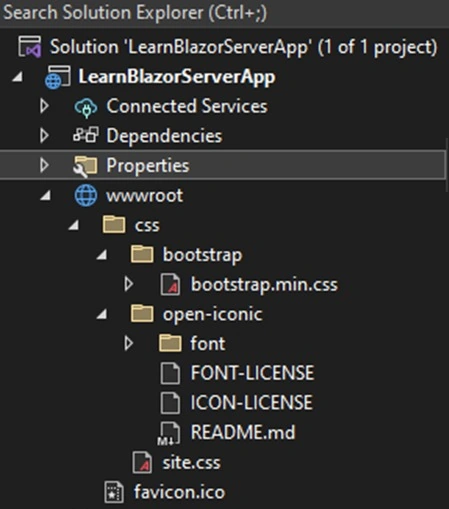
- You can see WWWROOT has a subfolder CSS inside. There is Bootstrap and Open-iconic folder.
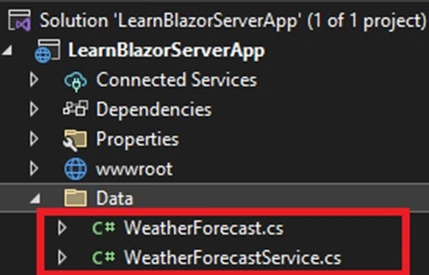
- Data: This folder has two class files.
- WeatherForecast.cs: Plain C# class file.
- WeatherForecastService.cs: Service file which has GetForecastAsync method which returns WeatherForcast[] array.
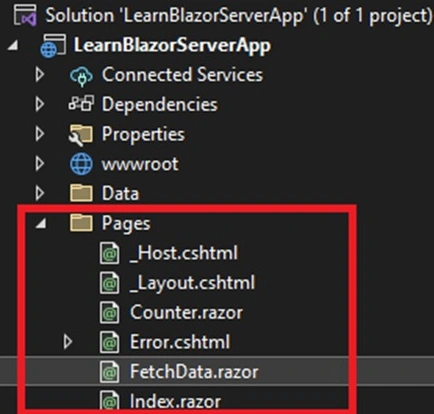
Pages
You can see there are six (6) files. Two kinds of files – Razor Component (*.Razor), and Razor View (*.Cshtml).
| File Name |
Description |
| _Host.cshtml |
Root razor page of Blazor application. |
| _Layout.cshtml |
This file is like the Master Page file of ASP.NET WebForm, the same layout file of ASP.NET MVC. Overall landing base for all razor components, razor view files. |
| Counter.razor |
Sample razor component having code of Counter. |
| Error.cshtml |
Sample error handling razor view. |
| FetchData.razor |
Sample razor component generate the weather data. |
| Index.razor |
Default component display while running the application. |
Shared
| File Name |
Description |
| MainLayout.razor |
Main layout component under this component, all components will render.
MainLayout.razor.css: Style sheet (CSS) code for MainLayout.razor |
| NavMenu.razor |
Navigation menu component of the application. You can see <NavMenu /> called inside from MainLayout.razor.
NavMenu.razor.css: Style sheet (CSS) code for NavMenu.razor. |
| SurveyPrompt.razor |
Survey component called inside from Index component. The survey component redirects you to another site for a survey. https://www.surveymonkey.com/r/YBXCJQ9.
<SurveyPrompt Title="How is Blazor working for you?" /> |
_Import.razor
It is a common place where you can maintain common namespaces so that there is no need to declare namespaces again and again. Followings namespace already defined by default in _impory.razor file.
@using System.Net.Http
@using Microsoft.AspNetCore.Authorization
@using Microsoft.AspNetCore.Components.Authorization
@using Microsoft.AspNetCore.Components.Forms
@using Microsoft.AspNetCore.Components.Routing
@using Microsoft.AspNetCore.Components.Web
@using Microsoft.AspNetCore.Components.Web.Virtualization
@using Microsoft.JSInterop
@using LearnBlazorServerApp
@using LearnBlazorServerApp.Shared
App.razor
Root component of an application. It manages client-side routing using the router component.
appsettings.json
This is a dedicated file for managing application configuration settings in JSON format. You can manage settings like Database connection, AppSetting variables, Logging, etc.
{
  "Logging": {
    "LogLevel": {
      "Default": "Information",
      "Microsoft.AspNetCore": "Warning"
    }
  },
  "AllowedHosts": "*"
}
Program.cs
The entry point of the application and run the settings like middleware and application run (app.run()).
How do you set the startup razor component or Page to run?
While running the newly created project you can see by default INDEX.RAZOR component is running.
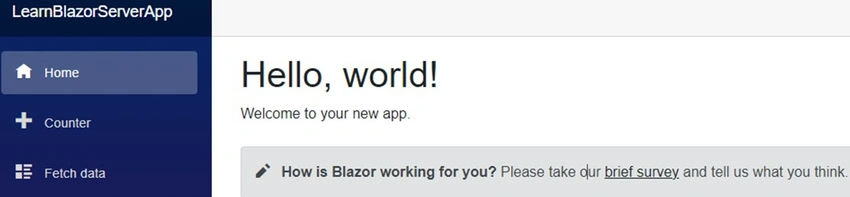
Now I want the counter razor component should run by default while running the application.
Index.razor code
@page "/"
@page "/index"
<PageTitle>Index</PageTitle>
<h1>Hello, world!</h1>
Welcome to your new app.
<SurveyPrompt Title="How is Blazor working for you?" />
Now remove @page “/” from index.razor component and same way place on counter.razor component.
Update Counter.razor code
@page "/"
@page "/Counter";
<PageTitle>Counter</PageTitle>
<h1>Counter</h1>
<p role="status">Current count: @currentCount</p>
<button class="btn btn-primary" @onclick="IncrementCount">Click me</button>
@code {
    private int currentCount = 0;
    private void IncrementCount()
    {
        currentCount++;
    }
}
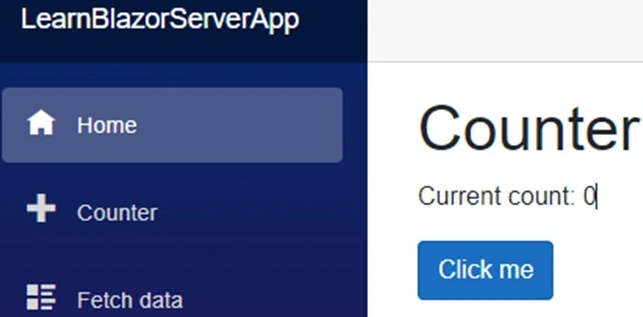
To set the startup component in Blazor you have just keep the @page ”/” at the first line.
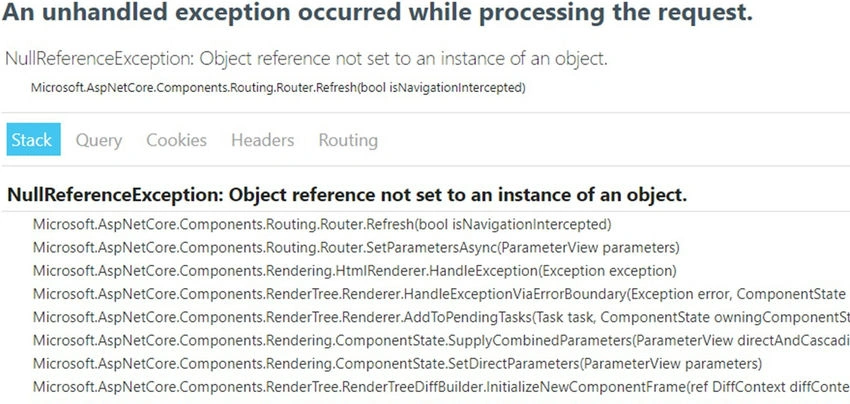
If you place @page “/” in two components, you will get the following error.
Dear Reader
Waiting for valuable comments to know your view on this article and write in comment your interested areas to learn in Blazor.
Happy Learning and Coding.


Join the conversation! Your thoughts help the community grow.