This article explains the controller with a sample application and the usage of controller is also discussed here. In my previous article, we saw what is the difference between AngularJS and other JavaScript frameworks. Here are the series of article written on AngularJS,
Controllers
A controller is a set of JavaScript function which is bound to a specified scope. The ng-controller directive, Angular will instantiate the new controller object, and injects the new scope as a dependency. It contains business logic for the view and avoid using to manipulate the DOM.
Controller Rules
- We can use controller to set up the initial state of the scope object and add behavior to that object.
- We do not use controller to manipulate DOM. It should contain only business logic and can use data binding and directives for the DOM manipulation.
- We do not use controllers to format input but can use angular from controls instead of that.
- We do not use filter output but can use angular filters instead of that.
- We do not use controllers to share code or state across controllers but can use angular services instead of that.
- We do not manage the life-cycle of other components.
Creating a Controller
- Requires ng-controller directive.
- Add controller code to a module.
- Name your controller based on functionality.
- Controller are named using camel case (i.e. SimpleController).
- Setup the initial state of the scope object.
When you have create an AngularJS sample application in AngularJs. Firstly, you need to initialize state of the scope object and associate the properties to the scope object in Angular. It is provided in build directive to use ng-controller directive in the AngularJS application.
ng-Controller directive
ng-Controller directive is an associated a controller class to the view.
How to use ng-Controller
- <Any
-
- ng-Controller=”expression”>
-
- </Any>
- <div ng-app="mainApp" ng-controller="SimpleController">
-
- </div>
Step 1:
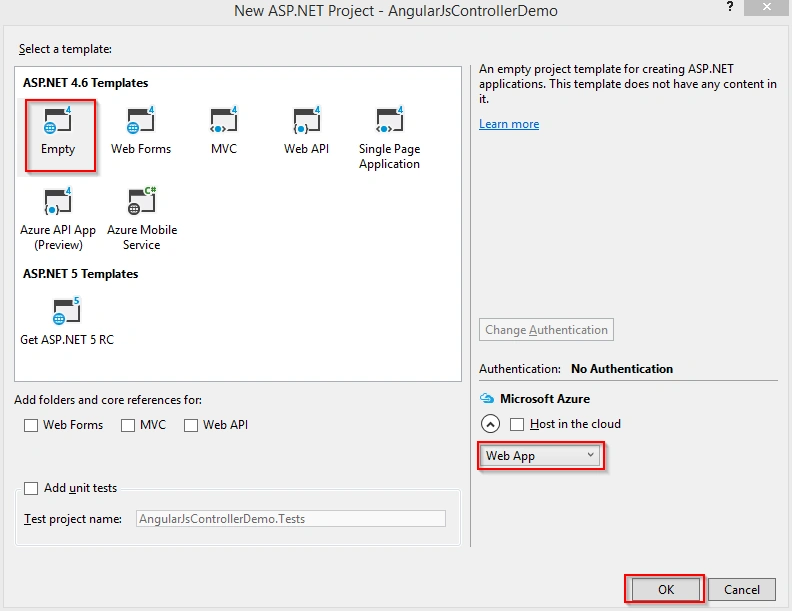
Open Visual Studio 2015 and go to file menu and point the new and then click new project. New ASP.NET project window will open, you can select a ASP.NET Web Application and Type Project Name AngularJsControllerDemo, Choose the project location path and then click OK button.
New ASP.NET project window will open, you can select a Empty Template with No Authentication and then click OK button.
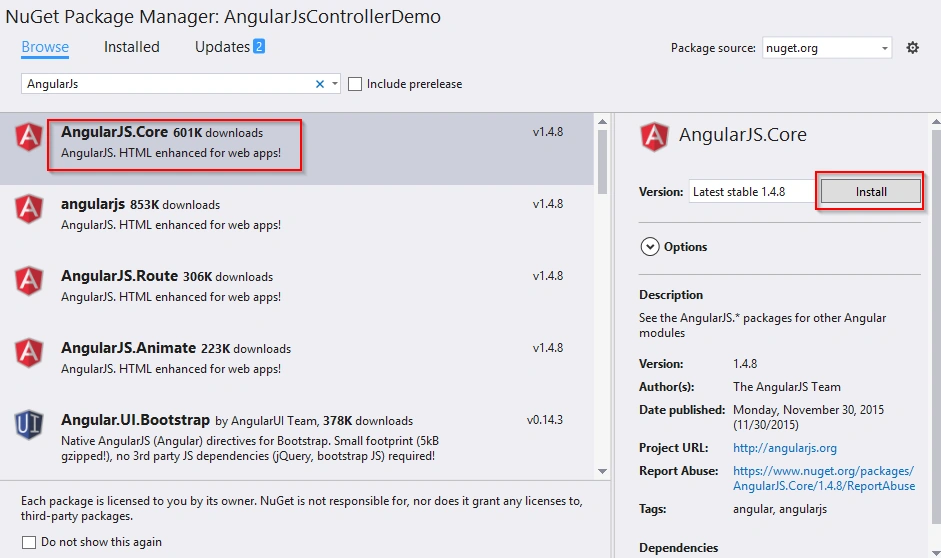
Go to Solution Explorer and right click the project name and then click Manage NuGet Packages.
NuGet Package Manager window will open and you can type AngularJS and browse. Also select AngularJS.Core and click Install button.
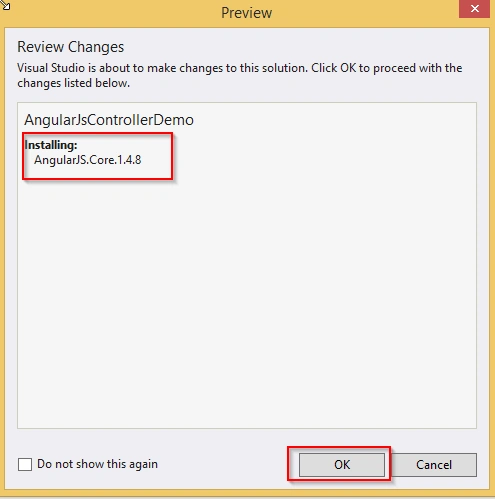
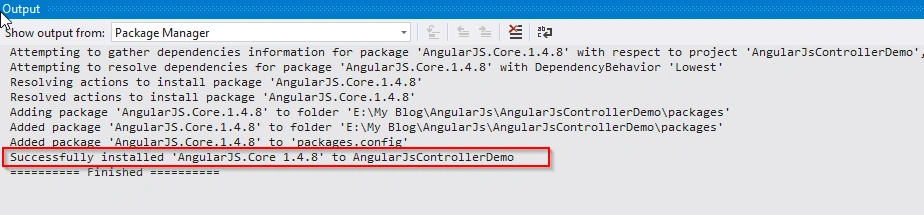
Preview window will open and you can see the AngularJS version installing details and click OK button. After it is successfully installed in AngularJS, you can see the following,
You can see AngularJsControllerDemo project structure as in the following screenshot.
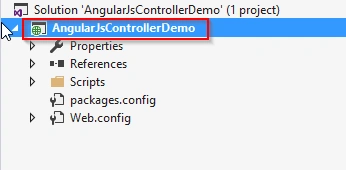 Add SimpleController.html
Go to Solution Explorer and right click the project name and point Add then click the HTML Page. You can type the item name SimpleController.html and click OK button.
Add SimpleController.js
Go to Solution Explorer and right click the Controller folder name and point Add then click the JavaScript file. You can type the item name SimpleController.js and click OK button.
Step 2: SimpleController.html code here,
- <!DOCTYPE html>
- <html>
- <head>
- <title> San2debug.net | AngularJs Controller Application Demo</title>
- <meta charset="utf-8" />
- <script src="Scripts/angular.min.js"></script>
- <script src="Controller/SimpleController.js"></script>
-
- </head>
- <body>
- <h2>AngularJs Controller Application Demo</h2>
- <div ng-app="mainApp" ng-controller="SimpleController">
- First Name: <input type="text" ng-model="employee.firstName" /><br /><br />
- Last Name: <input type="text" ng-model="employee.lastName" /><br /><br />
- <hr />
- <div>
- <strong>Employee Full Name</strong> : {{employee.fullName()}}
- </div>
- </div>
- </body>
- </html>
SimpleController.js code here,
- var mainApp = angular.module("mainApp", []);
-
- mainApp.controller("SimpleController", function ($scope) {
- $scope.employee = {
-
- firstName: "Santhakumar",
- lastName: "Munuswamy",
-
- fullName: function () {
-
- var employee;
- employee = $scope.employee;
- return employee.firstName + " " + employee.lastName;
-
- }
-
- };
- })
MultipleController.html code here,
- <!DOCTYPE html>
- <html>
- <head>
- <title>San2debug.net | AngularJs Controller Application Demo</title>
- <meta charset="utf-8" />
- <link rel="stylesheet" href="Style/Style.css" />
- <script src="Scripts/angular.min.js"></script>
-
- <script src="Controller/MultipleController.js"></script>
- </head>
- <body ng-app="mainApp">
- <div class="main">
- <div ng-controller="MultipleController" >
- <p>{{name}}</p>
- <div ng-controller="ChildController">
- <p>{{name}}</p>
- <div ng-controller="ParentChildController">
- <p>{{name}}</p>
- </div>
- </div>
- </div>
- </div>
- </body>
- </html>
MultipleController.js code here,
- var mainApp = angular.module("mainApp", []);
-
- mainApp.controller("MultipleController", function ($scope) {
-
- $scope.name = "Welcome Microsoft";
-
- });
-
- mainApp.controller("ChildController", function ($scope) {
-
- $scope.name = "Welcome C# Corner";
-
- });
-
- mainApp.controller("ParentChildController", function ($scope) {
-
- $scope.name = "Welcome San2debug.net";
-
- });
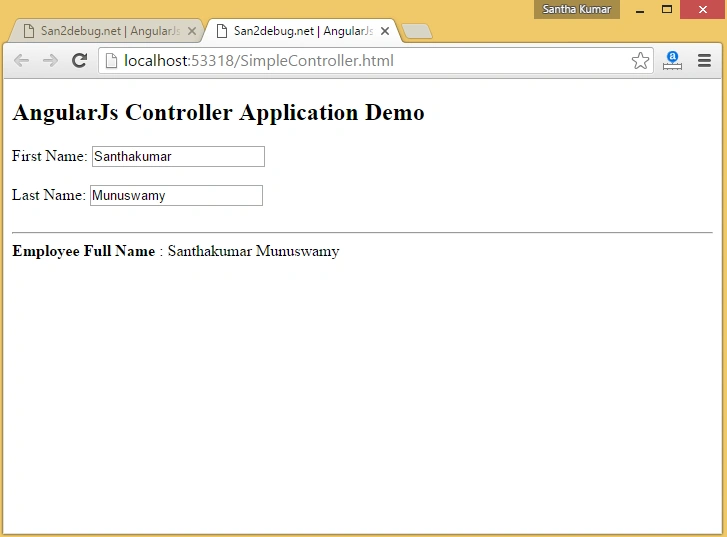
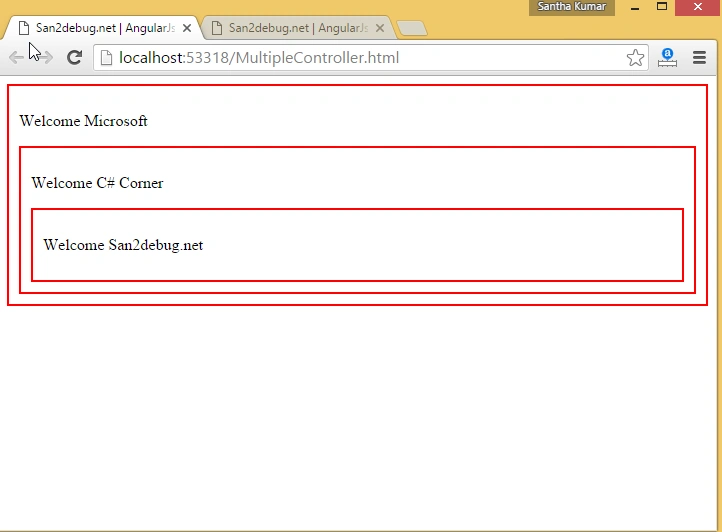
Steps 3: AngularJS Controller Application demo output as in the following screenshot,
Conclusion:
This article helps you to understand the Controller with a sample application using Visual Studio 2015. Thank you for reading my articles. Kindly share your comments or suggestion.



Sr KarthigaPosted Mar 2, 2016, 10:48 PM
good one
Sr KarthigaPosted Mar 2, 2016, 10:48 PM
nice explanation
Santhakumar MunuswamyPosted Dec 26, 2015, 10:00 PM
Thanks Sibeesh
Sibeesh VenuPosted Dec 26, 2015, 10:48 AM
Nice Share
Gowtham KPosted Dec 26, 2015, 9:10 AM
Good One, Thanks for sharing
Banketeshvar NarayanPosted Dec 26, 2015, 5:58 AM
Nice Article... Thanks for Sharing
Raja TPosted Dec 26, 2015, 5:44 AM
Good job Sir, Thank for sharing
Manas MohapatraPosted Dec 26, 2015, 4:08 AM
Good one