Introduction

This article explains the Universal Image Loader. The Universal Image Loader allows you to set various image view options. You can load the image from a URL at runtime using this. The advantage of using this is that you need not store all the images you want to use in your project (in drawable). This saves memory. In large projects where memory management is crucial, using Universal Image Loader is a good idea.
Step 1
You will need to include "universal-image-loader-1.7.0.jar" from the "library" zip, provided above, as a library in your project. Copy the jar file provided to the clipboard and paste it on the "libs" in your Eclipse project.
This jar contains the main functionalities that we will be using.
Step 2
First, we will make an application class that will set the basic configurations.
Right-click on your package name then select "New" -> "Class". Name it "App" and add the following code to it:
  1. package com.chhavi.universalimageloader;
  2. import android.app.Application;
  3. import android.content.Context;
  4. import com.nostra13.universalimageloader.cache.disc.naming.Md5FileNameGenerator;
  5. import com.nostra13.universalimageloader.core.ImageLoader;
  6. import com.nostra13.universalimageloader.core.ImageLoaderConfiguration;
  7. import com.nostra13.universalimageloader.core.assist.QueueProcessingType;
  8. public class App extends Application {
  9. @Override
  10. public void onCreate() {
  11. super.onCreate();
  12. initImageLoader(getApplicationContext());
  13. }
  14. public static void initImageLoader(Context context) {
  15. ImageLoaderConfiguration config = new ImageLoaderConfiguration.Builder(context)
  16. .threadPriority(Thread.NORM_PRIORITY - 2)
  17. .denyCacheImageMultipleSizesInMemory()
  18. .discCacheFileNameGenerator(new Md5FileNameGenerator())
  19. .tasksProcessingOrder(QueueProcessingType.LIFO)
  20. .enableLogging()
  21. .build();
  22. ImageLoader.getInstance().init(config);
  23. }
  24. }
Step 3
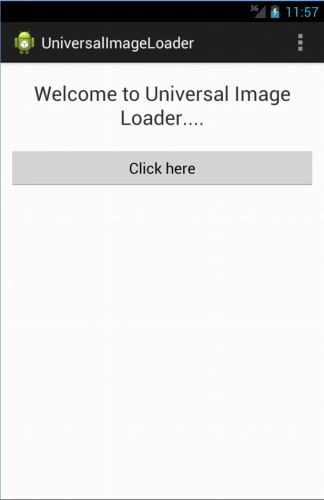
Open the "activity_main" layout file and add the following code to it:
  1. <ScrollView xmlns:android="http://schemas.android.com/apk/res/android"
  2. android:layout_width="fill_parent"
  3. android:layout_height="fill_parent" >
  4. <LinearLayout
  5. android:layout_width="fill_parent"
  6. android:layout_height="fill_parent"
  7. android:orientation="vertical" >
  8. <TextView
  9. android:layout_width="fill_parent"
  10. android:layout_height="wrap_content"
  11. android:gravity="center"
  12. android:paddingBottom="10dip"
  13. android:paddingTop="20dip"
  14. android:text="Welcome to Universal Image Loader...."
  15. android:textSize="24sp" />
  16. <Button
  17. android:layout_width="fill_parent"
  18. android:layout_height="wrap_content"
  19. android:layout_margin="10dip"
  20. android:onClick="listFunc"
  21. android:text="Click here" />
  22. </LinearLayout>
  23. </ScrollView>
Step 4
Create a layout for displaying the list of images in a list view. Right-click on layout then select "New" -> "Other" -> "Android" -> "Android Layout XML file". Name this file as "image_listview_layout" and add the following code to it:
  1. <ListView xmlns:android="http://schemas.android.com/apk/res/android"
  2. android:id="@android:id/list"
  3. android:layout_width="fill_parent"
  4. android:layout_height="fill_parent" />
Step 5
Right-click on layout then select "New" -> "Other" -> "Android" -> "Android Layout XML file". Name this file as "image_list_layout" and add the following code to it:
  1. <LinearLayout xmlns:android="http://schemas.android.com/apk/res/android"
  2. android:layout_width="fill_parent"
  3. android:layout_height="wrap_content" >
  4. <ImageView
  5. android:id="@+id/image"
  6. android:layout_width="85dip"
  7. android:layout_height="80dip"
  8. android:layout_margin="3dip"
  9. android:adjustViewBounds="true"
  10. android:scaleType="centerCrop" />
  11. <TextView
  12. android:id="@+id/text"
  13. android:layout_width="fill_parent"
  14. android:layout_height="wrap_content"
  15. android:layout_gravity="left|center_vertical"
  16. android:layout_marginLeft="20dip"
  17. android:textSize="22sp" />
  18. </LinearLayout>
Step 6
For providing a larger view on the image when the user selects that image from the list.
Right-click on layout then select "New" -> "Other" -> "Android" -> "Android Layout XML file". Name this file as "view_layout" and add the following code to it:
  1. <LinearLayout xmlns:android="http://schemas.android.com/apk/res/android"
  2. android:layout_width="match_parent"
  3. android:layout_height="match_parent"
  4. android:orientation="vertical" >
  5. <ImageView
  6. android:layout_width="300dp"
  7. android:layout_height="300dp"
  8. android:id="@+id/imFinal"
  9. android:layout_marginLeft="20dp"
  10. android:layout_marginRight="20dp"
  11. android:layout_marginTop="40dp"/>
  12. </LinearLayout>
Step 7
Open "MainActivity" and add the following code to it:
  1. package com.chhavi.universalimageloader;
  2. import android.app.Activity;
  3. import android.content.Intent;
  4. import android.os.Bundle;
  5. import android.view.Menu;
  6. import android.view.View;
  7. public class MainActivity extends Activity {
  8. @Override
  9. protected void onCreate(Bundle savedInstanceState) {
  10. super.onCreate(savedInstanceState);
  11. setContentView(R.layout.activity_main);
  12. }
  13. @Override
  14. public boolean onCreateOptionsMenu(Menu menu) {
  15. // Inflate the menu; this adds items to the action bar if it is present.
  16. getMenuInflater().inflate(R.menu.main, menu);
  17. return true;
  18. }
  19. public void listFunc(View view) {
  20. Intent i = new Intent(this, ListOfImages.class);
  21. startActivity(i);
  22. }
  23. }
Step 8
The following is for displaying the image list.
Right-click on your package name then select "New" -> "Class". Name it "ListOfImages" and add the following code to it:
  1. package com.chhavi.universalimageloader;
  2. import java.util.Collections;
  3. import java.util.LinkedList;
  4. import java.util.List;
  5. import android.app.Activity;
  6. import android.content.Context;
  7. import android.content.Intent;
  8. import android.os.Bundle;
  9. import android.view.View;
  10. import android.view.ViewGroup;
  11. import android.widget.AbsListView;
  12. import android.widget.AdapterView;
  13. import android.widget.BaseAdapter;
  14. import android.widget.ImageView;
  15. import android.widget.ListView;
  16. import android.widget.TextView;
  17. import com.nostra13.universalimageloader.core.DisplayImageOptions;
  18. import com.nostra13.universalimageloader.core.ImageLoader;
  19. import com.nostra13.universalimageloader.core.assist.ImageLoadingListener;
  20. import com.nostra13.universalimageloader.core.assist.SimpleImageLoadingListener;
  21. import com.nostra13.universalimageloader.core.display.RoundedBitmapDisplayer;
  22. public class ListOfImages extends Activity {
  23. protected AbsListView list;
  24. protected ImageLoader loader = ImageLoader.getInstance();
  25. final Context context=this;
  26. DisplayImageOptions op;
  27. String [] images={"http://t2.gstatic.com/images?q=tbn:ANd9GcSZrajzoEXNlRWjMGE9L3kqI1EsFN9P5HCNhMo4xaqLkWuhAixo","http://t0.gstatic.com/images?q=tbn:ANd9GcQH7hisM_szjOKlVdQvq6m_J4lETkWxQOlAk3SMWs051TFFnmWMCA","http://3.bp.blogspot.com/-kAhN0HX-MBk/T_5bApfhbJI/AAAAAAAAAuI/lUww8xT9yV8/s1600/smileys_001_01.png"};
  28. @Override
  29. public void onCreate(Bundle savedInstanceState) {
  30. super.onCreate(savedInstanceState);
  31. setContentView(R.layout.image_listview_layout);
  32. op = new DisplayImageOptions.Builder()
  33. .showStubImage(R.drawable.ic_stub)
  34. .showImageForEmptyUri(R.drawable.ic_empty)
  35. // .showImageOnFail(R.drawable.ic_error)
  36. .cacheInMemory()
  37. .cacheOnDisc()
  38. .displayer(new RoundedBitmapDisplayer(20))
  39. .build();
  40. list = (ListView) findViewById(android.R.id.list);
  41. ((ListView) list).setAdapter(new ItemAdapter());
  42. list.setOnItemClickListener(new AdapterView.OnItemClickListener() {
  43. @Override
  44. public void onItemClick(AdapterView<?> parent, View view, int position, long id) {
  45. //tartImagePagerActivity(position);
  46. Intent i=new Intent(context,SeperateView.class);
  47. i.putExtra("pos",position+"");
  48. startActivity(i);
  49. }
  50. });
  51. }
  52. @Override
  53. public void onBackPressed() {
  54. super.onBackPressed();
  55. }
  56. class ItemAdapter extends BaseAdapter {
  57. private class ViewHolder {
  58. public TextView text;
  59. public ImageView image;
  60. }
  61. @Override
  62. public int getCount() {
  63. return images.length;
  64. }
  65. @Override
  66. public Object getItem(int position) {
  67. return position;
  68. }
  69. @Override
  70. public long getItemId(int position) {
  71. return position;
  72. }
  73. @Override
  74. public View getView(final int position, View convertView, ViewGroup parent) {
  75. View v = convertView;
  76. final ViewHolder holder;
  77. if (convertView == null) {
  78. v = getLayoutInflater().inflate(R.layout.image_list_layout, parent, false);
  79. holder = new ViewHolder();
  80. holder.text = (TextView) v.findViewById(R.id.text);
  81. holder.image = (ImageView) v.findViewById(R.id.image);
  82. v.setTag(holder);
  83. } else {
  84. holder = (ViewHolder) v.getTag();
  85. }
  86. holder.text.setText("Item " + (position + 1));
  87. loader.displayImage(images[position], holder.image, op, null);
  88. return v;
  89. }
  90. }
  91. }
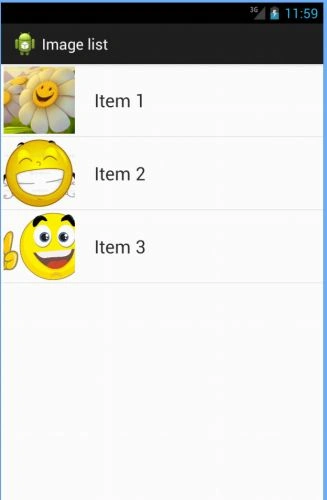
"images" is a string array that contains the list of image URL's. First, we have set the initial configurations of the image. "stub_image" is the image that will be displayed until the image from the URL is not loaded. In "getView()" we have set the content of the list view. You will need to paste the images that you want to use as a stub_image and the image used in "showImageForEmptyUri()" in your drawable folder.
Step 9
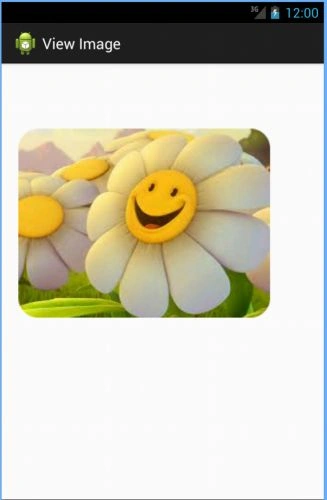
Create a class to provide a larger view of the image when selected by the user from the list.
Right-click on your package name then select "New" -> "Class". Name it "SeperateView" and add the following code to it:

  1. package com.chhavi.universalimageloader;
  2. import android.app.Activity;
  3. import android.content.Intent;
  4. import android.os.Bundle;
  5. import android.widget.ImageView;
  6. import com.nostra13.universalimageloader.core.DisplayImageOptions;
  7. import com.nostra13.universalimageloader.core.ImageLoader;
  8. import com.nostra13.universalimageloader.core.display.RoundedBitmapDisplayer;
  9. public class SeperateView extends Activity {
  10. DisplayImageOptions options;
  11. String [] imageUrls={"http://t2.gstatic.com/images?q=tbn:ANd9GcSZrajzoEXNlRWjMGE9L3kqI1EsFN9P5HCNhMo4xaqLkWuhAixo","http://t0.gstatic.com/images?q=tbn:ANd9GcQH7hisM_szjOKlVdQvq6m_J4lETkWxQOlAk3SMWs051TFFnmWMCA","http://3.bp.blogspot.com/-kAhN0HX-MBk/T_5bApfhbJI/AAAAAAAAAuI/lUww8xT9yV8/s1600/smileys_001_01.png"};
  12. protected ImageLoader imageLoader = ImageLoader.getInstance();
  13. protected void onCreate(Bundle savedInstanceState) {
  14. super.onCreate(savedInstanceState);
  15. setContentView(R.layout.view_layout);
  16. ImageView im=(ImageView)findViewById(R.id.imFinal);
  17. options = new DisplayImageOptions.Builder()
  18. .showStubImage(R.drawable.ic_stub)
  19. .showImageForEmptyUri(R.drawable.ic_empty)
  20. //.showImageOnFail(R.drawable.ic_error)
  21. .cacheInMemory()
  22. .cacheOnDisc()
  23. .displayer(new RoundedBitmapDisplayer(20))
  24. .build();
  25. Intent i=getIntent();
  26. int pos=Integer.parseInt(i.getStringExtra("pos"));
  27. imageLoader.displayImage(imageUrls[pos], im, options, null);
  28. }
  29. }
Step 10
Open "AndroidManifest" and apply the following changes:
  1. <manifest xmlns:android="http://schemas.android.com/apk/res/android"
  2. package="com.chhavi.universalimageloader"
  3. android:versionCode="1"
  4. android:versionName="1.0" >
  5. <uses-permission android:name="android.permission.INTERNET" />
  6. <uses-sdk
  7. android:minSdkVersion="8"
  8. android:targetSdkVersion="17" />
  9. <application
  10. android:name="com.chhavi.universalimageloader.App"
  11. android:allowBackup="true"
  12. android:icon="@drawable/ic_launcher"
  13. android:label="@string/app_name"
  14. android:theme="@style/AppTheme" >
  15. <activity
  16. android:name="com.chhavi.universalimageloader.MainActivity"
  17. android:label="@string/app_name" >
  18. <intent-filter>
  19. <action android:name="android.intent.action.MAIN" />
  20. <category android:name="android.intent.category.LAUNCHER" />
  21. </intent-filter>
  22. </activity>
  23. <activity
  24. android:name="com.chhavi.universalimageloader.ListOfImages"
  25. android:label="Image list" />
  26. <activity
  27. android:name="com.chhavi.universalimageloader.SeperateView"
  28. android:label="View Image" />
  29. </application>
  30. </manifest>
Output snapshots:
im1.jpg
On button click:
im2.jpg
Note you will see the stub_image until a URL image is loaded.
Clicking Item 1:
im3.jpg
Clicking Item 2:
im4.jpg
Clicking Item 5:
im5.jpg
Thank you..... Enjoy coding :)