

What are we going to do?
Very often we will have to integrate the external line of business systems with our database. In the case of SQL Server, we have the options like Linked Server to connect to other databases. SharePoint integration is one such integration scenario. SharePoint is the most popular Content Management System from Microsoft, which has its back end in SQL Server. However, we cannot directly modify SharePoint SQL Server database directly from SQL Server Management Studio or using other SQL transactions, as it is strictly unsupported by Microsoft.
We will try to cover the scenario, where we have to update SharePoint list with the data whenever a new record is created in a SQL Server table. There are SharePoint specific solutions like business connectivity Services, which can be used to achieve this, but we will see how to create SQL Server specific solutions to accomplish this requirement. The solution is designed such that
- Whenever a new item is created in SQL Server table, a CLR Trigger is invoked from SQL Server. It will get the inserted values from Inserted Magic table and pass it to a .Net Console application.
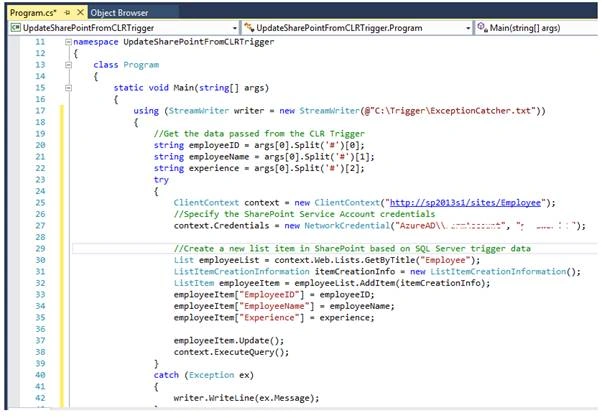
- The Console Application is invoked from the CLR Trigger. It will retrieve the inserted values as command line arguments and use SharePoint Client Side Object Model library to update SharePoint list.
A quick over view of the upcoming action
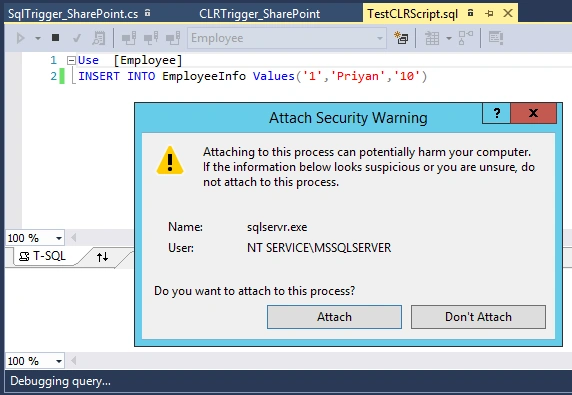
User inserts a new row, as shown below.
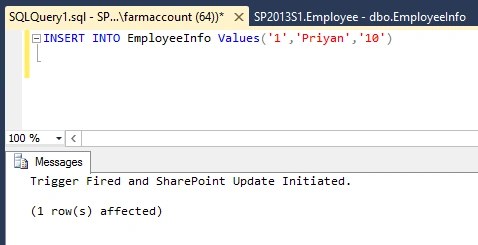
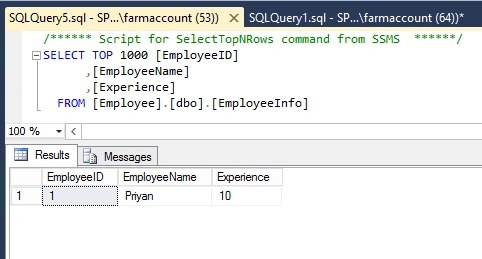
A new row is created in SQL Server and it invokes the trigger to update SharePoint via a Console Application.
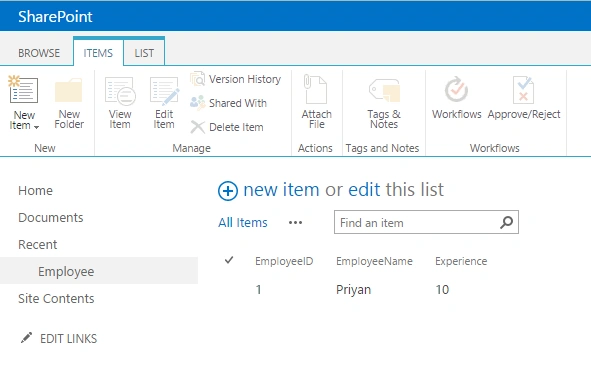
SharePoint Client Object Model updates SharePoint List with CLR Trigger data from SQL.
Let’s get started.
SQL Server Table Design
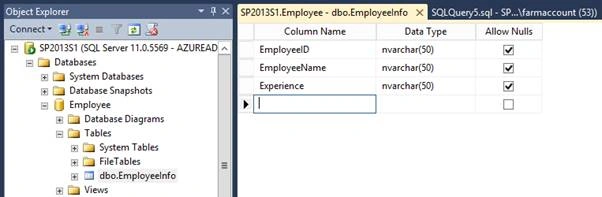
We will be using EmployeeInfo table, which is present in the database Employee to perform the implementation walk through.
SharePoint List Design
SharePoint List is named Employee, which has the same columns as SQL Server table.
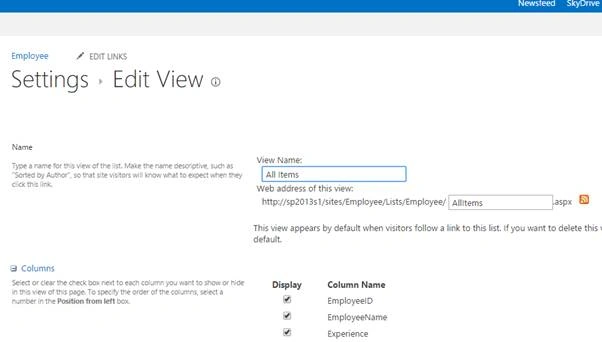
Create the SQL CLR Trigger
As the first step, we will create SQL CLR Trigger, using SQL Server database project template.
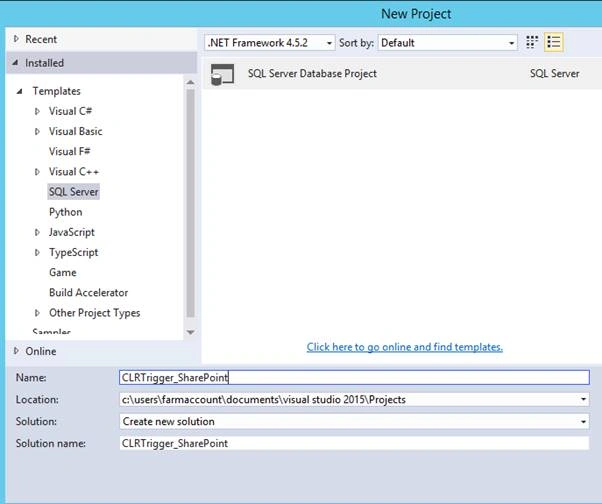
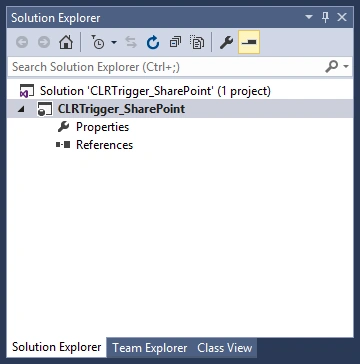
Initially, the solution structure will look, as shown below.
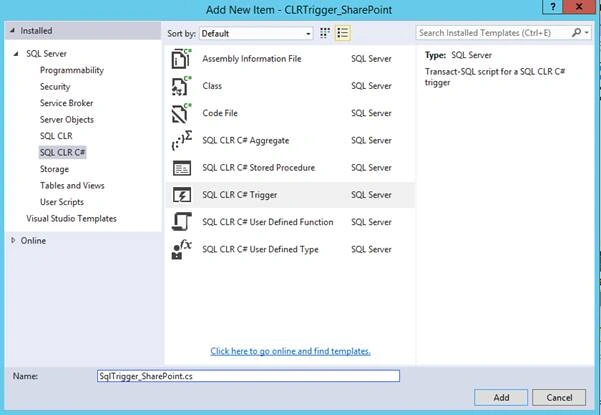
Right click the solution and add a new item – SQL CLR C# Trigger.
This will create a new class file with the below default code base. As you can see line number 9 is commented out by default. We can make use of this line to attach the trigger to a specific table in SLQ Server database.
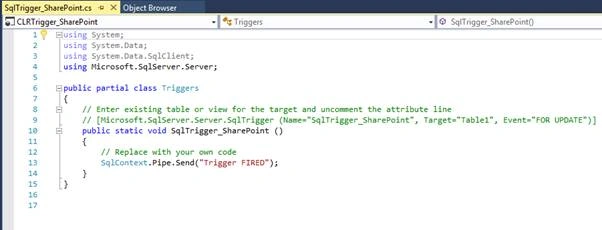
In the Target Parameter we can specify the table name. By default the Event is set to trigger on Update. However in the coming section, we will change it to trigger on an Insert Event. For the time being let’s keep it as it is. Once we test the basic trigger functionality, we will make the Event Change.
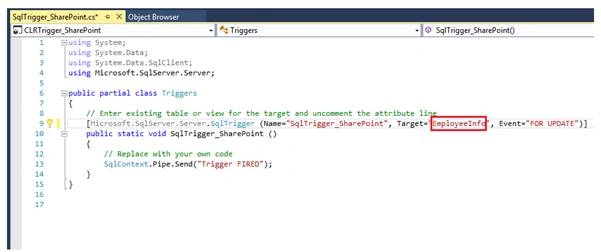
Resolve CLR Trigger Build Issues
Before making further changes, we have to make sure the build is successful. However, we will get the table reference unresolved error given below.
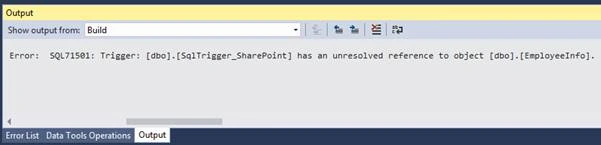
This is because we will have to import a copy of the database to our solution to get started working with CLR Trigger on a particular database table. In order to do this, we will temporarily comment out the line number 9, as shown below.
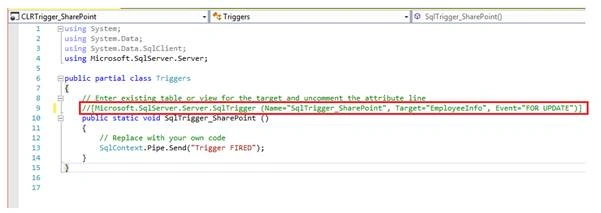
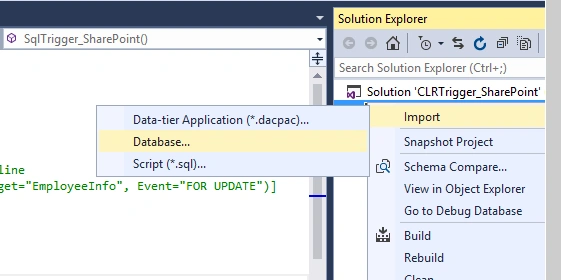
Now, let’s import the database copy by right clicking the solution.
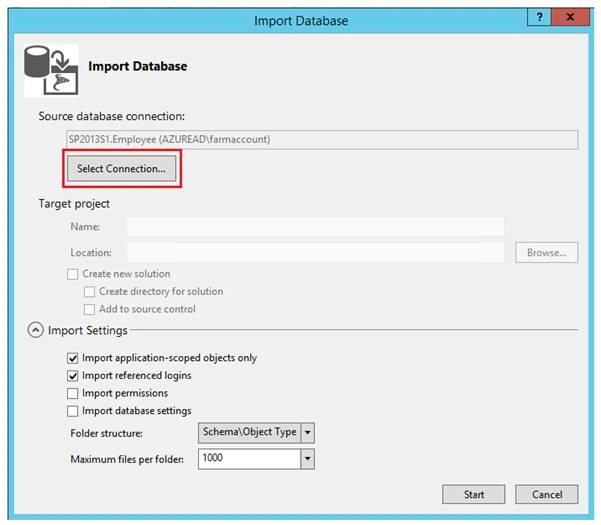
Specify the connection from the Import Database Window.
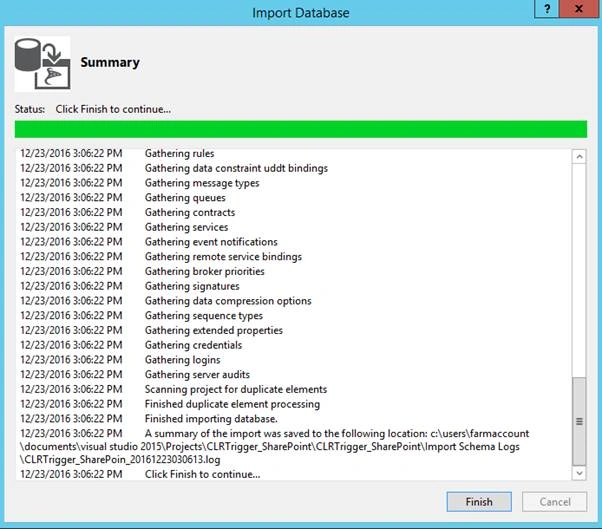
Once done, click Finish.
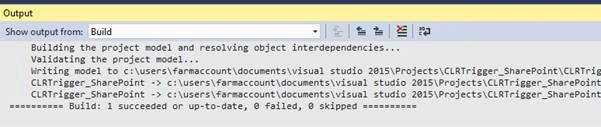
Now, let's uncomment line number 9, which we had commented out earlier. If we try to rebuild the solution, it will be successful.
Publish the CLR Trigger
If we need to get CLR Trigger to SQL Server database, we have to publish the trigger.
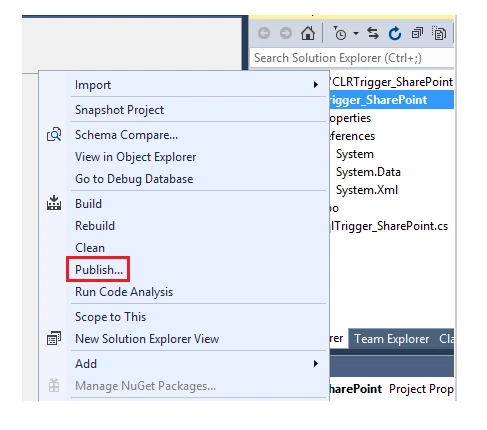
While clicking on Publish, we will get the Window, where we can specify the database connection.
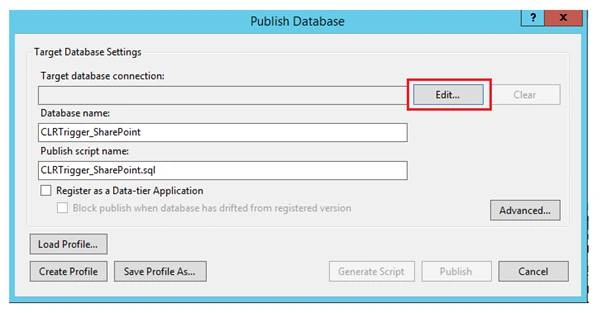
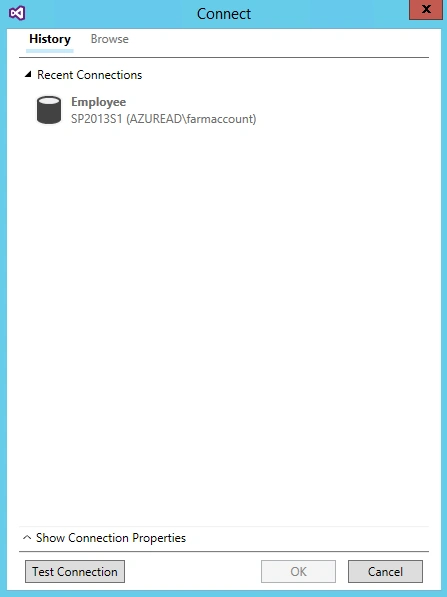
We can either use an existing connection or create a new one.
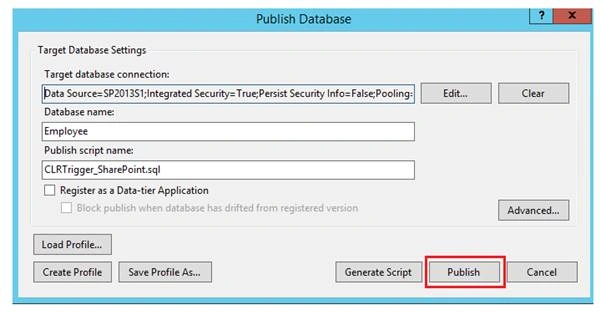
Click Publish to deploy CLR Trigger assembly to SQL Server.
Most likely, we will get the error shown below, if there is a target platform mismatch.

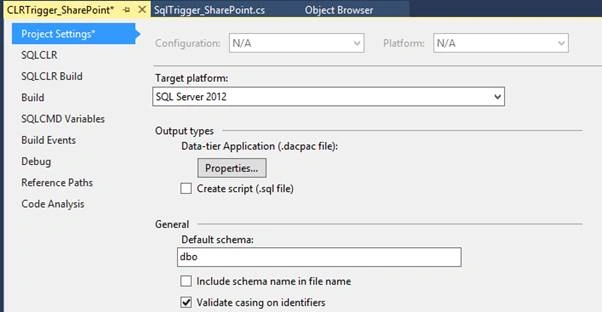
From project settings, change the target SQL Server platform to the desired one.
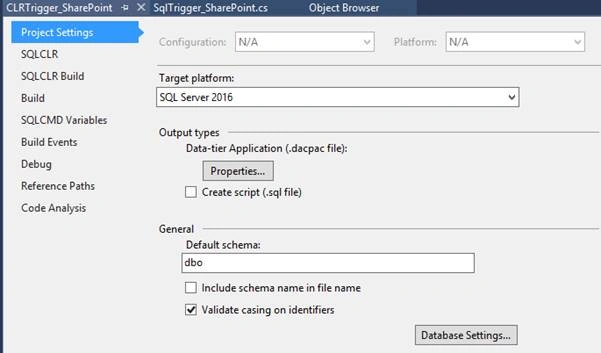
We have changed it from SQL Server 2016 to SQL Server 2012.
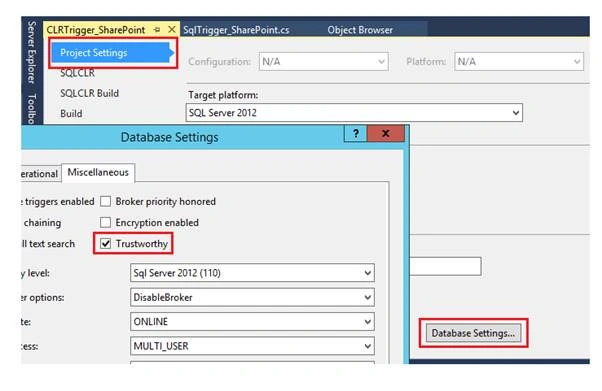
In the same Window from the database settings, select the ‘Trustworthy’ Check box.
Also, set the permission level to UNSAFE in SQLCLR tab.
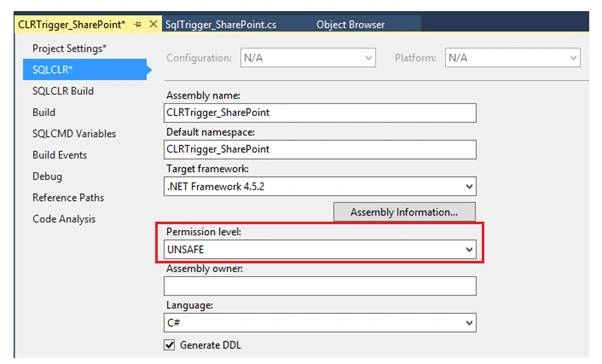
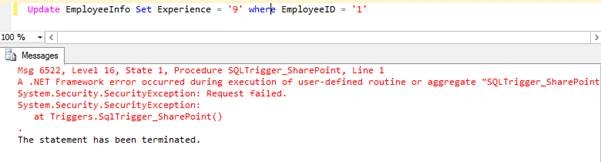
This step is done to prevent Security exceptions, as shown below from happening.
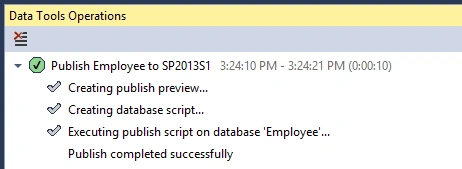
Now, redo the publishing and we can see that the publishing has succeeded this time.
Quick Test of CLR Trigger
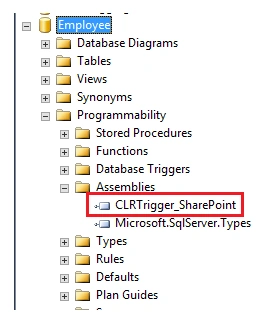
Heading over to the Employee database, we can see that the assembly is successfully deployed to SQL Server.
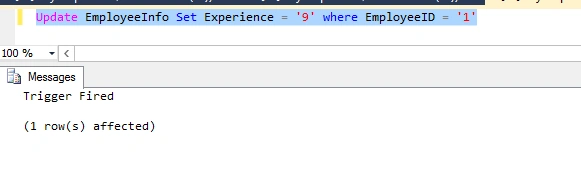
Let’s try to quickly test the basic CLR functionality, which responds to update events. Thus, we can see CLR Trigger is working with the default settings, which is given below.
Now, we will have to update CLR Trigger code, change the event to inserted and we will write our custom logic.
Update the CLR Trigger with Custom Logic
Set the event parameter to ‘FOR INSERT’. Now, we will have to create SQL Connection object and Command object, followed by retrieving the values that are inserted into SQL Server table. These will be present in the Inserted Magic table. Once the data is retrieved we will pass these values as command line arguments to a .NET Console Application which we will be creating in the upcoming section.
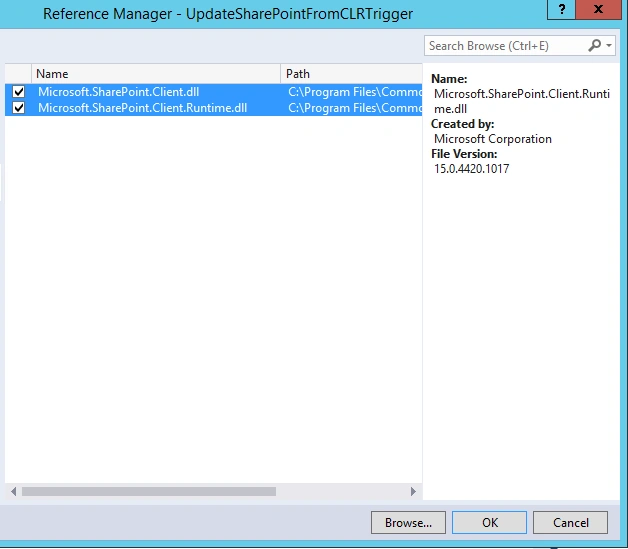
So the obvious question gets asked, why we can’t write SharePoint Update Logic in the same CLR Trigger solution? The reason why we are creating a separate console application is to perform SharePoint operation is because it requires SharePoint DLLs, which are not supported in SQL CLR Trigger. Though we can register unsupported assemblies using CREATE ASSEMBLY statements, SharePoint assemblies will face issues, during registration. The only option is to pass the data from the trigger to a different console application and do SharePoint specific operations in that Application.
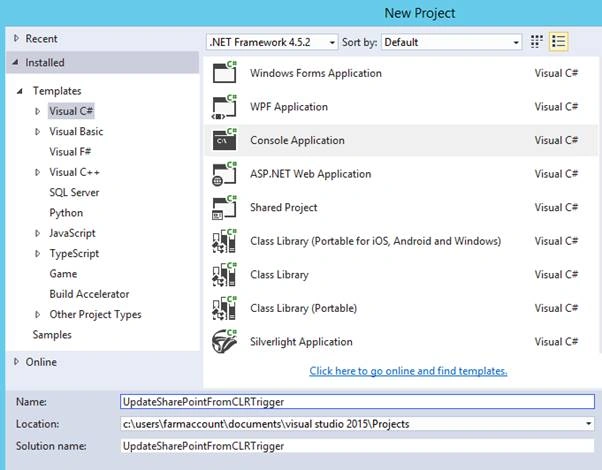
The starting of the Console Application process is relatively simple, as we just have to specify the location of the EXE file (In our case, we will be calling the console Application, which we are going to implement as ‘UpdateSharePointFromCLRTrigger.exe’).
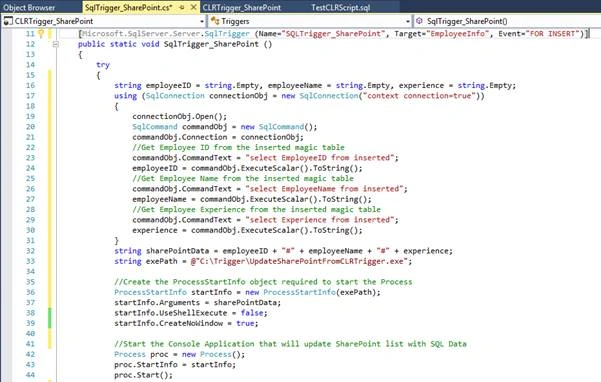
Full Code for CLR Trigger
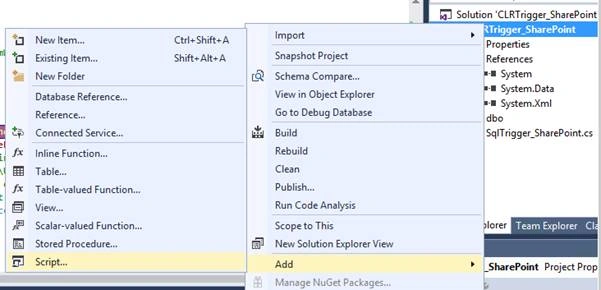
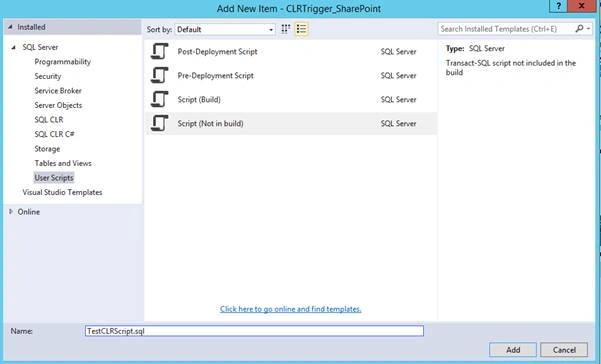
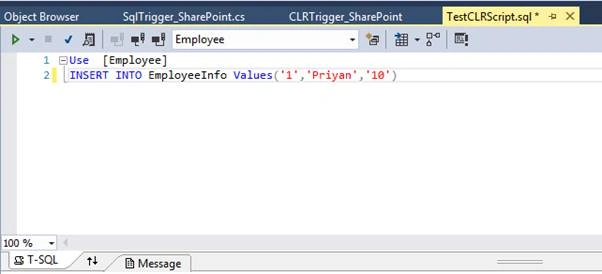
Roger HecklyPosted Jun 26, 2019, 9:14 AM
Hi I wrote some CLR's in SQL 2008 to read data from Sharepoint 2013. Now we have to upgrade SQL 2008 to 2016 or 2019. But my CLR's are not working anymore, because the .Net DLL's are not SQL 2016 and higher compatible.So therefore my question is, did you use the CLR's on SQL 2016 and higher to connect also a Sharepoint 2013? Does this work? My goal is to deploy again a assembly in SQL 2016 and higher to be able to select from Sharepoint 2013 List, Update Items, modify some items and column settings (values of multiple choice fields) etc. Any idea about this?
Madhanmohan DevarajanPosted Dec 27, 2016, 4:18 PM
Just want to understand is this recommended way to update SharePoint from SQL server?