Overview
Today, we will see how to upload the files -- that may be Word files, PDFs, Zip files etc. -- save them in the SQL database, retrieve these files, and download these files. This code is useful when you need to upload the various documents in an organization, perhaps to process the document, news etc., and other users will need to download these files to see the content. To see the content that you have uploaded, you have to save it in Binary format. Let's start,

Step 1: Let's create a table first
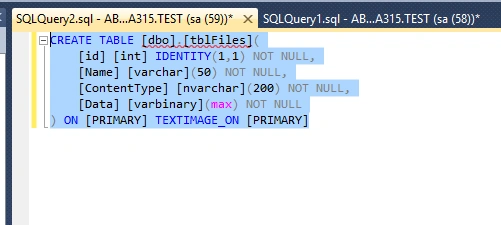
- CREATE TABLE [dbo].[tblFiles](
- [id] [int] IDENTITY(1,1) NOT NULL,
- [Name] [varchar](50) NOT NULL,
- [ContentType] [nvarchar](200) NOT NULL,
- [Data] [varbinary](max) NOT NULL
- ) ON [PRIMARY] TEXTIMAGE_ON [PRIMARY]
Step 2: Open Visual Studio
Open Visual Studio File->New Website, as shown below:
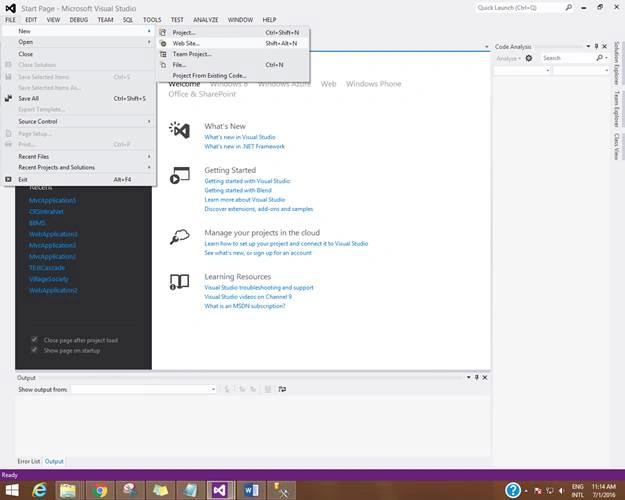
Select ASP.NET empty Website and give the suitable name as DocumentSaveInBinary, as shown below:
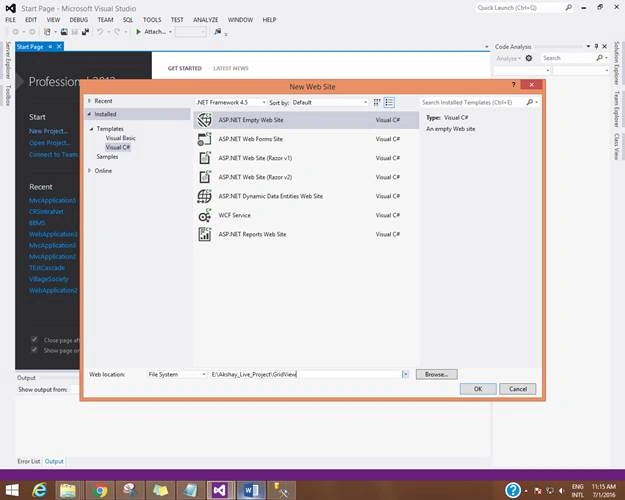
Now let's create FileUpload Control, as shown below:

- <asp:FileUpload ID="FileUpload1" runat="server" />
- <asp:Button ID="btnUpload" runat="server" Text="Upload" OnClick="Upload" CssClass="btn-primary" />
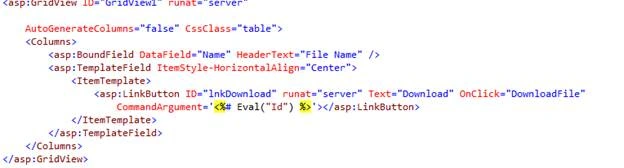
Now, let's create Gridview with download link button so that we can download the respective documents or the files, shown below:
- <asp:GridView ID="GridView1" runat="server"
-
- AutoGenerateColumns="false" CssClass="table">
- <Columns>
- <asp:BoundField DataField="Name" HeaderText="File Name" />
- <asp:TemplateField ItemStyle-HorizontalAlign="Center">
- <ItemTemplate>
- <asp:LinkButton ID="lnkDownload" runat="server" Text="Download" OnClick="DownloadFile"
- CommandArgument='<%# Eval("Id") %>'></asp:LinkButton>
- </ItemTemplate>
- </asp:TemplateField>
- </Columns>
- </asp:GridView>
Here, you will see that inside Gridview <asp:BoundField/> is used, that shows HeaderText as FileName in the Gridview. In that <Itemtemplate></Itemtemplate> inside Itemtemplate, you need to bind Link button with ID=”lnkDownload” OnClick=”DownloadFile”.
Thus, my final Document.aspx code is as follows:
- <%@ Page Language="C#" AutoEventWireup="true" CodeFile="DocumentUpload.aspx.cs" Inherits="_Default" %>
-
- <!DOCTYPE html PUBLIC "-//W3C//DTD XHTML 1.0 Transitional//EN" "http://www.w3.org/TR/xhtml1/DTD/xhtml1-transitional.dtd">
- <html xmlns="http://www.w3.org/1999/xhtml">
- <head id="Head1" runat="server">
- <title></title>
- <link rel="Stylesheet" href="Styles/bootstrap.min.css" style="" />
- <link rel="Stylesheet" href="Styles/bootstrap.css" />
- </head>
- <body>
- <form id="form1" runat="server">
- <div class="container">
- <asp:FileUpload ID="FileUpload1" runat="server" />
- <asp:Button ID="btnUpload" runat="server" Text="Upload" OnClick="Upload" CssClass="btn-primary" />
- <hr />
- <asp:GridView ID="GridView1" runat="server"
-
- AutoGenerateColumns="false" CssClass="table">
- <Columns>
- <asp:BoundField DataField="Name" HeaderText="File Name" />
- <asp:TemplateField ItemStyle-HorizontalAlign="Center">
- <ItemTemplate>
- <asp:LinkButton ID="lnkDownload" runat="server" Text="Download" OnClick="DownloadFile"
- CommandArgument='<%# Eval("Id") %>'></asp:LinkButton>
- </ItemTemplate>
- </asp:TemplateField>
- </Columns>
- </asp:GridView>
- </div>
- </form>
- </body>
- </html>
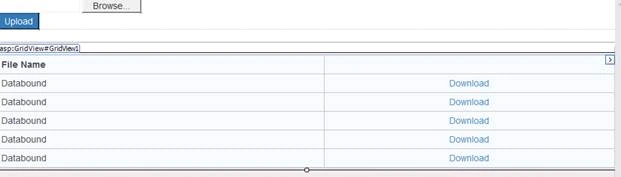
Our final design looks as shown below:
 Step 3: Now let's see the CS Code Part
First include the connection string in web.config file, as shown below:
- <connectionStrings>
- <add name="constr" providerName="System.Data.SQlClient" connectionString="Data Source=AB-NPC1-D1A315;Initial Catalog=TEST;User ID=sa;Password=p@ssw0rd"/>
- </connectionStrings >
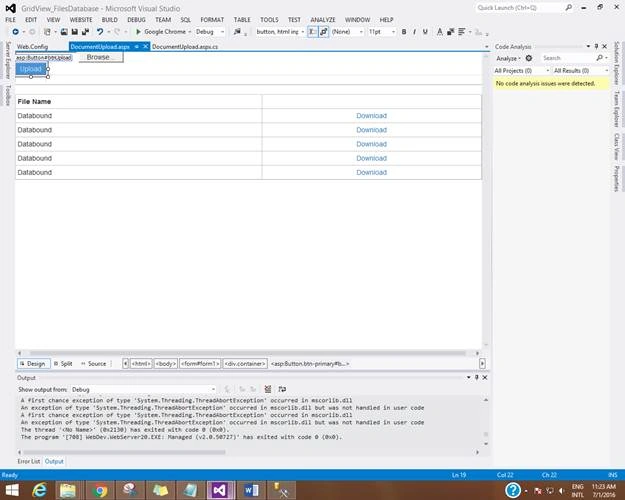
Now, we will see the first Action button upload, followed by the code to upload the files and finally save in the database.
Our file upload code is shown below:
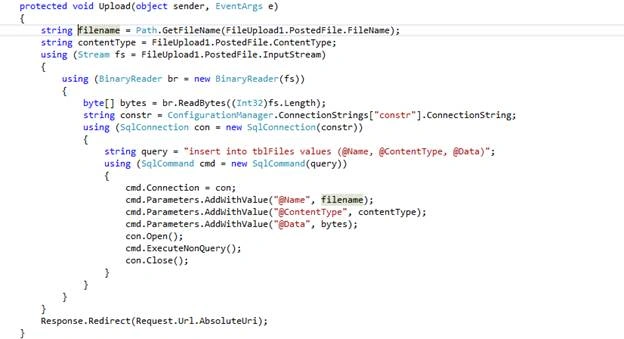
As you see in the code, mentioned above, understand what we are saving in the table FileName, Contentype. Here, the content types are Words, PDF, image and so on. Thus, we are saving the posted file in the binary format by using Stream as a posted file, which you had uploaded in Fileupload control and convertedthat file in BinaryReader, as shown below:
- using (Stream fs = FileUpload1.PostedFile.InputStream)
- {
- using (BinaryReader br = new BinaryReader(fs))
- {
- byte[] bytes = br.ReadBytes((Int32)fs.Length);
- byte[] bytes = br.ReadBytes((Int32)fs.Length);
-
- string constr = ConfigurationManager.ConnectionStrings["constr"].ConnectionString;
- using (SqlConnection con = new SqlConnection(constr))
- {
- string query = "insert into tblFiles values (@Name, @ContentType, @Data)";
- using (SqlCommand cmd = new SqlCommand(query))
- {
- cmd.Connection = con;
- cmd.Parameters.AddWithValue("@Name", filename);
- cmd.Parameters.AddWithValue("@ContentType", contentType);
- cmd.Parameters.AddWithValue("@Data", bytes);
- con.Open();
- cmd.ExecuteNonQuery();
- con.Close();
- }
- }
- }
- }
This is used to insert the document in the database by using cmd.Parameters.AddWithValue(“@FieldName”,FileName),
- Similarly, we will write the code for the download, as we had created on the click in the Gridview, as shown below:
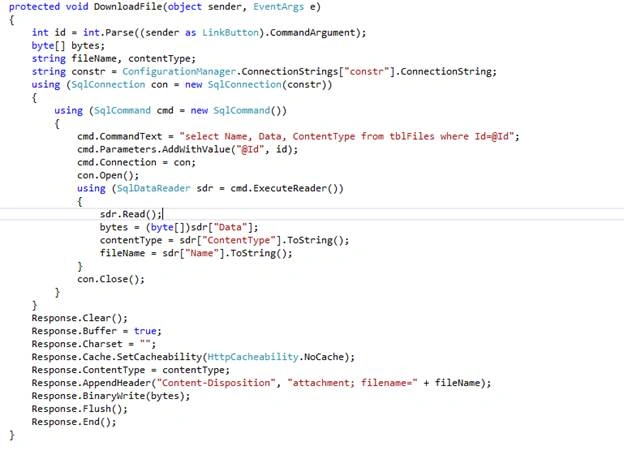
Here, what we are doing in DownloadFile is, you are actually reading the bytes which you had saved in the database.
Now we will bind the Gridview, as shown below:
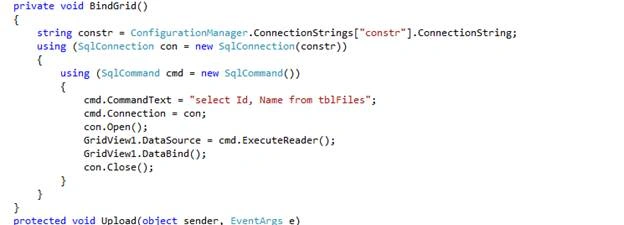
Hence, my final CS code is shown below:
- using System;
- using System.Web;
- using System.Web.Security;
- using System.Web.UI;
- using System.Web.UI.WebControls;
- using System.Web.UI.WebControls.WebParts;
- using System.Web.UI.HtmlControls;
- using System.IO;
- using System.Data;
- using System.Data.SqlClient;
- using System.Configuration;
-
-
- public partial class _Default : System.Web.UI.Page
- {
-
- protected void Page_Load(object sender, EventArgs e)
- {
- if (!IsPostBack)
- {
- BindGrid();
- }
- }
- private void BindGrid()
- {
- string constr = ConfigurationManager.ConnectionStrings["constr"].ConnectionString;
- using (SqlConnection con = new SqlConnection(constr))
- {
- using (SqlCommand cmd = new SqlCommand())
- {
- cmd.CommandText = "select Id, Name from tblFiles";
- cmd.Connection = con;
- con.Open();
- GridView1.DataSource = cmd.ExecuteReader();
- GridView1.DataBind();
- con.Close();
- }
- }
- }
- protected void Upload(object sender, EventArgs e)
- {
- string filename = Path.GetFileName(FileUpload1.PostedFile.FileName);
- string contentType = FileUpload1.PostedFile.ContentType;
- using (Stream fs = FileUpload1.PostedFile.InputStream)
- {
- using (BinaryReader br = new BinaryReader(fs))
- {
- byte[] bytes = br.ReadBytes((Int32)fs.Length);
- string constr = ConfigurationManager.ConnectionStrings["constr"].ConnectionString;
- using (SqlConnection con = new SqlConnection(constr))
- {
- string query = "insert into tblFiles values (@Name, @ContentType, @Data)";
- using (SqlCommand cmd = new SqlCommand(query))
- {
- cmd.Connection = con;
- cmd.Parameters.AddWithValue("@Name", filename);
- cmd.Parameters.AddWithValue("@ContentType", contentType);
- cmd.Parameters.AddWithValue("@Data", bytes);
- con.Open();
- cmd.ExecuteNonQuery();
- con.Close();
- }
- }
- }
- }
- Response.Redirect(Request.Url.AbsoluteUri);
- }
- protected void DownloadFile(object sender, EventArgs e)
- {
- int id = int.Parse((sender as LinkButton).CommandArgument);
- byte[] bytes;
- string fileName, contentType;
- string constr = ConfigurationManager.ConnectionStrings["constr"].ConnectionString;
- using (SqlConnection con = new SqlConnection(constr))
- {
- using (SqlCommand cmd = new SqlCommand())
- {
- cmd.CommandText = "select Name, Data, ContentType from tblFiles where Id=@Id";
- cmd.Parameters.AddWithValue("@Id", id);
- cmd.Connection = con;
- con.Open();
- using (SqlDataReader sdr = cmd.ExecuteReader())
- {
- sdr.Read();
- bytes = (byte[])sdr["Data"];
- contentType = sdr["ContentType"].ToString();
- fileName = sdr["Name"].ToString();
- }
- con.Close();
- }
- }
- Response.Clear();
- Response.Buffer = true;
- Response.Charset = "";
- Response.Cache.SetCacheability(HttpCacheability.NoCache);
- Response.ContentType = contentType;
- Response.AppendHeader("Content-Disposition", "attachment; filename=" + fileName);
- Response.BinaryWrite(bytes);
- Response.Flush();
- Response.End();
- }
- }
- Just run the Application and debug on the action events to see the FileUpload and its content, as shown below:
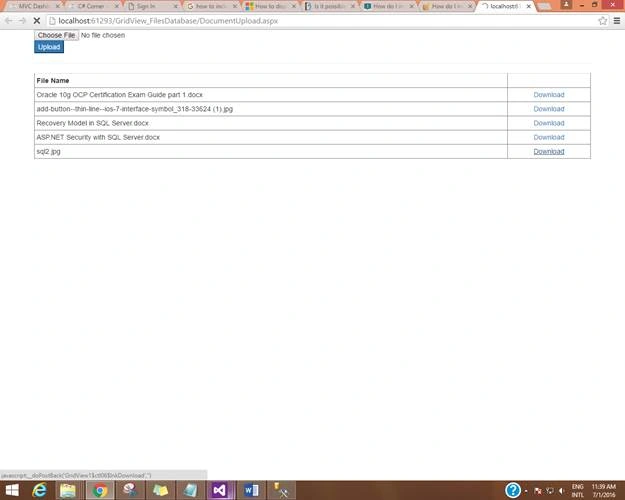
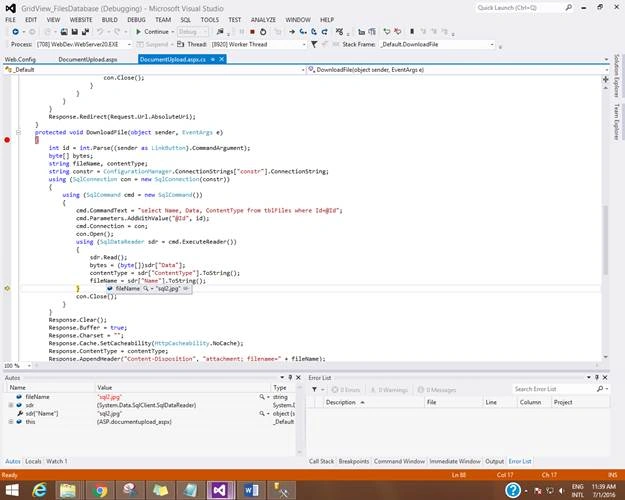
You will see the file name which we had downloaded.
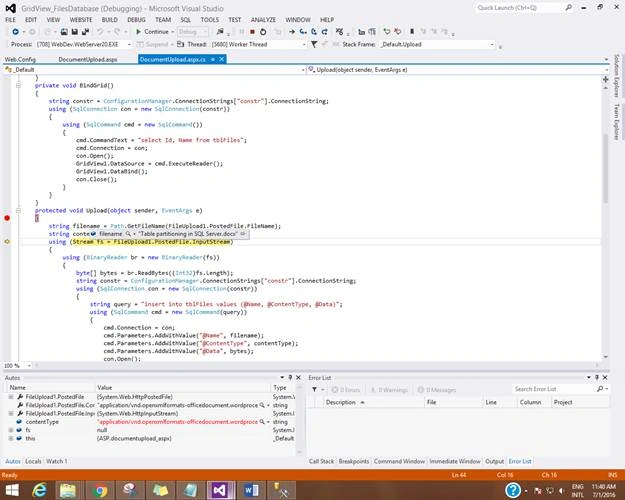
Now let's see the upload, as shown below:
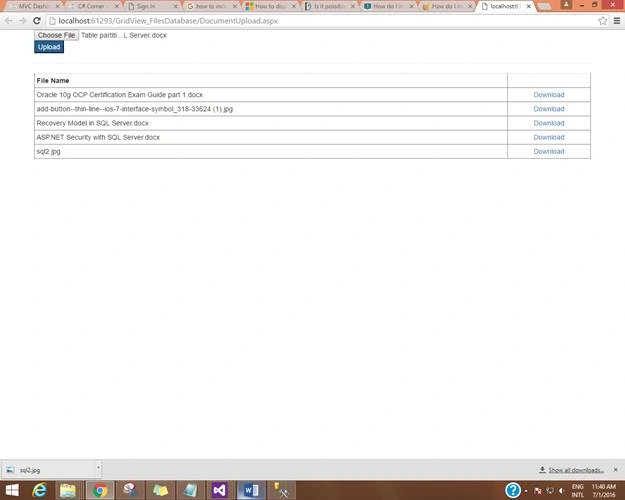
We got the file name, as shown below:
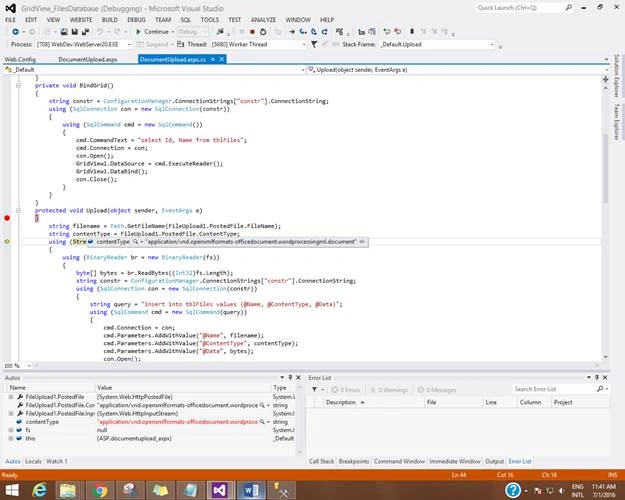
Content Type is shown below:
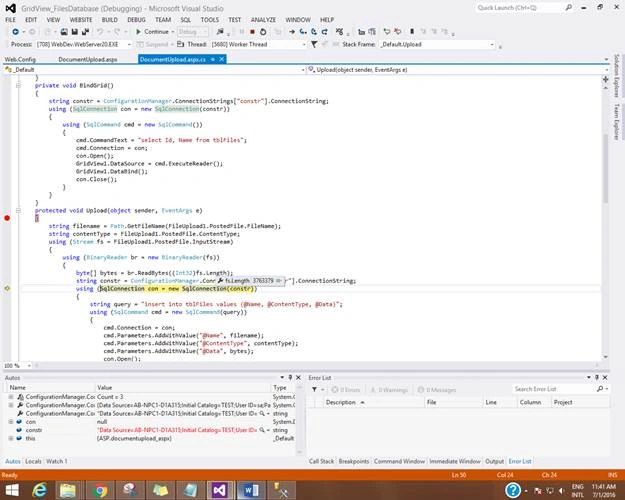
Let's see the length of that document which is depicted below:
Now we will see what we have successfully uploaded.
 Conclusion
This article was about uploading the files in the database and saving them in a binary format. I hope this article was helpful.


Masoud EntezariPosted Aug 15, 2023, 5:06 PM
In the download section, only the Firefox browser recognizes the file format, and other browsers such as Google Chrome download the file, but it does not recognize the file type. How to solve this problem?
Artur KasprzakPosted Apr 27, 2020, 4:43 AM
In webMethod we cannot use Response. How deal with that?
anas ashrafPosted Aug 3, 2018, 3:54 PM
Great article
Rohit JoshiPosted Jul 9, 2018, 4:56 AM
Nice & useful Info sir..!
Shobana JPosted Jul 7, 2016, 7:01 AM
Nice share
Akshay PhadkePosted Jul 5, 2016, 4:03 PM
Michael GriffithsVignesh Mani Thanyou :)
Michael GriffithsPosted Jul 4, 2016, 1:34 PM
Nice
Vignesh ManiPosted Jul 4, 2016, 11:09 AM
Nice