

Introduction
In modern cloud-based applications, storing files securely and scalably is essential. Whether it's profile images, invoices, PDFs, or logs — cloud storage is the go-to solution.
In this article, we will learn how to:
What is Azure Blob Storage?
Create Azure Blob Storage
Configure it in a .NET 8 Web API
Test using Swagger
We will use:
.NET 8 Web API
Azure Blob Storage
Azure Portal
What is Azure Blob Storage?
Microsoft provides a service called Azure Blob Storage—a massively scalable object storage solution for storing unstructured data in the cloud.
Unstructured data means data that does not fit into traditional relational databases, such as
Images
PDFs
Videos
Logs
Backups
Understanding Object Storage
Storage Account
Top-level resource in Azure.
Acts like a global namespace for your data.
Container
Similar to a folder (logical grouping of blobs).
Blob
Actual file stored in Azure.
Example:
https://mystorage.blob.core.windows.net/invoices/invoice1.pdf
Types of Azure Blob Storage
Block Blob (Most Common)
Block blobs store data as blocks, which are uploaded independently and then committed together.
Each block:
Can be uploaded separately
Can be re-uploaded if failed
Supports parallel upload
Best For: Images, Videos, Documents
Append Blob
Append blobs are optimized for append operations only.
You can add data to the end.
Not modify existing data.
Not delete specific blocks.
Best For: Logging systems, Audit trails
Page Blob
Page blobs store data in 512-byte pages.
Can be read/written randomly
Supports random access
Ideal for frequent read/write operations
Best For: Virtual machine disks (VHD files), Databases
Create Azure Blob Storage
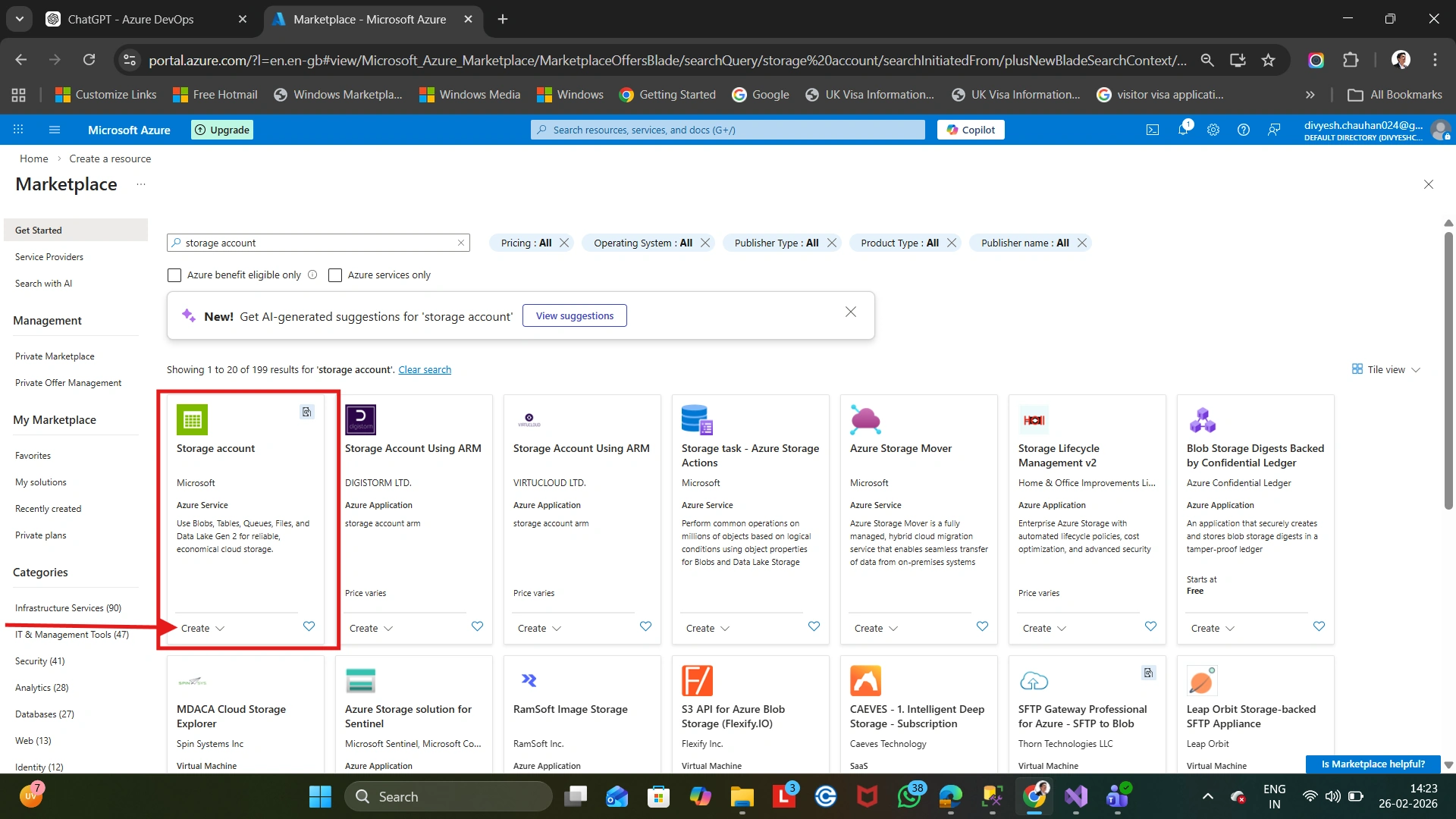
Go to Azure Portal → Create Resource → Storage Account
Important Settings
Performance → Standard
Redundancy → LRS (Low-cost option)
Region → Choose nearest

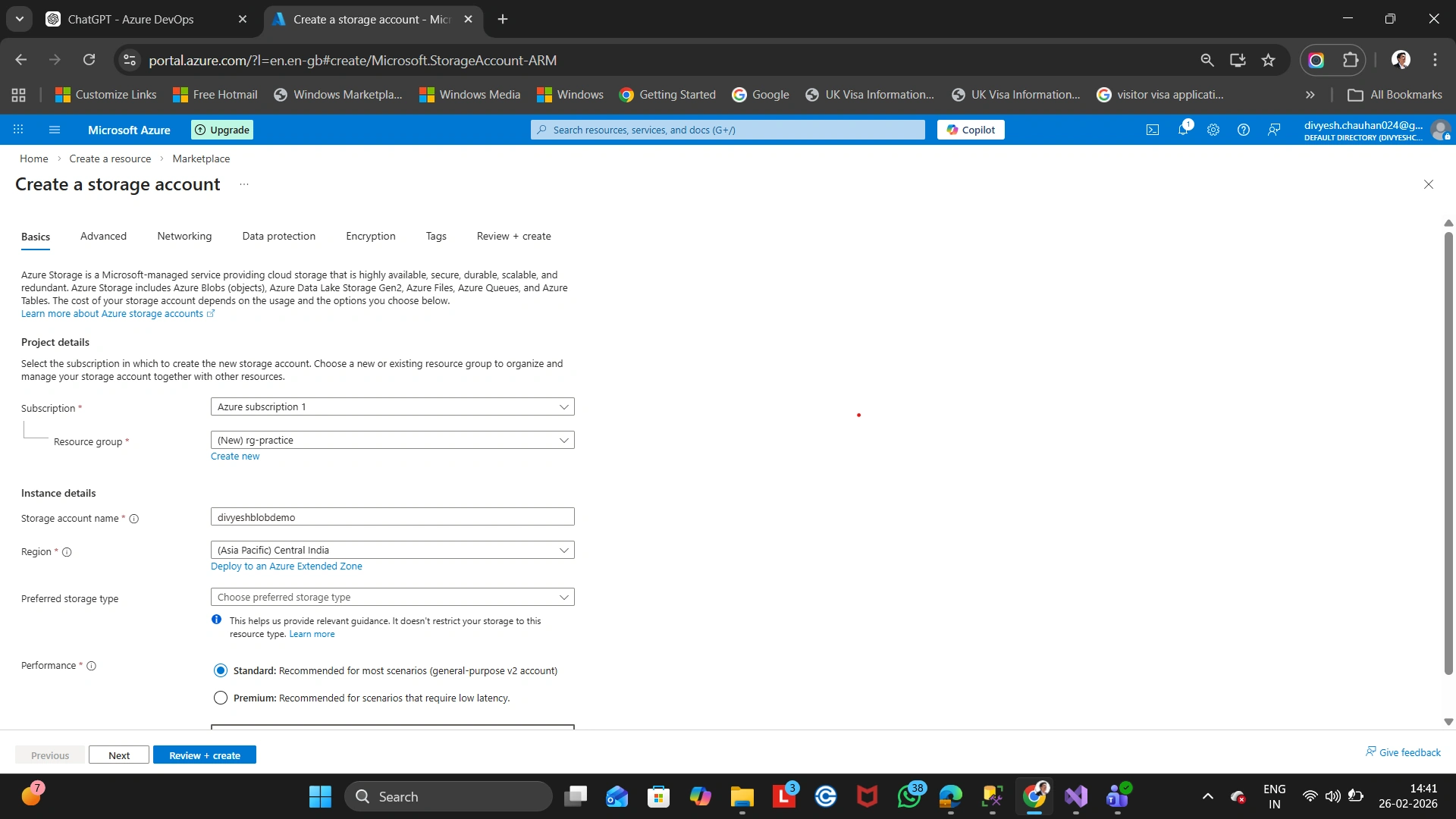
After creation:
Go to Containers
Create a new container
Set access level (Private recommended)

Configure it in a .NET 8 Web API
Get Connection String
Go to:
Storage Account → Access Keys → Copy Connection String

Never hardcode in production. Use:
appsettings.json (for development)
Azure Key Vault (for production)
Create .NET 8 Web API
Install NuGet package:
dotnet add package Azure.Storage.BlobsAdd Connection String in appsettings.json
{
  "AzureBlobStorage": {
    "ConnectionString": "YOUR_CONNECTION_STRING",
    "ContainerName": "uploads"
  }
}
Create Blob Service : BlobService.cs
using Azure.Storage.Blobs;

public class BlobService
{
    private readonly BlobContainerClient _containerClient;

    public BlobService(IConfiguration configuration)
    {
        var connectionString = configuration["AzureBlobStorage:ConnectionString"];
        var containerName = configuration["AzureBlobStorage:ContainerName"];

        var blobServiceClient = new BlobServiceClient(connectionString);
        _containerClient = blobServiceClient.GetBlobContainerClient(containerName);
    }

    public async Task<string> UploadFileAsync(IFormFile file)
    {
        var blobClient = _containerClient.GetBlobClient(file.FileName);

        using (var stream = file.OpenReadStream())
        {
            await blobClient.UploadAsync(stream, overwrite: true);
        }

        return blobClient.Uri.ToString();
    }
}
Register Service in Program.cs
builder.Services.AddScoped<BlobService>();Create Controller
using Microsoft.AspNetCore.Mvc;

[ApiController]
[Route("api/[controller]")]
public class UploadController : ControllerBase
{
    private readonly BlobService _blobService;

    public UploadController(BlobService blobService)
    {
        _blobService = blobService;
    }

    [HttpPost]
    public async Task<IActionResult> Upload(IFormFile file)
    {
        if (file == null || file.Length == 0)
            return BadRequest("File not selected");

        var result = await _blobService.UploadFileAsync(file);
        return Ok(new { FileUrl = result });
    }
}
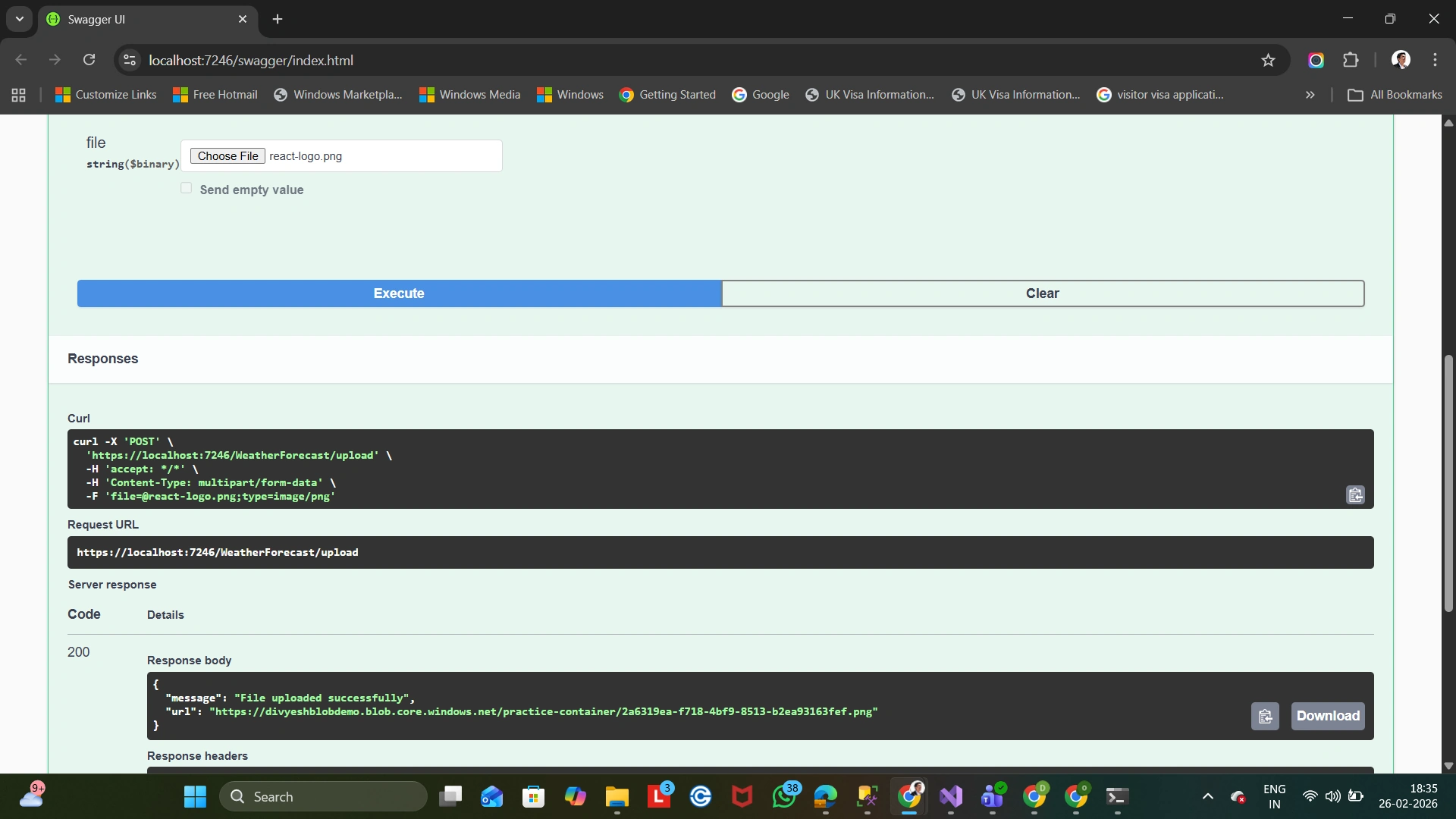
Test using Swagger
Run the application: Open Swagger → Upload file → Click Execute

Conclusion
Uploading files to Azure Blob Storage using .NET 8 is:
Simple
Scalable
Secure
Production-ready
This approach works perfectly with:
Azure App Service
Azure Functions
Microservices Architecture
Thank you so much for reading this article.
Happy coding!!
Join the conversation! Your thoughts help the community grow.