

First create your website using WordPress then for your design work you can use Google Webmaster tools.
Google Webmaster tools help your website find user searches on Google depending on your website content. It is used to add an index of your website in the Google web listing and maximize your SEO.
Now open this web link.
You can add Google Webmaster in one of the following two ways:
- Manually
- Plugins
1. Manually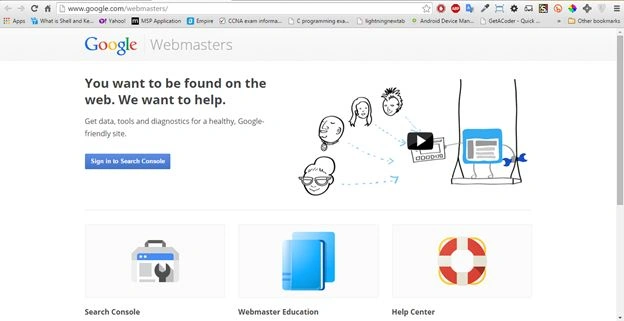
Now sign in with your Gmail Account then write your website URL in the input box.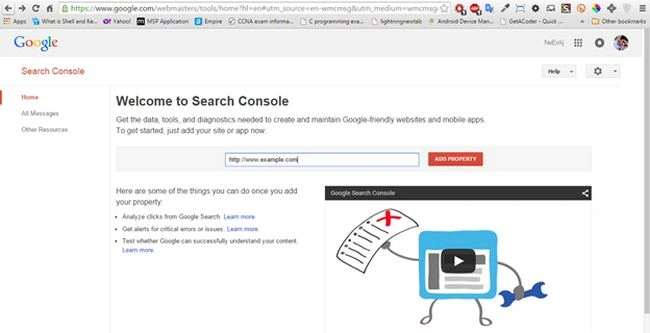
Click on Add Property.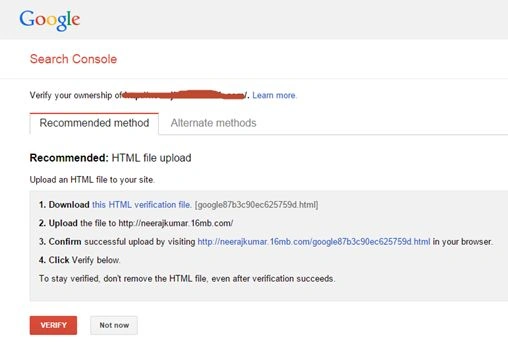
A. Recommended Method
The recommended method is to download a HTML file and upload it into the root directory of the website.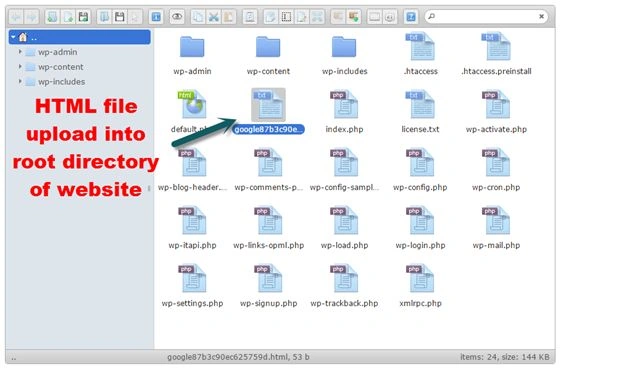
After uploading the file click on the verify button in the webmaster page.
B. Alternate Method
Google Webmaster provides four type alternate methods but you can easily use the HTML tag method. Other methods are mainly another field of Website Domain. So always use the standard method or HTML tag method.
So choose HTML tag Method.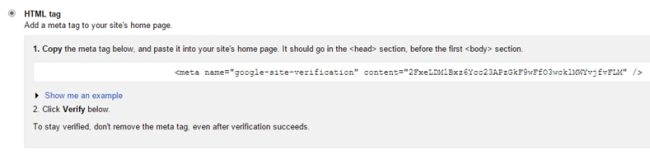
Copy this meta tag and open your website <head> tag in the header.php file.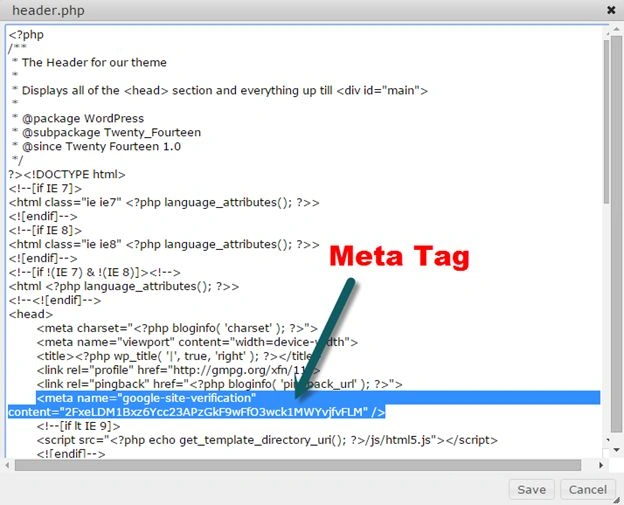
Save this file and click on the verify button on the Google Webmaster page.
You got successfully verified the page as in the following: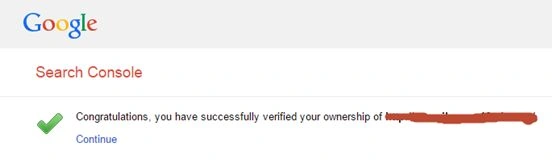
Now click on Continue and you will then see a Search Console page. Here you can check your website search appearance and the traffic and indexing of your website.
Now we move to the second method for using the Google Webmaster tools without any uploading HTML page and Meta Tag.
2. Plugins
This way you can use in only WordPress Plugins.
First open the page http://< main website url >/wp-admin/plugin-install.php in wordpress
Search Google Webmaster Tool. Many result will be shown on the screen. Install any plugin that provides the best user interface for your user. I will Install the first Plugin, “Verify Google Webmaster Tools” and activate it.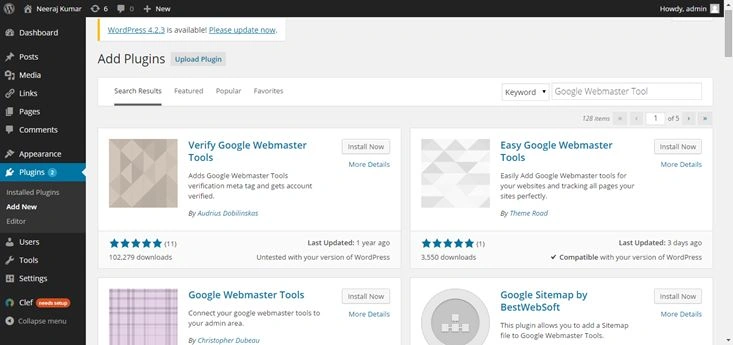
To open the link go to Setting => Google Webmaster Tools and paste your meta tag into the textarea. Now click on Save Changes so you can verify from the Google Webmaster page and use the Google Webmaster facility from the webmaster page. Some other WordPress plugins provide more functionality then the Webmaster.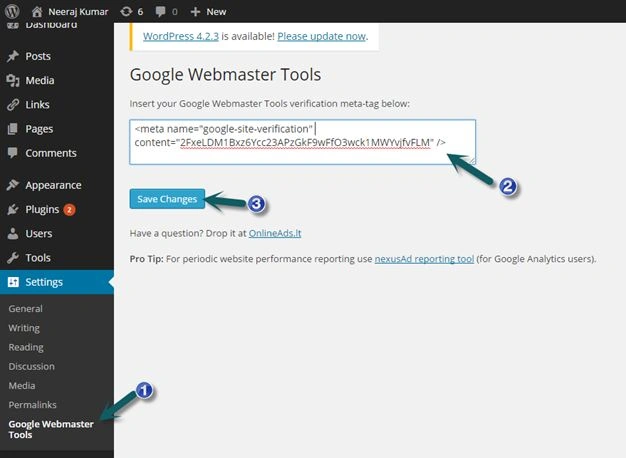
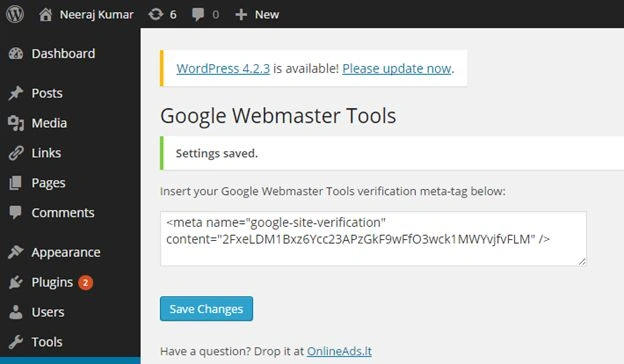
I hope this article will help you for your website searching using Google Webmaster.
Thiruppathi RPosted May 31, 2017, 3:59 AM
Thanks for sharing...
Santhakumar MunuswamyPosted Aug 2, 2015, 2:32 AM
Thanks for sharing
Neeraj KumarPosted Aug 1, 2015, 11:59 AM
Thank you Rajeesh Menoth , Gopi Chand , Rakesh Chavda , Pankaj Kumar Choudhary , Ankit Bansal & Abhishek Jaiswal :)
Abhishek JaiswalPosted Aug 1, 2015, 11:14 AM
Informative! :)
Ankit BansalPosted Aug 1, 2015, 11:10 AM
nice share.. I was looking for this... thanks
Pankaj Kumar ChoudharyPosted Aug 1, 2015, 10:26 AM
Nice Article neeraj...........
RakeshPosted Aug 1, 2015, 8:23 AM
Nice share
Gopi ChandPosted Aug 1, 2015, 5:38 AM
Very informative
Rajeesh MenothPosted Aug 1, 2015, 1:20 AM
Thanks for sharing..good one also...
Neeraj KumarPosted Aug 1, 2015, 1:18 AM
Thank you Nilesh Jadav
Nilesh JadavPosted Aug 1, 2015, 12:53 AM
Nice one Neeraj Kumar sir