
Using task list can track your daily activities, assign task to team members, track due date for daily activities, etc.
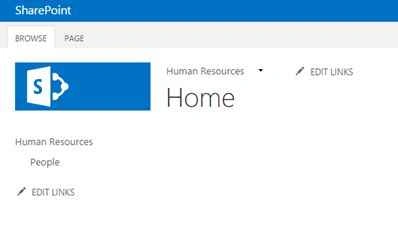
Open SharePoint site.
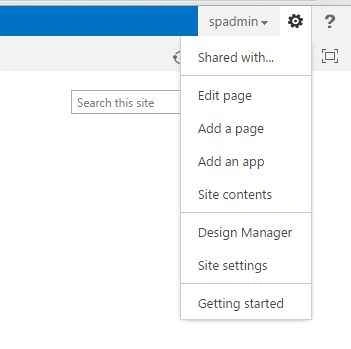
Click Site settings and Add an app.
Click on Task app to create.

Provide the name for the task list.
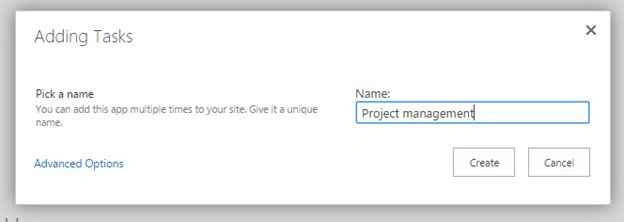
Click Create.
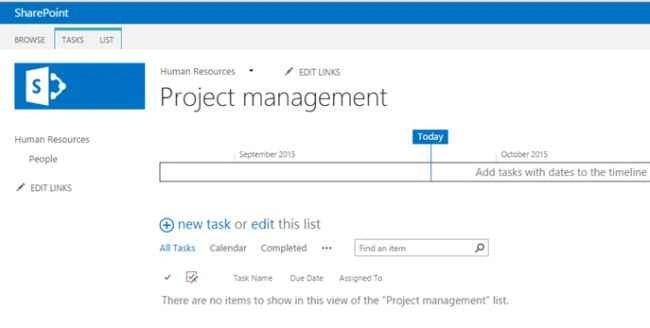
So the new task list has been created successfully.

So here's the task list with timeline. In SharePoint 2013 we have a timeline feature in the task list to track your daily task activities.
Now I am going to assign a task to my team member.
Click on new task.

Provide the name for the task.

Provide the task start date and due date.
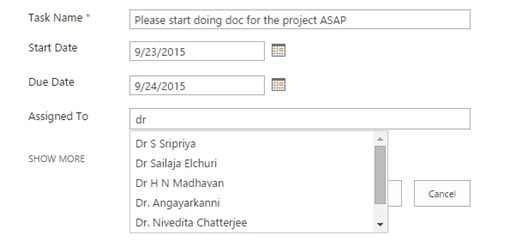
Assigned to ‘Assign the task to any of your team member’.
Percentage completed and the default will be ‘0’ as in the following screenshot:

Set priority to Low, High, Normal.

Update the status of the task.

Click Save.
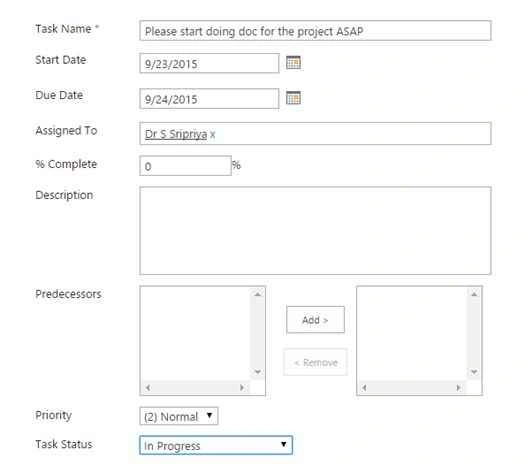
Provide description if u needed and add predecessors.
So the new task has been assigned successfully.

No I will change the view to view my tasks, so it will help you see the task assigned to you.
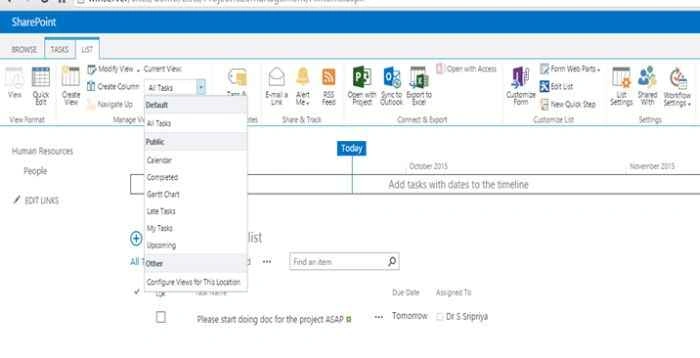
Click on My Tasks.
Now I am logged in as a different user and you are now able to see your task details.
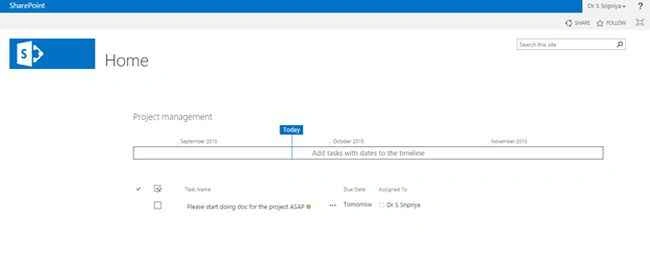
Also view your task details on ‘calendar view’.

Add to timeline.
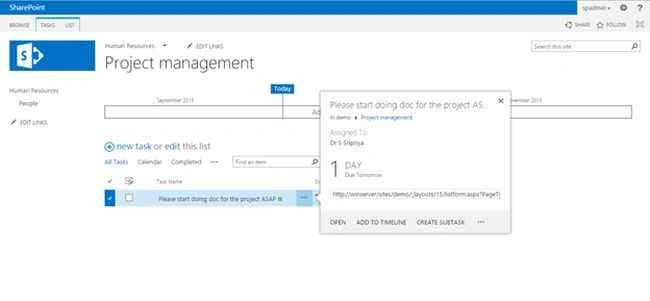
Click on ADD TO TIMELINE.
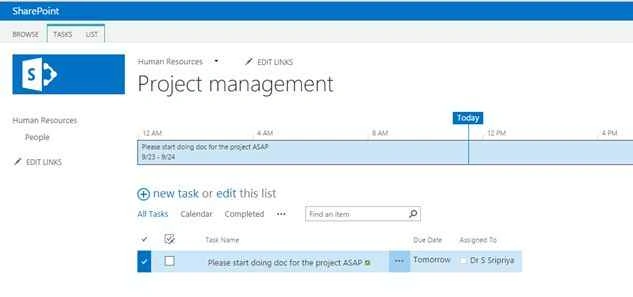
So now the task has been added into the timeline successfully.

Create And Use Task List In SharePoint 2013
Join the conversation! Your thoughts help the community grow.
Sign in to leave a comment
It is the same account you read, post and publish with — and you will come straight back to this page.
Santhakumar MunuswamyPosted Sep 26, 2015, 12:25 PM
Nice share
Vinodh NarayananPosted Sep 24, 2015, 2:25 AM
Sibeesh Venu Thanks a lot
Sibeesh VenuPosted Sep 24, 2015, 2:18 AM
Nice Share
Vinodh NarayananPosted Sep 23, 2015, 8:43 AM
Thanks a lot Ankit Bansal
Ankit BansalPosted Sep 23, 2015, 8:42 AM
thanks for sharing..
Vinodh NarayananPosted Sep 23, 2015, 5:11 AM
Thanks a lotHarshad Pansuriya
Harshad PansuriyaPosted Sep 23, 2015, 4:59 AM
Nice One]